
Your tasks
Your tasks lists the documentation work that waits for you, across every product: drafts to review or approve, drafts to finish, and the sections assigned to you to write or to review. The bell in the top right corner tells you what happened on the documents you write and review, and on your Profile page you choose which of these updates reach you by e-mail.
Open your tasks
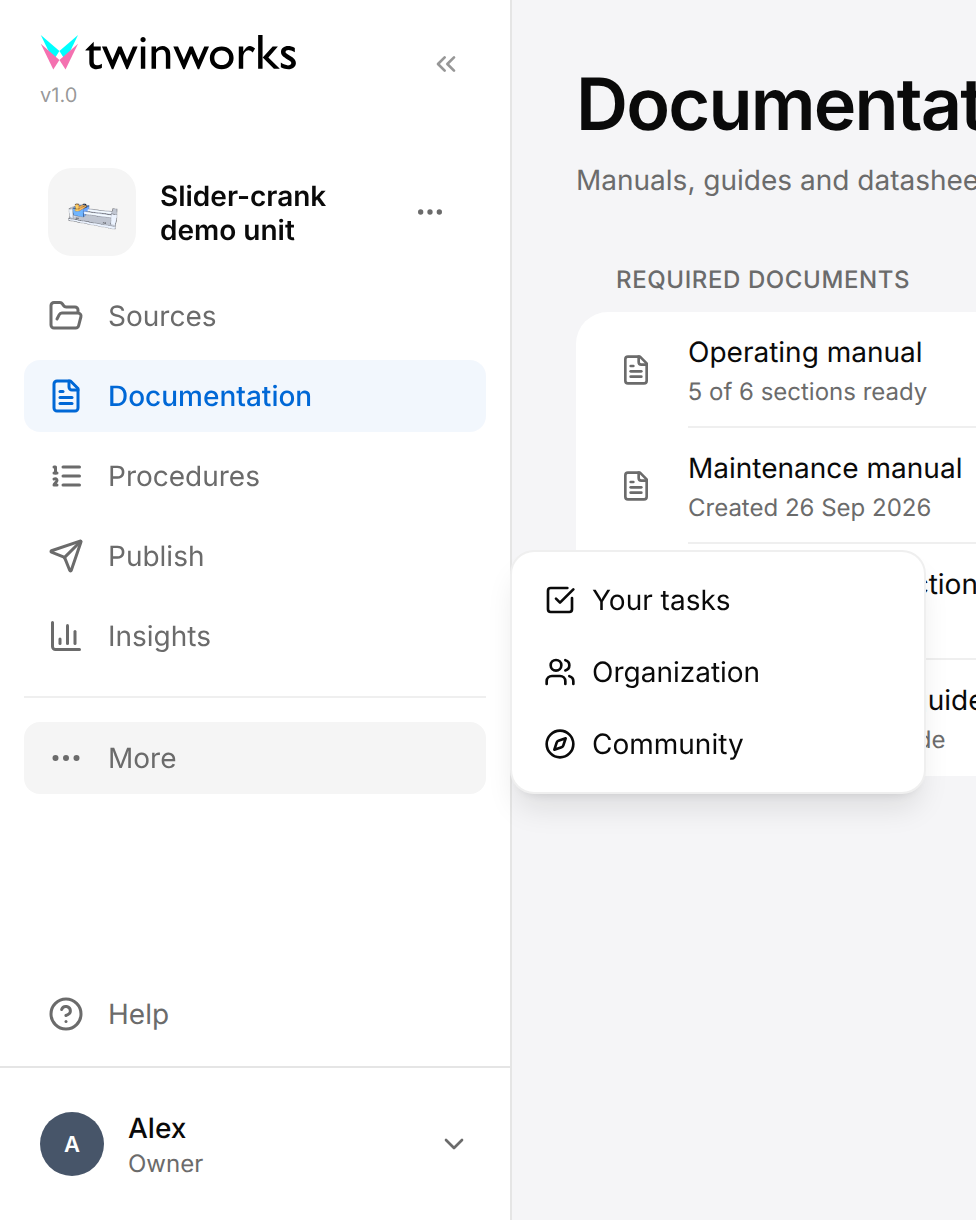
In the sidebar, select Your tasks. Inside a product the sidebar lists the sections of the product instead: select More, then Your tasks. On a phone or in a small window, select the Open menu button (three lines) at the top, then Your tasks.
What the page lists
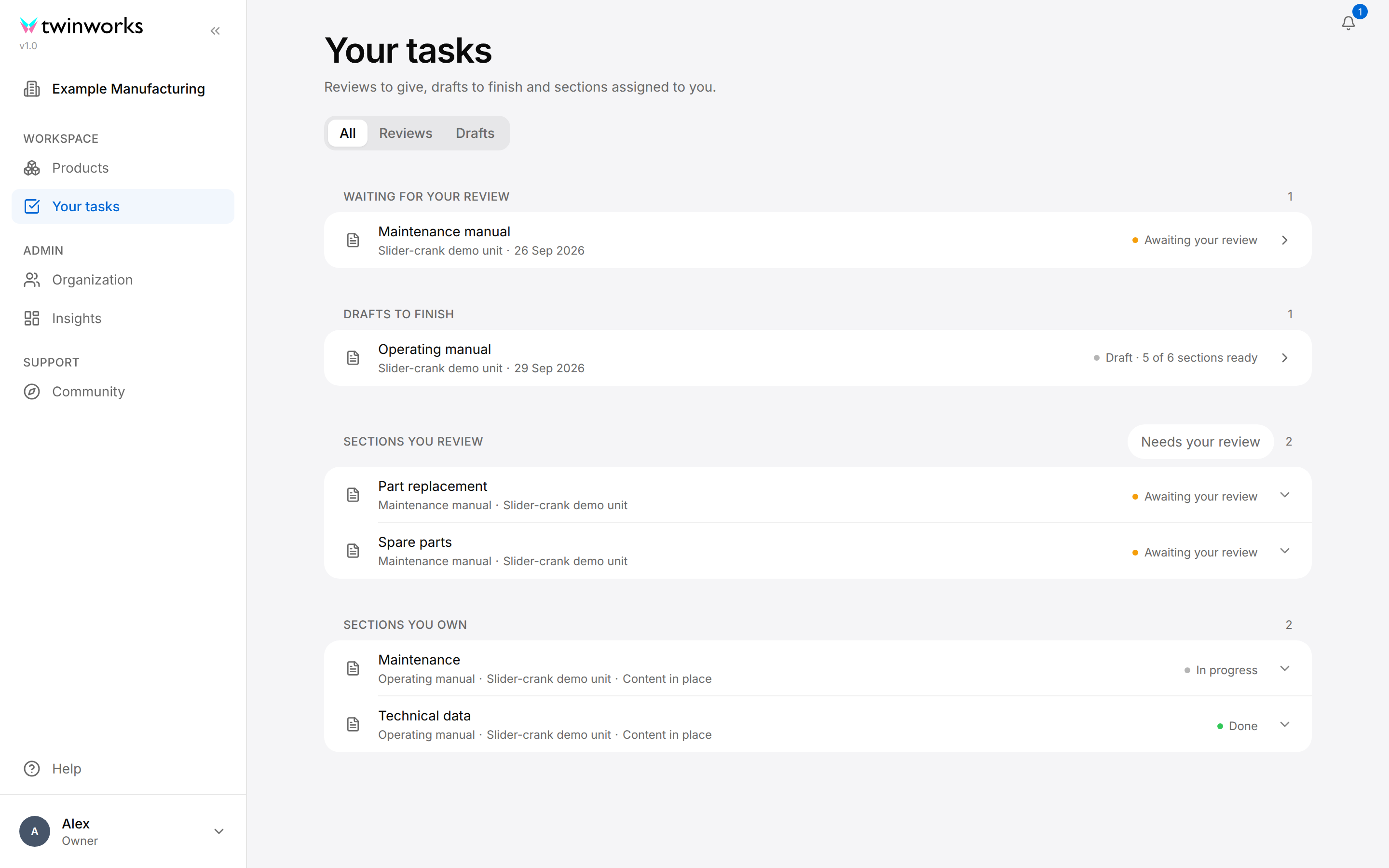
The page has up to four groups. A group appears only when it has at least one row. The number at the right of its label is the number of rows.
| Group | What it lists | Who gets it |
|---|---|---|
| Waiting for your review | Drafts that were submitted for review, and drafts that a reviewer endorsed as fit for approval and that wait to be approved | Managers and Reviewers |
| Drafts to finish | Drafts that are still being written, and drafts for which changes were requested in review | Managers, Authors and Reviewers |
| Sections you review | Sections of a document assigned to you as reviewer | The person the section is assigned to |
| Sections you own | Sections of a document assigned to you as owner | The person the section is assigned to |
The two groups of drafts are worked out from the state of each draft and from your role. A draft is listed for everyone whose role is named in the table, not only for the person who created it. A Reviewer gets a draft under Waiting for your review also when the sections of its document are assigned to other reviewers and none to that Reviewer, who can then read the draft and comment on it, but cannot request changes, endorse or approve it (see Review and publish). Approved and rejected drafts are not listed. A Viewer cannot write or review and cannot be assigned a section, so no task is listed for a Viewer.
Your role is the one you hold in the organization. The person who first opens the Documentation section of a product manages the documentation of that product, even when their role is Author or Reviewer: this is how the Owner gets their tasks there.
The two groups of sections follow the assignments a Manager makes in the documentation of a product: see Documentation.
The tabs under the title filter the page:
- All shows every group.
- Reviews shows Waiting for your review and Sections you review.
- Drafts shows Drafts to finish and Sections you own.
Drafts that wait for you
A row of the first two groups is a draft. It shows the title of the draft, under it the product and the date the draft was created, and at the right a status. In each group the newest draft comes first.

| Status | Group | What it means |
|---|---|---|
| Awaiting your review | Waiting for your review | The draft was submitted for review. |
| Awaiting your approval | Waiting for your review | A reviewer endorsed the draft. It waits for a Reviewer or a Manager to approve it. |
| Changes requested | Drafts to finish | Changes were requested in review. The draft can be edited again. |
| Draft | Drafts to finish | The draft has not been submitted for review. |
When the document has a list of sections, the status Draft is followed by how many of them are ready, for example "Draft · 5 of 6 sections ready". The count is the document's: it is measured on its latest approved draft when it has one, otherwise on its newest draft, as Documentation describes, so it can lag behind the draft that is being written. While a draft is being generated or imported, its status reads "Preparing…".
Select a row to open the draft. What you do there depends on its status: Review and publish describes reviewing, endorsing and approving, and Drafts describes writing and submitting a draft.
Open a draft that waits for your review
A Manager or a Reviewer starts a review from the list of drafts that wait for them.
- Select Your tasks.
- Select the Reviews tab.
- Under Waiting for your review, select the row of the draft.
Sam Sample submitted the Maintenance manual for review. Under Waiting for your review, the row Maintenance manual reads Awaiting your review.
The draft opens, ready to be reviewed.
Sections you review
A row of Sections you review is one section of a document that a Manager assigned to you as reviewer. It shows the name of the section, under it the document and the product, and at the right your verdict.
Select the name of a section to open the draft of its document at that section. When the document has no draft, or only approved and rejected ones, the Documentation page of the product opens instead.
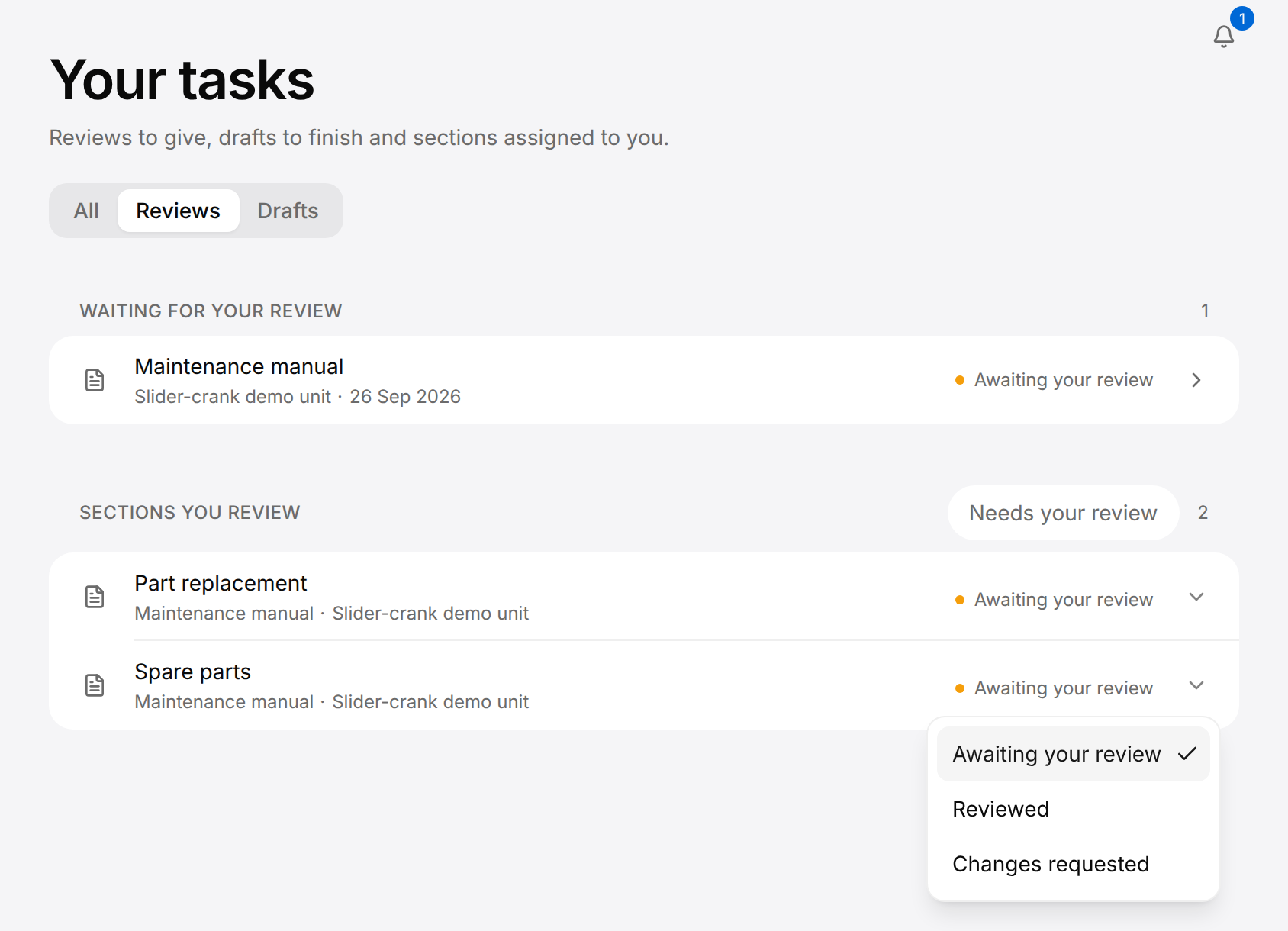
The status at the end of the row is also a list: select it to change your verdict. The list holds the three values a row can read:
| Status | Meaning |
|---|---|
| Awaiting your review | You have not given a verdict yet. |
| Reviewed | You have signed the section off. |
| Changes requested | You want the section changed. |
Give your verdict on a section
A reviewer reads each section assigned to them, then signs it off or asks for changes.
- Select Your tasks.
- Under Sections you review, select the name of the section and read it in the draft.
- Come back to Your tasks and select the status at the end of the row of the section.
- Select Reviewed or Changes requested. Awaiting your review takes your verdict back.
The verdict is saved as soon as you select it. The row then reads Reviewed or Changes requested. If it cannot be saved, the message "Could not save that section" appears and the row keeps its previous verdict.
A verdict carries no text. To say what must change, write a comment in the draft: see Review and publish.
The group lists the sections that read Changes requested first, then those that read Awaiting your review, then those that read Reviewed. Select Needs your review beside the number of the group to hide the sections that read Reviewed: those that read Awaiting your review or Changes requested stay, and the number counts them. Select it again to show every section. The button is shown while at least one section does not read Reviewed.
Reviewed is the same sign-off as the Mark as reviewed button on a section inside the draft: give it in either place. Signing off your sections is not your verdict on the draft as a whole. You give that one in the draft, where Endorse stays greyed until every section of the document assigned to you reads Reviewed: see Review and publish.
Sections you own
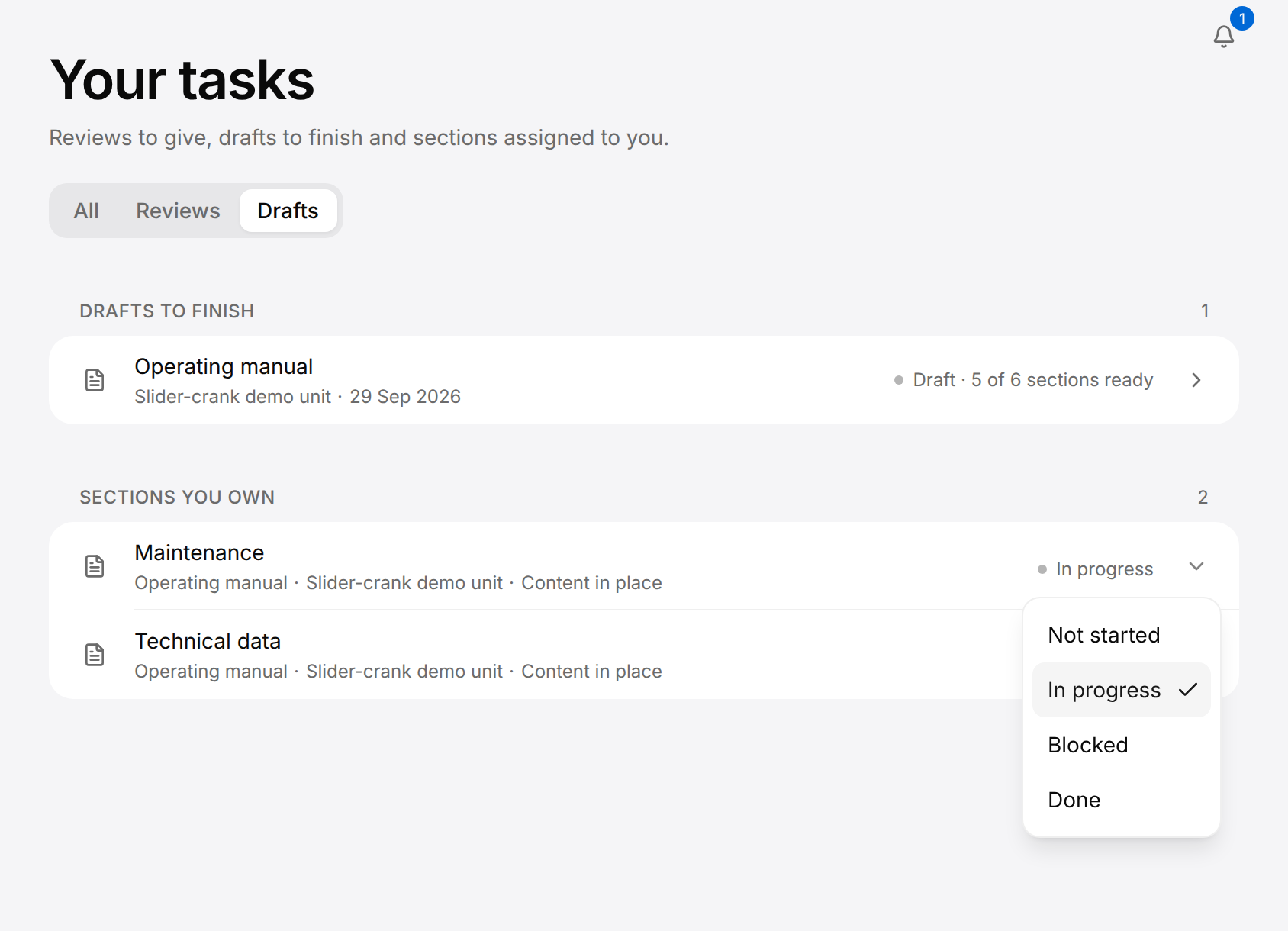
A row of Sections you own is one section of a document that a Manager assigned to you to write. Unlike a section you review, its name does not open a draft: select it to open the Documentation page of its product, where you open the document and its draft. Documentation and Drafts describe the work from there.
Under the name of the section, the grey line gives the document, the product, and a hint that says how much of the section is written. TwinWorks works the hint out from one draft of the document, the measured draft: its latest approved draft when the document has one, otherwise its newest draft.
| Hint | Meaning | In the list of sections of the document |
|---|---|---|
| Needs content | The measured draft has no section for it. | Missing |
| Started, still empty | The measured draft has a section for it, and the section is still empty. | Partial |
| Content in place | The measured draft has a section for it with content. | Ready |
Documentation describes the list of sections of a document. For a section that is not written, a note after the hint says so in a sentence. The note is left out on a phone.
The hint is not the Not written yet or Incomplete that a note in the Outline of a draft shows: those are notes the Assistant left on that one draft, described in Review and publish. A section can read Content in place here and Incomplete there.
A section you write in a new draft of an approved document keeps its earlier hint until that draft is approved.
At the right of the row is the progress you report. TwinWorks works out the hint from the content of the measured draft. The progress is yours to set, and one does not change the other.
Report your progress on a section
The owner of a section says how far the work is.
- Select Your tasks.
- Under Sections you own, find the section.
- Select the status at the end of the row.
- Select Not started, In progress, Blocked or Done.
The Maintenance section of the Operating manual still lacks the lubrication interval. Its owner sets it to Blocked until the value is known, then to Done once the section is written.
The progress is saved as soon as you select it. If it cannot be saved, the message "Could not save that section" appears and the row keeps its previous progress.
The group lists the sections that need content first, then the started ones, then those whose content is in place. The sections you set to Done come after all the others.
When nothing is listed
When the page has no draft and no section to list, it shows "You're all caught up" and "No sections, drafts or reviews need you right now.", without the tabs. A section you set to Done or signed off as Reviewed stays listed, so the page is not empty while sections are assigned to you.
When you have tasks but none under the tab you selected, the page shows "No reviews waiting on you" or "No drafts to finish", then "Your other tasks are under All." Select Show all tasks to go back to All.
If the page shows "Some tasks could not be loaded.", select Try again. The groups that did load stay on the page.
Notifications
The Notifications button (the bell) is in the top right corner of every page that has the sidebar, and in the header of a draft. On a phone, where the Open menu button takes the place of the sidebar, those pages keep the bell in the top right corner, but a draft has no bell: select the Document actions button (three dots), then Notifications, which opens the Notifications page.
A blue badge on the bell gives the number of notifications you have not read, "9+" above nine. Without a badge, everything is read.
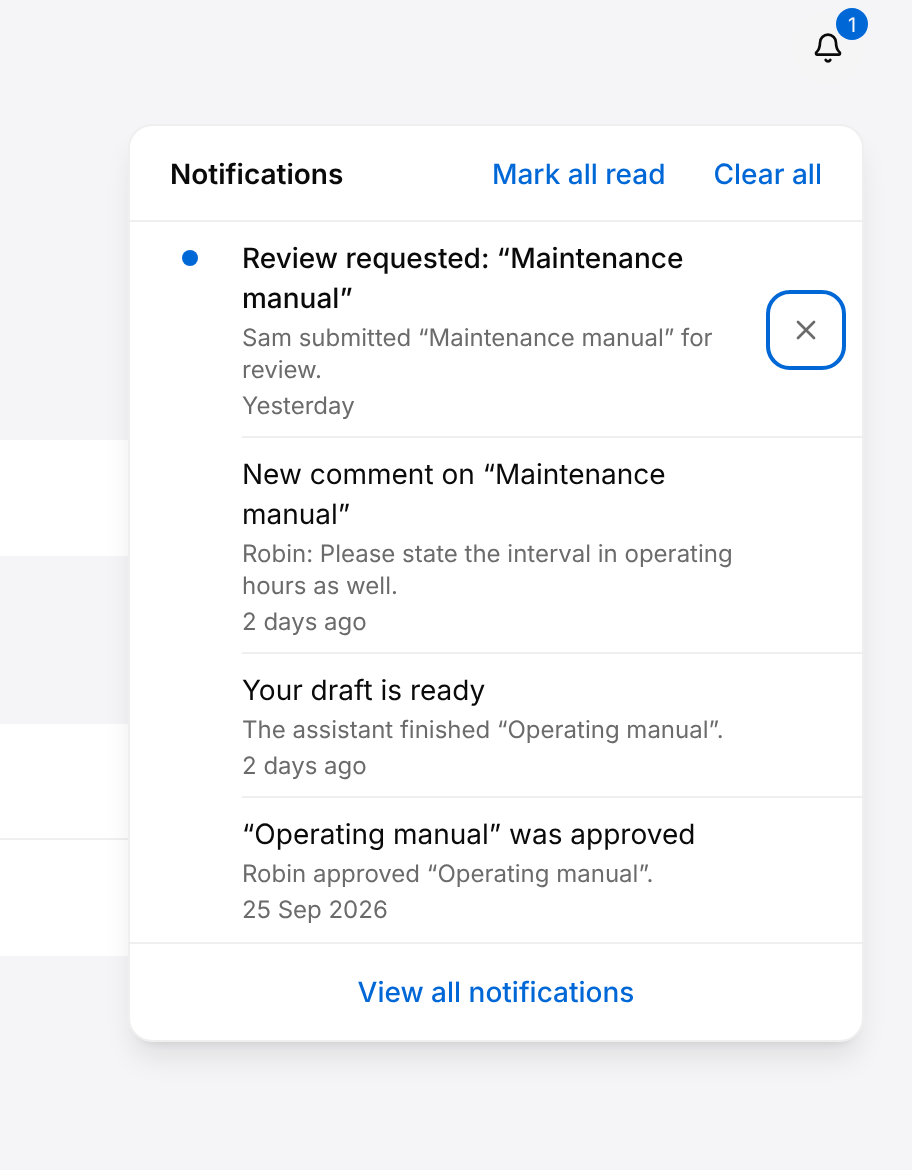
Select the bell to open a list of your five newest notifications. An unread one has a blue dot and a title in bold. Opening the list does not mark anything as read.
Read your notifications
Go through what happened on the documents you write and review.
- Select the Notifications button (the bell) in the top right corner.
- Select an entry. It is marked as read, and the page it is about opens when it has one.
- To mark the other entries as read without opening them, select Mark all read.
The entry about the review that Sam Sample requested opens the Documentation page of the Slider-crank demo unit, where the Maintenance manual is listed.
Read entries lose their blue dot and the badge on the bell counts down.
Mark all read is shown only while something is unread.
Remove notifications
- To remove one entry, point at it and select the Archive button (the cross) at its right end. The cross appears when you point at an entry or reach it with the Tab key. On a phone it is always shown.
- To remove every notification, select Clear all. It acts at once, without asking you to confirm, and also removes the notifications that the list under the bell does not show.
Despite the name Archive, nothing on the screen brings a removed notification back.
With no notification left, the list and the Notifications page read "No notifications" and "Comments, reviews and assignments will show up here."
The Notifications page
Select View all notifications at the bottom of the list to open the Notifications page. It shows every notification you have not removed, with the same actions. The sidebar has no entry for this page.
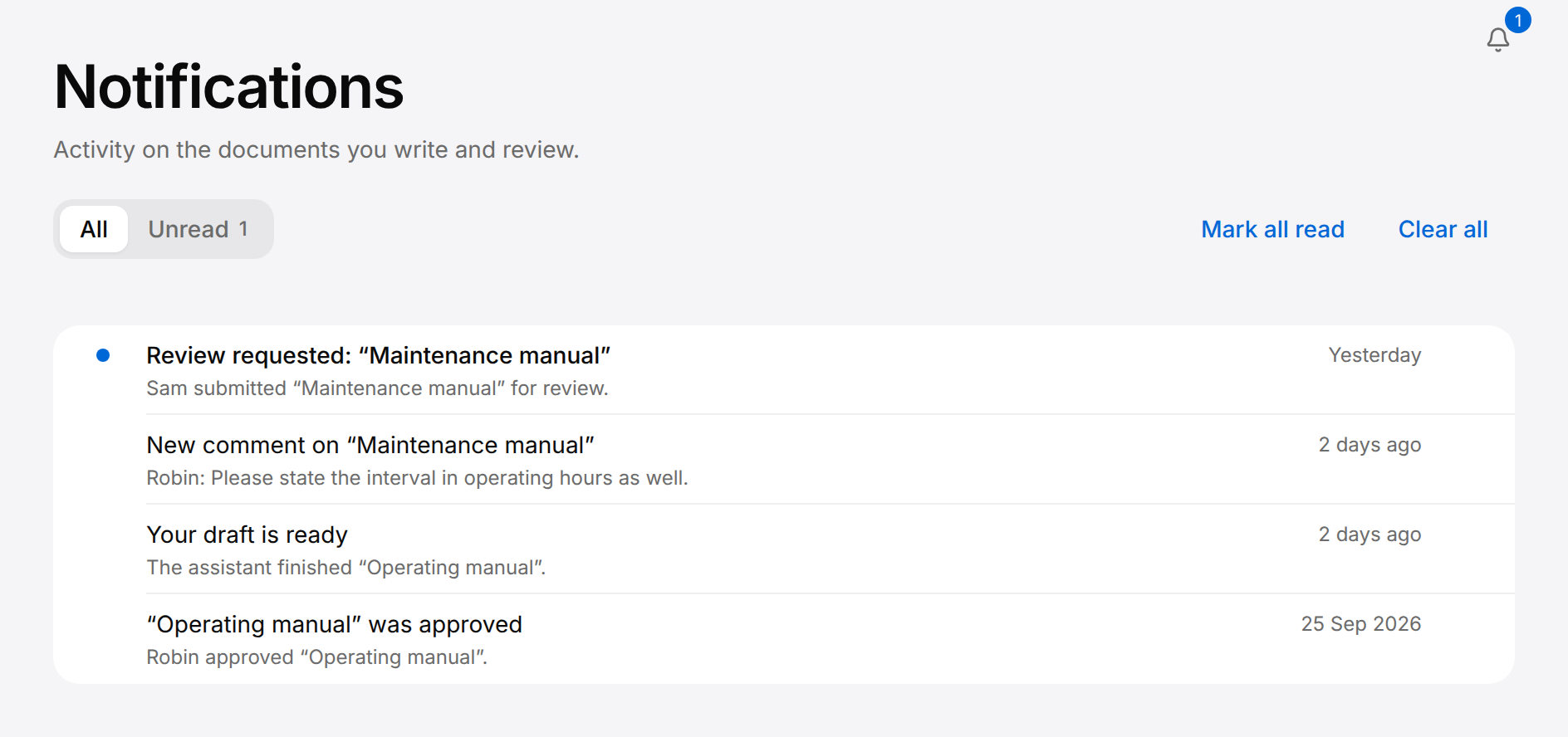
- All shows every notification, Unread only those you have not read. The number beside Unread counts them.
- Clear all removes every notification, read or not, even while Unread is selected.
- When Unread has nothing to show, the page reads "You're all caught up" and "Nothing unread." Select Show all notifications to go back to All.
Notices about a change to what a document cites
When a file that a document quotes is removed, or a part that a document names leaves the product, the people concerned get a notification. Its title says what happened and how many places are affected, for example "Cited source removed: 2 items affected". Its text names the places: "Operating manual.pdf changed. This affects “Periodic checks” and “Part replacement”." Select it to open the document concerned, or the Documentation page of the product.
Each person is told about their own sections only:
- The owner and the reviewer of an affected section get a notification about that section. When a section has neither, the owner and the reviewer of the section above it are told; when there are none either, the Managers of the documentation are.
- What no section is named for goes to the owner of the product.
Unlike the other notifications, this one also reaches the person who made the change, when it concerns their sections. The Notifications section of Profile has no line for it.
Notification preferences
For each kind of update you choose whether it reaches you by e-mail at once, in the daily e-mail, only in TwinWorks, or not at all. The choices are yours alone and apply to every product.
Set your notification preferences
Decide, kind by kind, which updates send you an e-mail.
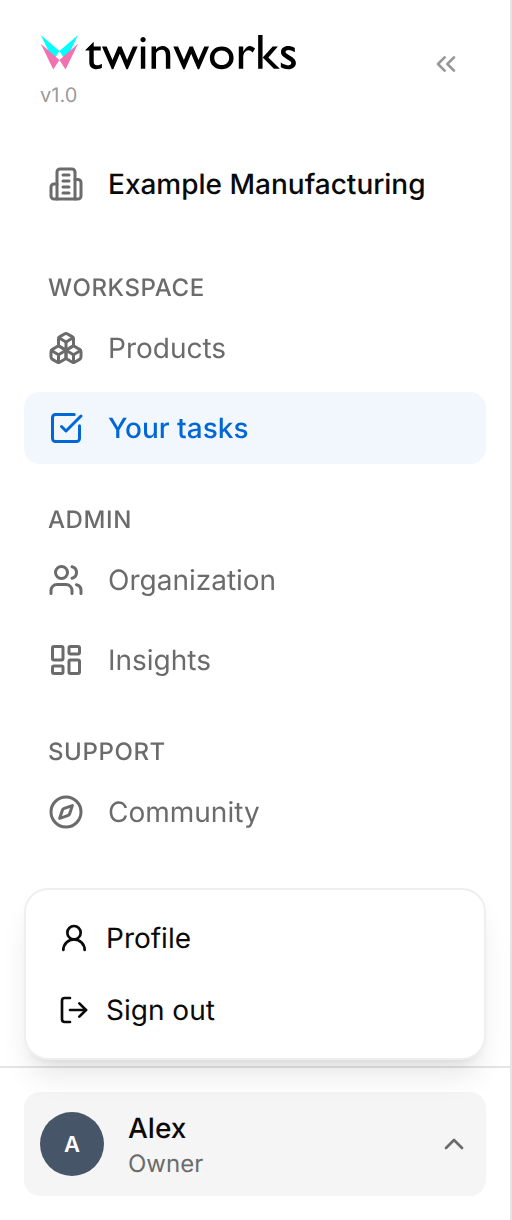
- Select your name at the bottom of the sidebar, then Profile.
- Scroll down to Notifications.
- To receive no daily e-mail at all, turn Daily email digest off.
- On the row of a kind of update, select the box at the right.
- Select Email immediately, Daily digest, In-app only or Off.
- Select Save preferences.
A reviewer who reads comments in TwinWorks every morning sets New comment to In-app only and keeps Review requested on Email immediately.
The message "Notification preferences saved" appears. Until you select Save preferences, nothing is kept: leaving the page drops your changes.
On a phone, select the Open menu button, then your name at the bottom of the menu, then Profile. While the sidebar is collapsed, your picture or your initial stands for your name.
If the message "Could not save preferences" appears, select Save preferences again.
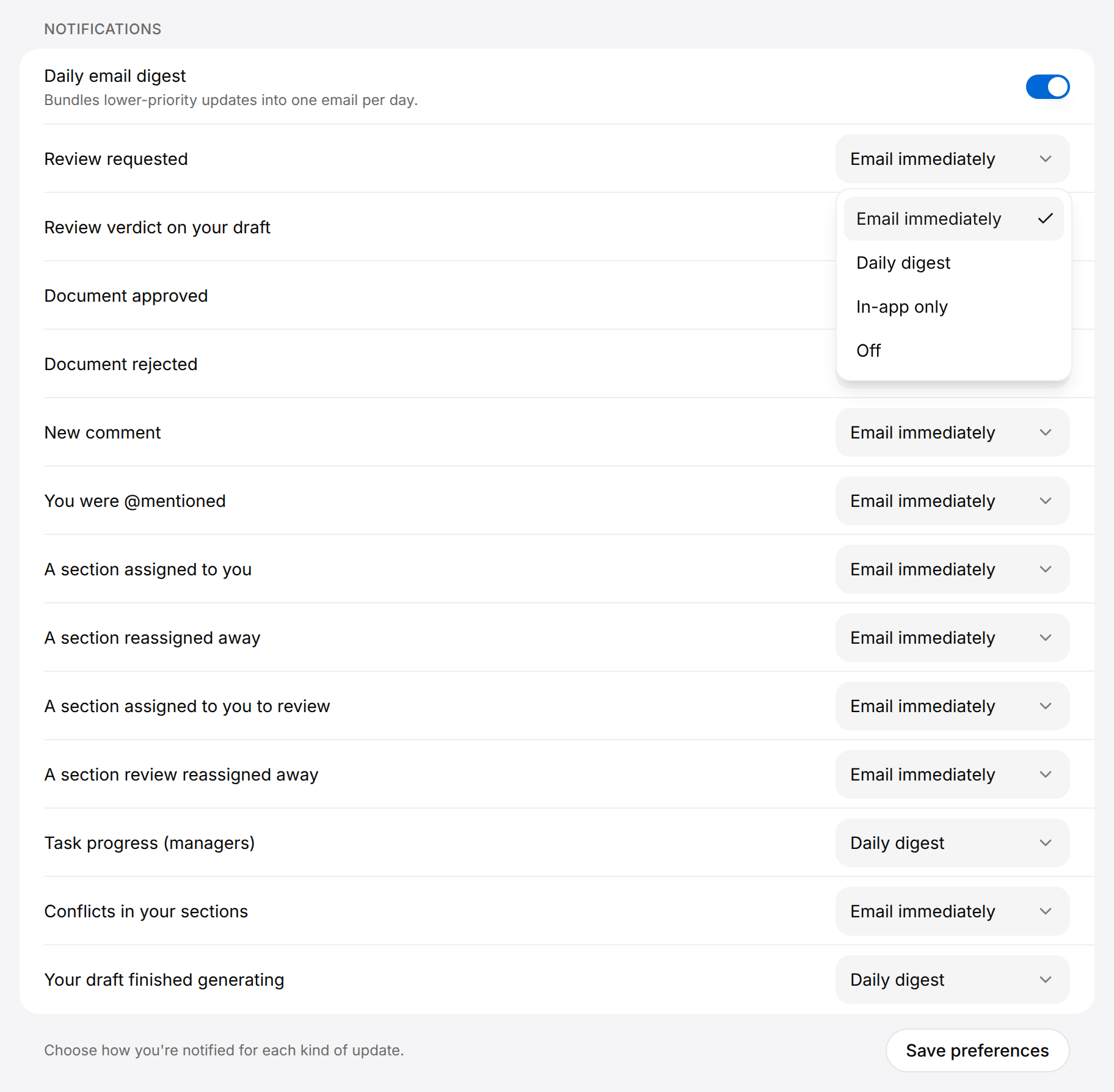
The four choices:
| Choice | How the update reaches you |
|---|---|
| Email immediately | As a notification in TwinWorks, and by e-mail at once |
| Daily digest | As a notification in TwinWorks, and in the daily e-mail when you have not read it by then |
| In-app only | As a notification in TwinWorks, without an e-mail |
| Off | Not at all: no notification and no e-mail |
Daily email digest is the switch for the daily e-mail, which gathers the updates set to Daily digest. The screen describes it as "Bundles lower-priority updates into one email per day." It is on until you turn it off. While it is off, no daily e-mail is sent, and the updates set to Daily digest reach you in TwinWorks only.
Before you change anything, every box reads Email immediately, except those of Task progress (managers) and Your draft finished generating, which read Daily digest. You get no notification about what you did yourself.
| Kind of update | What it is about |
|---|---|
| Review requested | A draft was submitted for review and you are asked to review it. |
| Review verdict on your draft | A reviewer endorsed a draft you created, or requested changes on it. |
| Document approved | A draft was approved. It goes to the person who created the draft and to the Managers. |
| Document rejected | A draft you created was rejected. |
| New comment | Someone commented on a draft you created or commented on. |
| You were @mentioned | Someone named you in a comment. |
| A section assigned to you | You were made the owner of a section. |
| A section reassigned away | A section you owned was given to someone else, or left without an owner. |
| A section assigned to you to review | You were made the reviewer of a section. |
| A section review reassigned away | The review of a section was taken from you. |
| Task progress (managers) | For Managers: the progress reported on the sections of a document. |
| Conflicts in your sections | Published content of a section you own that a change broke or put at risk. |
| Your draft finished generating | The Assistant finished a draft you asked it to generate. |
Save preferences saves the Notifications section only. The other sections of the Profile page are saved separately: see Organization.