

Publishing
Publishing decides who can open the procedures and documents of a product, and what they get when they do. You set it up in the Publish section of the product, once for each of two audiences: Public, anyone who has the link, and Team, the signed-in members of your organization. People who follow the link or scan the QR code arrive in the viewer. It opens on Contents, the list of what is published; from there a document opens in the reader, and a procedure in the procedure viewer, where it is followed step by step on the 3D model.
Open the Publish section
Open the product (see Products) and select Publish in its sidebar. The Owner, Managers, Authors and Reviewers get the section described here. Members with the Viewer role get a shorter, read-only page: see What a member with the Viewer role sees, below.
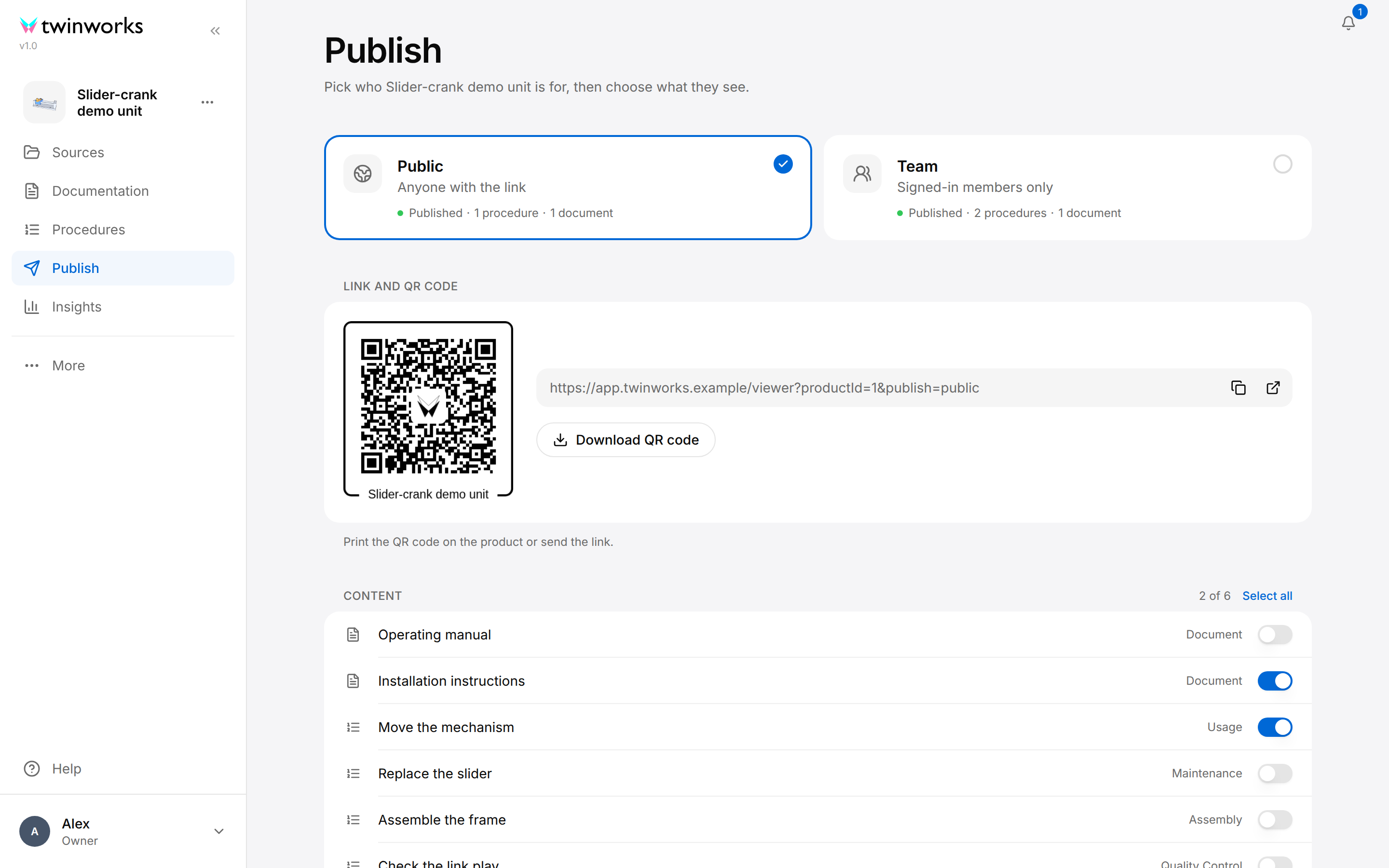
Under the two audience cards, the page holds two groups of sections.
For the selected audience card:
- Link and QR code: the link to send and the QR code to print.
- Content: the procedures and documents this audience gets.
- Languages: the languages the viewer offers.
- Features: reporting and feedback.
- Branding: your logo and colors in the procedure viewer. The Preview beside Languages, Features and Branding shows the bar and the step card of the procedure viewer in the colors this audience gets.
- Printed manual: the procedures of this audience as one PDF or Word file.
For the product, whatever card is selected:
- Serial numbers: one QR code per unit of the product. Only the QR codes you download use the link of the selected card.
- Community: the listing of the product in the TwinWorks Community.
Choose the audience
Select a card to work on that audience. The two audiences are independent: the same procedure or document can be published to Public only, to Team only, to both or to neither.
Under its name, each card shows its state:
| State | Meaning |
|---|---|
| Published | At least one procedure or document is saved for this audience. The line counts them, for example "Published · 2 procedures · 1 document". |
| Not published | Nothing is saved for this audience. |
| Unsaved changes | You changed something for this audience and have not saved it. |
| Not in your plan | Team card only: your plan does not include publishing to the Team audience. Selecting the card shows the message "Plan upgrade required". |
Share the link or the QR code
Each audience has one link per product. It opens the viewer on Contents, the list of what is published for the product, not on one procedure. The QR code holds the same link.
Publish something to the audience first (next section): in the viewer, the list of an audience with nothing published reads "No published content yet".
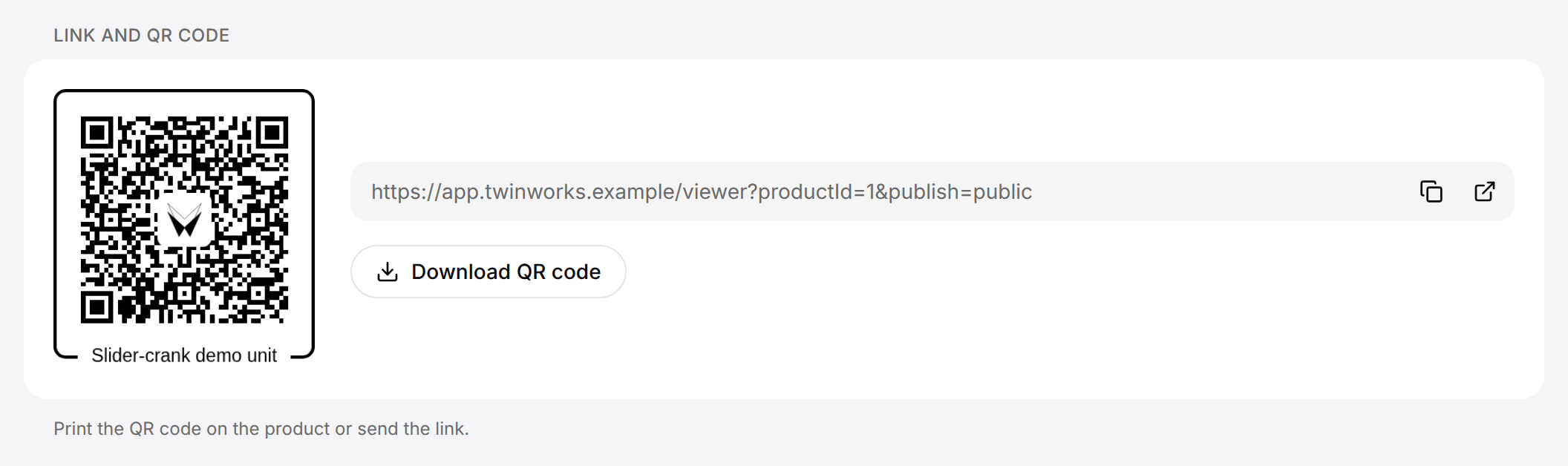
Copy the link or download the QR code
Send the link, or print the QR code and put it on the product.
- Open the product and select Publish.
- Select the Public or the Team card.
- Under Link and QR code, select Copy link, the first of the two icons at the end of the link, to copy the link.
- Select Open link, the second icon, to open the viewer in a new tab and check what people get.
- Select Download QR code to save the QR code as a picture with the product name under it.
After Copy link, the button shows a check mark for a moment: the link is on the clipboard.
A link to one procedure comes from the procedure itself: Get link in its row menu of the Procedures list, or Share in the procedure editor. See Procedures.
Publish and unpublish content
Content lists everything the product can publish. Approved documents come first, marked Document. The procedures follow, each with its type: Assembly, Disassembly, Maintenance, Usage or Quality Control. A document appears in the list once it has an approved revision: see Review and publish.
Publish procedures and documents
Turn on what the selected audience gets, then save.
- Open the product and select Publish.
- Select the Public or the Team card.
- Under Content, turn on the switch of each procedure and document this audience gets. Select all turns them all on.
- Select Save in the Unsaved changes bar at the bottom of the window.
Replace the slider is published to the Team audience only. To publish it to the Public audience as well, select the Public card, turn on its switch and select Save.
The message "Settings saved" appears. The card reads "Published" with the number of procedures and documents. People get the new list the next time they open or reload the link.
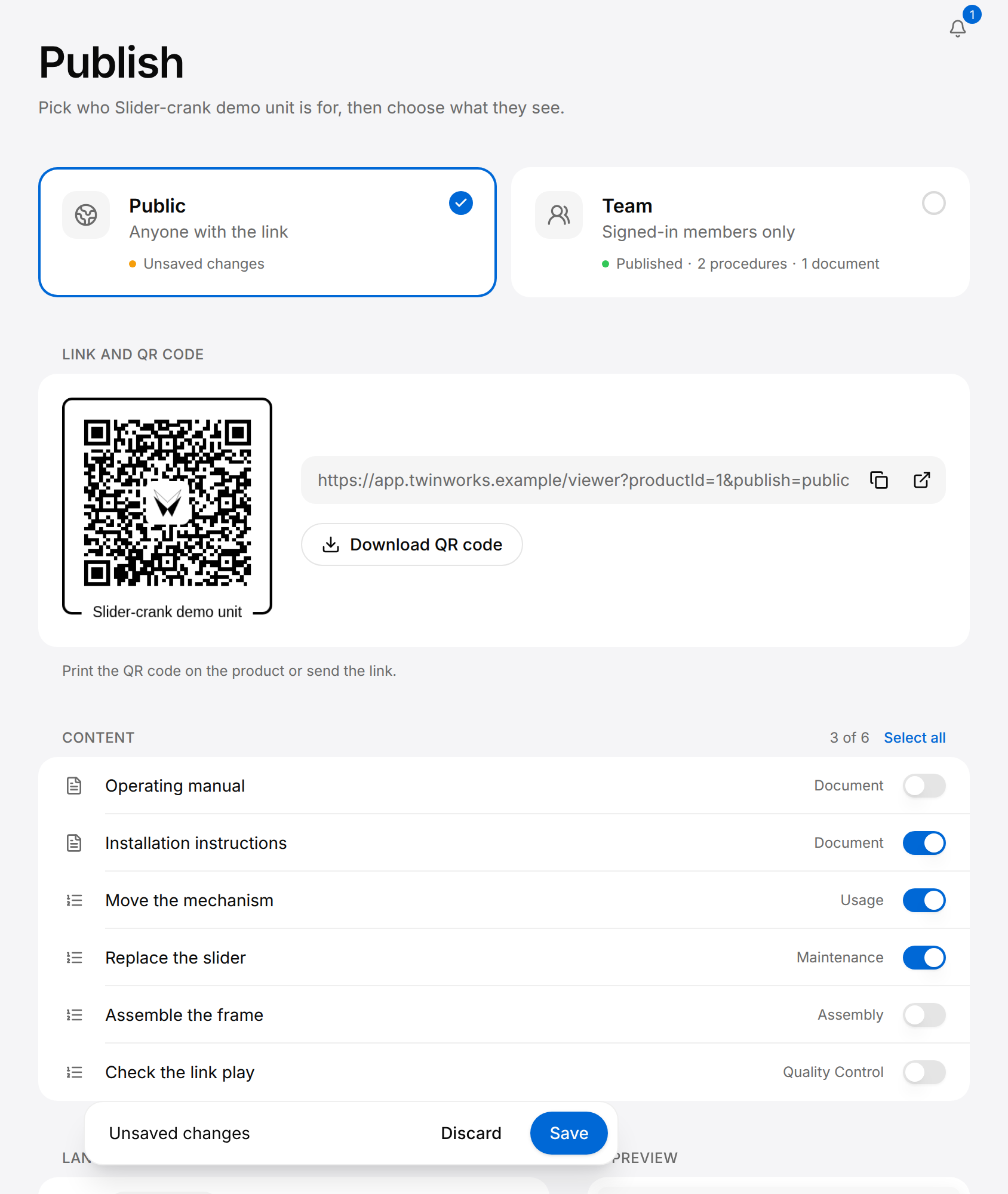
- The count at the top of the list, such as "3 of 6", says how many items are turned on for this audience.
- To unpublish, turn the switch off and select Save. When every switch is on, Select all becomes Clear, which turns them all off. Once saved, a card with nothing left reads "Not published".
- Readers get the last approved revision of a document, not its draft. An orange triangle named Unapproved changes on a document row tells you that a draft has newer changes that are not approved yet.
- Readers get no citations: see What readers see.
- One procedure can also be published from its editor, with the Publish button of the editor: see Procedures.
Save or discard your changes
The settings of an audience are stored only when you save. As soon as you change a switch or a language, the Unsaved changes bar appears at the bottom of the window:
- Save stores the settings of both audiences together. The bar reads "Saving…", then the message "Settings saved" appears.
- Discard puts every control of both audiences back to what was saved last.
If you leave the Publish section or close the tab while the bar is shown, the changes are dropped without a question.
When the settings cannot be stored, the message "Could not save settings" appears and every control goes back to what was saved last: make your change again, then save. When your role does not allow you to publish what you turned on, the message is "No permission to publish": only Managers, Reviewers and the person who manages the documentation of the product can publish a document (see Documentation).
Serial numbers and Community do not use this bar: serial numbers are stored as soon as you add or delete them, and the Community listing has its own Save listing button.
Set the languages, the features and the branding
Below Content, three sections decide what the viewer offers to the selected audience.
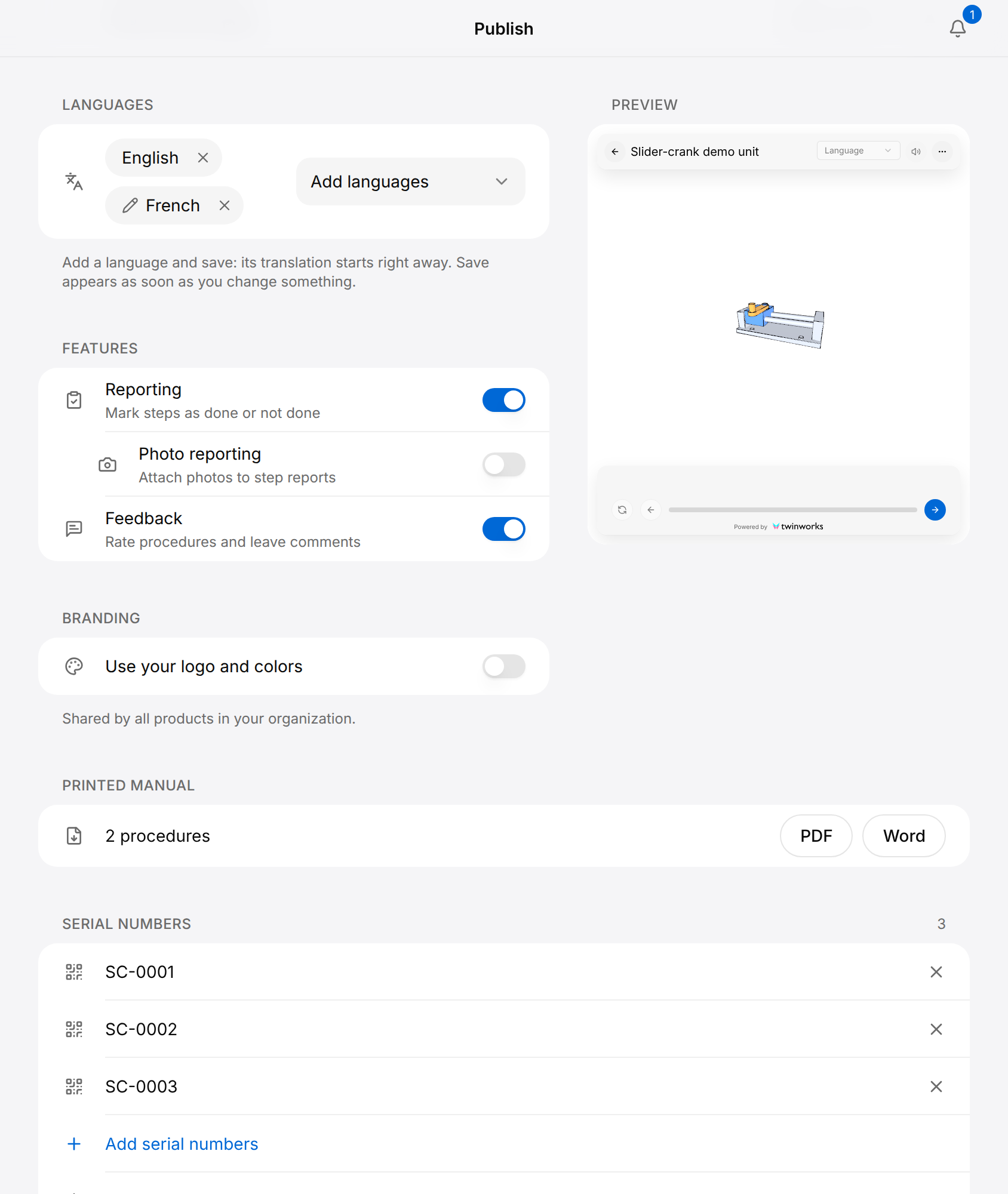
Add a viewer language
Each audience has its own list of languages, shown as chips. The viewer offers them in its language list. The translation is automatic: it starts when you save.
Add a language
A language is translated when you save.
- Open the product, select Publish, then the Public or the Team card.
- Under Languages, select Add languages.
- Select a language in the list. Enter a few letters to search the list.
- Select Save in the Unsaved changes bar.
The bar reads "Translating…" and the Languages row shows "Translating the selected languages…". When the message "Translation complete" appears, the translation is ready to review.
- While a translation runs, the language chips and Add languages are greyed out, and Save and Discard cannot be selected: wait until the message "Translation complete" appears.
- To remove a language, select Remove, the x on its chip, then Save.
- An audience without any language shows "Original language only".
Correct a translation
The chip of a translated language carries a pencil: it opens the translated steps of a procedure, one procedure at a time. The English chip has no pencil.
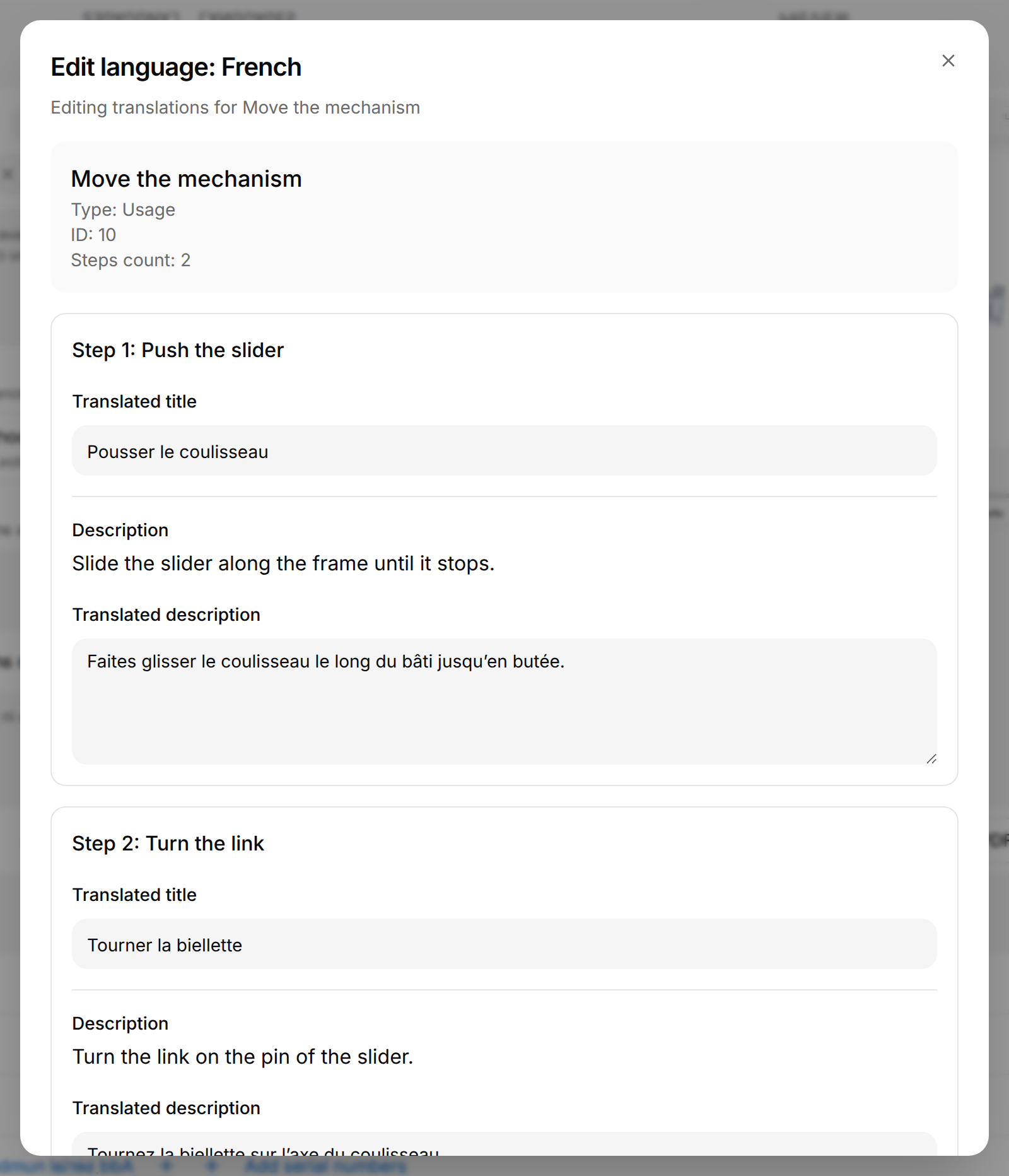
Review and correct the translated steps
Change the translated title or text of any step of a procedure.
- Open the product, select Publish, then the Public or the Team card.
- Under Languages, select the chip of the language, for example French.
- In the Edit procedure language dialog, which lists every procedure of the product, select the procedure. The dialog then shows the steps of that procedure under a new title, for example Edit language: French.
- For each step, change Translated title and Translated description as needed.
- Scroll to the end of the dialog and select its Save button.
The message "Translations updated" appears and the dialog closes. To correct another procedure, select the chip again.
- Cancel, or closing the dialog, drops the corrections you entered.
- A correction is stored for the step in that language: it applies to both audiences.
Turn features on or off
| Switch | Audience | What it does in the procedure viewer |
|---|---|---|
| Reporting | Team | Every step asks for a result, and a report is sent at the end of the procedure. See Reporting. |
| Photo reporting | Team, shown only while Reporting is on | Every step result needs a photo taken with the camera. |
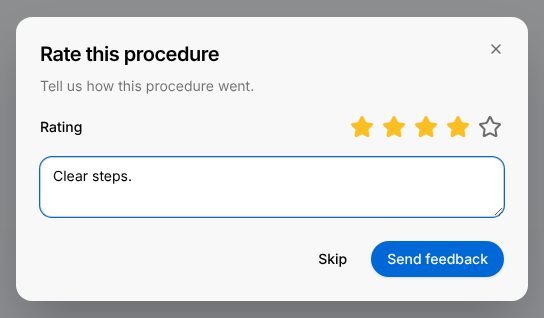
| Feedback | Public and Team | At the end of a procedure, people are asked for a star rating and a comment. |
Turn a switch on or off, then select Save in the Unsaved changes bar.
Use your logo and colors
Turn on Use your logo and colors to show the procedure viewer with the logo and the colors of your organization for this audience. The section then shows the logo and the four colors, and the link Edit in Organization: the brand is shared by all products and is changed on the Organization page.
Export a printed manual
Printed manual builds one file from the procedures that are turned on for the selected audience, saved or not. Documents are not part of it.
Export the procedures as one file
One PDF or Word file with the procedures of the selected audience.
- Open the product, select Publish, then the Public or the Team card.
- Under Printed manual, read how many procedures the file will hold, for example "2 procedures".
- Select PDF or Word.
The row shows the progress, the file downloads and the message "Manual exported" appears.
When no procedure is turned on, the row reads "Publish a procedure to include it in the manual." The layout of the manual comes from the default procedure template of your organization: see Export templates.
Add serial numbers
A serial number identifies one unit of the product. Each serial number gets its own QR code, so that reports show which unit they came from: see Reporting.
Add serial numbers and download their QR codes
Paste the numbers, upload them in a file, or let TwinWorks generate them.
- Open the product and select Publish.
- At the end of the Serial numbers list, select Add serial numbers.
- On the Paste tab, enter the serial numbers, one per line or separated by commas or semicolons.
- Select the Add button, which shows how many numbers it adds. The message "Serial numbers added" appears.
- Select the audience card whose link the QR codes must carry: Team when the units are used with Reporting.
- Select Download all QR codes, the row under Add serial numbers.
The message "QR codes ready" appears and a ZIP file downloads with one QR code picture per serial number. Each picture is named after its serial number and carries the product name and the serial number under the code.
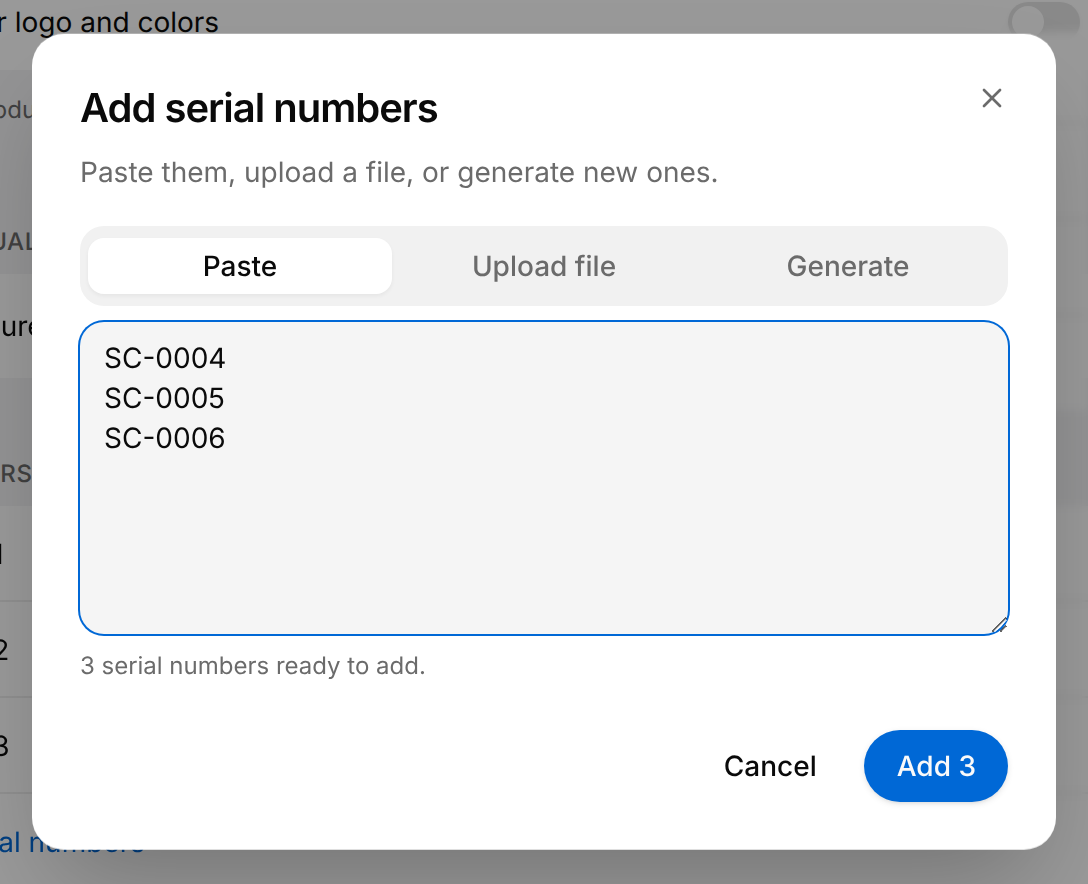
QR codes downloaded with the wrong card selected carry the link of the other audience: select the right card and download them again.
The two other tabs of the dialog:
- Upload file: drop a CSV or TXT file, or select the area to choose one. The numbers are added as soon as you drop the file. In a CSV file, the column headed
serial,serial_numberorserial numberis read; without such a heading, the first column. - Generate: enter a Prefix (optional), How many numbers you need (1 to 500) and how many Characters each one has (4 to 24), then select Generate. The numbers appear on the Paste tab so that you can review them before you add them.
Duplicates are removed automatically. In the list, Delete, the x at the end of a row, deletes that serial number at once, without asking. A list of more than five serial numbers shows the first five. Select Show all, which is followed by the total, to see the rest.
List the product in the Community
The Community is the page of TwinWorks where teams share products and procedures: it is in the sidebar, under More when a product is open. It is also shown to people who are not signed in. A listed product has its own page there, with its public procedures, which open in the procedure viewer, and with the likes and comments of other people.
List the product
The listing is saved with its own button.
- Open the product and select Publish.
- Under Community, turn on List in Community.
- Select a Category if you want one.
- Select Save listing.
The message "Community listing updated" appears and the section reads "Listed in Community".
- Once the switch is on and until you select Save listing, the section reads "Ready to list" with the number of public procedures.
- The product needs at least one procedure published to the Public audience: otherwise the note "Product must have at least one public procedure before it can be listed" appears.
- To remove a listed product from the Community, turn the switch off: it is unlisted at once.
What people get when they open the link
The link and the QR code of a product open the viewer on its Contents: the documents and the procedures published for that product.
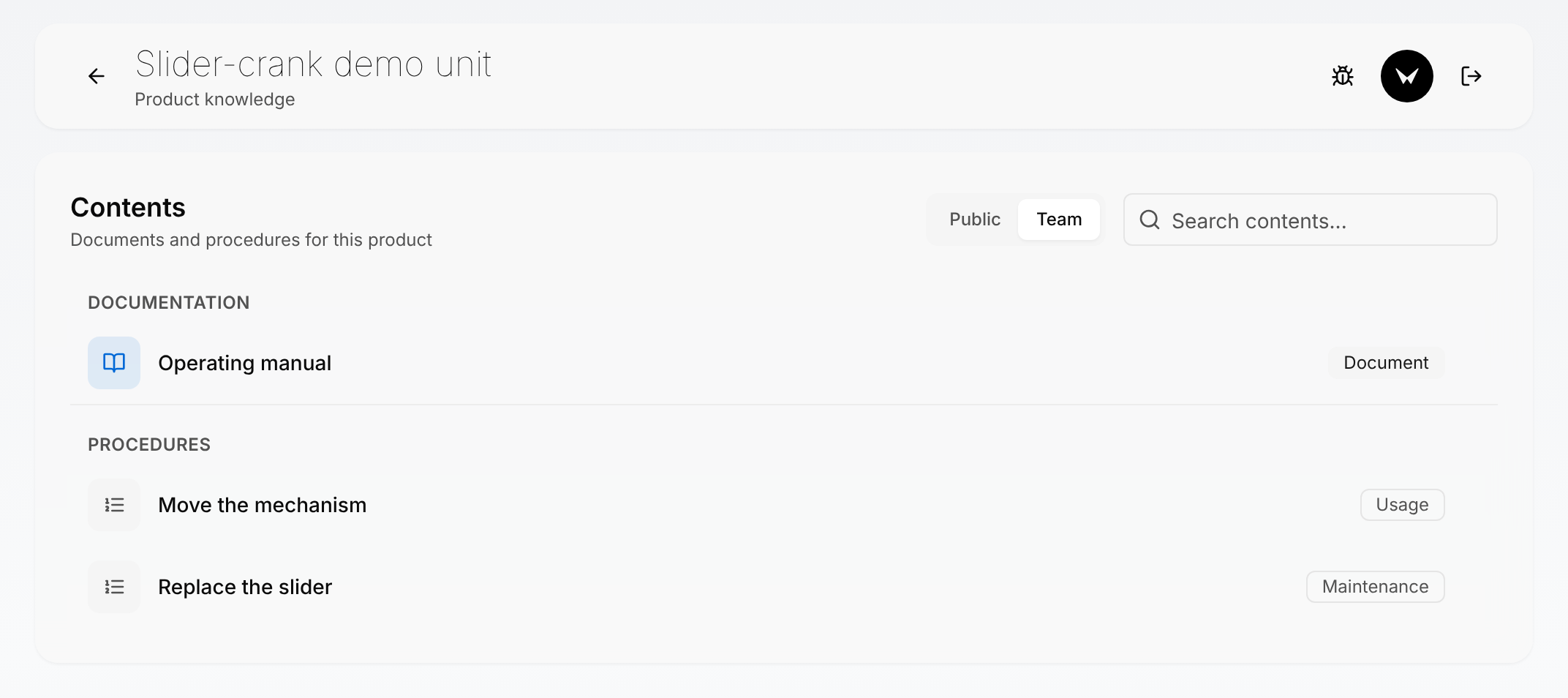
- For a signed-in member, the list opens on the audience of the link: Public with the Public link, Team with the Team link.
- A signed-in member gets the buttons Public and Team to switch between the two lists.
- Someone who is not signed in sees what is published to Public, and a Sign in button in place of Sign out. After signing in from the Team link, the list comes back on Team.
- Documentation lists the published documents, Procedures the published procedures with their type. Select a row to open it. Reading a published document in the reader is described on its own page: Read a document.
- Search contents... filters the list by title or type.
- For a signed-in member, All products, the arrow at the top left, opens the Products page, and Sign out is the button at the top right.
- When nothing is published to the audience shown, the list reads "No published content yet". With the Team link, this is what a person who is not signed in sees when nothing is published to Public: select Sign in.
Follow a procedure in the procedure viewer
A procedure opens on its start screen: the 3D model of the product, a bar at the top and a card at the bottom with the title of the procedure.
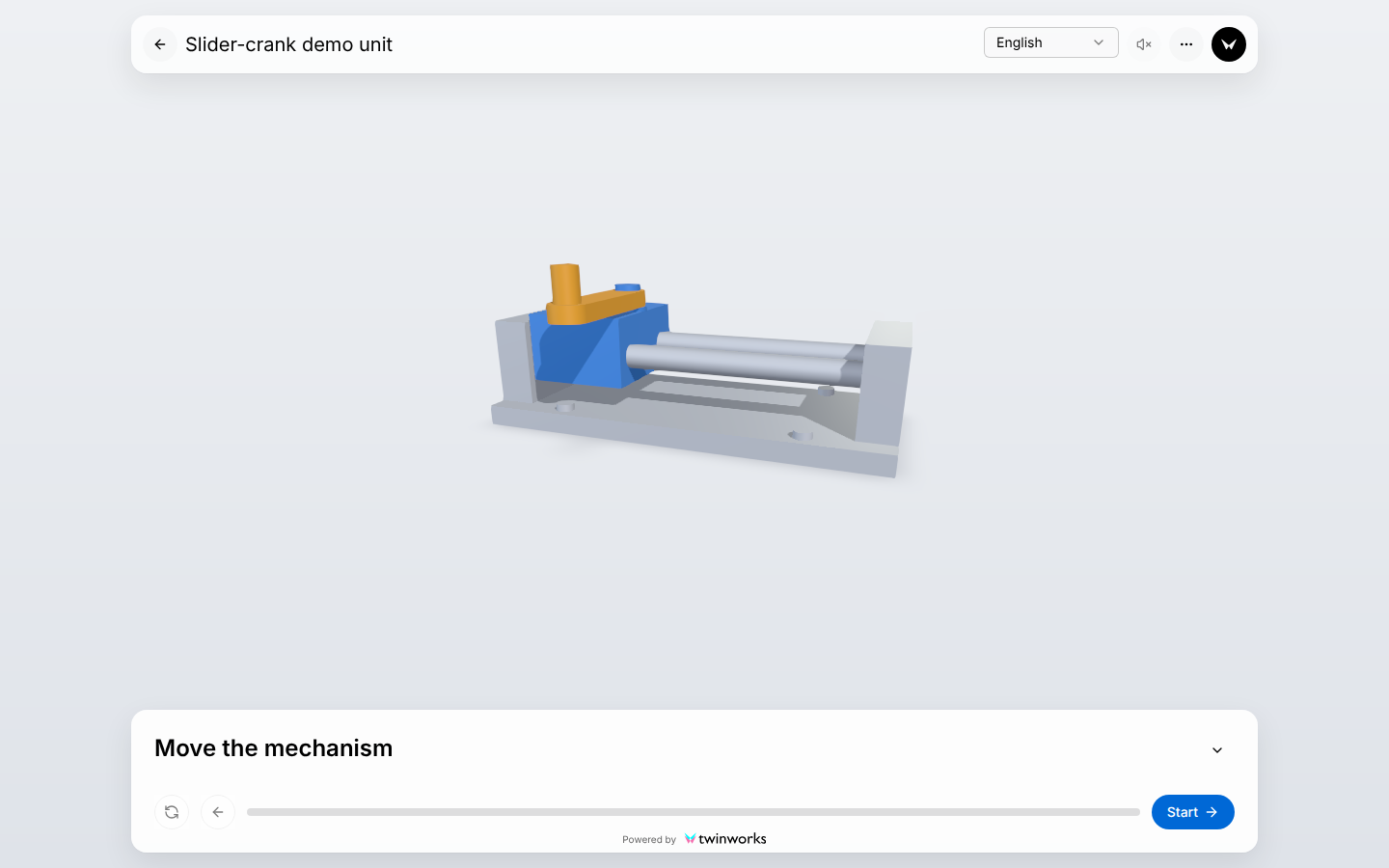
Go through the steps
Each step plays on the 3D model and shows its text in the card.
- Open the link or scan the QR code, then select the procedure under Contents.
- Select Start.
- Read the step in the card and watch the 3D model play it. Select Play step again, the round arrows at the bottom left of the card, to see the movement once more.
- Select Next step, the filled arrow at the right of the card, to go on. Select Previous step, the left arrow, to go back.
- On the last step, Finish takes the place of the arrow: select it.
The procedure viewer asks for a rating when Feedback is on, then shows the summary of the run.
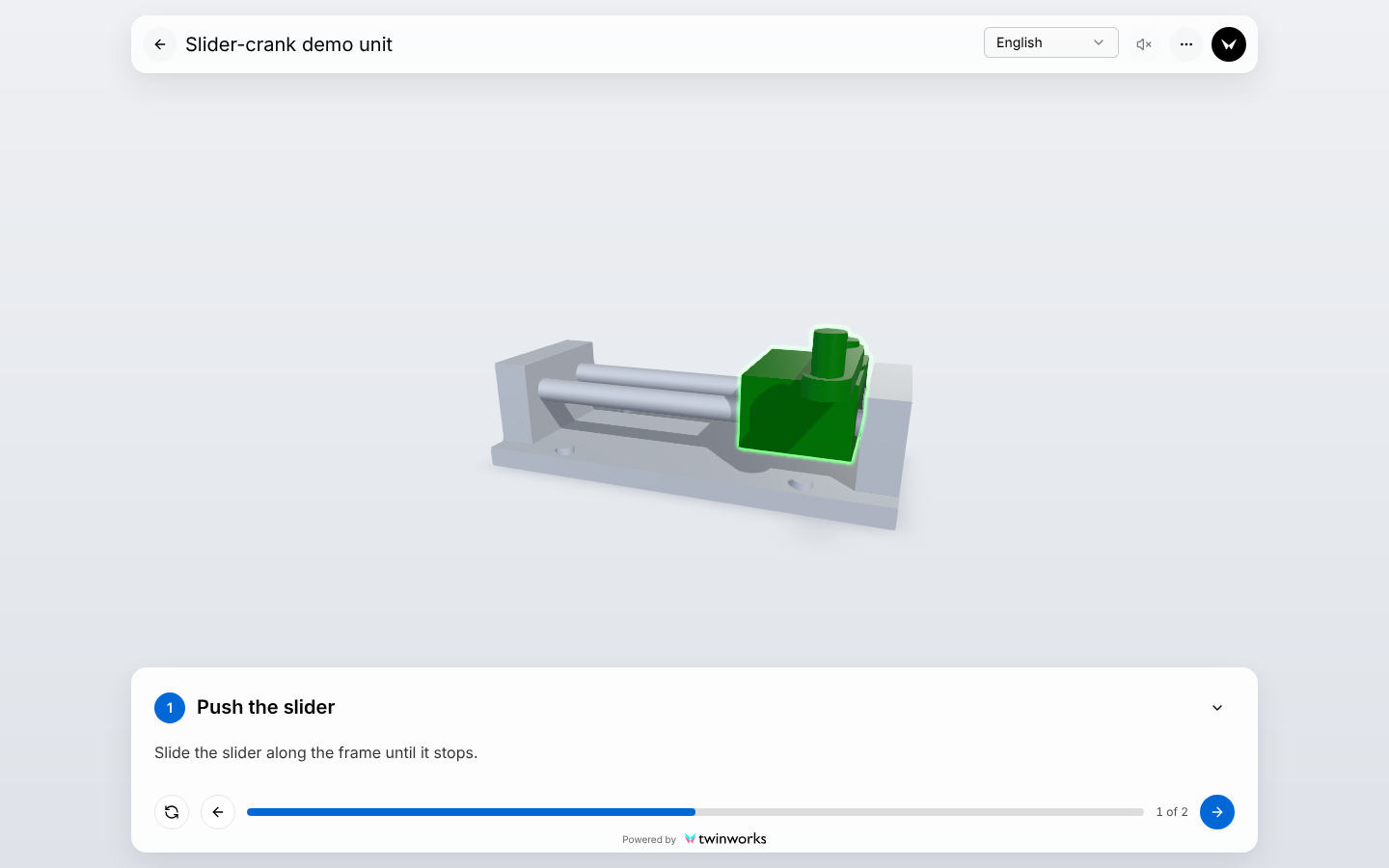
- Drag the 3D model with the mouse or with one finger to turn it. The mouse wheel zooms.
- The Left and Right arrow keys of the keyboard also go back and forward.
- The line in the card shows how far you are, with the position beside it, such as "1 of 2".
- In the bar, the language list offers the languages of this audience. It is greyed out when there is only one.
- Turn sound on, the loudspeaker in the bar, reads the steps aloud. It is greyed out when the procedure has no sound.
- On a phone, the languages are under More options, the three dots in the bar, and the sound button is shown only when the procedure has sound.
- For the Team audience with Reporting on, Step result takes the place of the Next step arrow on every step: see Reporting.
Finish a procedure: rating and summary
When Feedback is on for the audience, Finish opens the Rate this procedure dialog.
The summary follows, also when Feedback is off. Its title says how many steps are done, for example "2 of 2 steps done", above Duration, Steps and, when a rating was given, Your rating. Back to last step returns to the procedure. Back to contents returns to Contents.
The ratings and comments are read in the Insights section: see Insights.
Ask the Assistant
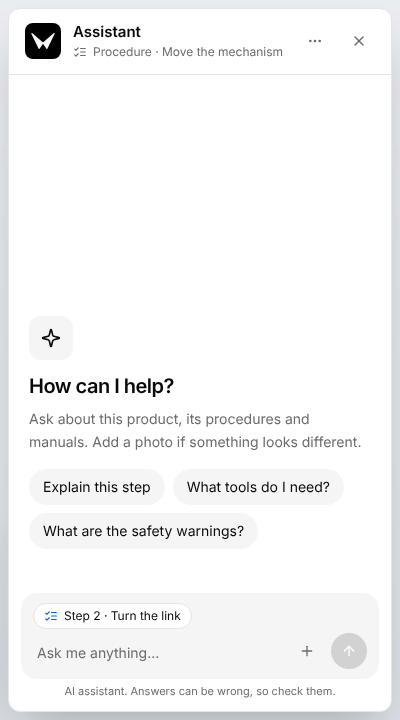
The Assistant of the viewer answers questions about the product, its procedures and its manuals. Its round black button, Open assistant, is on the Contents screen, in a procedure and in a document. The button is shown to everyone who opens the viewer, signed in or not, and the Publish section has no switch that hides it.
Ask a question in the viewer
Ask in your own words, and add a picture when something looks different from the model.
- In the viewer, select the round black button, Open assistant.
- Select one of the suggested questions, or enter your question in Ask me anything....
- To add a picture, select Add image, the plus sign, then Add from gallery or Take a photo.
- Select Send message, the arrow, or press Enter.
- In the answer, select a small numbered mark to open what it cites.
On a step, select Explain this step. Or add a photo of the unit and ask Is the link in the right position?
- A numbered mark in an answer cites a page of a manual, which opens in a new tab, or a section of a published document, which opens in the reader.
- Under its title the panel says what the conversation is about: the product, the procedure or the document. On a step, the name of the step stands above the message field, and the suggestion Explain this step is offered.
- A picture must be a JPEG, PNG or WebP file of 8 MB at most.
- Press Shift and Enter for a new line in your question.
- Assistant options, the three dots, holds New conversation, which clears the conversation, and Copy transcript.
What a member with the Viewer role sees
A member with the Viewer role cannot change what is published. For this role the Publish section is there to hand out the links:
- Link and QR code is marked "Read only". Under Who is this link for?, select Public or Team to get the link and the QR code of that audience, then use Copy link, Open link or Download QR code.
- Serial numbers has no button to add or delete a serial number.
- Community shows the switch, which cannot be changed.
The audience cards, Content, Languages, Features, Branding and Printed manual are not shown.
When a link does not open
The first two messages belong to a link to one procedure.
| What the person sees | Why, and what to do |
|---|---|
| "Sign in to open your team's procedures" | The procedure is published to the Team audience and the person is not signed in. Sign in opens the sign-in page. |
| "This procedure is no longer published" | The procedure was unpublished, or the link is wrong. See contents opens the list of what is published. |
| "Couldn't load" | The viewer could not reach TwinWorks. Check the connection and select Try again. |
| "No published content yet" | Nothing is published to the audience shown. Someone who is not signed in sees only the Public list, also with the Team link: select Sign in. |