

Getting started
In TwinWorks you write the documentation of a product and its step-by-step procedures from the product's 3D model and files, publish both, and follow how the procedures are used. This page takes a new organization through the app once, in the order the work is done. Each section names the page that covers its stage in full.
- If several people will write and review, invite them first: see Invite your team and set up export templates, near the end of this page.
- If you join an organization that is already set up, read Sign in and choose your organization and Find your way in a product. The table in the second of these sections names the page of each kind of work.
Sign in and choose your organization
TwinWorks runs in the browser: there is nothing to install. The browsers and computers it works on are listed in Technical requirements.
Sign in
Sign in, then make sure you work in the right organization.
- Open
https://app.twinworks.comin your browser. The sign-in page reads "Welcome back". - Enter your Email and your Password.
- Select Sign in.
- If you belong to more than one organization, select the name under the TwinWorks logo, at the top of the left sidebar, then the organization you want to work in.
The Products page of the organization opens.
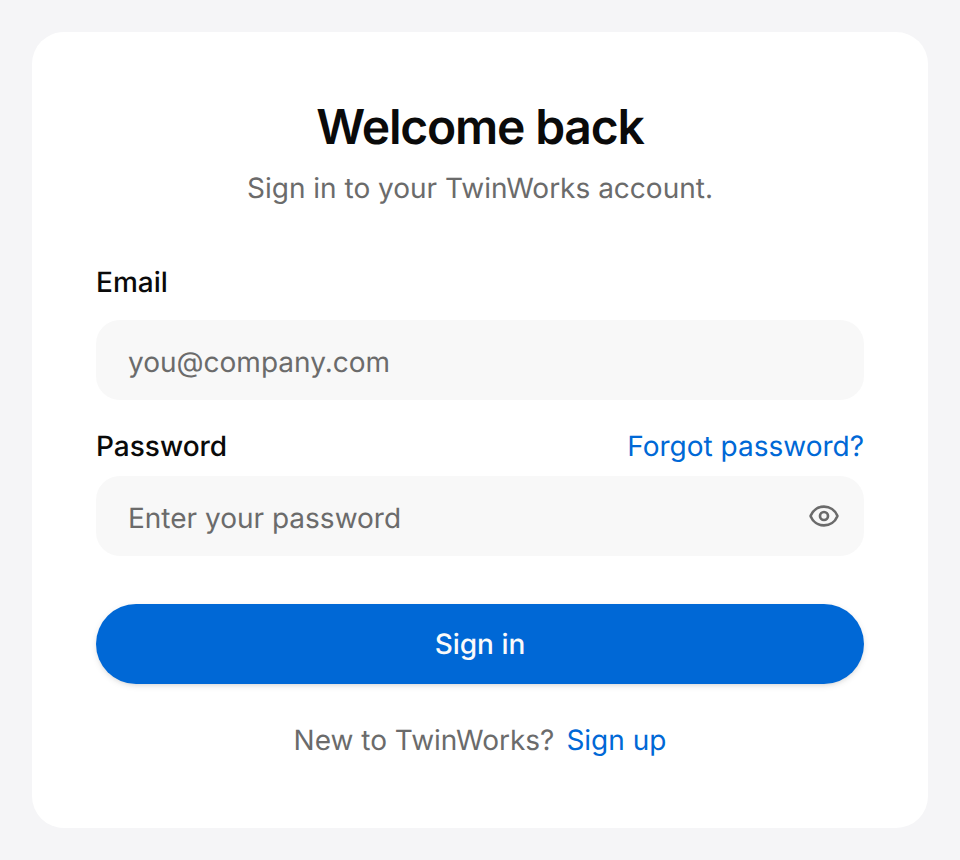
- No account yet. Select Sign up. One of two forms opens:
- "Create your account": fill it in and select Sign up. The page "Check your inbox" tells you that a confirmation e-mail was sent. Open that e-mail to finish setting up your account, then sign in.
- "Join the waiting list": the form says "Tell us about yourself and we'll be in touch to set up your access." Fill it in and select Join the waiting list.
- Password forgotten. Select Forgot password?, enter your Email and select Send reset link. If the address has an account, the e-mail you receive holds a link to choose a new password.
- Invited by a colleague. Do not sign up: follow the link in the invitation e-mail within six hours. It opens the page Finish setting up your account: enter your first name and your last name, choose a password and select Create account. The Products page opens. If the page reads "This invitation link doesn't work" instead, see Organization. If you already have a TwinWorks account, sign in as usual: the organization is in the menu under the logo.
- The organization you work in. Its name is under the TwinWorks logo. It is a menu only when you belong to more than one organization. The sidebar of an open product does not show it: select the TwinWorks logo first to go back to Products.
Invitations and the organization menu are described in Organization.
Create a product
A product is one machine or device and everything TwinWorks holds about it: its 3D model, its manuals and schematics, its documentation and its procedures. Everyone except a Viewer can create a product. Only the name is required: a product can be created without a 3D file, or without manuals.
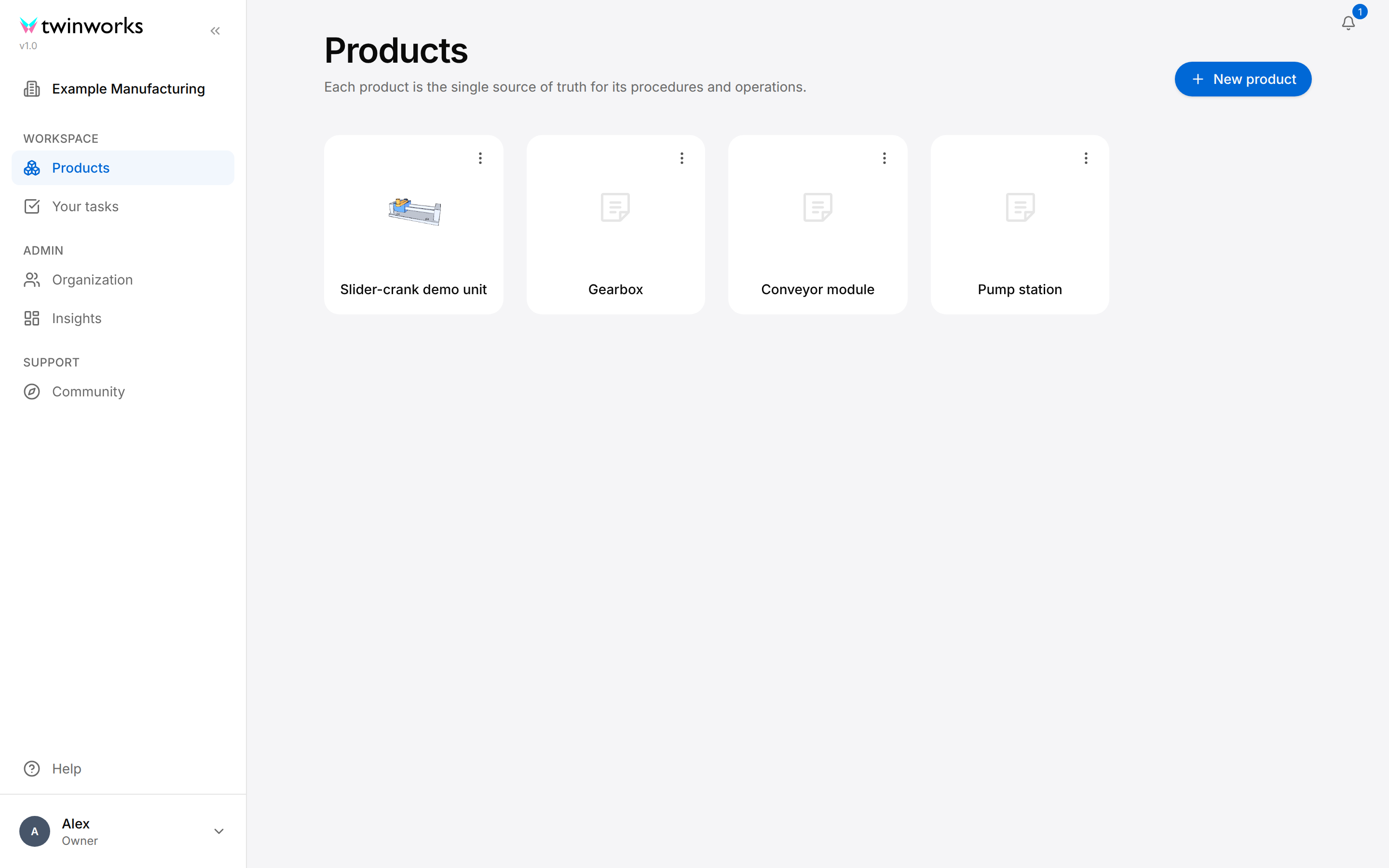
Create a product
Give the product a name, its 3D file and its manuals in one dialog.
- Open Products and select New product.
- Enter the Product name.
- Under 3D model, select Add 3D model and choose the 3D file, or drop the file on that row.
- If you added a 3D file, wait for its preview. Check that the size under it gives the real dimensions of the product (if not, choose the unit of the file in the units list) and that the product stands on the grid, which is the floor (if not, use the round buttons on the preview).
- Under Documents, select Add PDFs and choose the manuals or datasheets, or drop them on that row.
- Select Create and keep the window open while Creating product is shown.
For a bench unit, enter Slider-crank demo unit, drop slider-crank.glb and add the operating manual as a PDF file.
The new card is added to Products. It reads "Preparing…" until the product can be opened.
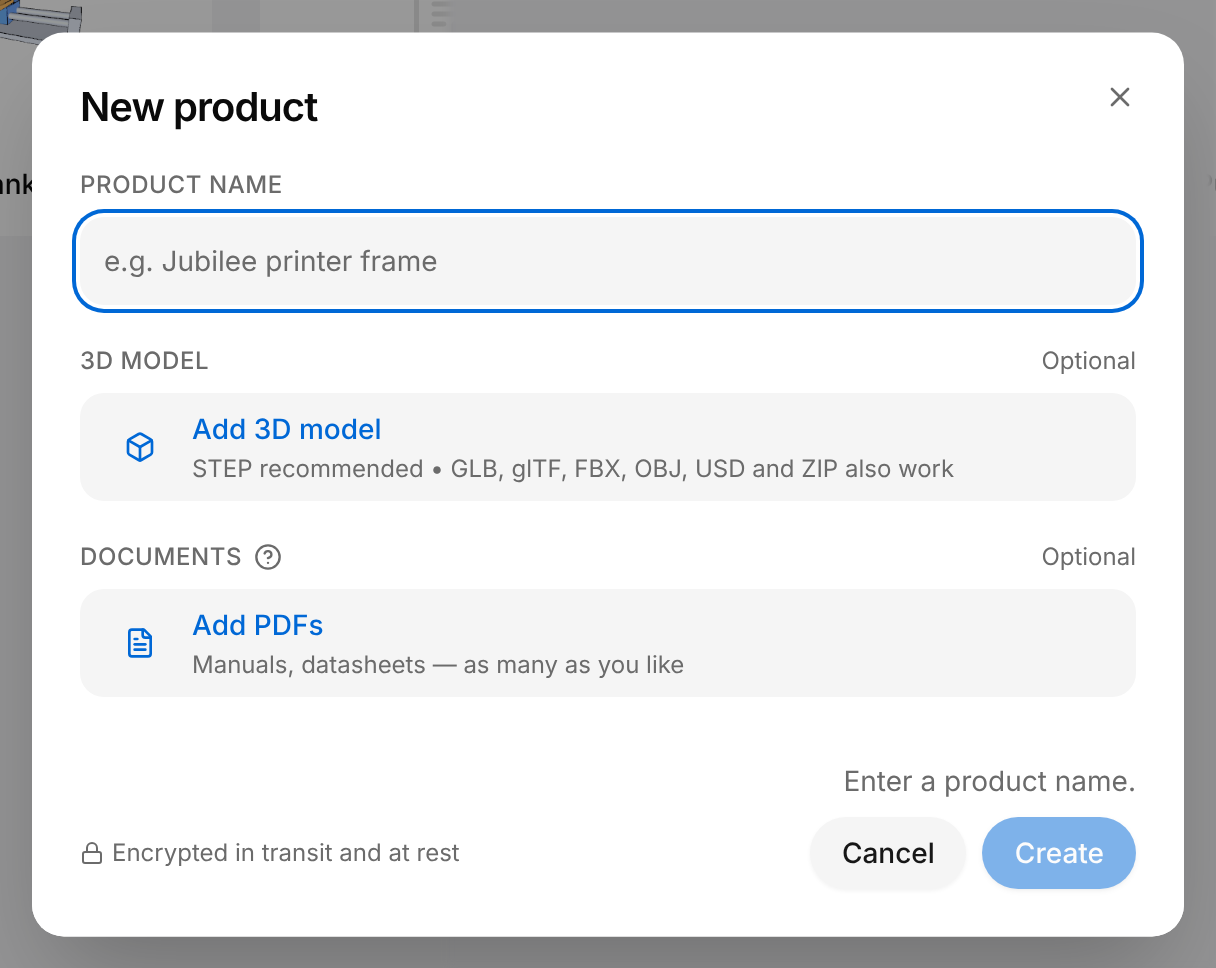
While Create is greyed out, the line above it says what is missing: "Enter a product name." in the picture, or "Wait for the 3D file to finish processing."
The manuals matter: the Assistant, the part of TwinWorks that writes first drafts for you, reads the files of the product to write procedures and documentation. The accepted 3D formats, the files you can add later and the rest of the dialog are described in Products.
Find your way in a product
Select a card on Products to open the product. It opens on Sources, and the sidebar lists its five sections.
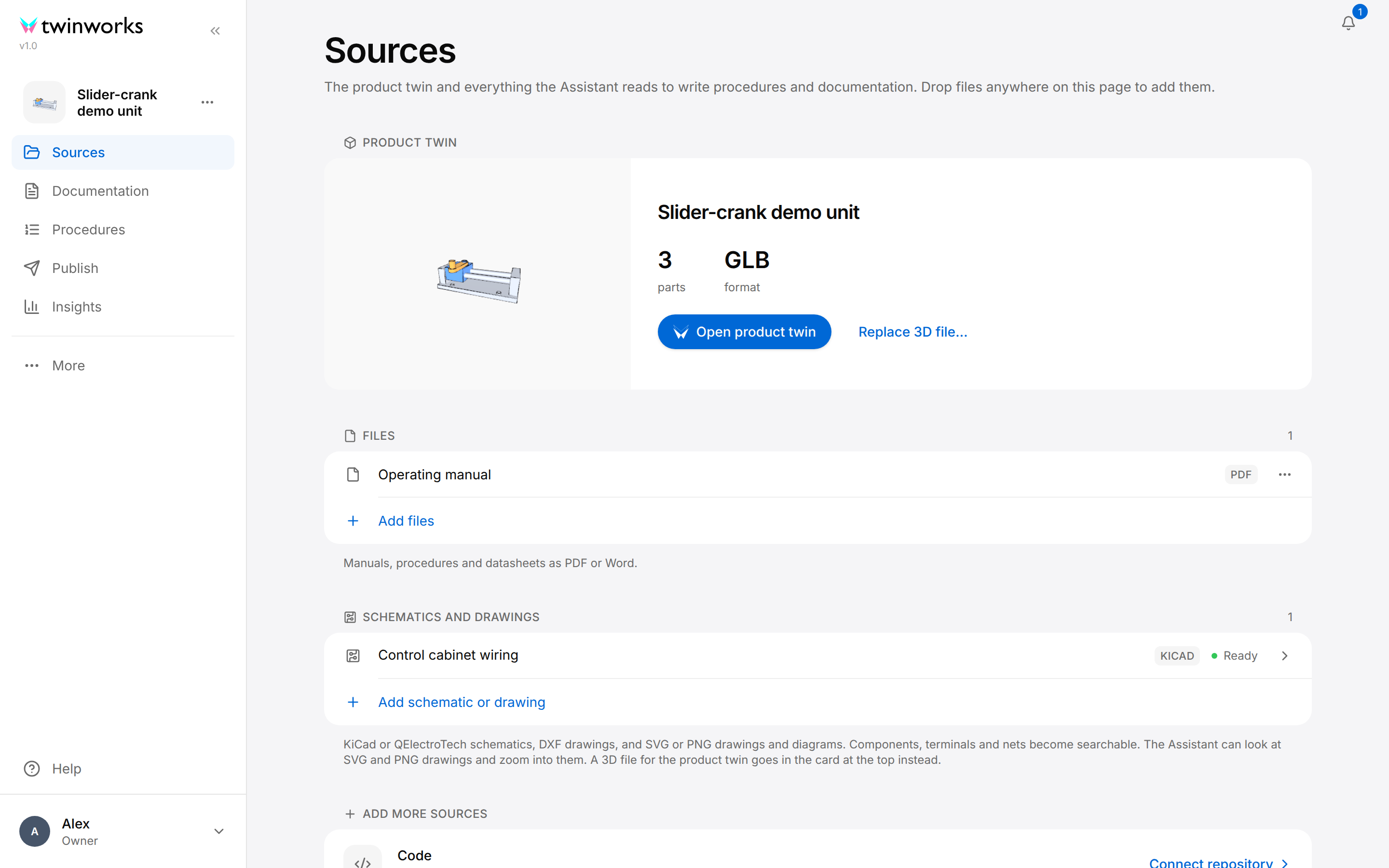
| Section | What you do there | Described in |
|---|---|---|
| Sources | Keep the product twin (the 3D model of the product and what you add to it) and the files, schematics and code the Assistant reads | Products |
| Documentation | Write, review and approve the documents of the product | Documentation |
| Procedures | Create and edit the step-by-step procedures shown on the product twin | Procedures |
| Publish | Choose who gets the product's content, and get its link and QR code | Publishing |
| Insights | See how the published procedures of the product are used | Insights |
More, under the sections, opens the other pages of the workspace: Your tasks, Organization and Community. The TwinWorks logo at the top leads back to Products. A Viewer does not see Insights.
Prepare the product twin
The product twin is the 3D model of the product together with what you add to it: the names you give its parts and the positions its parts can take. A procedure step moves a part from one position to another, so prepare the positions before you write procedures. A product without a 3D file has no product twin yet: its Product twin card shows Upload 3D file.
Name a part and give it a position
Do this for each part that a procedure has to name or to move.
- Open the product, select Sources, then Open product twin.
- Select a part in the Parts panel or in the 3D view.
- To rename the part, select its name at the top of the right panel, enter the new name and press Enter.
- Open Positions in the right panel, select Add position, enter a name and select Add and place.
- Drag the arrows on the part in the 3D view, then select Done, in the bar at the top or in the right panel.
- Select Save.
For the slider of the demo unit, add the position Extended and drag the slider to the far end of the rods.
The message "Product twin saved" appears. A procedure step can now move the part to that position.
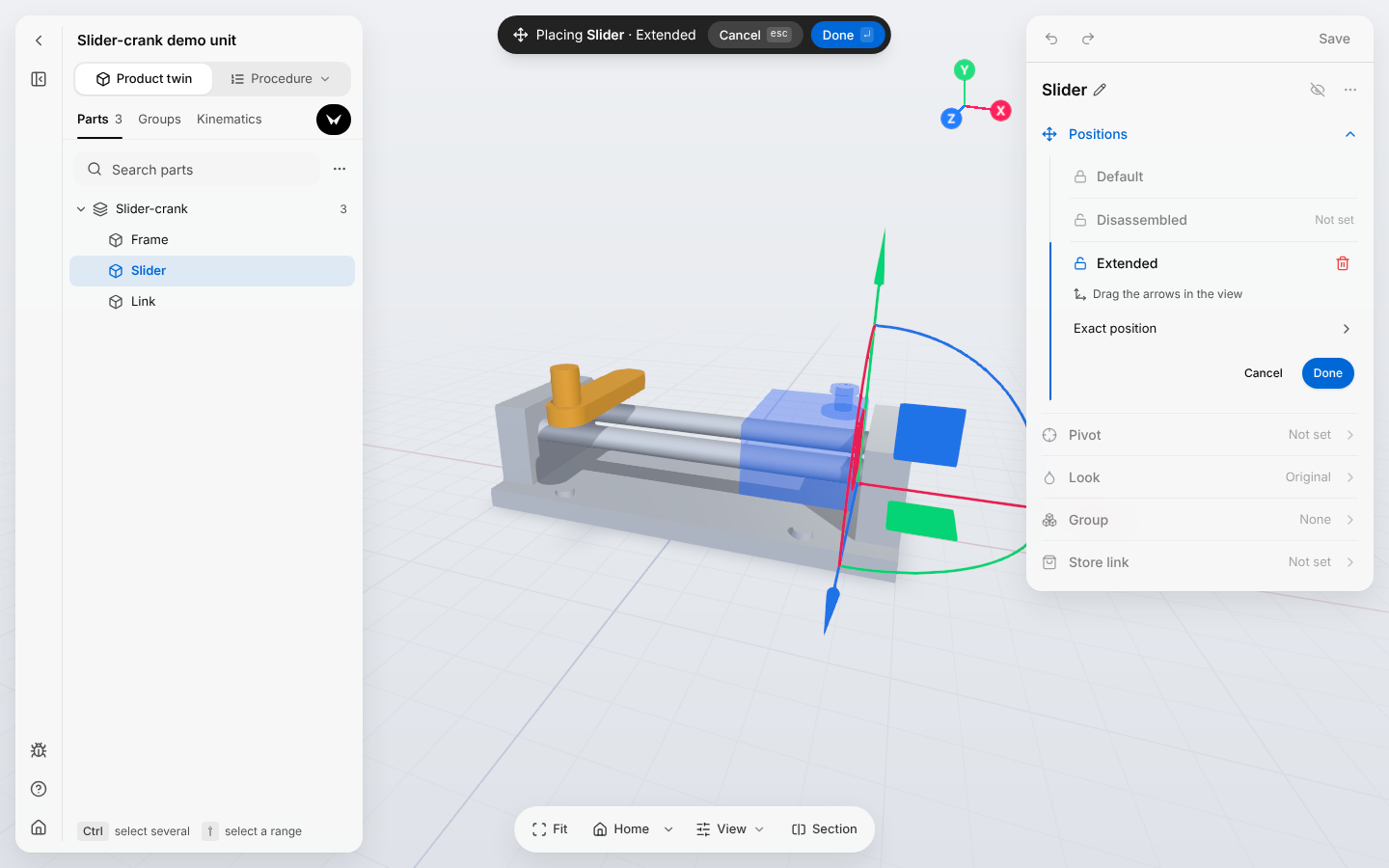
The editor fills the window. The Back to product arrow, at its top left, leads back to Sources. The pivot, joints, groups, store links and the Assistant of the editor are described in Products.
Write the documentation
Documentation holds the manuals and guides of the product. A Manager, or the person who first opened this section of the product (see the notes under the picture), adds each document and says what it must cover: its sections. Authors write the document as a draft, by hand or with the Assistant. Reviewers check the draft, and an approved document can be published.
Write a first document
From an empty list of documents to a draft that is sent for review.
- Open the product, select Documentation, then New document.
- Choose a Type and enter a Title: while Title is empty, choosing a type other than the one shown enters the name of that type as the title, which you can change. If the dialog shows Start from, leave it on An empty document.
- Select Create. The document opens and reads "No sections yet".
- Select the link use the standard template in the sentence under that title. The Suggest sections button has the Assistant propose the sections instead.
- In the dialog that opens, read the proposed sections and select Add sections: the document gets its list of sections.
- Select New draft, at the top right. In the dialog, select Generate to have the Assistant write the draft from the sources of the product, or Create to get an empty section for each section of the document.
- The draft opens. After Generate, wait until the line "Generating this draft — live preview, read-only until it finishes." is gone. Then read the draft and correct it.
- Select Submit for review.
For the operating manual of a bench unit, choose the type Operation Manual, add the standard sections and select Generate.
The state of the draft becomes In review. A Reviewer or a Manager reviews the draft and approves it, and the approved document can then be published.
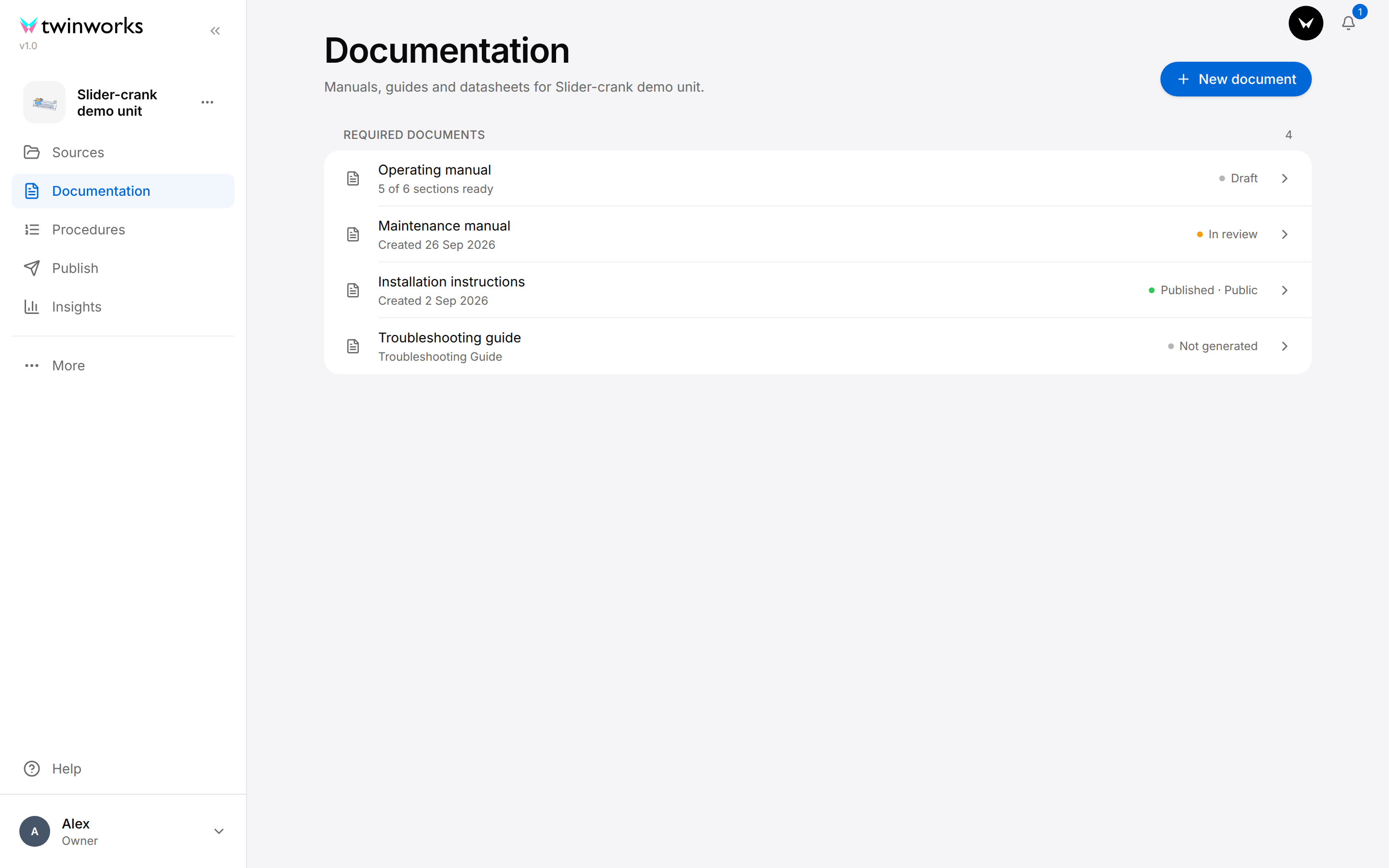
- Adding documents and defining their sections is for a Manager, and for the person who manages the documentation of the product. That person is the first Owner, Manager, Author or Reviewer who opens the Documentation section of the product: this is how the Owner of the organization gets a Manager's rights in the documentation of a product. A Viewer who opens the section only sees the published documents.
- A draft is saved as you type, and colleagues can write in it at the same time. It can be edited while its state is Draft or Changes requested.
- What the Assistant writes is a first draft: read every section and compare the facts with the sources.
- To have a colleague review a draft, invite them with the role Reviewer first: see Invite your team and set up export templates, below. When the organization has no member with the role Reviewer, a Manager sees Approve beside Submit for review and can approve a draft without a review round.
| To | See |
|---|---|
| Add documents, define their sections and assign them | Documentation |
| Write, preview and export a draft | Drafts |
| Add tables, pictures, 3D views and procedures to a draft | Tables, pictures and 3D views |
| Ask questions, have a draft written or changed | Assistant |
| Comment, review, approve and publish | Review and publish |
Create procedures
A procedure is a set of step-by-step instructions for one task on the product. Each step has a text and can move the parts of the product twin. A procedure starts in one of three ways:
- empty: you write the steps;
- generated: the steps are written from the files of the product or from a video;
- recorded: you do the task and the steps are written from the recording, either your voice and the parts you select on the 3D model, or a video.
Create a procedure
Start with an empty procedure, or have the steps written from the files of the product.
- Open the product and select Procedures.
- Select New procedure.
- Enter a Name and choose a Type and a Language.
- Select Create to start with an empty procedure, or Generate, when the dialog shows it, to have the steps written from the files of the product.
After Create, the procedure editor opens on the empty procedure: select Add step under its Steps list to write the first step. After Generate, the editor opens and the Assistant writes the steps from the files of the product, with their parts in the 3D model. Approve each change it proposes.
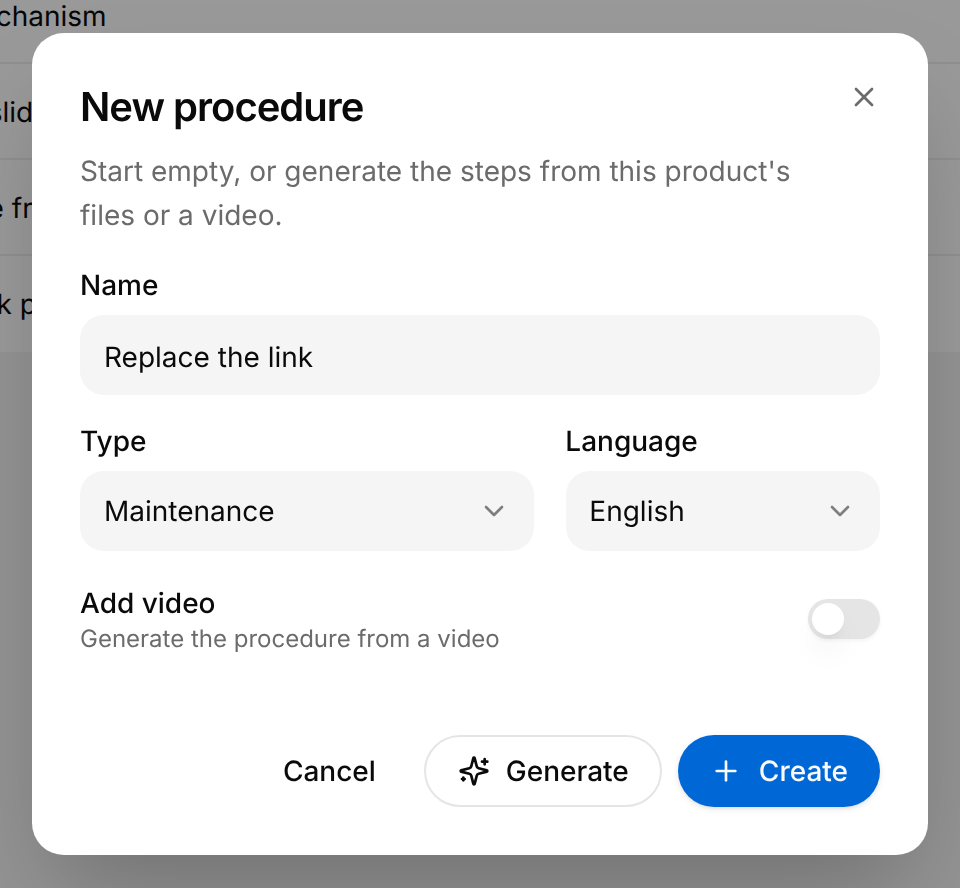
- Generate is shown when the product has at least one file under Files in Sources, or when Add video is on. With Add video on, Create is not offered.
- To record a procedure, create it with Create. In the empty Steps list, under Record a procedure, select 3D and voice or Video. In a procedure that already has steps, select the arrow beside Add step, then Record with 3D and voice or Record a video.
- A generated or recorded procedure is a first draft: read every step. The editor saves each change as you make it. Operators get your changes when you select Publish changes.
Creating, recording, editing and publishing procedures are described in Procedures.
Publish
Publishing decides who can open the procedures and the documents of a product. There are two audiences: Public, anyone who has the link, and Team, the signed-in members of your organization. Each audience has one link and one QR code per product. Both open the viewer on Contents, the list of what is published. That list opens on what is published to Public; a signed-in member selects Team to see what is published to the Team audience. From there people read a document in the reader, the screen that shows a published document, and follow a procedure in the procedure viewer. In the Publish section, the list where you choose what is published has another title: Content.
Publish to an audience and share its link
Turn on what the audience gets, save, then send the link or print the QR code.
- Open the product and select Publish.
- Select the Public or the Team card.
- Under Content, turn on the switch of each procedure and document this audience gets.
- Select Save in the Unsaved changes bar at the bottom of the window.
- Under Link and QR code, select Copy link (the first of the two icons at the end of the link) to send the link, or Download QR code to print the code.
Publish Move the mechanism to Public, print the QR code and put it on the unit.
The message "Settings saved" appears and the card reads "Published". People who open the link or scan the QR code get what is turned on for Public; team members sign in and select Team to get what is turned on for Team.
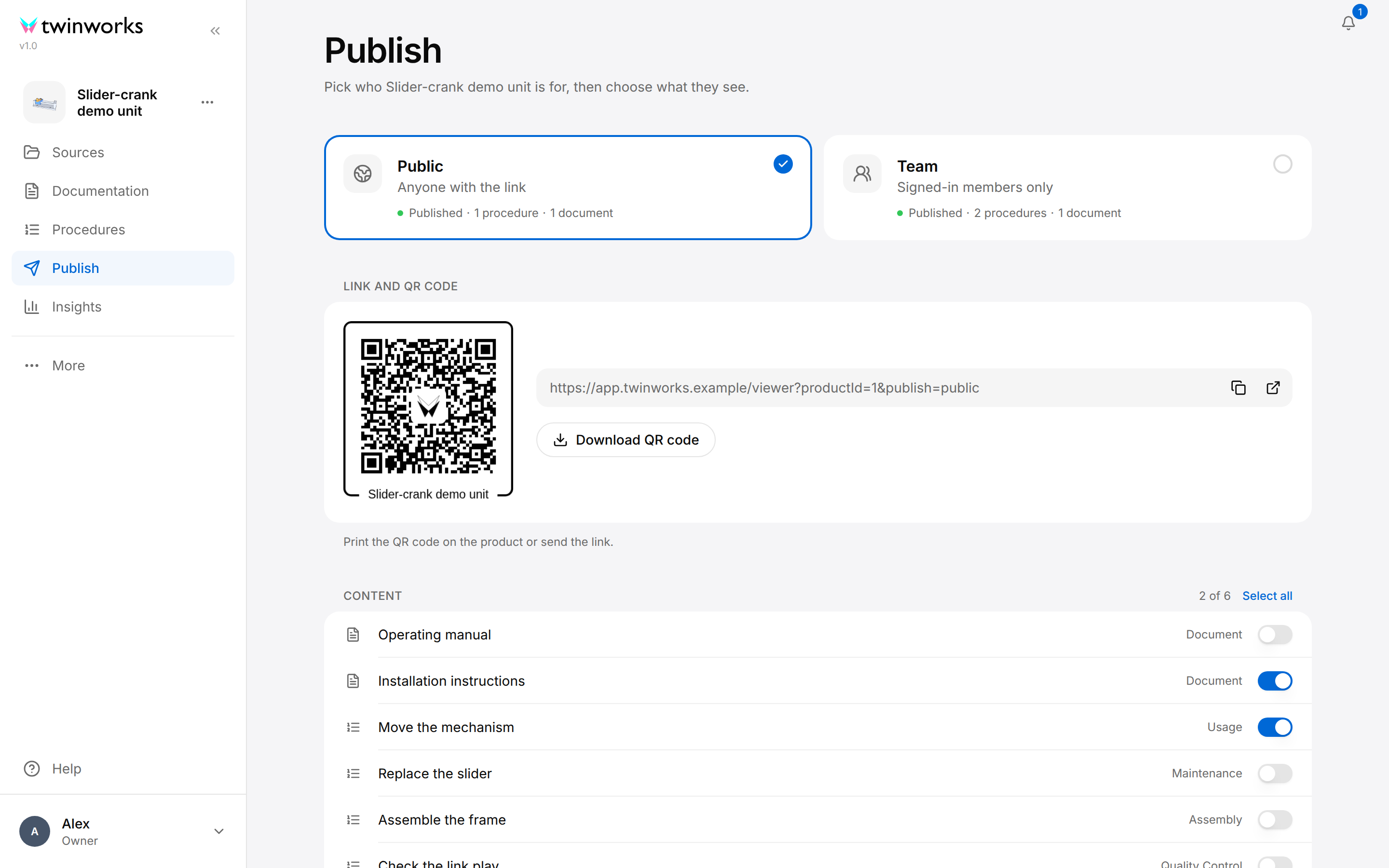
- A document is listed under Content once it has an approved revision. Turning on its switch and selecting Save publishes it. Only Managers, Reviewers and the person who manages the documentation of the product can publish a document: when your role does not allow it, the message "No permission to publish" appears when you save.
- One procedure can also be published from its editor, with Publish.
- A Viewer cannot change what is published: for this role the section only hands out the links.
Languages, feedback, branding, the printed manual and serial numbers are described in Publishing, together with what people get in the viewer. Reading a published document is described in Read a document.
Follow up
- Insights shows how the published procedures are used: how often they are opened, by how many people and from which countries. Insights in the sidebar of a product covers that product; Insights under Admin, in the sidebar of the organization, covers all products: from inside a product, select the TwinWorks logo first to reach that sidebar. See Insights.
- Reporting turns a procedure into a record of the work. In the Publish section, select the Team card and turn on Reporting under Features: the procedure viewer then asks for a result on every step, and a report is sent at the end of the procedure. You read and export the reports in Insights. See Reporting.
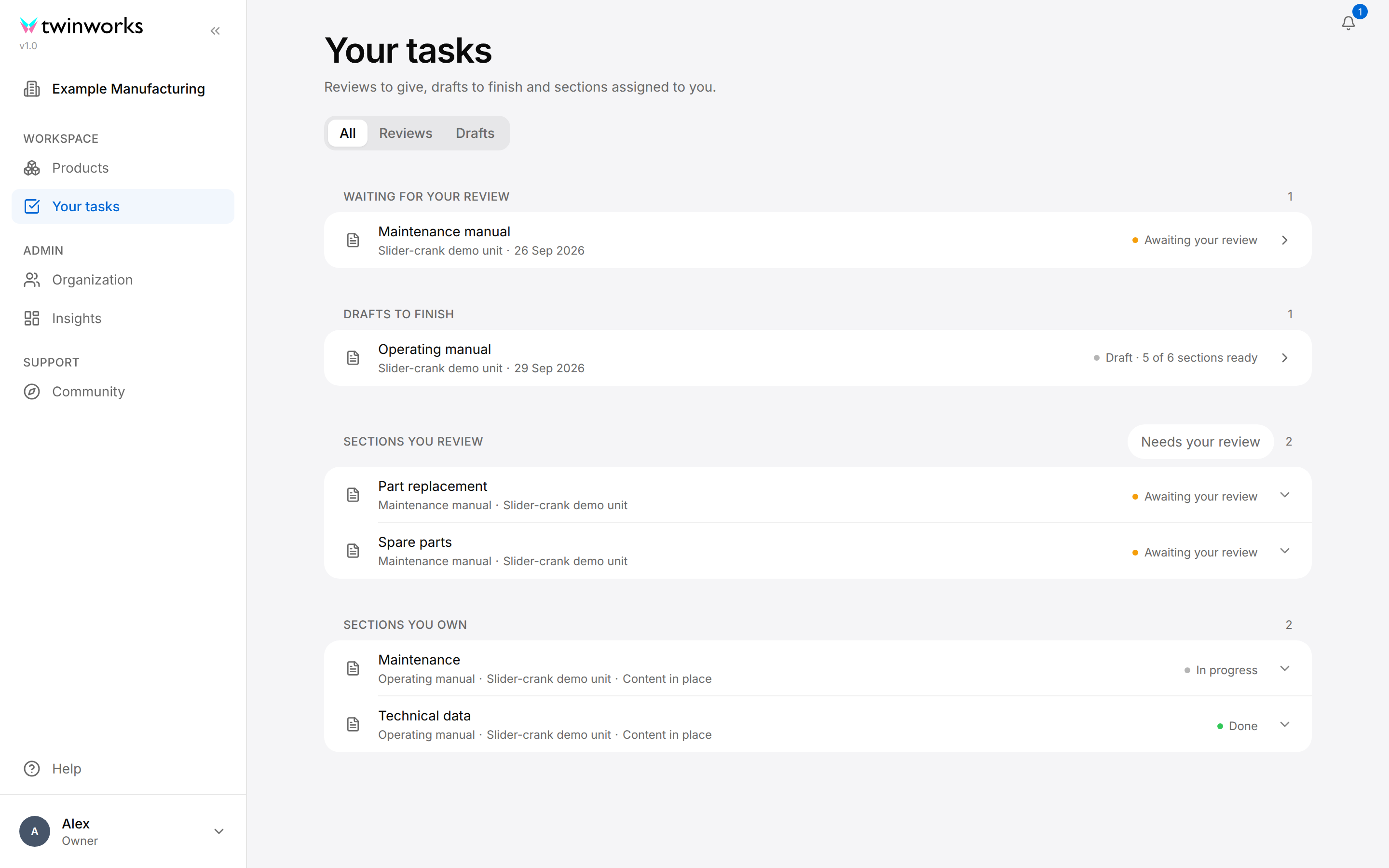
- Your tasks lists the documentation work that waits for you, across every product: drafts to review or approve, drafts to finish, and the sections assigned to you. See Your tasks.
- Notifications, the bell in the top right corner, tells you what happened on the documents you write and review. In your profile (select your name at the bottom of the sidebar, then Profile) you choose which of these updates reach you by e-mail. See Your tasks.
Invite your team and set up export templates
Both are on the Organization page. In the left sidebar, under Admin, select Organization; from inside a product, select More, then Organization.
Invite a member
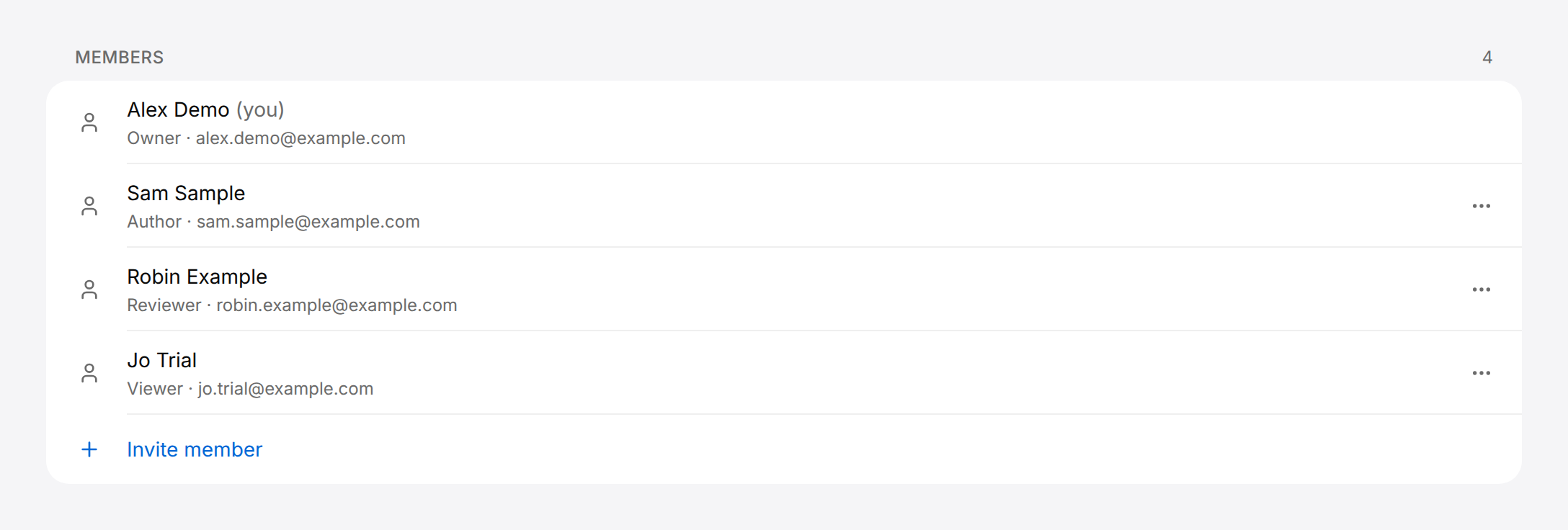
The Owner of the organization adds people by e-mail address and gives each a role.
- Open Organization.
- At the bottom of Members, select Invite member.
- Enter the Email address of the person and choose the Role: Author, Reviewer, Manager or Viewer.
- Select Invite.
The message "Member added" appears and the person is added to the list. A person who has no TwinWorks account yet receives an e-mail with a link, which is valid for six hours: tell them to use it within that time.
What the invited person does, also when the link is no longer valid, is described in Organization.
At the end of the same page, Document templates and Procedure templates set what exported files look like: the PDF of a document, and the PDF or Word file of a procedure. The Owner, Managers, Authors and Reviewers see them. Until a template is set as the default, exports use a built-in layout. See Export templates.
The name, the logo and the brand colors of the organization are on the same page: see Organization.
Who can do what
A member has one role in the organization. The Owner of the organization sets it when inviting the member, and can change it later.
| Role | Products and procedures | Documentation |
|---|---|---|
| Viewer | Opens products and reads what is published, without changing anything; has no Insights | Reads published documents |
| Author | Creates and edits products, product twins and procedures | Writes: edits drafts, uses the Assistant, generates drafts, comments |
| Reviewer | Everything an Author can | Everything an Author can, and also reviews, endorses, approves and publishes |
| Manager | Everything an Author can, and also deletes products | Everything: adds and deletes documents, defines and assigns sections, writes, reviews, approves, publishes |
| Owner | Everything a Manager can | Everything a Manager can, in the documentation of a product whose Documentation section they were the first to open: see Write the documentation, above |
The Owner manages the members of the organization: inviting, changing roles and deleting.
The full table, with the Organization page and Insights, is in Organization.
Where to go next
- Check your browser and your files: Technical requirements.
- A question or a problem: Contact.