

Tables, pictures and 3D views
A document is more than text. From the Insert menu of a draft you add tables, pictures, 3D views of the product, whole procedures, safety notices and code blocks, and you shape each of them in place. This page is for everyone who writes a draft: a Manager, an Author or a Reviewer, or the person who first opened the Documentation section of the product. Whoever you are, the draft can be changed only while it is in the state Draft or Changes requested.
Opening a draft and writing text are described in Drafts, comments in Review and publish, and writing with the Assistant in Assistant.
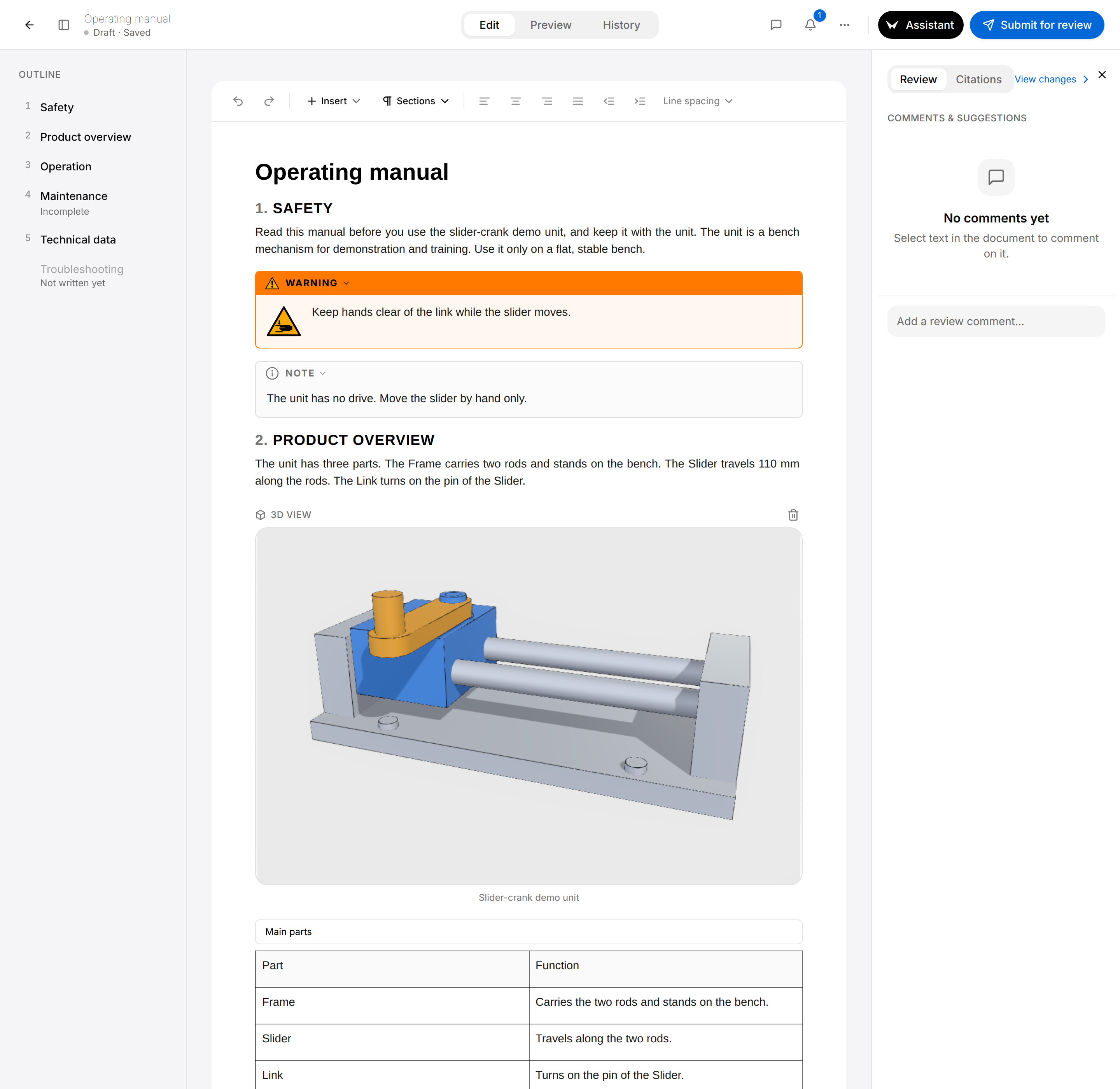
The Insert menu
Insert is in the toolbar above the document, on the Edit tab of a draft. Put the cursor where the new content goes, then select Insert and an entry. When the first tab reads Read, the draft cannot be changed and there is no toolbar: see Drafts.
| Entry | What it does |
|---|---|
| Danger, Warning, Caution, Notice, Note | Turns the paragraph that holds the cursor into a safety notice of that level. |
| Bulleted list, Numbered list | Turns the paragraph into a list, or a list back into paragraphs. See Drafts. |
| Image | Adds a picture from a file on your computer. |
| Table | Adds a table of two rows and two columns. |
| Procedure | Embeds a published procedure, which readers play inside the document. |
| 3D view | Adds a picture of the product taken from its 3D model. |
| Code block | Turns the paragraph into a block of fixed-width text, or back. |
| Icon | Adds a safety or information sign, as a small picture. |
| Templates | Adds one of three ready-made tables. |
What you insert is saved at once, like any change of the draft.
Move a block
To move a picture, a safety notice or a code block, rest the pointer on it and drag the grip of six dots that appears on its left. A table, a 3D view and a procedure have no grip: move the paragraphs around them instead, or insert the block again in the new place and remove the first one.
Tables
Insert a table
Use a table for values that are compared row by row, such as technical data.
- Put the cursor where the table goes.
- Select Insert, then Table: a table of two rows and two columns appears, and its first row is the header row.
- Select a cell: the table bar appears above the table. Select Add row after and Add column after until the table has the size you need.
- Enter the text of each cell.
The table bar
Select a cell: a bar of eight buttons appears above the table, whichever row holds the cursor. Rest the pointer on a button to read its name. Between the bar and the table, the Table caption field holds the caption of the table: a PDF prints it above the table, after the number of the table.
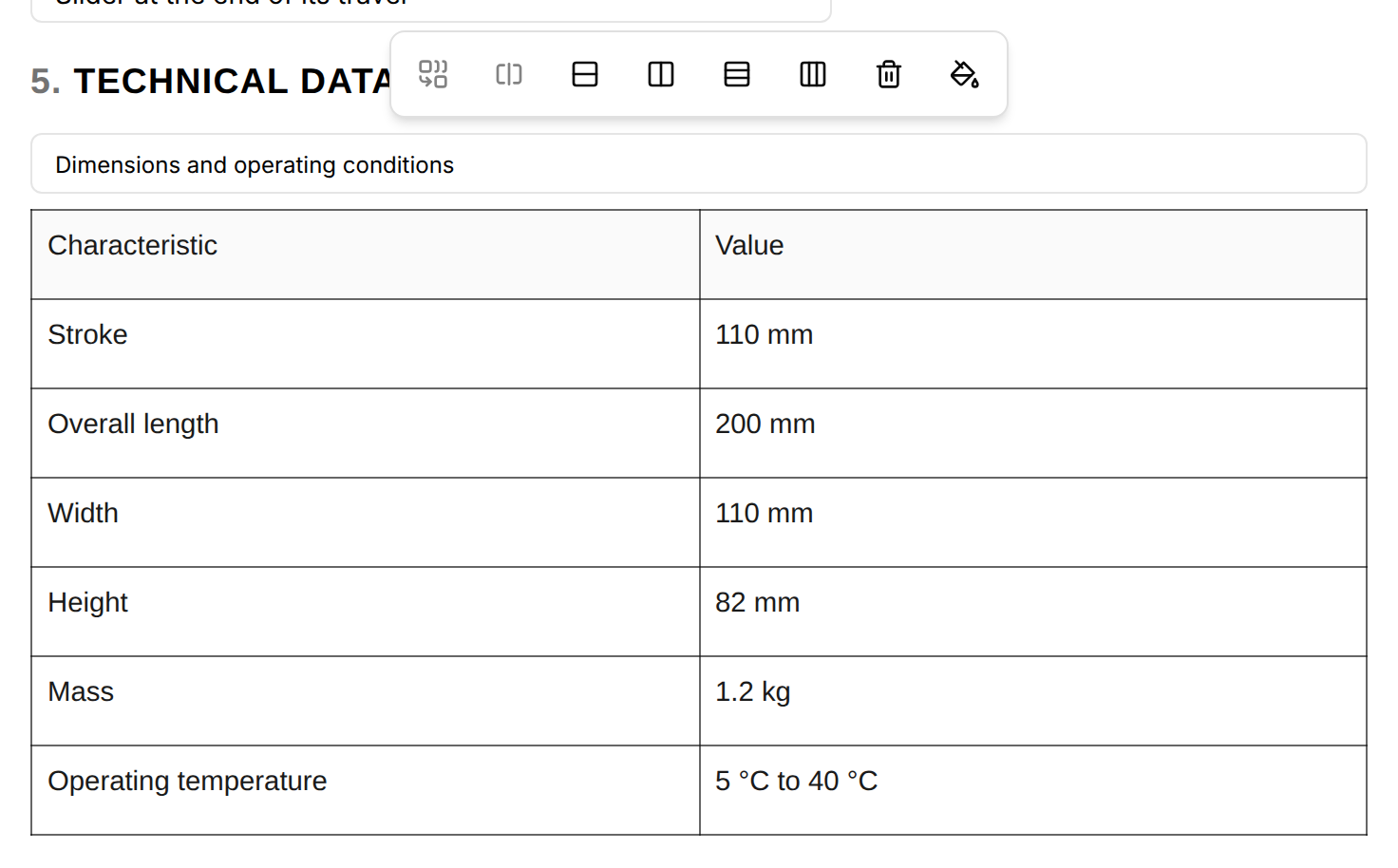
From left to right:
| Button | What it does |
|---|---|
| Merge cells | Merges the selected cells into one. Drag across the cells first: the button is greyed while a single cell is selected. |
| Split cell | Splits a merged cell again. |
| Add row after | Adds a row below the row that holds the cursor. |
| Add column after | Adds a column to the right of the column that holds the cursor. |
| Delete row | Deletes the row that holds the cursor. |
| Delete column | Deletes the column that holds the cursor. |
| Delete table | Deletes the whole table. |
| Cell background color | Opens Cell background with twelve round swatches and Custom for any other colour. The first swatch, None, removes the background. |
- To change the width of a column, drag its border.
- To remove a row or a column from the keyboard, drag across all its cells, then press Backspace or Delete.
- While text is selected inside a cell, the formatting bar takes the place of the table bar.
Ready-made tables
Select Insert, then Templates, then one of the three tables.
| Entry | The table |
|---|---|
| PPE requirements table | For personal protective equipment (PPE). Two columns and five rows: a sign and its sentence, from "Eye protection required." to "Safety footwear required." |
| Bill of materials | The header row Item, Part No., Description, Qty, Notes and one empty row. |
| Revision history table | The header row Revision, Date, Description, Author, Reviewed by, Approved by, and a first row filled with revision 1, today's date, "Initial issue" and your name. |
Each of the three carries a caption: "PPE Requirements", "Bill of Materials" or "Revision History". The Preview tab, the PDF and the published document show it. The editor does not show the caption of a table, and it cannot be changed there. A table inserted with Table has none.
Pictures
A picture comes into the draft from a file, from the clipboard, or by dropping files on the draft.
Add a picture from a file
Use Image for a photo, a drawing or a screenshot that is stored on your computer.
- Put the cursor where the picture goes.
- Select Insert, then Image.
- Choose an image file on your computer.
- Enter the caption in Figure caption under the picture.
While the file is sent, the message "Uploading image…" shows. The picture then stands at the cursor, as wide as the text, with an empty caption. If the upload fails, the message "Could not upload image" appears and nothing is inserted.
If a picture or another block is selected, the new picture goes after it.
Paste or drop a picture
- Copy a picture, for example a screenshot, and paste it into the draft.
- Drag image files from your computer and drop them on the draft. They land where you drop them, in the order you chose them.
Text pasted from a word processor brings its pictures along. When one cannot be read, the message "Could not import an image" asks you to copy it on its own and paste it.
Shape a picture
Select a picture to get its tools.
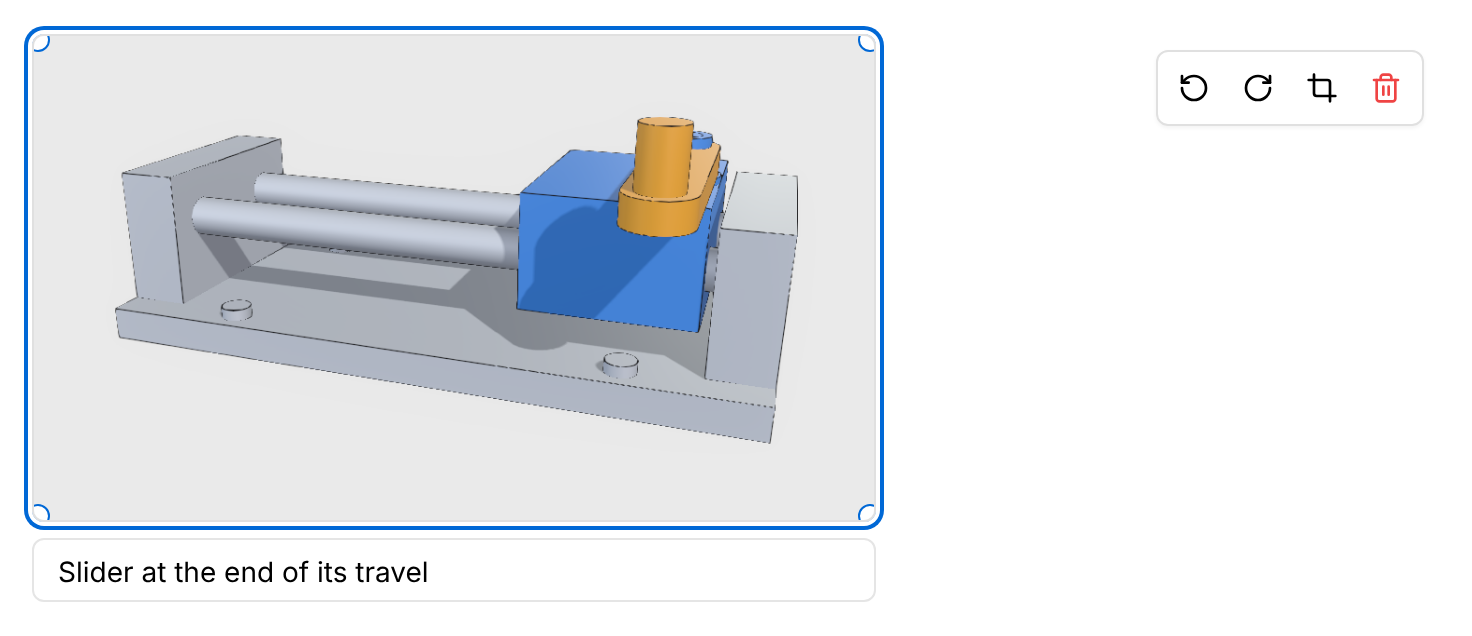
| To | Do this |
|---|---|
| Turn the picture | Select Rotate left or Rotate right: each turns it a quarter turn. |
| Cut its edges | Select Crop image: a handle appears on each side of the picture. Drag a handle inwards, then select Crop image again. |
| Make it smaller or larger | Drag a corner handle. The width goes from 10 % to 100 % of the width of the text. |
| Move it | Rest the pointer on the picture: a grip, Drag figure, appears on its left. Drag the grip to the new place. |
| Give it a caption | Enter the text in Figure caption. Readers see it under the picture. |
| Remove it | Select Delete image. |
A grey box with the words "Image unavailable" stands for a picture whose file is missing or could not be loaded. Select it, select Delete image and add the picture again.
3D views of the product
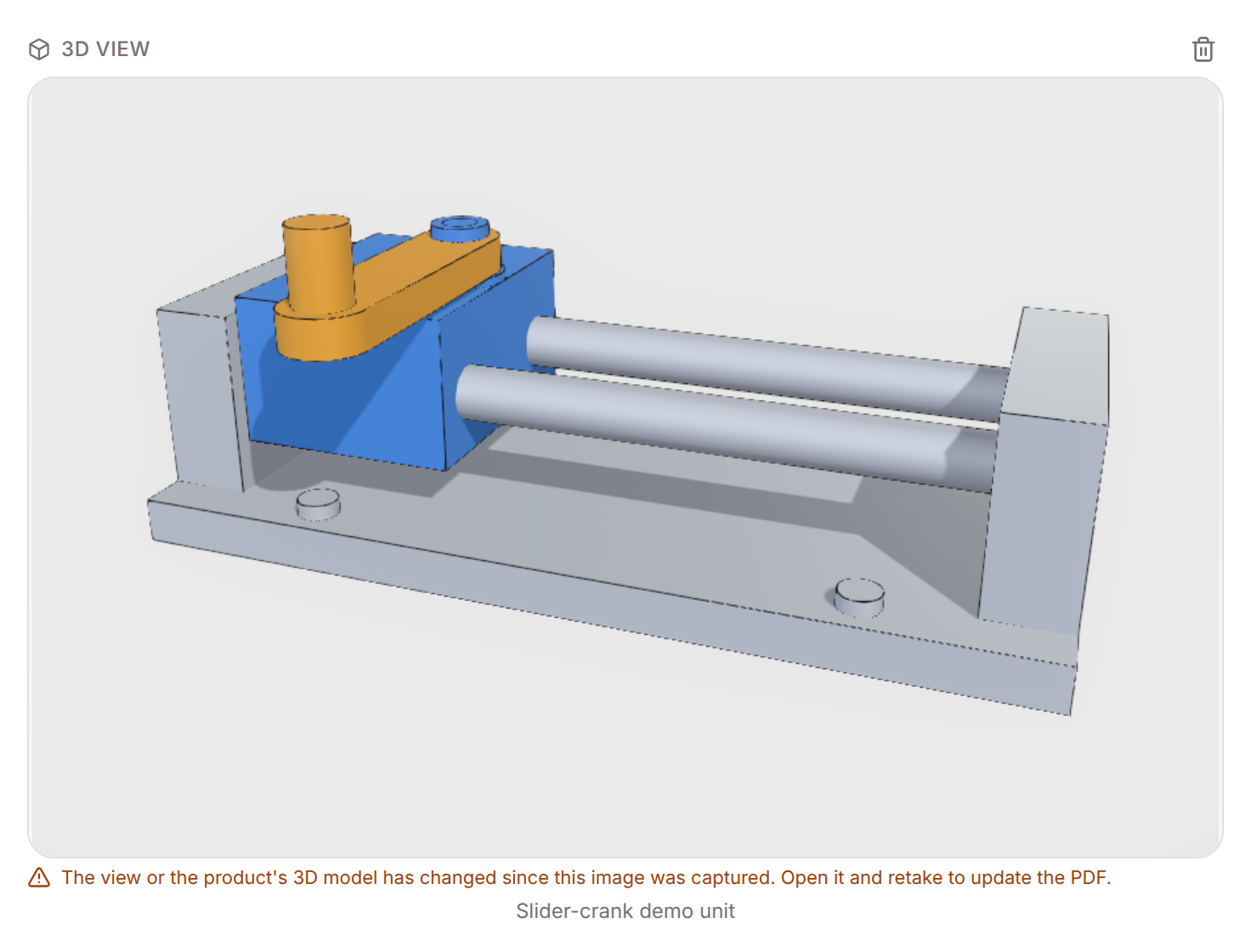
A 3D view is a picture of the product taken from its 3D model. You choose what the model shows, and the editor captures the picture that the draft, the published document and the PDF use. Readers of the published document see that picture with its caption: see Read a document.
The product needs a 3D model: see Products. Other products linked to it are offered too, when they have a 3D model: they are listed under Linked products in the Sources section of the product. When neither the product nor a linked product has a 3D model, Insert a 3D view says "None of this document's linked products has a 3D model. A 3D file and linked products are added on the product's Sources page." Sources opens that page in a new tab and the draft stays open: add the 3D file there, then open Insert a 3D view again.
Insert a 3D view
Use a 3D view to show the product, or some of its parts, from the side you choose.
- Put the cursor where the view goes.
- Select Insert, then 3D view.
- In Insert a 3D view, select the product.
- Wait: the view shows the live model for a moment, then takes a first picture by itself.
- To change what the view shows, select the picture: the 3D view editor opens. Set up the view and select Done.
The view stands in the draft as a picture, under the label 3D view, which the screen shows in capitals. Its caption is the name of the product and cannot be changed.
The 3D view editor
Select the picture of a 3D view: the editor opens and fills the window. While you point at the picture, the words Open 3D view show over it.
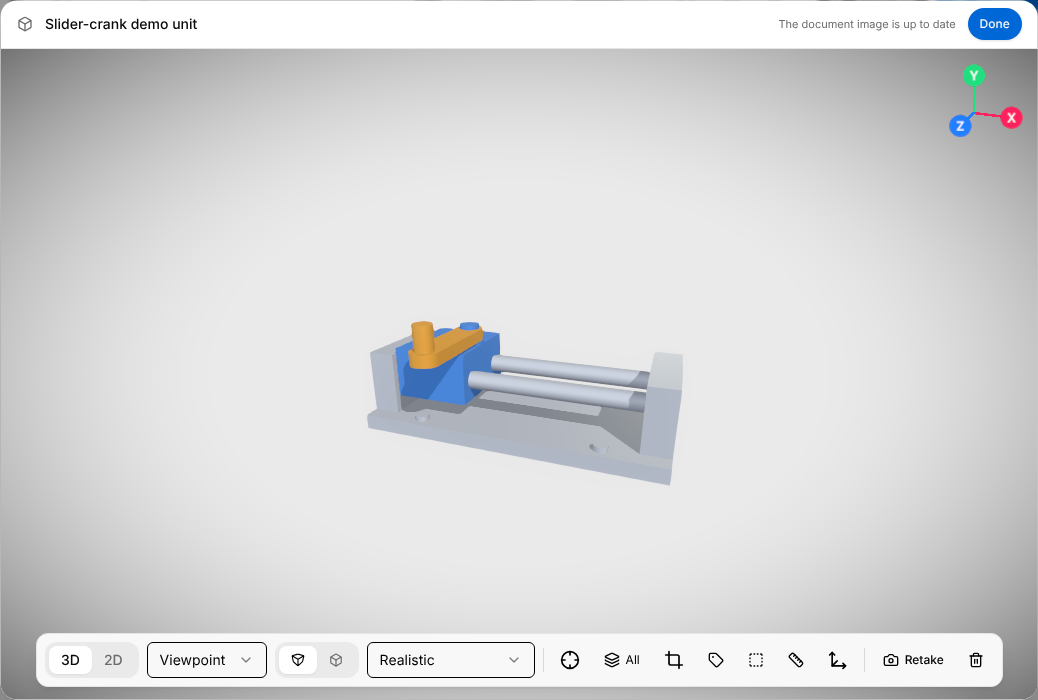
In the view, use the mouse:
- Drag with the left button to turn the model. In 2D the same drag moves it.
- Drag with the right button to move the model.
- Turn the wheel to zoom.
- Select a part to work on it in the Labels, Frames and Exploded view panels: its path shows at the top left. Hold Shift and select to add a part to the selection or take it off. Select an empty spot of the view to drop the selection.
The coloured axes at the top right show how the model is turned. Select the end of an axis to look along it; in 2D the axes only show the direction.
The controls of the bar, from left to right:
| Control | What it does |
|---|---|
| 3D / 2D | 3D turns the model freely. 2D shows one side flat: you can move and zoom it, not turn it. |
| Viewpoint | Looks at the model from a named side: Isometric, Front, Back, Left, Right, Top or Bottom. |
| Projection (two icons) | Left icon, Perspective: far parts look smaller, as the eye sees them. Right icon, Orthographic: parallel edges stay parallel, as on a technical drawing. A 2D view and a view in Technical Drawing are always orthographic. |
| Look (the list that reads Realistic) | Realistic is shaded, Outlined is shaded with the edges drawn, Technical Drawing is a line drawing. |
| Recentre on the visible parts (target icon) | Frames the model again. |
| Parts (layers icon with All or a number) | Chooses which parts are shown. |
| Cross-section (crop icon) | Cuts the model open. |
| Labels (tag icon) | Adds labels that name parts. |
| Frames (dashed square) | Draws frames around parts, in 2D and 3D, and marks areas on a 2D view. |
| Exploded view (arrows icon) | Moves the parts away from each other. |
| Capture, Update image or Retake (camera icon) | Takes the picture the document uses: see Capture the picture. |
| Remove the captured image (bin icon) | Removes the picture, not the view. The view is then without a picture, and the line "No image captured yet — this view will be left out of the PDF." shows under it in the draft. The editor closes by itself or stays open. If it stays open, Done takes the new picture. If it closes and that line still shows under the view, open the view again and select Capture or Done. To delete the view itself, see Remove a 3D view. |
Show and hide parts
Select the parts button, which reads All. A list shows the parts of the model under the words "Whole assembly", every box ticked. Select the box of a part to show that part only: its box alone stays ticked. Then select the boxes of further parts to add them. The button then shows the number of parts shown. Show all brings the whole assembly back.
Looks and cross-section
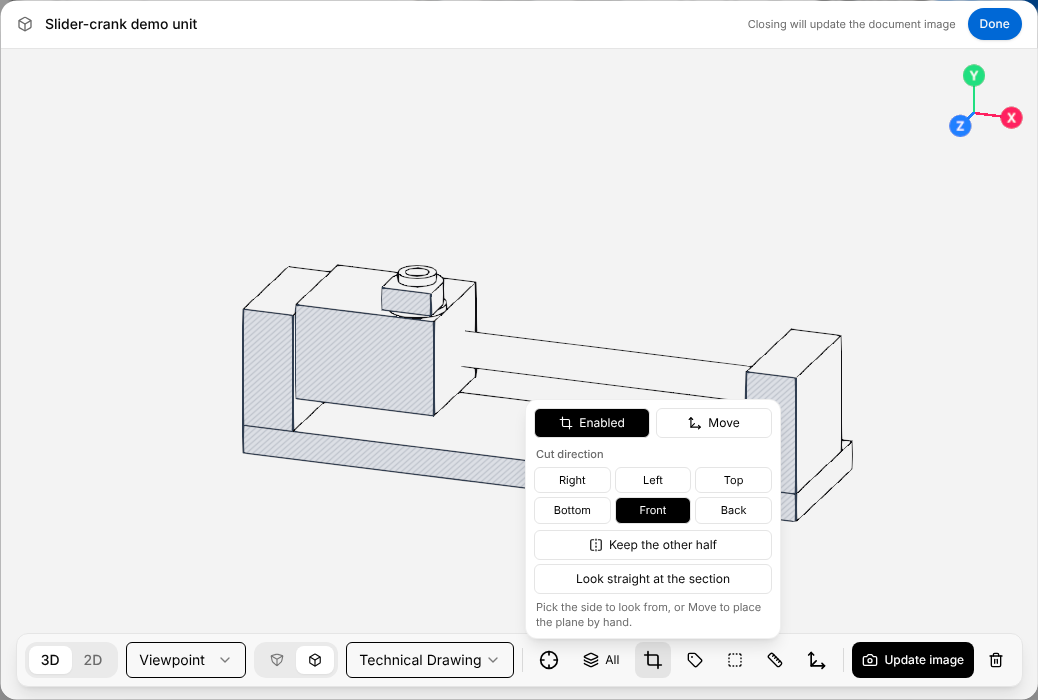
Choose the look in the list that reads Realistic. In the picture above the look is Technical Drawing and the model is cut open. After a capture in Technical Drawing, the picture is refined in the background: see Messages under a 3D view.
To cut the model open, select Cross-section, then Enabled: Enabled stays black while the cut is on. The panel then offers:
- Cut direction: the side to cut from, Right, Left, Top, Bottom, Front or Back.
- Keep the other half: shows the other side of the cut.
- Look straight at the section: turns the view to face the cut.
- Move: lets you drag the cutting plane in the view.
Select Enabled again to remove the cut.
Labels, frames and areas
Label a part
A label names a part in the picture, with a line that points at it.
- In the 3D view editor, select Labels.
- Select Add a label: a list of the parts opens, with every box ticked.
- Select the box of the part: only that box stays ticked. Then select the Add label button under the list.
- The label appears in the panel with a list that reads, for example, Part name — Slider. In that list choose what the label says: Part name, another field of the part, or Custom text… to enter your own words.
- Drag the label in the view to place it. The dot at the end of its line sits on the part, at the point nearest the label, and follows when you turn or zoom the model or move the label. To point at another spot, drag the dot: it slides on the part. Pull it further off the part to place it elsewhere; bring it back near the part and it snaps on again. Reset dot puts it back.
The label is drawn in the view and will be part of the captured picture. The Labels button shows the number of labels.
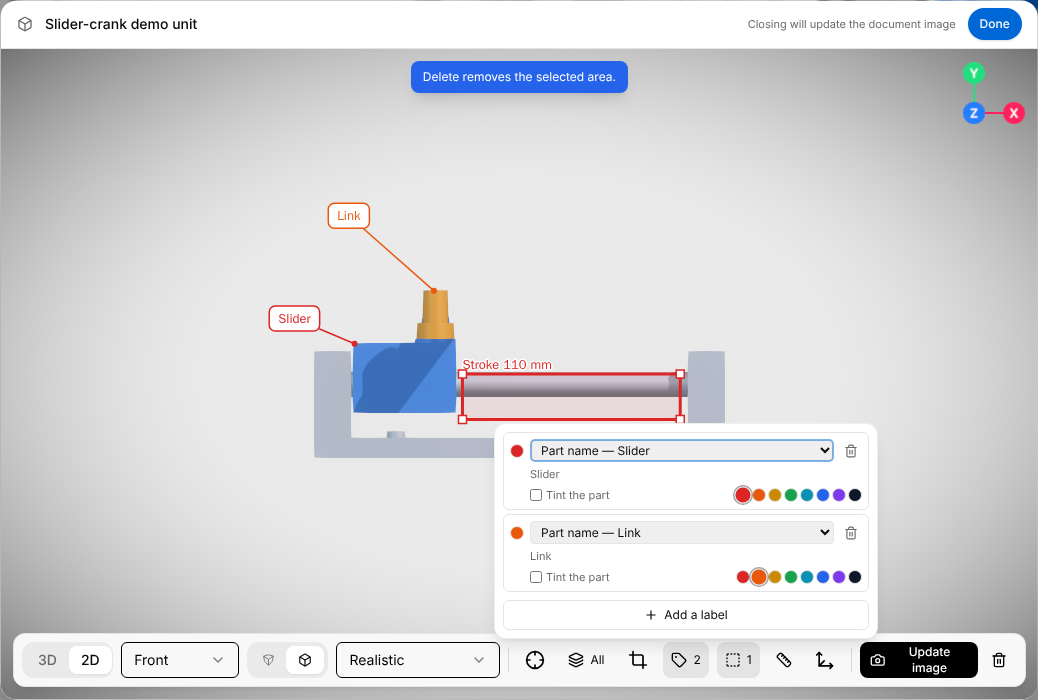
In the Labels panel each label has a row of colours for the label and its line, Tint the part to give the part that colour, and Remove this label (bin icon). Once you have dragged the dot of a label, Reset dot in its row puts the dot back on the part, at the point nearest the label. When a part is selected in the view, the panel offers a button to label it, for example Label “Slider”.
Frame a part
A frame is a rectangle or a polygon around parts, with a text if you want one.
- In the 3D view editor, select the part in the view. Hold Shift and select to add more parts.
- Select Frames. A frame appears around the parts, and the Frames panel shows it. If these parts already have a frame, the panel shows that frame.
- Choose Rectangle for a box around the parts as they are seen, or Polygon for a line that goes around their outer shape.
- To show a text above the frame, enter it in Text (optional). Select a colour in the row to change the colour of the frame.
The frame is drawn around the parts and follows them when the view changes. It will be part of the captured picture. The Frames button counts it.
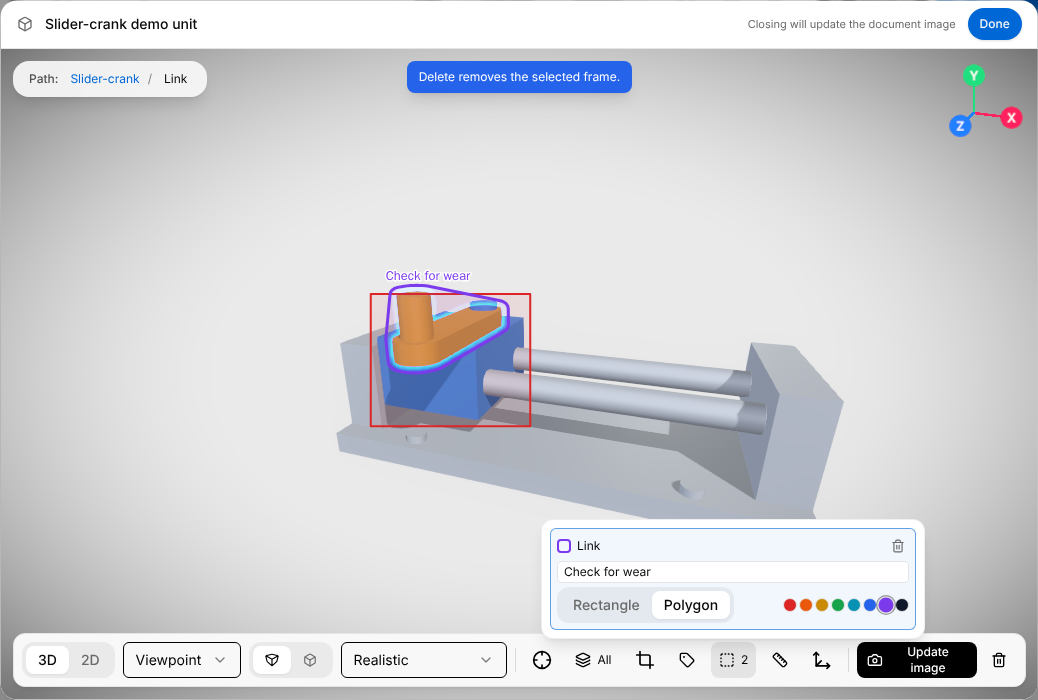
With no part selected, the Frames panel lists all frames and areas. Each frame has Text (optional) for the text above it, Rectangle and Polygon for its shape, a row of colours and Remove this frame (bin icon). To frame parts without selecting them in the view, select Add a frame, select the boxes of the parts, then Add frame under the list.
Mark an area
An area is a rectangle that marks a region of a 2D view, with a text if you want one.
- In the 3D view editor, select 2D, then the side in Viewpoint.
- With no part selected, select Frames, then Draw an area.
- Drag over the view to draw the rectangle. The Frames panel opens again.
- Enter the text of the area in the field Text (optional).
The area is drawn on the view with its text above it and will be part of the captured picture. The Frames button shows the number of frames and areas.
While you draw, the line "Drag on the view to draw an area. Esc to cancel." shows at the top. In 3D the panel has no Draw an area button. Drag the border of an area to move it and its corners to resize it. In the Frames panel each area has a row of colours and Remove this area (bin icon). An area belongs to the side it was drawn on and shows on that side only.
To select a frame in the view, select its line. With a label, a frame or an area selected in the view, Delete or Backspace removes it.
Exploded view
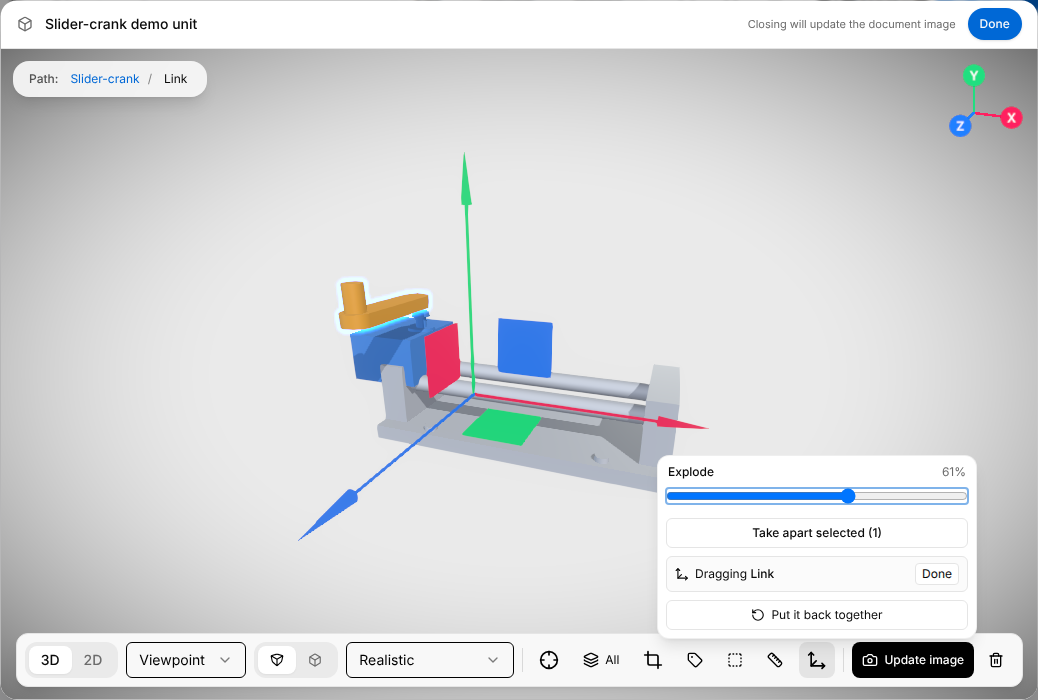
Select Exploded view and move the Explode slider: the parts move apart, and the panel shows how far in percent. Put it back together returns to the assembled model.
- Take some parts apart. Select a part in the view, and hold Shift to add others. The button counts them, for example Take apart selected (2). Select it: the parts move apart along the directions in which they come out. The panel then lists the parts taken apart, and the slider reads Spread.
- Move one part by hand. Select the part in the view, then the button that reads Move with its name, for example Move “Link”. Or choose the part in the list "Click a part in the view, or find it here…": the move starts at once. The panel reads "Dragging" with the name of the part, and arrows appear in the view. Drag an arrow to move the part, then select Done in the panel.
Capture the picture
The camera button of the bar takes the picture. Its name says where you stand:
| Button | Meaning |
|---|---|
| Capture | The view has no picture yet. |
| Update image | The view changed since the picture was taken. |
| Retake | The picture is up to date. |
The sentence beside Done says the same: "The document image is up to date" or "Closing will update the document image".
- A change of setting makes the picture out of date: the viewpoint, the projection, the look, the parts shown, a cross-section, a label, a frame, an area or an exploded view. Done then takes the new picture before it closes the editor.
- Turning, moving or zooming the model with the mouse does not. The sentence still reads "The document image is up to date", and Done leaves the picture as it was. Select Retake to take the picture from where you look at the model now.
The editor has no cancel: Done is the only button that leaves it, and the Esc key does the same. To take back what you changed in a view, close the editor and select Undo in the toolbar of the draft, more than once if needed.
The picture and the settings of the view are saved with the draft.
Messages under a 3D view
While you edit a draft, a line under a 3D view tells you when its picture needs attention.
| Line | What to do |
|---|---|
| "No image captured yet — this view will be left out of the PDF." | Nothing for a view you inserted a moment ago: it takes its first picture by itself. Otherwise open the view and select Capture. |
| "The view or the product's 3D model has changed since this image was captured. Open it and retake to update the PDF." | Open the view and select Update image, or Done. |
| "Could not upload the captured image. Please try again." | Open the view and capture again. |
| "Finishing the technical drawing" | Wait. After a capture in Technical Drawing, a finer line drawing is made in the background from the original STEP file of the product, when the product has one. Keep the tab open and visible: the first drawing of a model can take several minutes, and up to half an hour for a large file. The line "Technical drawing finished." closes it. |
If the product loses its 3D model, the view says "This product no longer has a 3D model, so there is nothing to show." The picture already captured stays in the document. Give the product a 3D model again: see Products.
Remove a 3D view
Select Delete 3D view, the bin at the right of the label 3D view above the picture. A click on the picture itself opens the editor.
Procedures
A published procedure can be embedded whole. Readers play it inside the document, step by step, on the 3D model. Procedures are made and published as described in Procedures.
Embed a procedure
Embed a procedure where the document tells the reader to carry it out.
- Put the cursor where the procedure goes.
- Select Insert, then Procedure.
- In Insert a procedure, select the procedure. Each entry shows its type and its number of steps.
In the section Operation of an operating manual, embed the procedure Move the mechanism after the sentence that tells the reader to follow the steps.
A block appears under the label Interactive procedure, which the screen shows in capitals, with the title of the procedure and the words "Interactive 3D procedure — click to open".
When there is no published procedure to offer, Insert a procedure says "No published procedures for this product yet."
Play a procedure in place
Select the line with the title of the procedure: the procedure viewer opens under it, with Start.
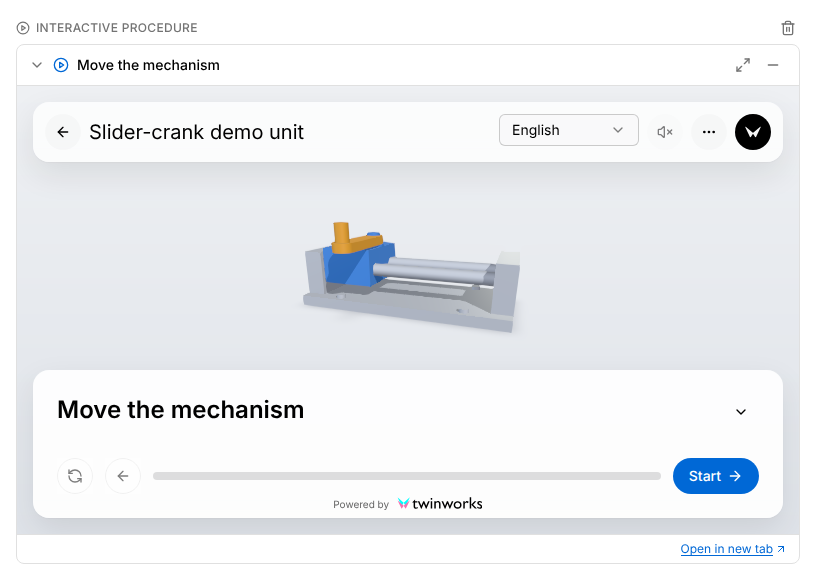
- Maximize moves the viewer to a large window. The block then reads "Playing in the maximized window". When you close the large window, the viewer comes back into the draft and the procedure starts again from the beginning.
- Minimize folds the block back to its title line.
- Open in new tab opens the procedure alone in a new browser tab.
- One procedure is open at a time: opening another closes the first.
The block has no caption, and it keeps the title the procedure had when you inserted it. The steps are not copied into the draft: the viewer loads the procedure each time it is opened. To bring the title up to date, remove the block and embed the procedure again.
Readers of the published document get the same block and play the procedure the same way, on one condition: the procedure must be published to the Public audience, also when the document is published to Team. See Read a document.
Remove a procedure
Select Delete procedure, the bin at the right of the label Interactive procedure above the block.
Procedures in the PDF
A PDF cannot play a procedure. On the Preview tab and in the exported PDF, an embedded procedure is printed as its numbered steps, each with a picture taken from the 3D model. While these pictures are drawn, a progress bar reads "Rendering 3D step imagery" with the procedure, the step and the time left.
If the pictures cannot be drawn when you export the PDF, the message "Could not export PDF" appears. It names the procedure and says that its step images "could not be created, most likely because another export is still running. Try again once it finishes." Wait until the other export has finished, then export again.
The document viewer page does not draw the pictures again: its PDF prints the steps and pictures stored with the document when they were last drawn for the draft, without the safety notes, tools and protective gear of the procedure. See Read a document.
Safety notices
A safety notice is a framed message headed by a signal word. Every level but Note carries the word on a coloured band. There are five levels:
| Level | Signal word | Use it for |
|---|---|---|
| Danger | DANGER, on a red band | A hazard that will cause death or serious injury. |
| Warning | WARNING, on an orange band | A hazard that could cause death or serious injury. |
| Caution | CAUTION, on a yellow band | A hazard that could cause minor or moderate injury. |
| Notice | NOTICE, on a blue band | Something that could damage equipment or property. |
| Note | NOTE, in grey, without a band | Supplementary information. |
Add a safety notice
Write the message first, then turn its paragraph into a notice of the right level.
- Enter the message as a paragraph of its own and leave the cursor in it.
- Select Insert, then the level: Danger, Warning, Caution, Notice or Note.
For the sentence "Keep hands clear of the link while the slider moves.", select Warning.
A notice holds one paragraph: in the document, several paragraphs entered in one notice are joined into one.
Change the level
Select the signal word of the notice, for example WARNING: a list opens that shows what each level means. Choose another level.
Do not use Insert for this: with the cursor in a notice, a level chosen from Insert puts a second notice inside the first.
Remove a notice
- To turn a notice back into an ordinary paragraph, put the cursor before the first letter of its text and press Backspace.
- To delete a notice with its text, select the text and press Backspace, then press Backspace once more: the empty notice goes away.
Signs
A notice of the level Danger, Warning or Caution can carry a sign beside its text. Rest the pointer on the notice and select Add sign, or Change sign when it has one.
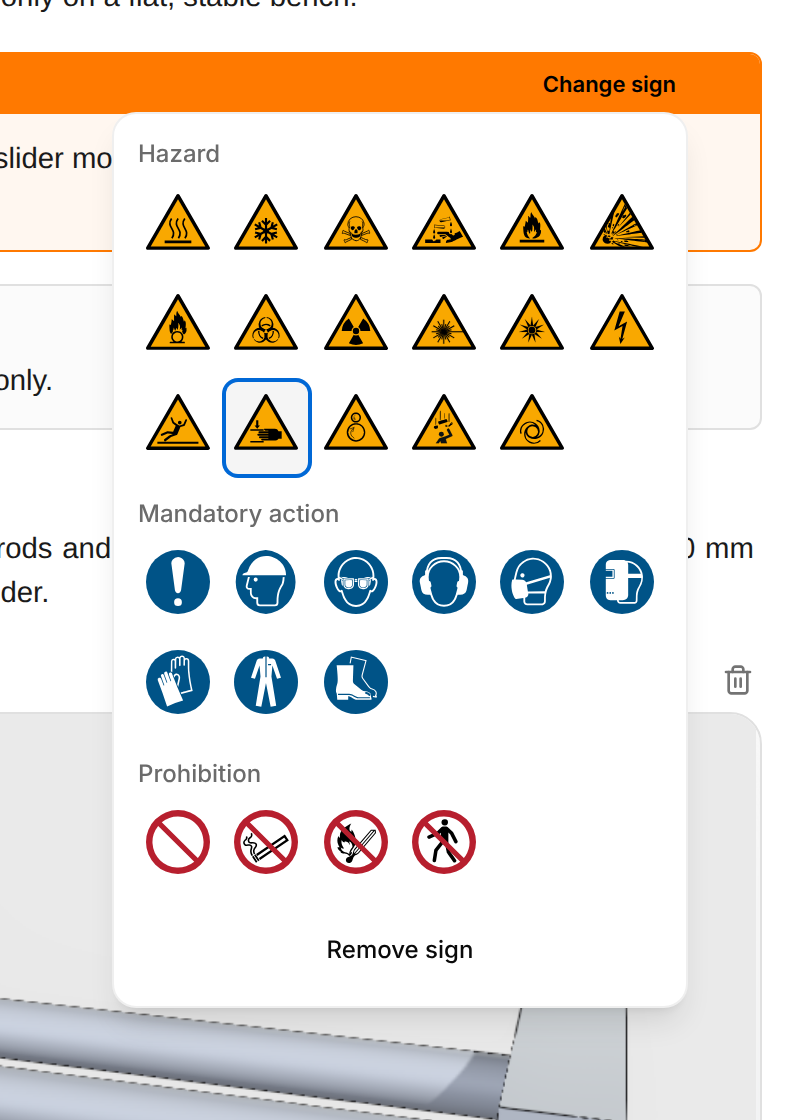
The signs are in three groups: Hazard, Mandatory action and Prohibition. Rest the pointer on a sign to read its name and its ISO 7010 number, then select it. To take the sign off, select Change sign, then Remove sign at the bottom of the list. When you change a notice to Notice or Note, its sign is dropped.
For a sign that stands on its own, outside a notice, select Insert, then Icon, and choose one of the 36 signs: warning, prohibition and mandatory signs, fire equipment, emergency exit and first aid. It is inserted as a small picture, with the tools of a picture.
Code blocks
A code block shows text in a fixed-width font on a dark background, exactly as you entered it. Use it for a command, a part code or the content of a file.
Put the cursor in the paragraph and select Insert, then Code block. The same entry turns a code block back into a paragraph. Text in a code block cannot be formatted.