

Reporting
Reporting turns a published procedure into a record of the work. It is turned on in the Publish section of the product, for the Team audience: the signed-in members of your organization. Any member can turn it on, except one with the Viewer role. In the procedure viewer, where a published procedure is followed step by step, the operator then says on every step whether it was done, adds a comment if needed and, when Photo reporting is on, a photo, and sends a report at the end. You read and export the reports in Insights, the statistics section of the product. With serial numbers, each report says which unit it was made on.
Turn on Reporting
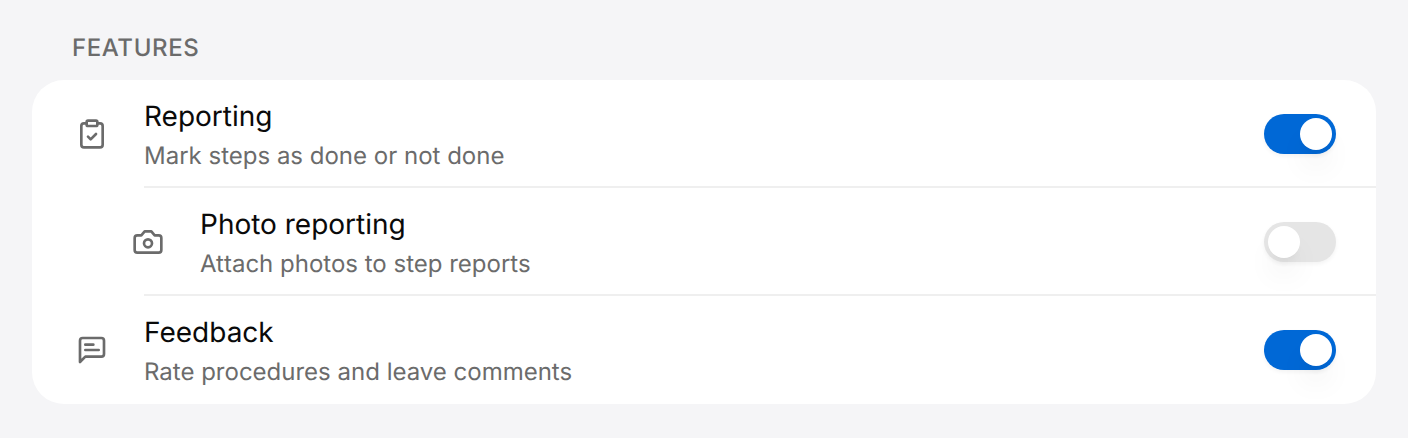
Reporting is one of the Features of the Publish section of a product. The whole section is described in Publishing. Before you start:
- Members with the Viewer role cannot change these settings: their Publish section is read-only.
- Reporting shows only on procedures that are turned on under Content for the Team card.
- Operators need an account in your organization, because the Team audience is for signed-in members: see Organization.
Ask the team to report every step
Reporting applies to every procedure published to the Team audience of the product.
- Open the product and select Publish in its sidebar.
- Select the Team card.
- Under Features, turn on Reporting.
- If every step must be documented with a photo, turn on Photo reporting, which appears under Reporting. Operators then need a device with a camera.
- Select Save in the Unsaved changes bar at the bottom of the window.
For a maintenance procedure that a technician signs off, turn on Reporting. If the technician must also show the finished work, turn on Photo reporting.
The message "Settings saved" appears. From now on the procedure viewer asks team members for a result on every step.
With the Public card selected, Features has no Reporting switch: people who open a procedure of the Public audience are not asked for results. Feedback, the rating at the end of a procedure, is a separate switch that exists for both audiences.
Trace each unit with serial numbers
When many identical units share the same procedures, give every unit its own QR code. The code opens the same Contents list as the link of the product, with the serial number of the unit in the link, and every report sent from there carries that serial number.
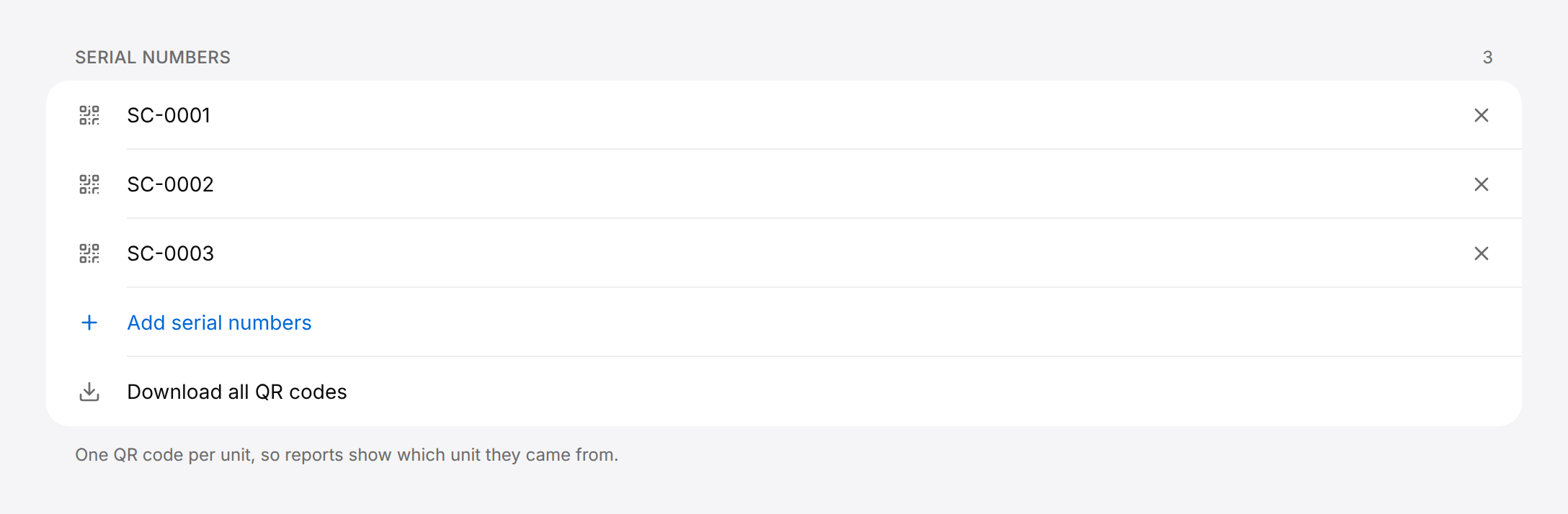
Serial numbers can also come from a file or be generated: see Publishing.
Give every unit its QR code
One QR code per unit, for the Team audience.
- Open the product and select Publish.
- Select the Team card, so that the QR codes carry the Team link.
- At the end of the Serial numbers list, select Add serial numbers.
- On the Paste tab, enter one serial number per line, then select Add. The button shows the count, for example Add 3.
- Select Download all QR codes. A ZIP file downloads with one picture per serial number.
- Print each picture and fix it on the unit whose serial number is printed under the code.
An operator who scans the QR code of a unit gets the Contents of the product. After signing in and selecting Team, the operator opens a procedure, and the serial number is already filled in when the report is sent.
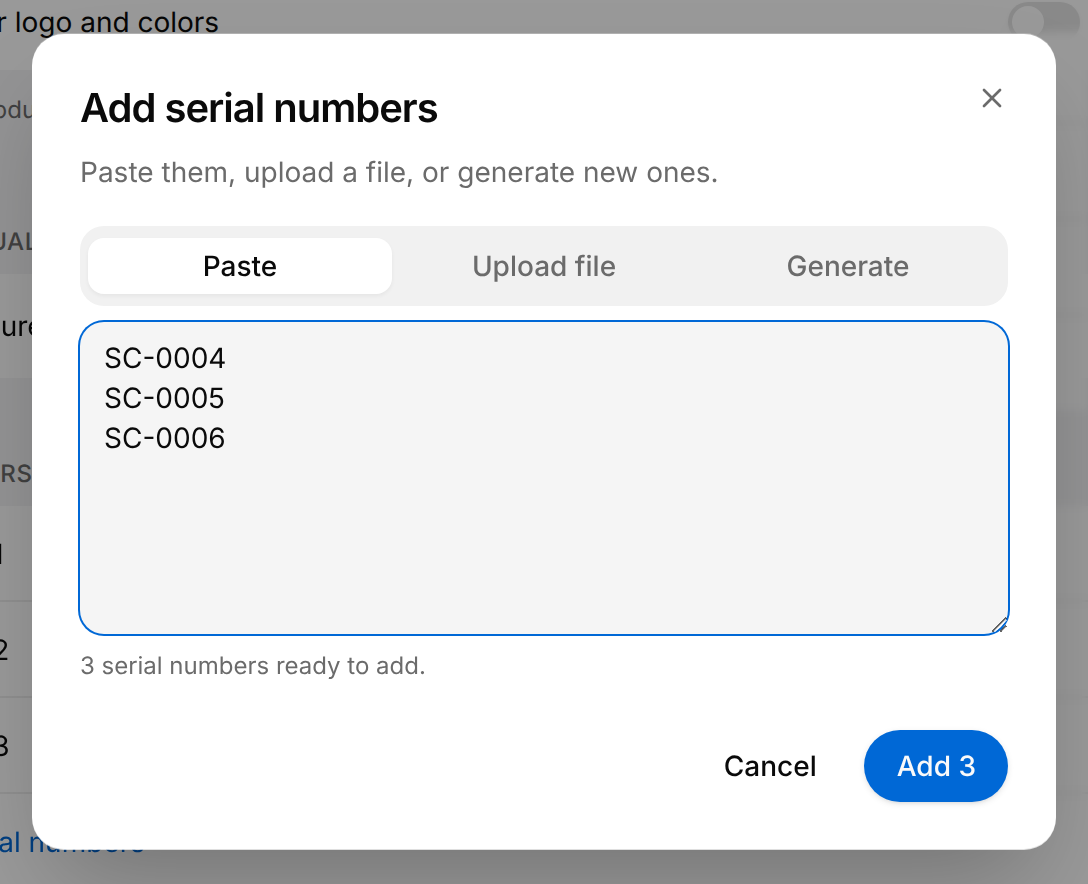
Serial numbers are stored as soon as you add them: they do not use the Unsaved changes bar.
Give the result of each step
Give the operators the Team link or the QR code of the product: both are in the Publish section, with the Team card selected. The link opens Contents, the list of the documents and procedures of the product, on Team for a signed-in member. An operator who is not signed in sees what is published to Public and selects Sign in first: the list comes back on Team. Then the operator selects the procedure and selects Start. A procedure opened from Public does not ask for results.
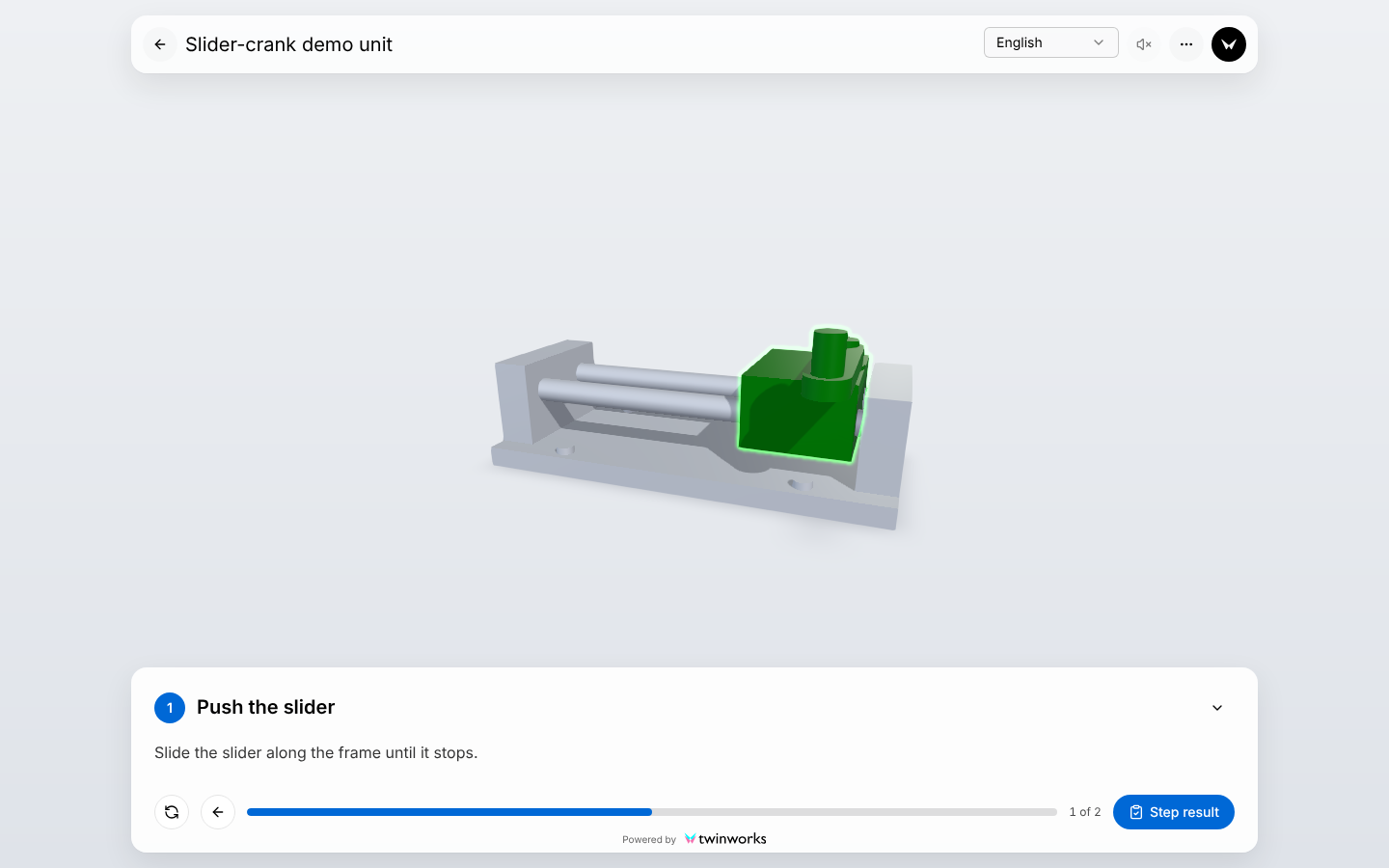
With Reporting on, the Step result button stands at the bottom right of the step card, where the Next step arrow is when Reporting is off.
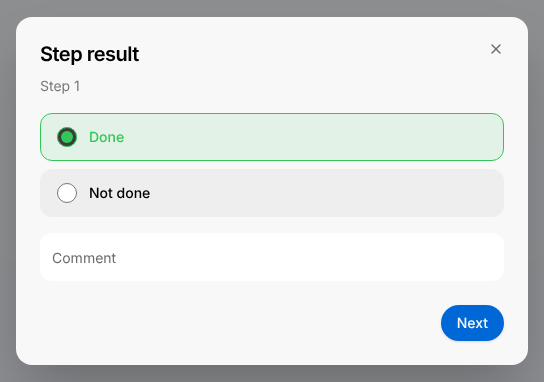
Report a step
Say whether the step was done, and add a comment when something is worth noting.
- Do the step, then select Step result.
- Select Done when the step is done, otherwise Not done. The dialog opens with nothing selected: until a result is selected, Next answers "Result required".
- Enter a Comment if you want to add one.
- Select Next. The dialog closes and the procedure viewer stays on the same step: the Next step arrow takes the place of Step result.
- Select Next step to go on. On the last step the button reads Finish.
On the step Turn the link, select Not done and enter The link is stiff on the pin.
The result is kept in the procedure viewer and is sent with the report at the end of the procedure.
A step that has its result shows one more button in its card.

- Resubmit step report, the clipboard, opens the Step result dialog of that step again, with the result, the comment and the photo given before, so that a result can be corrected before the report is sent.
- The Right arrow key of the keyboard opens the Step result dialog while the step has no result, and goes to the next step once it has one.
- Nothing is sent while you go through the steps: the results leave with the report at the end. They are kept only while the procedure stays open: going back to Contents or reloading the page starts the run again without them.
Add a photo to a step result
With Photo reporting on, every step result needs a photo, also when the step is reported as not done. The photo is taken with the camera of the device; a file cannot be chosen, so operators need a phone, a tablet or a computer with a camera.
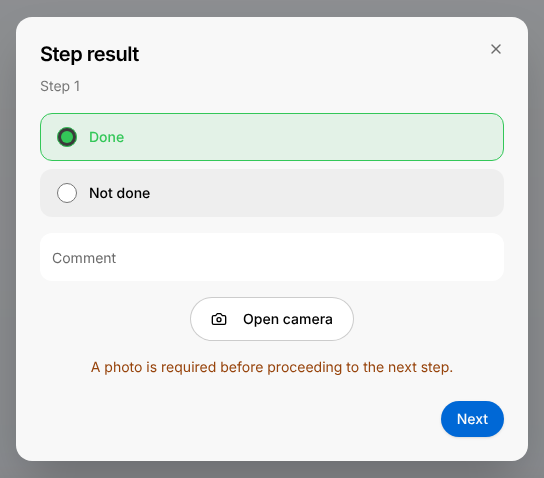
Take the photo of a step
Every step result needs one photo.
- In the Step result dialog, select the result and enter a comment if needed.
- Select Open camera and allow the browser to use the camera.
- Point the camera at the work and select Take photo, the round button over the camera image.
- Look at the photo. Select Retake photo to take another one.
- Select Next.
The photo is kept with the result of the step and goes into the report.
- Without a photo, Next does not close the dialog: the message "Photo required" appears.
- When the browser is not allowed to use the camera, the message "Could not access your camera" appears: check the camera permissions of the browser.
- Close camera stops the camera without taking a photo; Open camera starts it again.
- Once a photo is taken, Download photo saves a copy on the device.
Send the report
After the result of the last step, Finish ends the procedure. When Feedback is on, the Rate this procedure dialog comes first: see Publishing. Then the summary opens.
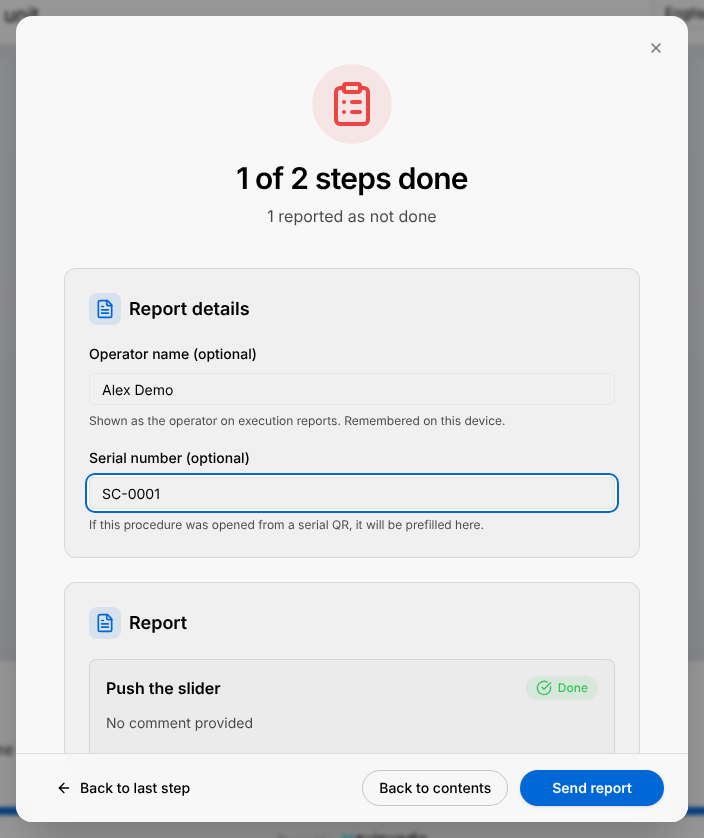
Finish the procedure and send the report
The report holds the result, the comment and the photo of every step.
- On the last step, give the step result, then select Finish.
- If the Rate this procedure dialog opens, select a rating and Send feedback, or select Skip.
- Under Report details, enter the name the report must show in Operator name (optional).
- Make sure Serial number (optional) holds the serial number of the unit. It is filled in when the procedure was opened from the QR code of a unit; otherwise enter it.
- Select Send report.
The message "Report sent" appears and the Send report button goes away. Back to contents returns to the Contents list.
- The title of the summary counts the steps reported as done, for example "1 of 2 steps done". Under it the summary reads "Procedure complete", or how many steps are reported as not done. Then come two figures, the time taken (Duration) and the steps done (Steps); the picture above, scrolled down to Report details, does not show them.
- Report lists every reported step as "Done" or "Not done", with its comment and its photo.
- Operator name (optional) keeps the last name sent from this device: change it on a shared tablet.
- Back to last step returns to the procedure, for example to correct a result with Resubmit step report.
- Back to contents also sends the report when it was not sent yet. Closing the summary with the X at the top right does the same.
- When the report cannot be sent, "Couldn't send" appears with Try again and Close. Close returns to the Contents list without sending, and the results of this run are lost.
Look up the earlier reports of a unit
When Contents is opened from the QR code of a unit, or after a serial number was entered in the summary of a report, a Report History card follows the list. It holds the reports sent with this serial number, for every procedure of the product, the newest first.
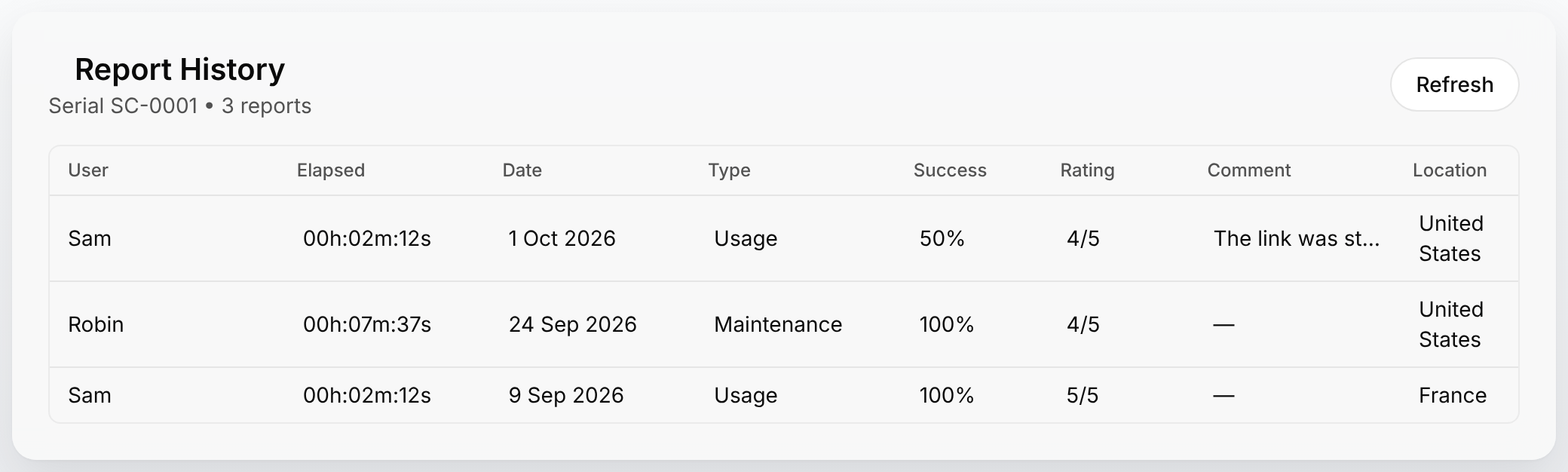
Select a row to open the Report recap of that report.
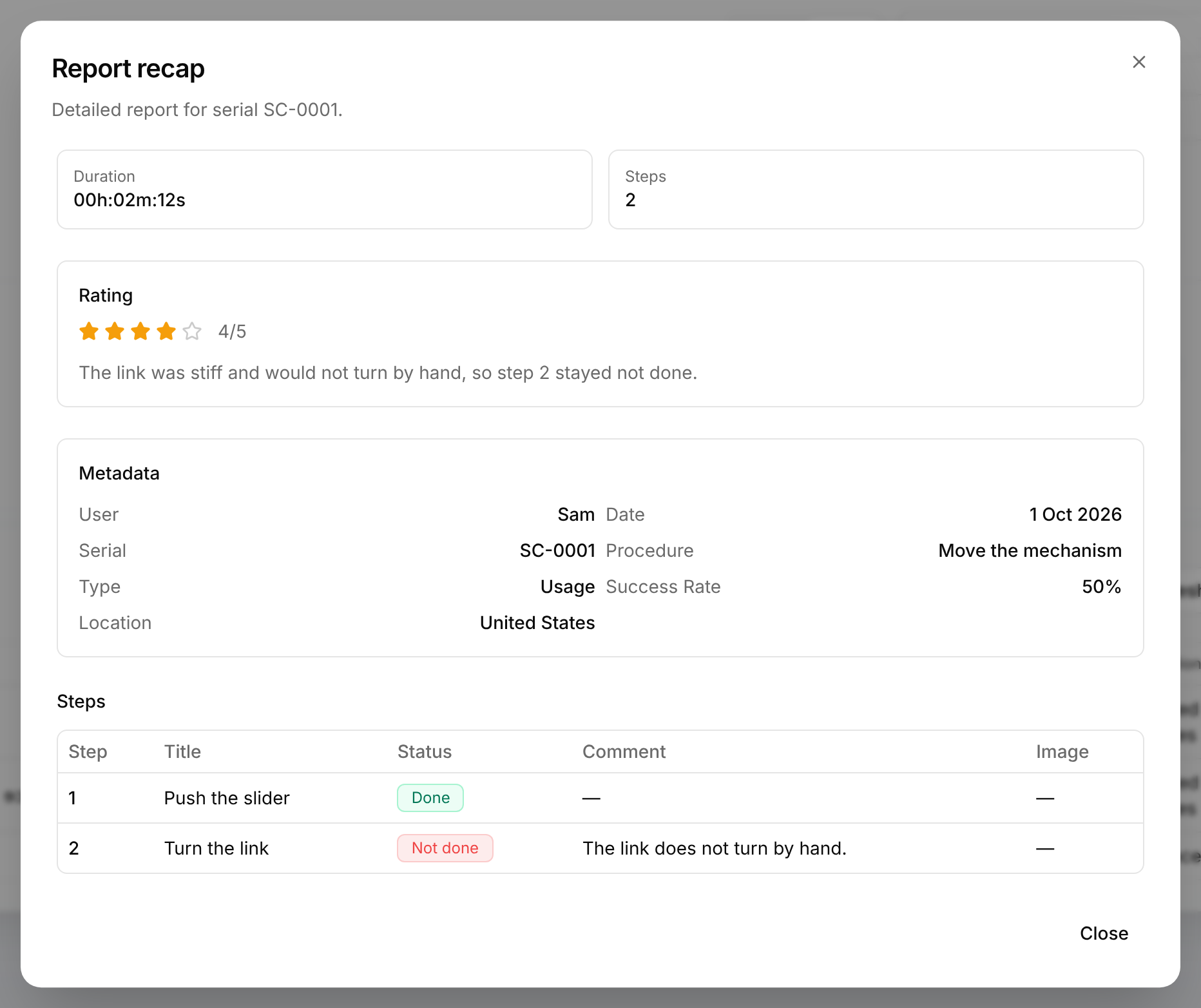
- In the list, Rating and Comment are the feedback given at the end of the procedure. The comments of the steps are in the recap, in the Steps table.
- The procedure viewer does not ask the operator for a position and does not send one: Location is the country the report was sent from, which TwinWorks works out from the Internet connection of the device.
- The card is on the Contents list only, not inside a procedure, and only when a serial number is known: from the QR code of a unit, or entered in the summary of a report.
- The reports of the Team audience are listed for signed-in members only.
- For a unit without any report, the card shows "No reports found for this serial number."
- Without the unit at hand, use Insights: on the Team tab of a procedure, enter the serial number in Search executions, described in Read and export the reports in Insights.
Read and export the reports in Insights
The reports of the Team audience are listed on the page of their procedure in Insights, for the period selected at the top of the page: 30 days when the page opens. There each report is one row of the Executions list; Insights, the page that describes this screen, calls it a run. Members with the Viewer role do not have Insights.
Review the reports of a procedure
The Team tab lists the reports the team sent, with their step results.
- Open the product and select Insights in its sidebar.
- Under Procedures, select the procedure.
- Select the Team tab. Each row of Executions is one report sent by an operator, with Operator, Duration, Date, Type, Success rate, Rating, Comment and Location.
- For older reports, select 12 months in the period selector at the top of the page.
- Select a row, or its Show details button, the arrow at the start of the row, to open the results of its steps.
- To export, select PDF, Word or Excel in the Export report block above the list.
When the same step is reported as not done on several units, open those reports and compare their comments and photos.
- The details of a report list every step with its duration, its Status (Done or Not done), its comment and its photo.
- The serial number of the unit is shown under the operator, as "Serial" followed by the number. Search executions finds the reports of one serial number or of one operator.
- Export report covers every report of the selected period. To export one report, select the three dots at the end of its row, then Export as PDF, Export as Word or Export as Excel.
- The periods are Today, 7 days, 30 days and 12 months.
The figures and the exported files are described in Insights.
What a report holds
The same items carry different names where the operator works (the procedure viewer and Report History) and in Insights.
| Item | For the operator | In Insights |
|---|---|---|
| Who did the work | Operator name (optional) in the summary, User in Report History | Operator |
| Time taken | Duration in the summary and in Report recap, Elapsed in Report History | Duration |
| Share of the steps done | Success in Report History, Success Rate in Report recap | Success rate |
| Result of a step | Done or Not done in the Step result dialog, the summary and Report recap | Status: Done or Not done |
| Comment and photo of a step | Comment and Image in the Steps table of Report recap | Comment and Photo in the details of a report |
| Feedback at the end | Rating and Comment | Rating and Comment |
| Unit | Serial number (optional) in the summary, "Serial" under the title of Report History and in Report recap | "Serial" under the operator |
| Place | Location | Location |