

Documentation
Documentation is the section of a product that holds its manuals, guides and datasheets. A manager lists the documents the product needs and says what each one must cover. Authors write them as drafts, reviewers check the drafts, and an approved document can be published to readers. This page goes from the list of documents to the point where a draft exists.
What Documentation holds
Each product has one list of documents. Four things belong to a document:
- The document itself: a type (for example a maintenance manual) and a title.
- Its sections: a numbered list that says what the document must cover.
- Its drafts: the working copies of its content, named Draft v1, Draft v2 and so on. A draft is written in the editor and goes through review.
- Its approved document: what exists once a draft is approved. It keeps numbered revisions and can be published.
Writing in a draft is described in Drafts, the Assistant in Assistant, and review, approval and publishing in Review and publish.
Open the documentation of a product
On Products, select the product, then select Documentation in the sidebar. The Documentation page opens: it lists the documents of the product under Required documents.
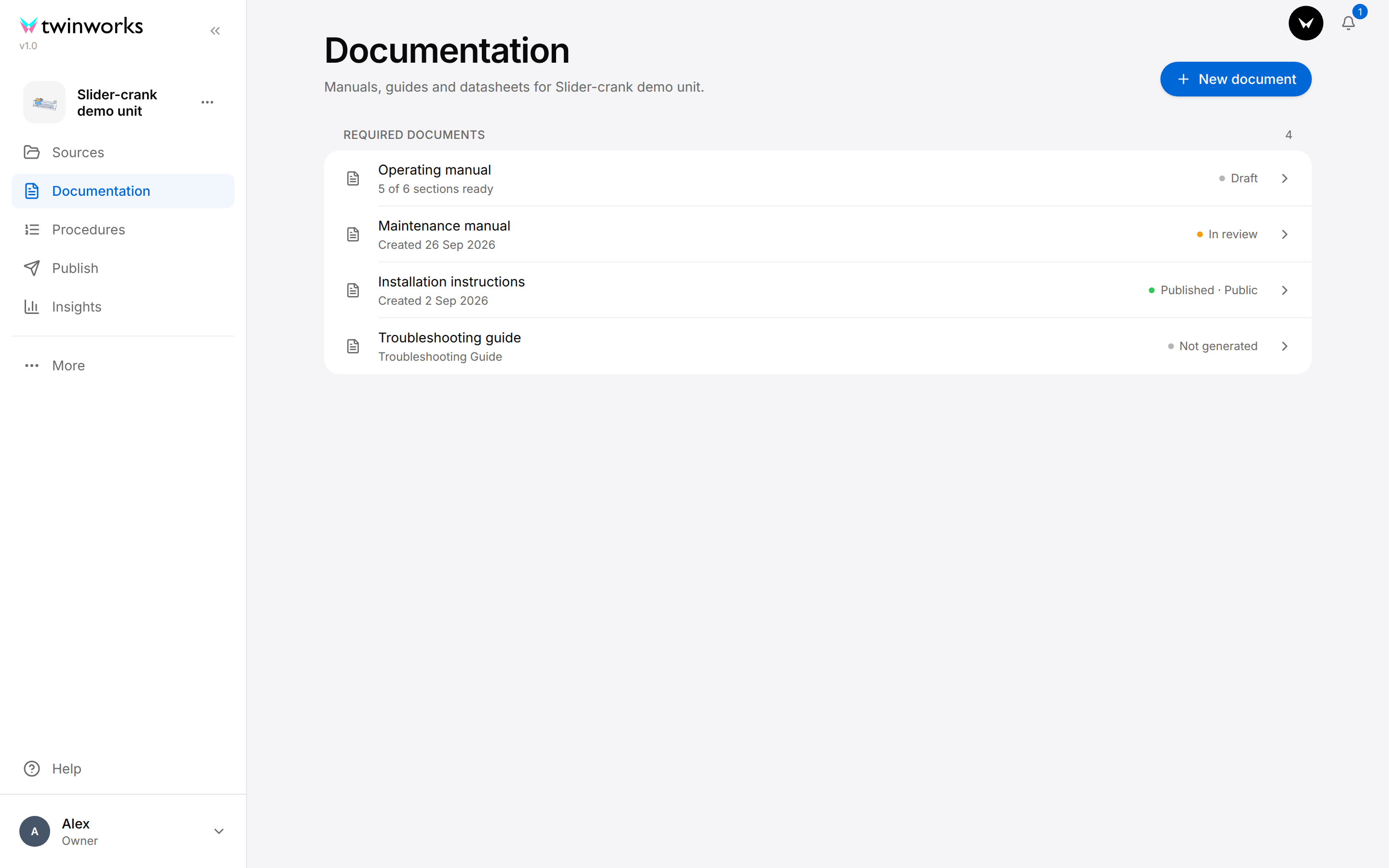
A person with the role Viewer does not see this page: Documentation shows them the published documents of the product instead (see Read a document).
Read the list of documents
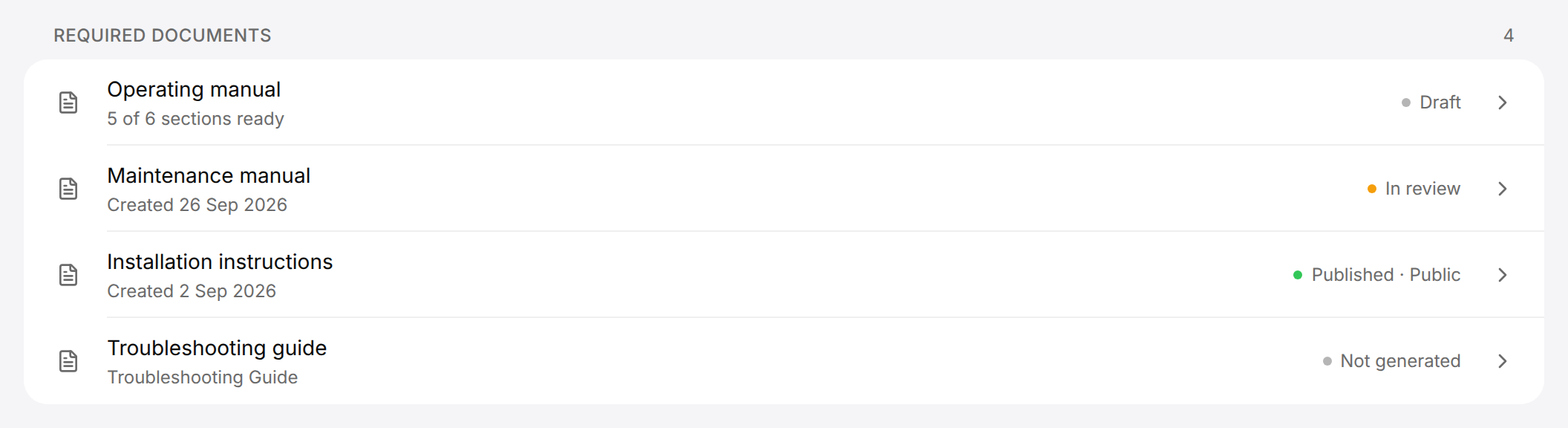
Each row shows the title of the document, a second line and a state. The second line is:
- "5 of 6 sections ready", while the newest draft is a Draft and the document has at least one required section (See what is still missing says which draft the count is taken from);
- otherwise the date the newest draft was created, for example "Created 26 Sep 2026";
- the type of the document when it has no draft.
| State | What it means |
|---|---|
| Not generated | The document has no draft and no approved document yet. |
| Generating… | The Assistant is writing a draft. |
| Importing… | A PDF or Word file is being converted into a draft. |
| Draft | The newest draft is being written. |
| In review | The newest draft was submitted and is with the reviewers. |
| Changes requested | A reviewer sent the newest draft back to be reworked. |
| Endorsed · awaiting approval | The review is done and the newest draft waits for approval. |
| Approved | The newest draft is approved and the document is not published. |
| Rejected | The newest draft was rejected and the document is not published. |
| Published · Team | The approved document is published to the Team audience: the signed-in members of your organization. |
| Published · Public | The approved document is published to the Public audience: anyone who has its link. |
A newer draft that is still being written or reviewed decides the state. In the picture, the row of the Operating manual reads Draft because a newer draft is being written. The row does not show that the document is also published to the Team audience: Document details of the document shows both the drafts and the published state (see Document details: purpose, cover image and drafts). The review states are explained in Review and publish.
On a product with no document yet, the page reads "No documents yet" above the New document button.
Who can do what
The role a person has in the organization decides what they can do in Documentation. Roles are set on the Organization page.
| Role | In Documentation |
|---|---|
| Manager | Everything: add and delete documents, define and assign sections, write, review, approve and publish. |
| Author | Write: start and edit drafts, use the Assistant, comment, submit a draft for review. |
| Reviewer | Write like an Author, and also review, endorse, approve and publish. |
| Viewer | Nothing in Documentation. A Viewer reads the published documents. |
| Owner | Everything a Manager can, in the documentation they started (see below). |
- The person who first opens the Documentation section of a product manages the documentation of that product, even when their role is Author or Reviewer: they started it. This is how the owner of the organization, who is shown as Owner, gets their rights there. A Viewer cannot start it.
- On this page, "a manager" is a person who manages the documentation of the product: a Manager, or the person who first opened it.
- New document, the Document actions button, the three dots of a section, Add section and Suggest sections stay visible and greyed for Authors and Reviewers. Their tooltip reads "Only managers can change documents and their sections. Ask a manager in your organization."
- The other controls of a manager are not offered to Authors and Reviewers: Owner and Reviewer show a name instead of a list, the Required switch is greyed, and Assign across document and the three dots of a draft under Outputs are not shown.
- When the organization has no member with the role Reviewer, a Manager sees Approve next to Submit for review and can approve a draft without a review round.
Add a document
Start from, in the dialog, is shown only when the Sources section of the product holds a PDF or Word file.
Add a document
A manager adds each document the product needs, then says what it must cover.
- On Documentation, select New document.
- Under Type, choose the kind of document.
- When Start from is shown, keep An empty document.
- Check the Title: choosing a type fills it in when it is empty.
- Select Create.
For a bench unit that ships with a manual and a service plan, add an Operation Manual and a Maintenance Manual.
The message "Document created" appears and the new document opens with "No sections yet".
The types are:
- Maintenance Manual, User Manual, Operation Manual, Installation Manual, Troubleshooting Guide and Training Package;
- for software: Repository Overview, Architecture and API Reference.
The type decides which standard template of sections the document can start from. The type and the title of a document cannot be changed afterwards.
Turn a PDF or Word file into a draft
A manual that already exists as a PDF or Word (.docx) file in the Sources section of the product can become the first draft of a document. If the file is not on Sources yet, add it there first (see Products).
Import a file as a draft
A manager converts a PDF or Word file of the product into a draft that can be edited.
- On Documentation, select New document.
- Under Start from, choose the file below Import one of this product's files. The dialog is now named Import document.
- Under Type, choose the kind of document.
- Check the Title. It is filled in with the name of the file when it was empty.
- Select Import.
The message "Importing document" appears and the new draft opens. It fills in while the file is converted, and the document shows Importing… in the list during that time.
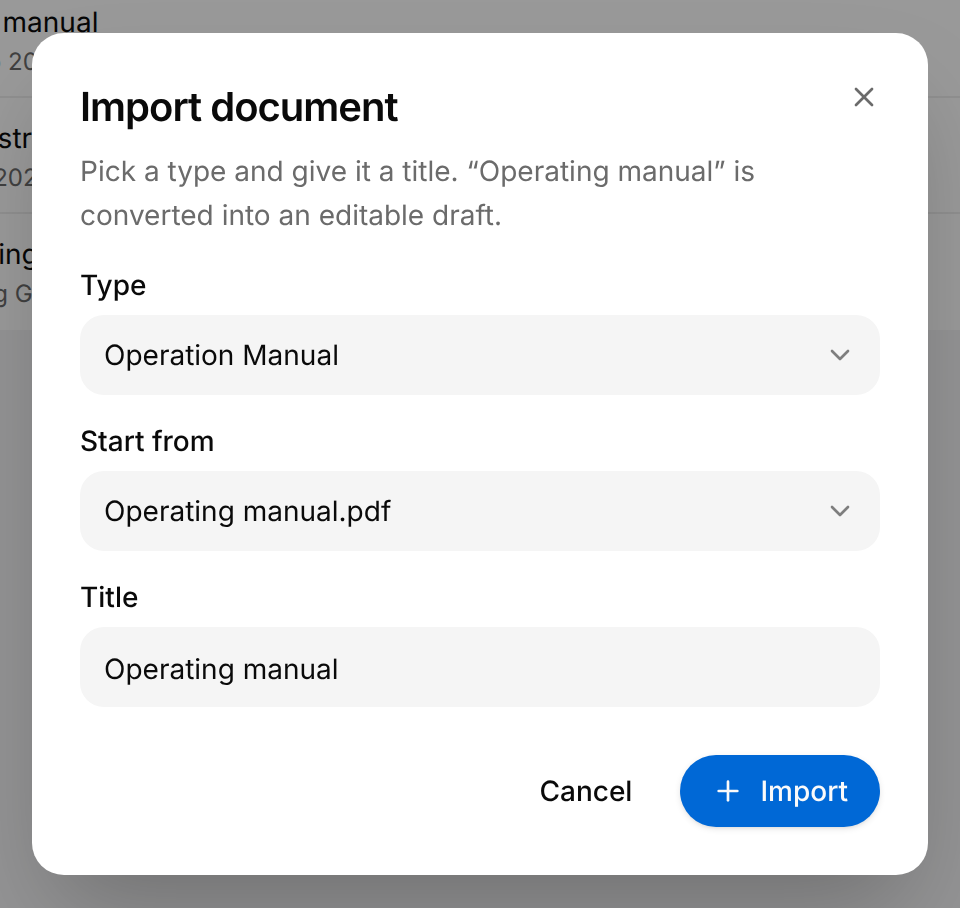
New document is the same dialog, with An empty document under Start from and the button Create.
For a manager, the same dialog also opens from Sources: select the three dots at the end of the file's row (the button named Actions for and the name of the file), then Use as draft.
If the import cannot start, the message "Could not import document" appears and no document is added. If the conversion fails afterwards, the draft shows "Could not import the reference file" with the reason.
Open a document
Select a row of the list. The document opens with its state, its sections and the buttons that start and open its drafts.
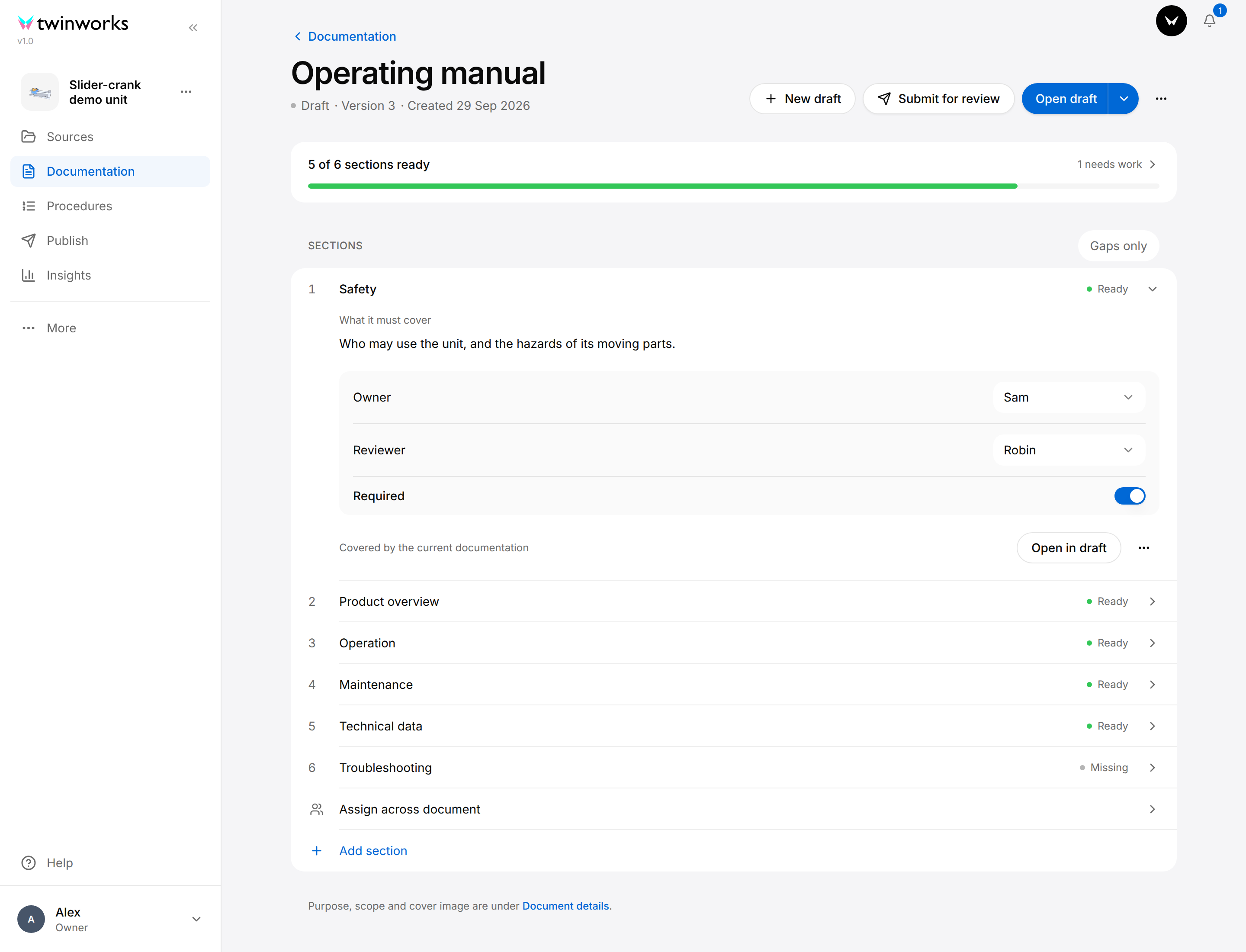
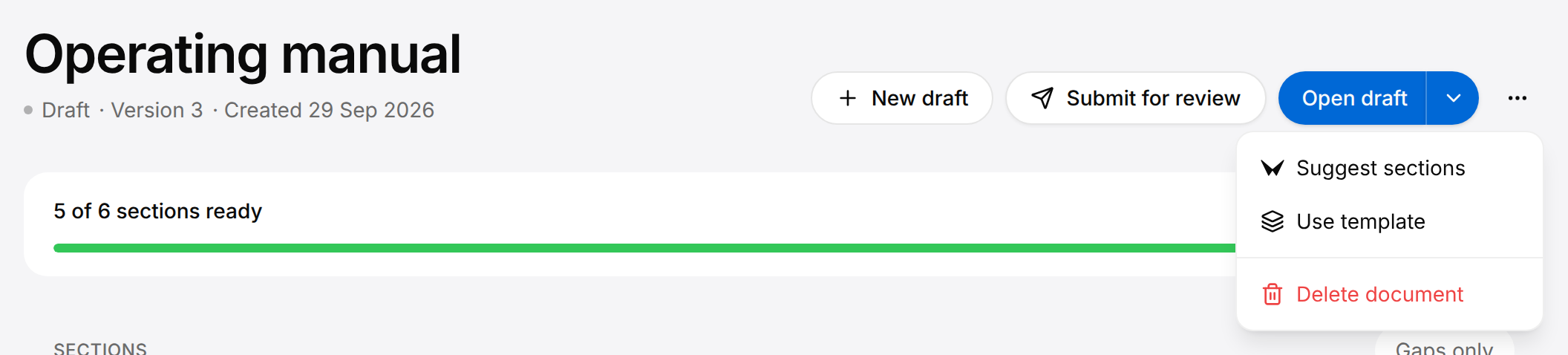
From left to right, the buttons are New draft, Submit for review, Open draft with the Choose a draft arrow, and the Document actions button (three dots). New draft is there once the document has a section or a draft; Submit for review while the newest draft is a Draft or has Changes requested; Open draft once the document has a draft; the arrow once it has more than one.
The Document actions menu, open in the picture, holds Suggest sections, Use template and Delete document. Each is described below.
Say what a document must cover
A new document has no section and reads "No sections yet". A manager defines the sections in one of three ways, and can mix them. On the empty document, the three ways are the links use the standard template and add them yourself and the button Suggest sections.
Start from the standard template
Add the standard sections
Each type of document has a standard list of chapters and sections to start from.
- Open the document.
- On a document with no section, select use the standard template.
- Read the list of chapters and sections in the dialog.
- Select Add sections, or Discard to leave the document as it is.
The message "Sections added" appears and the sections are listed under Sections. You can edit or remove any of them afterwards.
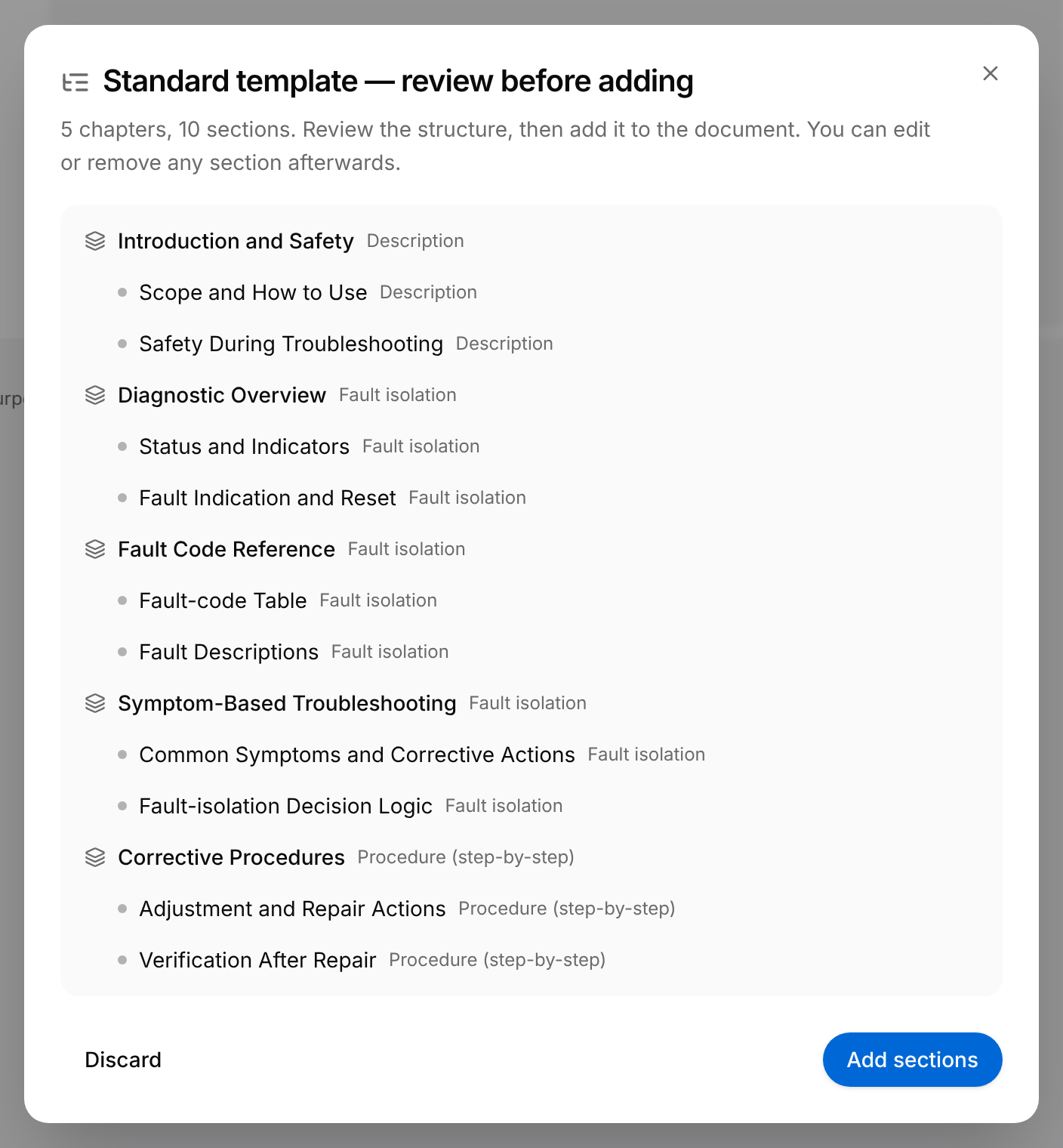
On a document that already has sections, the template is in the Document actions menu: Use template. The dialog then offers Add to existing, which adds the sections of the template to those of the document, and Replace existing, which replaces them.
Add a section by hand
Add a section
A manager adds one section, or a chapter that groups sections.
- Open the document.
- Select Add section under the list, or add them yourself on a document with no section.
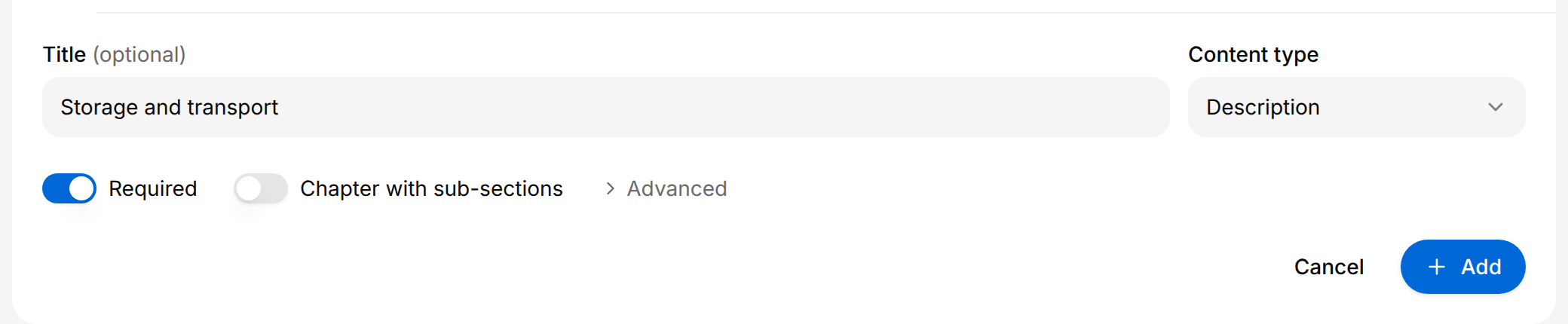
- Enter a Title. A section left without a title is named after its content type.
- Under Content type, choose what kind of content the section holds.
- Leave Required on, unless the section is optional and must not count in the bar above the list.
- To make a chapter instead of a section, turn on Chapter with sub-sections.
- Select Add.
The form closes and the new section appears at the end of the list. To say what it must cover, open it and select Edit section (see "Edit, move or remove a section", further down this page).
| Content type | Choose it for |
|---|---|
| Procedure (step-by-step) | A task done step by step by the person who maintains the product: removal, installation, repair, service. |
| Description | How the product works and its facts: overview, technical data, safety, introduction. |
| Fault isolation | Finding and repairing a fault: troubleshooting, fault codes. |
| Parts list | Parts: spare parts, tools and consumables. |
| Crew / operating | A task of the person who operates the product: operating instructions, controls. |
| Process | A schedule or a plan: maintenance intervals, decommissioning. |
In this form, Advanced shows two more settings, Weight and Criticality; the form that edits a section adds a third, Section number. All three are described in Edit, move or remove a section.
Let the Assistant propose the sections
Suggest sections, on a document with no section and in the Document actions menu, opens the Assistant with a request to propose the sections of this document. See Assistant.
Chapters and sub-sections
A chapter is a heading that groups sections. It holds no content of its own: its state counts the sections under it, for example "0 of 2 ready". Sections under a chapter are numbered 1.1, 1.2 and so on.
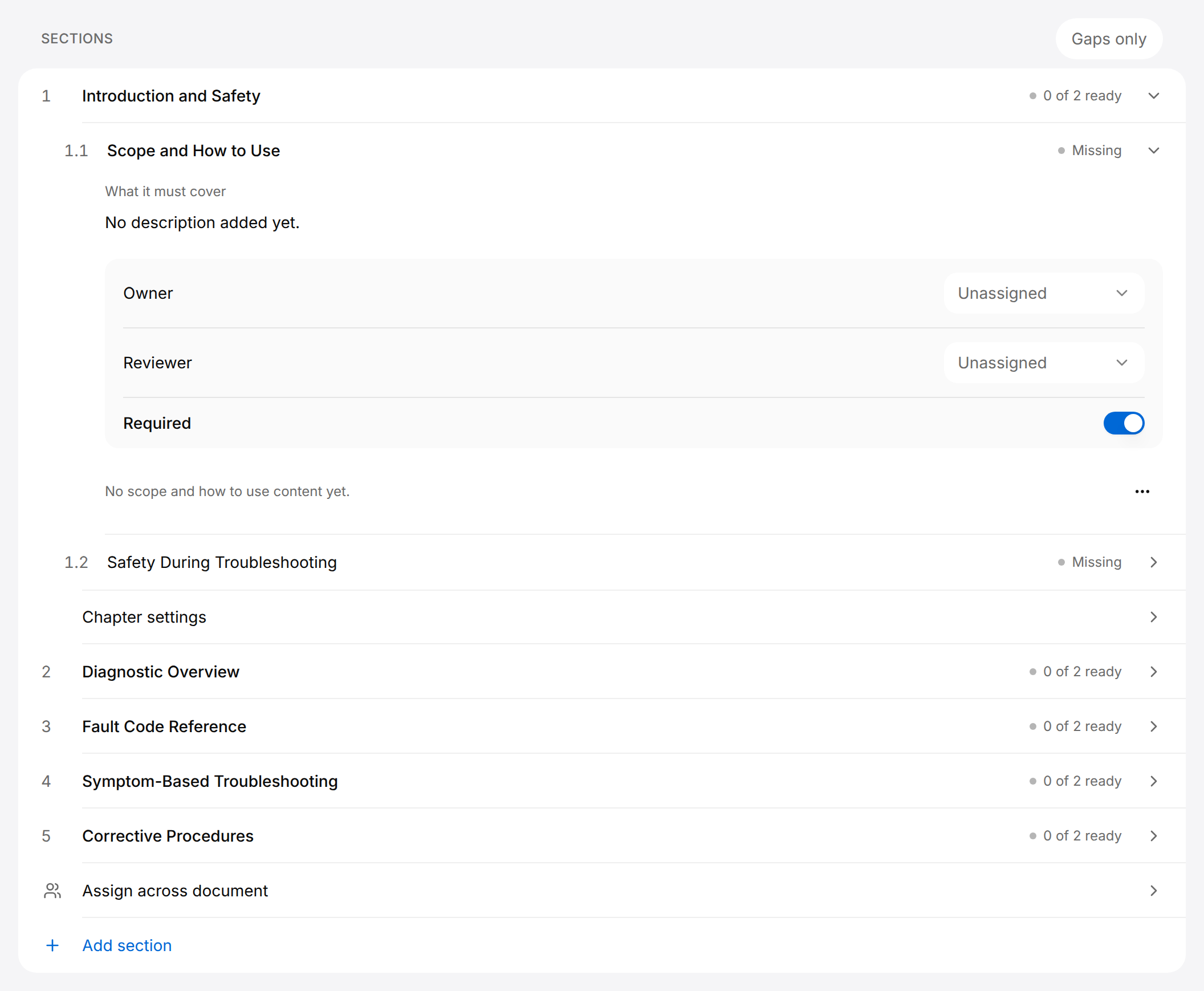
Select a chapter to open it. Its sections are listed first, then the row Chapter settings, which holds the Owner, the Reviewer, the Required switch and the three dots of the chapter. To add a section under a chapter, or under another section, select its three dots, then Add sub-item.
Edit, move or remove a section
Select a section to open it. An open section shows What it must cover, its Owner, its Reviewer, the Required switch and a note on what the document already holds for it. Turning Required off keeps a section in the list without counting it in "5 of 6 sections ready".
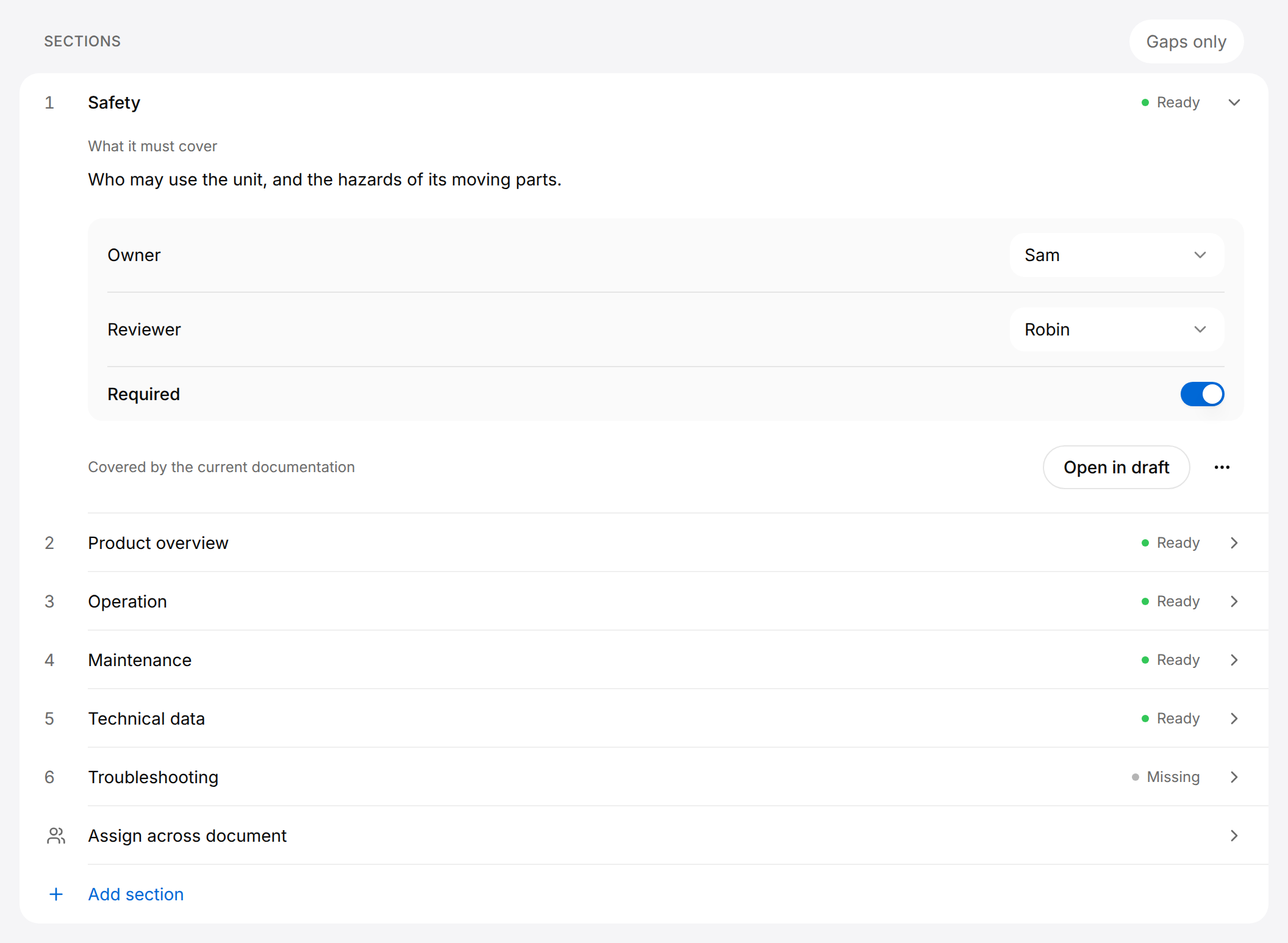
The three dots at the bottom right of an open section are the button named Actions for and the title of the section. A manager finds the rest there: Edit section, Add sub-item, Move up, Move down and Remove section.
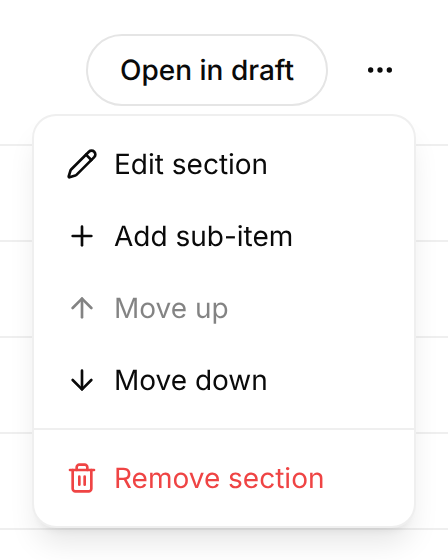
Edit a section
A manager changes the title of a section, what it must cover and its content type.
- Open the section.
- Select the three dots at the bottom right of the section, then Edit section.
- Change the title, the text under What it must cover and the Content type.
- Select Save.
The section shows the new title and text. A change of Owner or Reviewer in this form is saved at once, without Save.
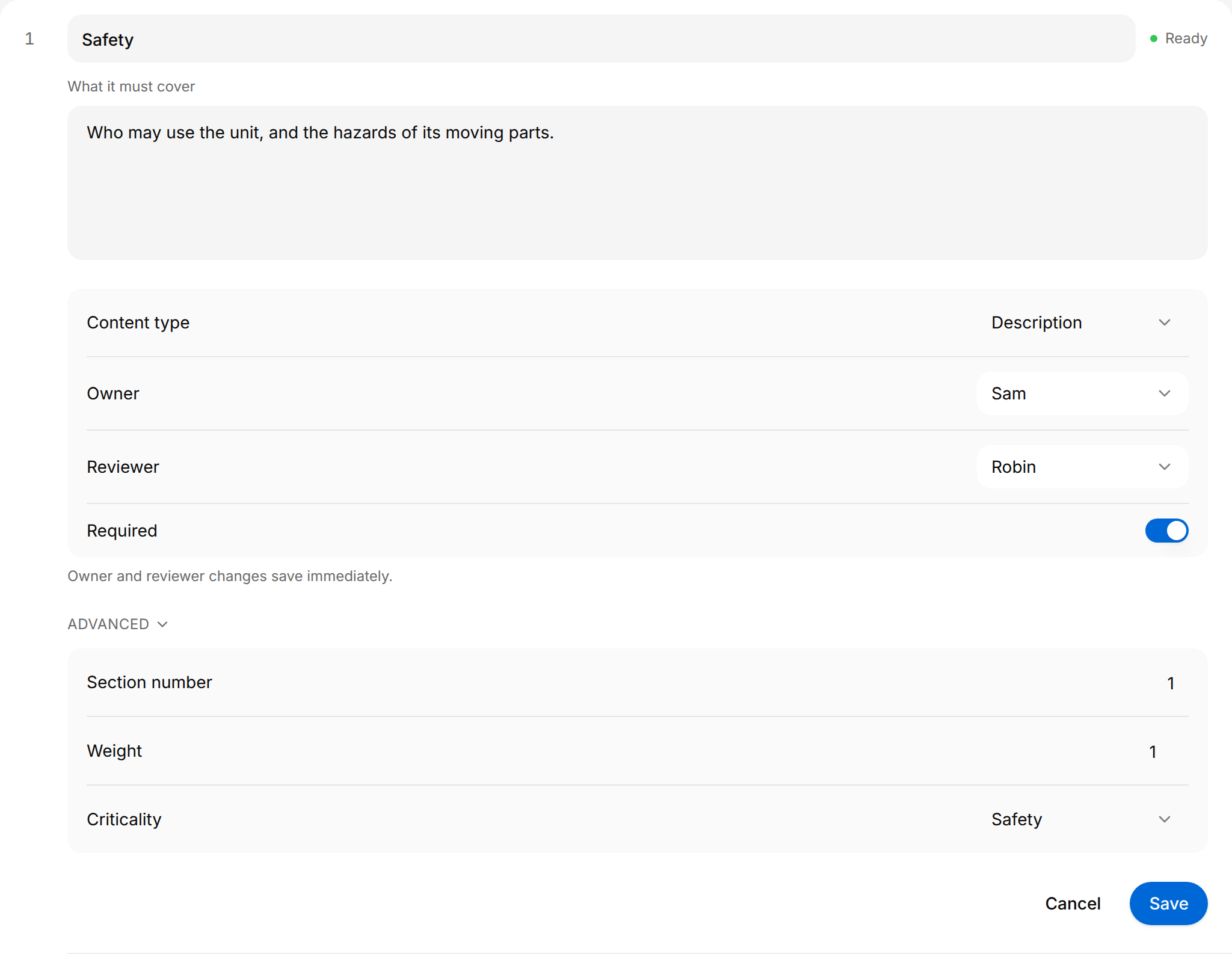
Under Advanced, the Weight (1 to 5) says how much the section counts in the percentage of Section coverage (see below). Section number and Criticality are kept with the section. The list does not show them: it numbers the sections by their order.
The other entries of the menu:
- Move up and Move down change the order. Move up is greyed on the first section, Move down on the last one, and both while Gaps only is on.
A section can also be dragged by its row to its new place. It moves among the sections of its own chapter, or among the top-level entries for a chapter or a section outside any chapter; it cannot be dropped into another chapter. Dragging is off while Gaps only is on.
- Remove section asks for confirmation ("This cannot be undone.") and, on Remove, removes the section. Removing a chapter or a section that has sub-items removes them too.
Assign an owner and a reviewer
A manager gives each section an Owner, who is responsible for writing it, and a Reviewer, who checks it. The assignment does not lock the section: the other Authors, Reviewers and managers can still write in it.
Open the section and choose a person under Owner and under Reviewer. The choice is saved at once and the person is notified. Choose Unassigned to clear it.
- Owner offers the Managers, Authors and Reviewers of the organization and the person who started the documentation of the product; Reviewer offers the Reviewers, the Managers and that person.
- On a chapter, under Chapter settings, the choice applies to every section of the chapter. The field reads "Multiple people" when its sections have different owners.
- Assign across document, under the list, opens an Owner and a Reviewer list for the whole document. Choosing a person there assigns every section of the document to that person, also the sections that had someone else. Unassigned clears them all.
The sections a person owns or reviews are listed on their Your tasks page.
See what is still missing
Each section carries a state. The state is measured on one draft: the latest approved draft of the document when it has one, otherwise its newest draft. So while a new draft of an approved document is being written, the states still describe the approved draft.
| State of a section | What it means |
|---|---|
| Ready | That draft has a section for it with content: text, a table or a picture. |
| Partial | That draft has a section for it, and the section is still empty. |
| Missing | That draft has no section for it. |
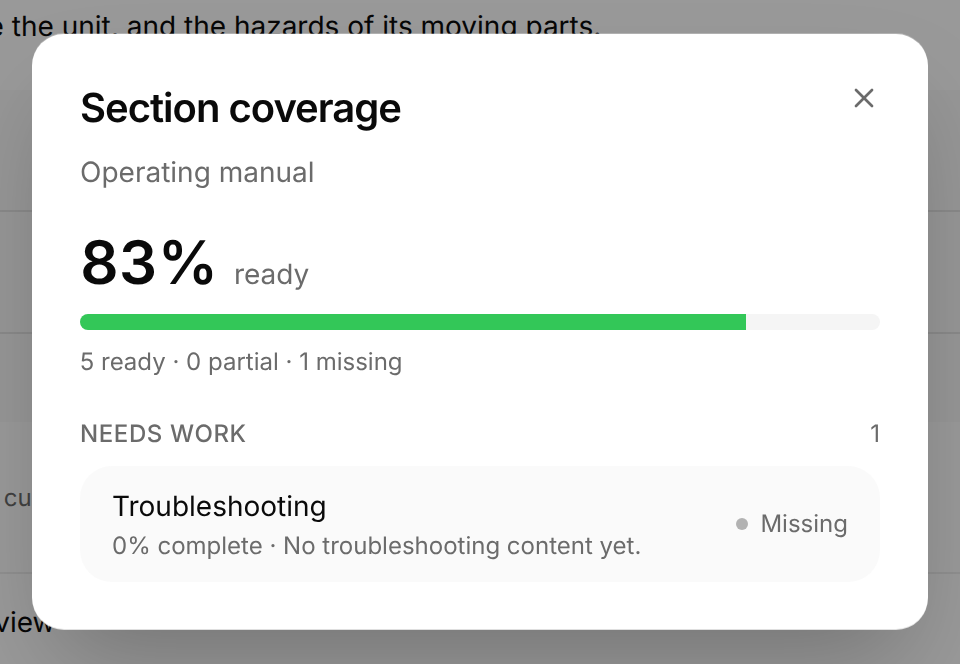
- The bar above the list counts the required sections that are ready: "5 of 6 sections ready".
- Gaps only shows only the sections that are not ready. When there is none, the list reads "All sections are ready. There are no gaps to show."
- Select the bar to open Section coverage. It gives a percentage, in which a Partial section counts for half and each section counts by its Weight, and under Needs work each section that is not ready, with how complete it is and a note.
The same three states reach the owner of a section as a hint on the Your tasks page. The Outline of a draft has notes of its own, Not written yet and Incomplete: these are notes the Assistant left on that one draft, not the states described here, so a section can be Ready in this list and Incomplete in that Outline. See Review and publish.
Start or open a draft
Authors, Reviewers and managers can start a draft, once the document has a section or a draft.
Start a draft
A draft starts empty from the sections, as a copy of another draft, or written by the Assistant.
- Open the document and select New draft.
- Under Start from, keep Sections, or choose a draft below Copy a draft.
- Select Create, or Generate to have the Assistant write the draft.
With Create, the draft opens: from Sections with every section of the document laid out, empty, from a draft as a copy of that draft.
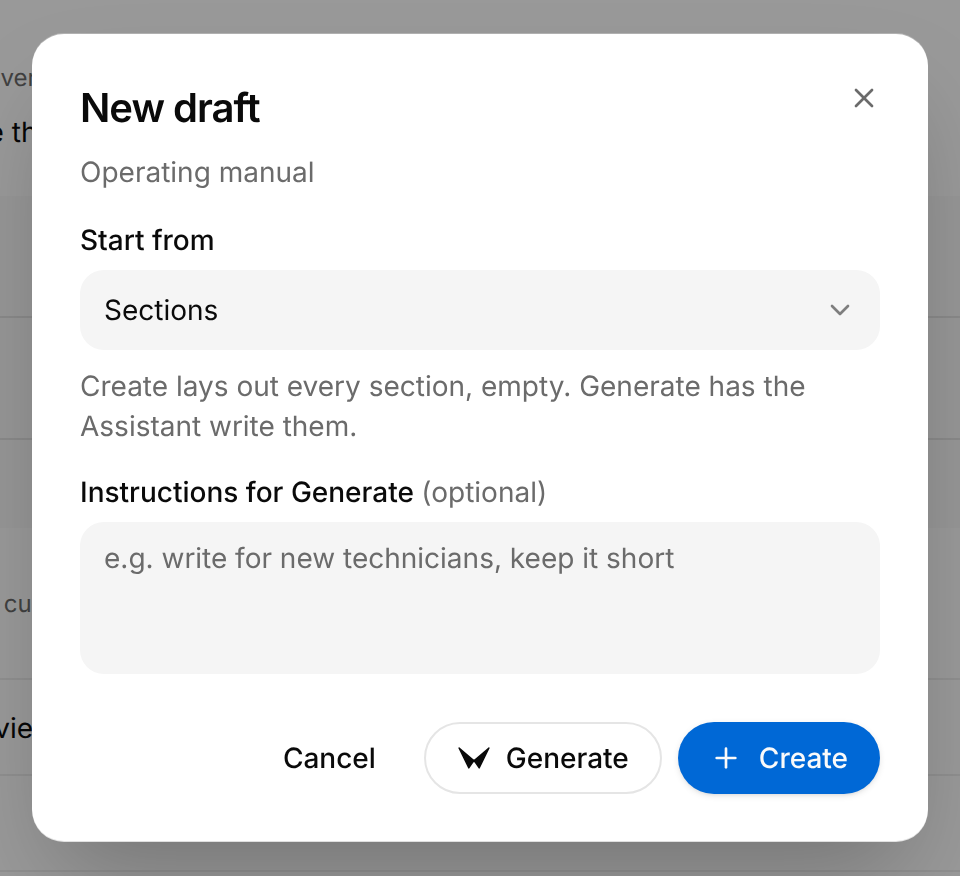
Generate passes what you enter under Instructions for Generate (optional) to the Assistant. The draft opens as soon as it exists and fills in while the Assistant writes, and the document shows Generating… in the list. If the draft cannot be written, the message "Could not generate draft" appears. See Assistant.
Open a draft
Open draft opens the newest draft. The Choose a draft arrow beside it lists every draft, newest first, with its state and the date it was created. Draft v1 is the oldest; the newest carries the word "Latest". Working in the draft is described in Drafts and Tables, pictures and 3D views.
Document details: purpose, cover image and drafts
Below the list of sections, select the link Document details.
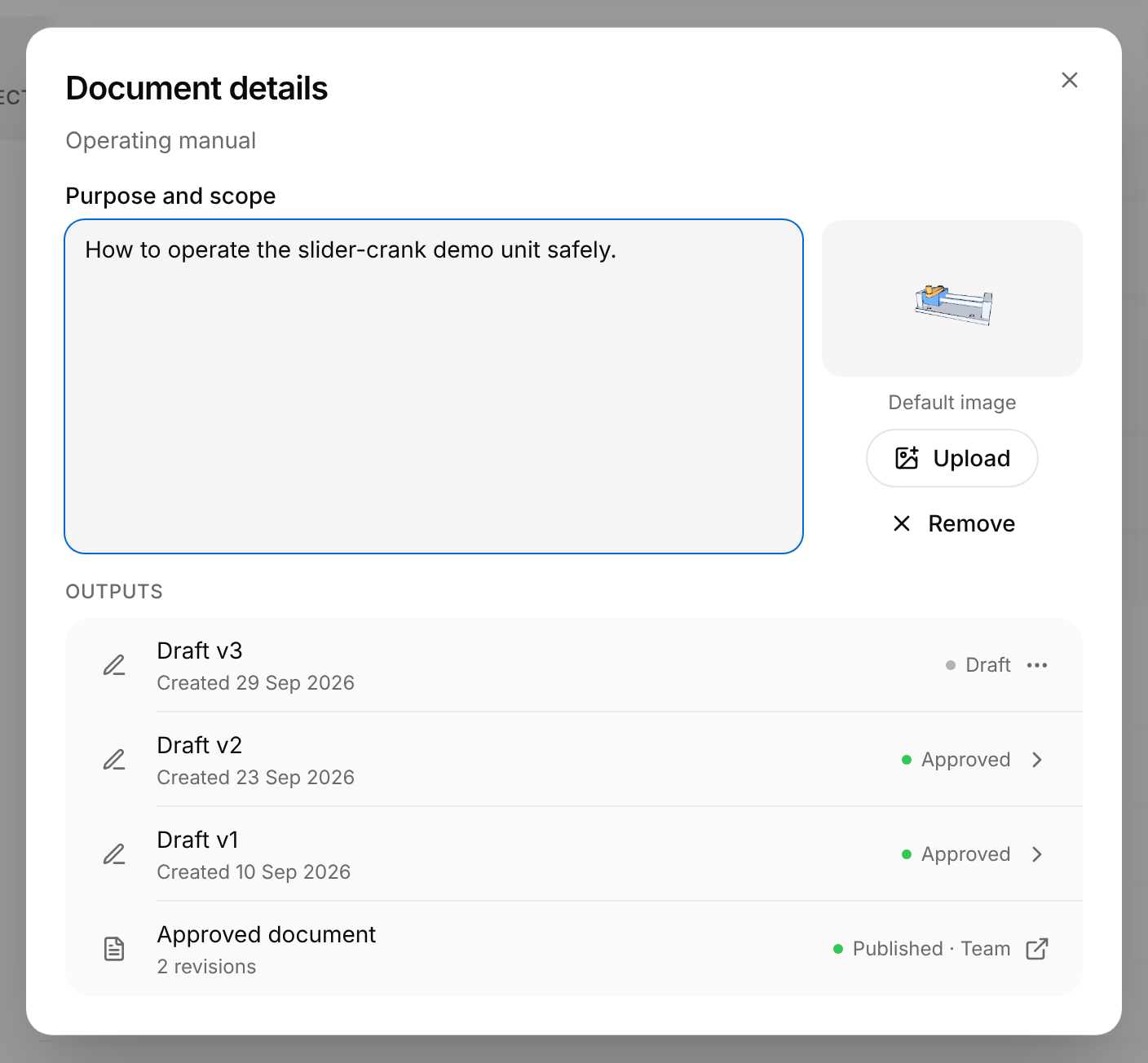
- Purpose and scope: the aim of the document. It is printed on the cover page of the document's PDF, which an export template lays out (see Export templates).
- The cover image: the default is the picture of the product when the product has a 3D model, or else the picture set in the export template. Upload replaces it with a picture of your own (the button then reads Replace), Remove takes it away and Use default brings the default back. The line under it reads Custom image, Default image or No image.
- Outputs: the drafts of the document, newest first, each with its state, then the Approved document with its number of revisions. Select a draft to open it in the editor. Select Approved document to open the approved document and its revisions (see Review and publish). When the document is published, the icon at the end of that row opens it as readers see it.
Authors, Reviewers and managers can change the purpose and the cover image. Both are left out of the dialog, which then shows Outputs only, when the document template your drafts are laid out with (the default of the organization, unless you chose another on the Preview tab of a draft) has Purpose per document turned off (see Export templates).
Submit the newest draft for review
Submit for review, at the top of the document, sends the newest draft to review without opening it: the message "Submitted for review" appears and the state becomes In review. See Review and publish.
Delete a draft or a document
Only a manager can delete. The three dots at the end of a draft's row under Outputs are the button named Actions for draft and the title of the draft. An approved draft cannot be deleted: its row has no three dots.
Delete a draft
A draft that is not approved can be deleted with its content.
- Open the document and select Document details.
- Under Outputs, select the three dots at the end of the draft's row.
- Select Delete draft.
- In Delete draft?, select Delete.
The message "Draft deleted" appears. The draft and its content are permanently deleted.
Deleting a document does not unpublish it. A published document stays available to its readers: to withdraw it, unpublish it first (see Review and publish).
Delete a document
Deleting a document removes its sections and every draft that is not approved.
- Open the document.
- Select the Document actions button (three dots) at the top right.
- Select Delete document.
- In Delete document?, select Delete.
The message "Document deleted" appears and the list opens. Approved drafts are kept: they are listed under Unfiled drafts at the bottom of the list, where they can still be opened.
Delete document is not offered while a draft of the document is being generated or imported.
Check where a file or a procedure is used
A document can quote a file of the product and embed a procedure. Before a file or a schematic on Sources is deleted, the confirmation shows the report Where this is used. Before a procedure is deleted, it says in one sentence which documents embed it. The confirmation is pictured in Products for a file and in Procedures for a procedure.
- The report groups what uses the item under Procedures, Published documents and Drafts. Each card names a document, a draft or a procedure and the places in it.
- Open document, Open section, Open draft and Open procedure open that place in a new tab, so that you can correct it first.
- Why is this listed? shows the reason for a line.
- When nothing uses the item, the report reads "No procedure, document or draft uses this."
Delete file or Delete procedure then deletes the item. Documents and drafts keep their text, but a quote loses the file behind it.
What else the Assistant reads
The Assistant writes from the sources of the product. In the Sources section, two more things can be added for it: Link a product, under Linked products, lets it also read the sources of another product, such as a previous model, and Connect repository, under Code, connects a GitHub or GitLab repository, which it only reads. When a product is linked, the sentence under the title of the Documentation page ends with "The Assistant also sees 1 linked product."