

Organization
The Organization page holds what is shared by everyone who works in your organization: its name and logo, its members and their roles, its brand colors and its export templates. Every member can open it; what a member can change there depends on the role.
Open the Organization page
In the left sidebar, under Admin, select Organization. From inside a product, select More in the sidebar of the product, then Organization.
The title of the page is the name of the organization. Under it come the sections General, Members and Branding, then the export templates.
Switch to another organization
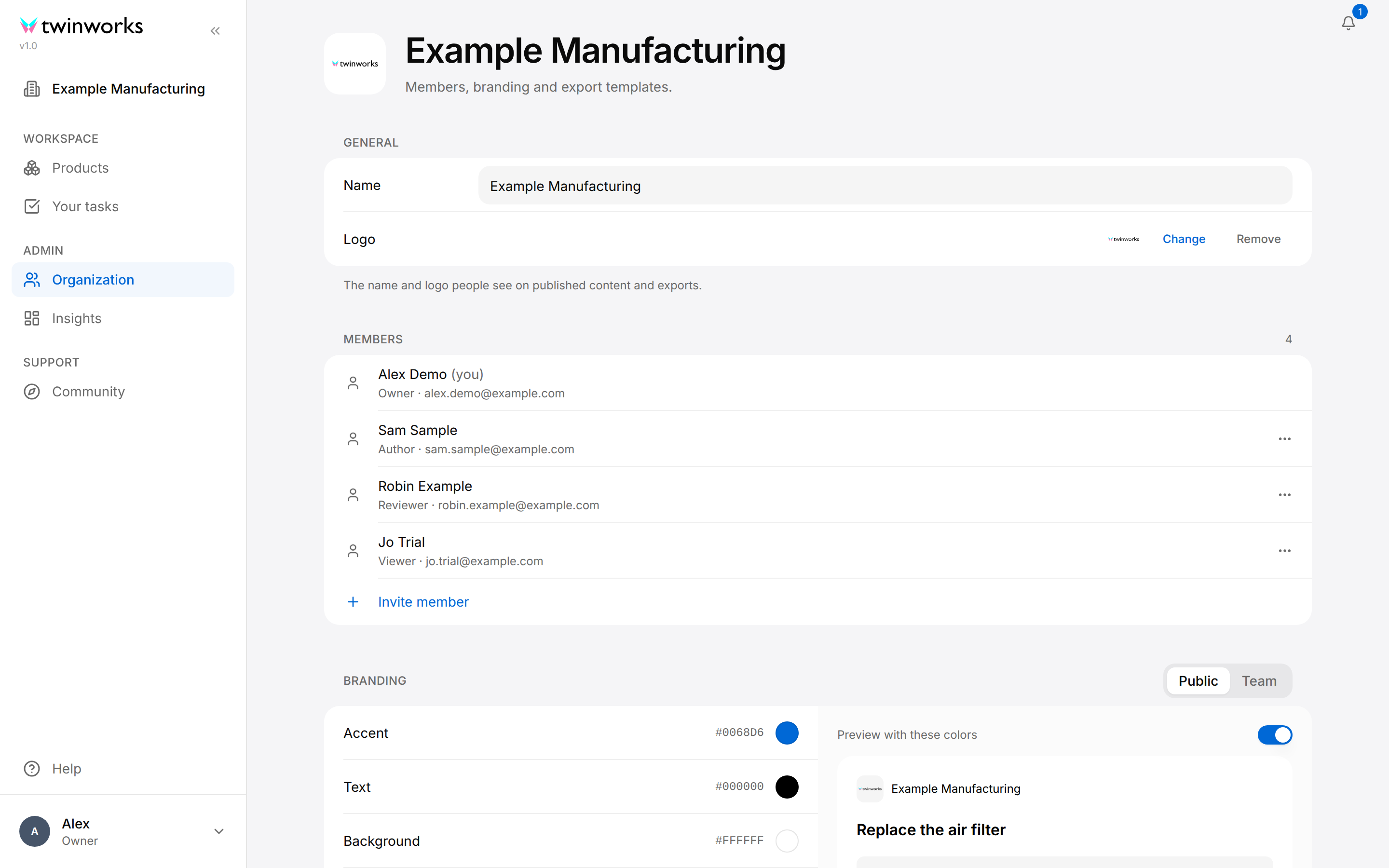
The name of the organization you work in is shown under the TwinWorks logo, at the top of the left sidebar. When you belong to more than one organization, this name is a menu. The sidebar of a product does not show it: from a product, select the TwinWorks logo first to go back to the Products page.
To work in another organization, select the name under the logo, then the organization you want. The Products page of that organization opens. Everything you see from then on, the Organization page included, belongs to that organization. Your browser remembers the choice.
Change the name and the logo
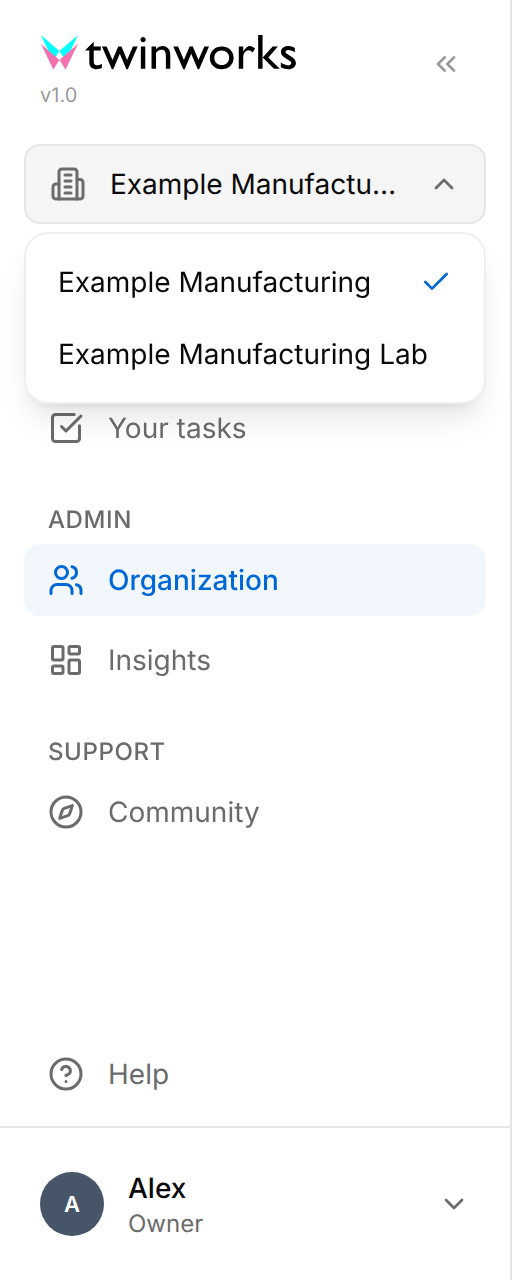
The name and the logo are what people see on published content and on exports.
The name, the logo and the brand colors are not saved as you change them. The Unsaved changes bar appears at the bottom of the page as soon as one of them differs from what is saved: select Save to keep the changes or Discard to go back to what was saved. Changes that are not saved when you leave the page are lost. Changes to members take effect at once.
Rename the organization
The Owner and the Managers of the organization can change its name.
- Open Organization.
- In General, replace the text of Name.
- In the Unsaved changes bar at the bottom of the page, select Save.
The message "Organization name updated" appears and the sidebar shows the new name.
Change the logo
The Owner, Managers, Authors and Reviewers can change or remove the logo.
- Open Organization.
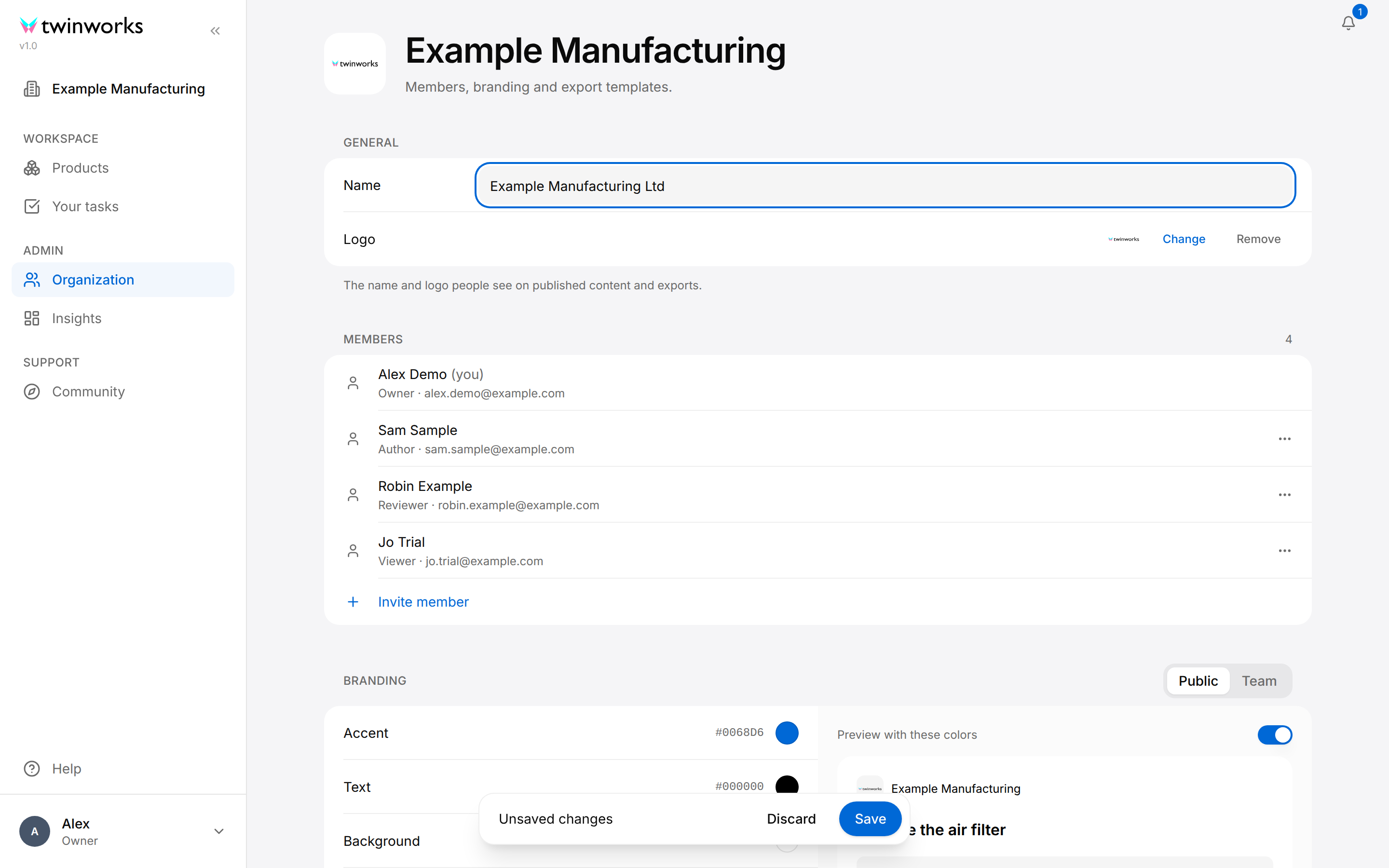
- On the Logo line of General, select Change.
- In Upload a logo, drop a PNG or JPEG file on the drop area, or select the area and choose a file.
- Check the new logo on the Logo line: the dialog closes as soon as the file is chosen.
- In the Unsaved changes bar, select Save.
The message "Branding saved" appears.
The Logo line shows the logo of one brand: Public or Team, whichever is selected at the top right of the Branding section. Each brand has its own logo (see Branding).
To take the logo away, select Remove on the Logo line, then Save. A brand without a logo of its own shows the TwinWorks logo. The browser in which you selected Remove is the exception: it remembers the removal and shows no logo.
Members and roles
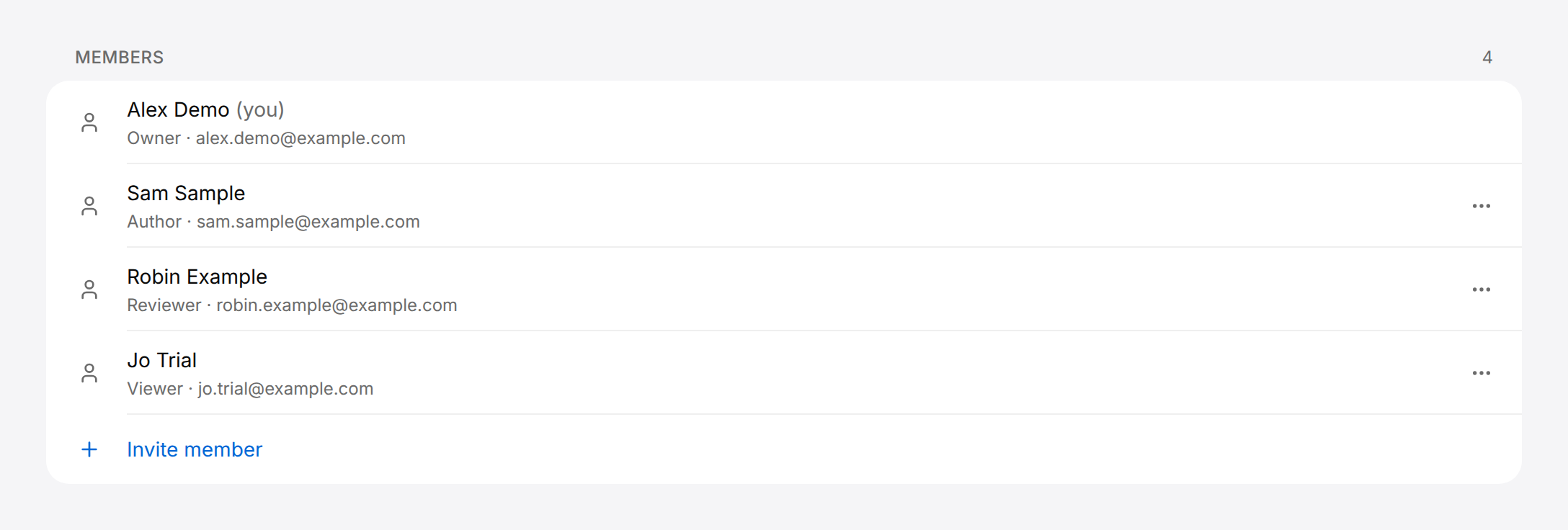
Members lists everyone in the organization, with the role and the e-mail address under each name. The number at the top right is the number of members. Your own line is marked "(you)". A person who has not entered a name yet is listed under the e-mail address.
A member has one role in the organization. The role decides what the person can do everywhere in TwinWorks:
| Role | Products and procedures | Documentation | Organization page | Insights |
|---|---|---|---|---|
| Viewer | Read only | Read published documents | Read only | No |
| Author | Create and edit products; create, edit and delete procedures | Write: edit drafts, use the Assistant, generate drafts, comment | Logo, brand colors, templates | Yes |
| Reviewer | Everything an Author can | Everything an Author can, and also review, endorse, approve and publish | Everything an Author can | Yes |
| Manager | Everything an Author can, and also delete products | Everything: add and delete documents, edit and assign sections, write, review, approve, publish | Everything an Author can, and also the name | Yes |
| Owner | Everything a Manager can | Everything a Manager can, in the documentation they started (see below) | Everything a Manager can, and also the members: inviting, changing roles, deleting | Yes |
The person who owns the organization is shown as Owner; nobody can edit or delete that line. In Documentation, the person who first opens the Documentation section of a product manages the documentation of that product, even when their role is Author or Reviewer: they started it, and this is how the Owner gets their rights there. A Viewer cannot start it.
On this page, what your role does not allow is not offered. An Author or a Reviewer sees the name but cannot edit it, and sees no Invite member line and no three dots. A Viewer cannot change the logo or the colors either, and does not see the export templates.
If the text "Member management is unavailable with your current plan. Contact support if you expect access." is shown under the list, Invite member and the actions on members are turned off for your plan.
For more about the documentation roles, see Documentation. For Insights, see Insights.
Invite a member
Invite a member
The Owner of the organization adds people by e-mail address and gives each a role.
- Open Organization.
- At the bottom of Members, select Invite member.
- Enter the Email address of the person.
- Choose the Role: Author, Reviewer, Manager or Viewer.
- Select Invite.
Invite a service technician who only follows published procedures as a Viewer, and a technical writer who creates procedures and writes manuals as an Author.
The message "Member added" appears and the person is added to the list, under the e-mail address until they have entered their name.
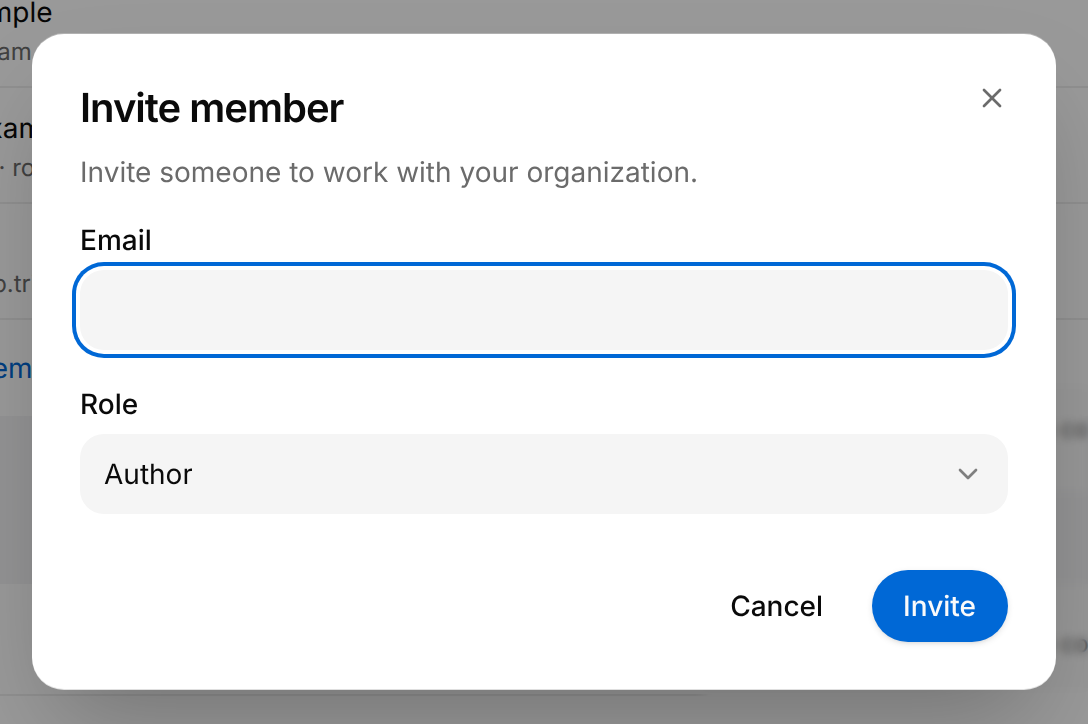
The dialog asks for nothing else: the person gives their own name when they accept. If the message "Team member limit reached" appears instead, your plan has no room for another member: contact TwinWorks to add more.
What the invited person does
A person who has no TwinWorks account yet receives an e-mail with a link, which is valid for six hours. The link opens the page Finish setting up your account, which names the organization and shows the address the invitation was sent to.
The password must be at least 12 characters long and include an uppercase letter, a lowercase letter, a number and a special character. The page ticks each rule as the person types.
Accept an invitation
For a person who was invited to an organization and has no TwinWorks account yet.
- Open the link of the invitation e-mail.
- Enter your First name and Last name. Job title is optional.
- Enter a Password, then the same password in Confirm password.
- Select Create account.
You are signed in and the Products page of the organization opens.
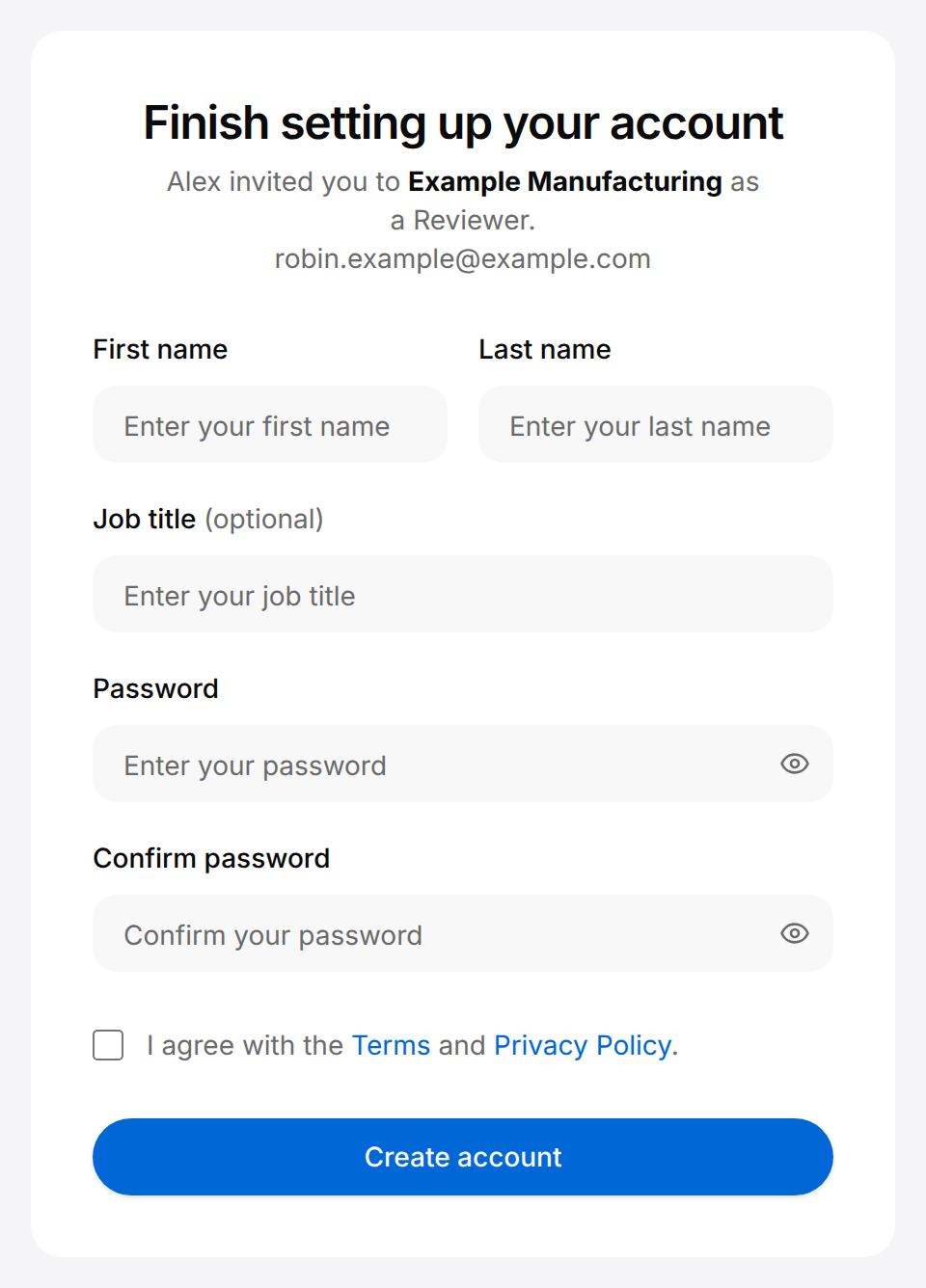
If the page reads "This invitation link doesn't work", the link is incomplete or no longer valid. The Organization page cannot send a second link. Deleting the member and inviting the person again does not send one either: the account was created with the first invitation, and a person who has an account receives an e-mail that says they were added, with no link to choose a password. Instead, the invited person selects Forgot password? on the sign-in page, enters the address the invitation was sent to and selects Send reset link: the e-mail they receive lets them choose a password. They enter their name afterwards on their profile.
A person who already has a TwinWorks account has no password to choose. They receive an e-mail saying that they were added, sign in as usual and find the organization in the menu under the logo.
Change a member's role
Change the role of a member
The Owner of the organization can change the role of any other member.
- Open Organization.
- In Members, select the line of the member, or select the Actions button (three dots) at the end of the line, then Edit.
- In Edit member, choose another Role.
- Select Save.
The message "Member updated" appears and the line shows the new role. The e-mail address of a member cannot be changed here.
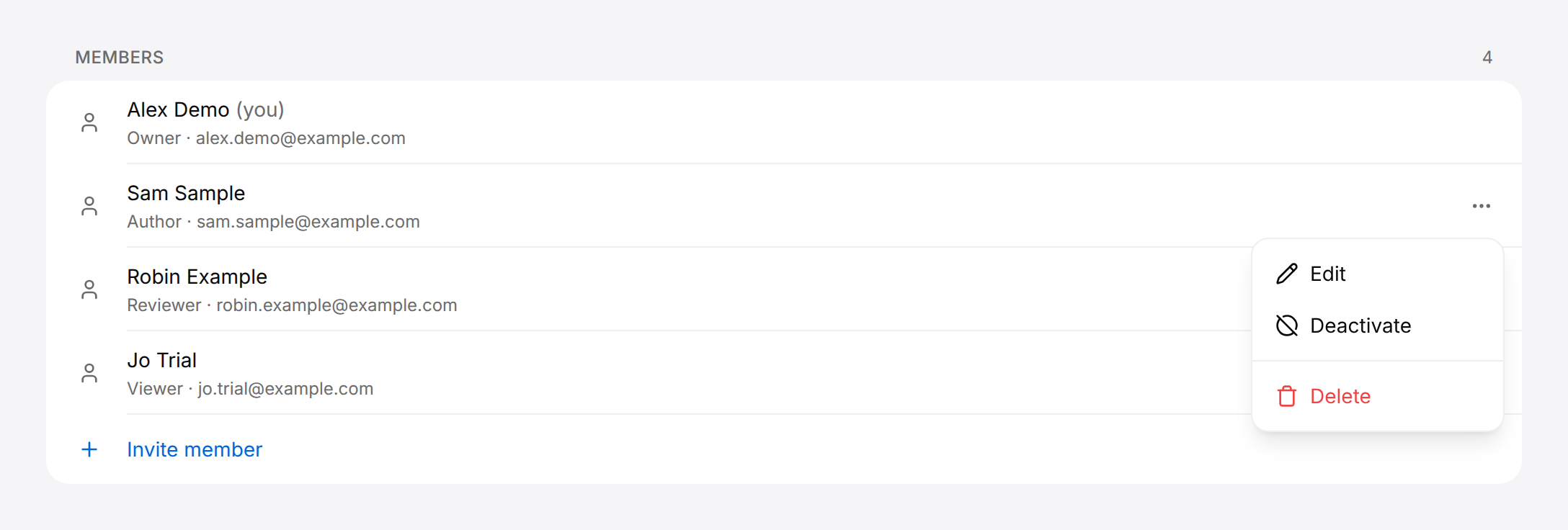
Deactivate has no lasting effect: the message "Member deactivated" appears, but the member stays in the list as before and keeps their access. To end the access of a person, delete the member.
Delete a member
Delete a member
The Owner of the organization can delete any other member.
- Open Organization.
- In Members, select the Actions button (three dots) at the end of the line of the member.
- Select Delete.
- In Delete member?, select Delete.
The message "Member deleted" appears and the person is no longer in the list. The person loses access to the organization. To give access again, invite the person again.
Branding
A brand is a logo and four colors that give what you publish the look of your organization. An organization has two brands. Public is used in the procedure viewer and in published content, and its logo is printed in PDF exports. Export templates have their own colors, which Apply in a template copies from a brand (see Export templates). Team is what the signed-in members of your organization see in the procedure viewer. Each brand has its own logo and its own colors, and is saved on its own.
In the procedure viewer, a brand is used only for the products where branding is turned on, in the Publish section of each product. See Publishing.
On some plans only the Public brand is offered, and the choice between the two is not shown.
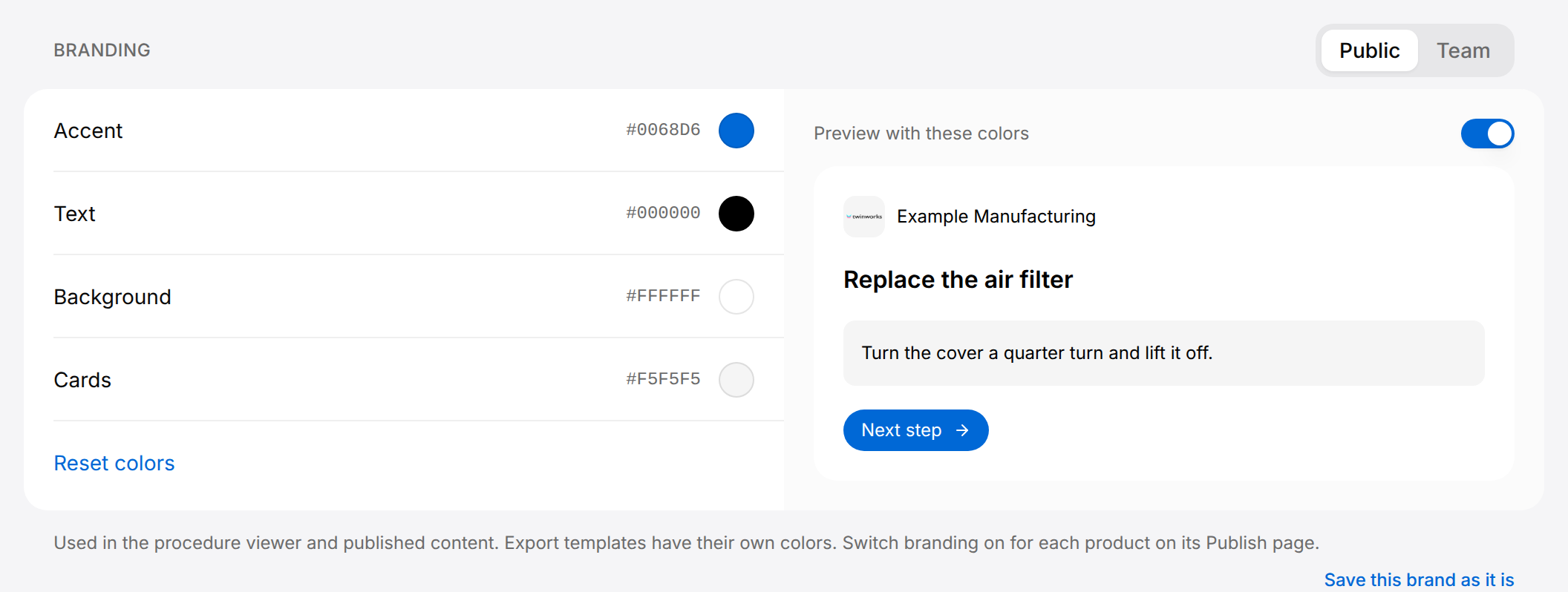
The four colors:
| Color | What it colors in the preview |
|---|---|
| Accent | The button. |
| Text | The text. |
| Background | The background behind the content. |
| Cards | The box around the instruction and around the logo. |
Preview with these colors only changes the preview on the right: it is not a setting. Reset colors puts the four default colors back; select Save to keep them.
Set the colors of a brand
The Owner, Managers, Authors and Reviewers can change the brand colors.
- Open Organization and go to Branding.
- Select Public or Team at the top right of the section.
- Select Accent, Text, Background or Cards.
- In Choose a color, pick a color in the square or among the twelve colors under it, or enter a hex code such as
#0068D6in the field at the bottom. - Select Apply, then do the same for the other colors.
- Check the result in the preview on the right.
- In the Unsaved changes bar, select Save.
The message "Branding saved" appears.
While a brand has unsaved changes, Public and Team cannot be switched: select Save or Discard first.
A brand that was never saved shows the default colors and the link Save this brand as it is, which stores the brand as it is shown. You do not need the link before you change a color or the logo: Save in the bar stores the brand as well.
Export templates
Below the Branding section, the Owner, Managers, Authors and Reviewers find two more sections: Document templates, the layouts of documentation exported to PDF, and Procedure templates, the layouts of procedures exported to PDF and Word. Creating, editing and choosing the default template is described in Export templates.
Your profile
Your own details are not on the Organization page but on your profile. It is the same in every organization you belong to.
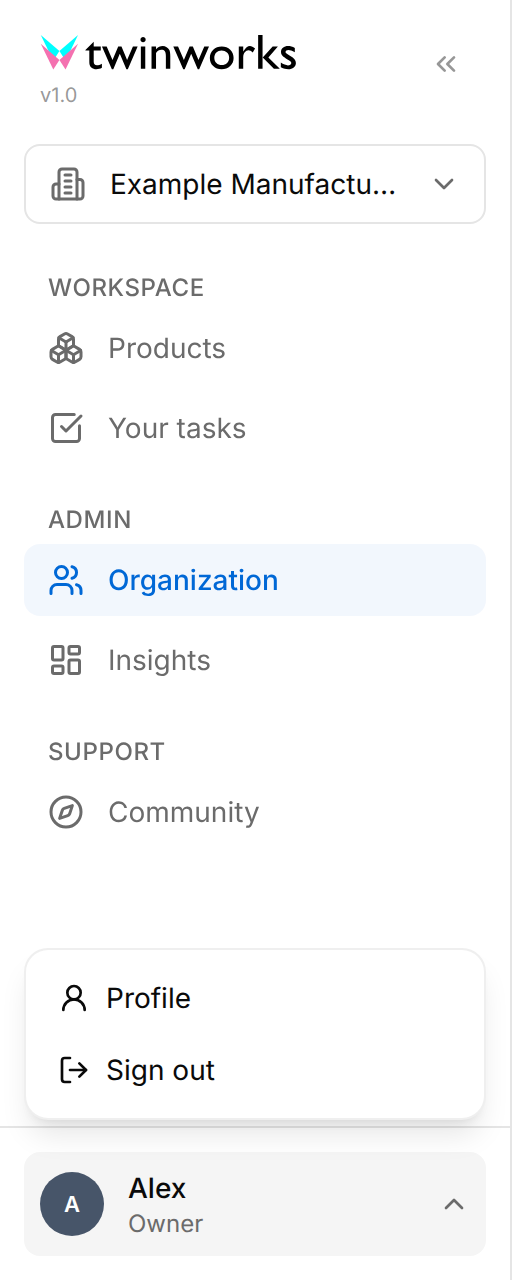
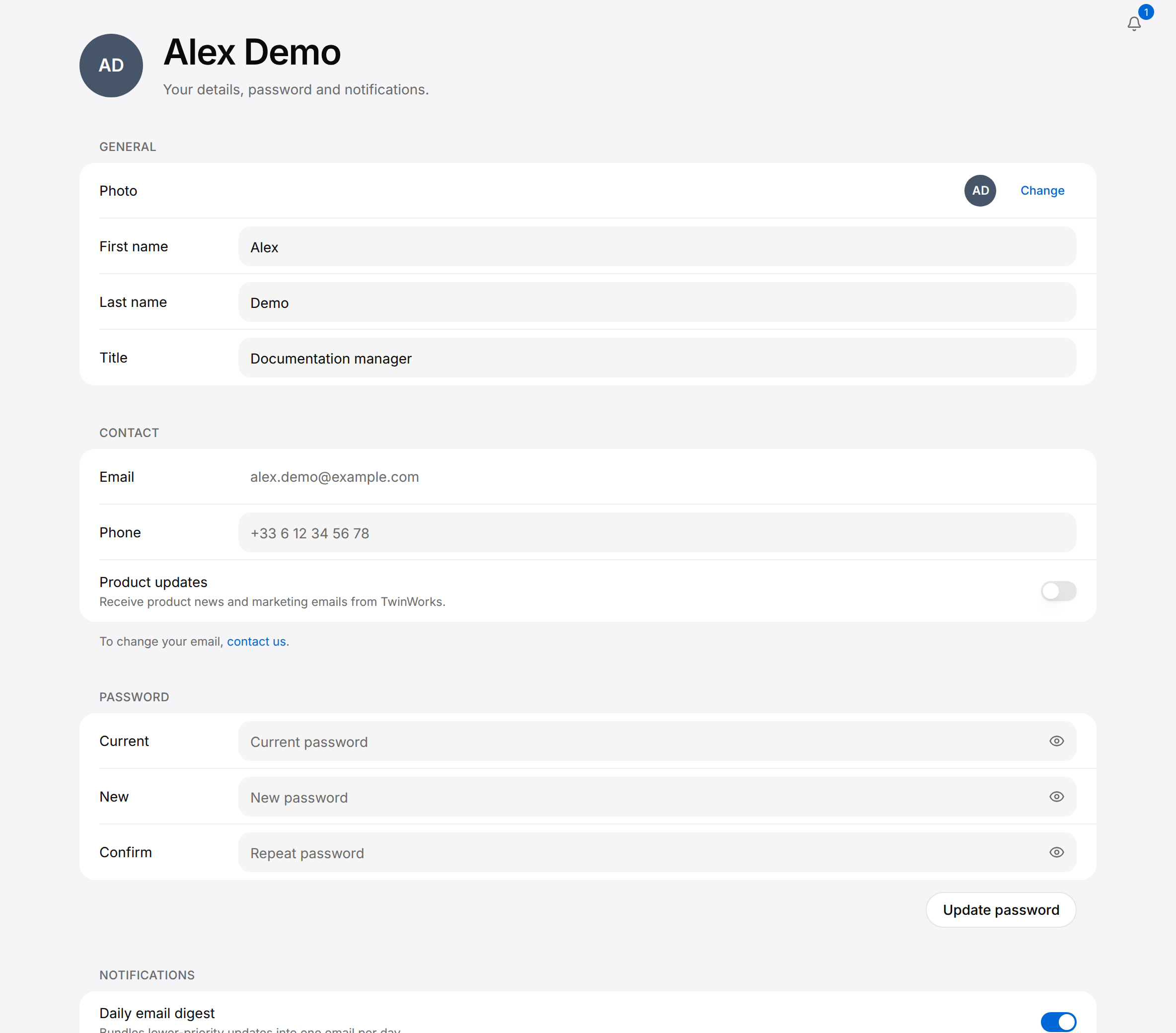
To open it, select your name at the bottom of the left sidebar, then Profile. The title of the profile page is your full name.
| Section | What it holds | How it is saved |
|---|---|---|
| General | Photo (select Change and choose a PNG or JPEG image), First name, Last name and Title (your job title). | Save in the Unsaved profile details bar at the bottom of the page. |
| Contact | Phone, and the Product updates switch for news and marketing e-mails from TwinWorks. The Email address cannot be edited: to change it, select contact us under the section. | The same bar. |
| Password | Current, New and Confirm. | Update password under the fields. |
| Notifications | How each kind of update reaches you. | Save preferences under the section. |
The notification choices are described in Your tasks.