

Assistant
The Assistant of the Documentation section answers questions about a product's sources and documents, proposes the sections of a document, writes a first draft and applies the changes you describe to a draft. Managers, Authors and Reviewers have it (see Who can do what); Viewers, who only read published documents, do not. What it writes is a draft: you read it, correct it and send it to review like any other.
Open the Assistant
The Assistant is in two places:
- On the Documentation page of a product: the round black button in the top right corner, left of the bell. With the pointer over it, the button shows the word Assistant.
- In a draft: the black Assistant button in the top bar.
The panel opens on the right. The page behind it stays usable. The line under the title of the panel names what the conversation is about: the draft, the document chosen in the panel, or "Documentation".
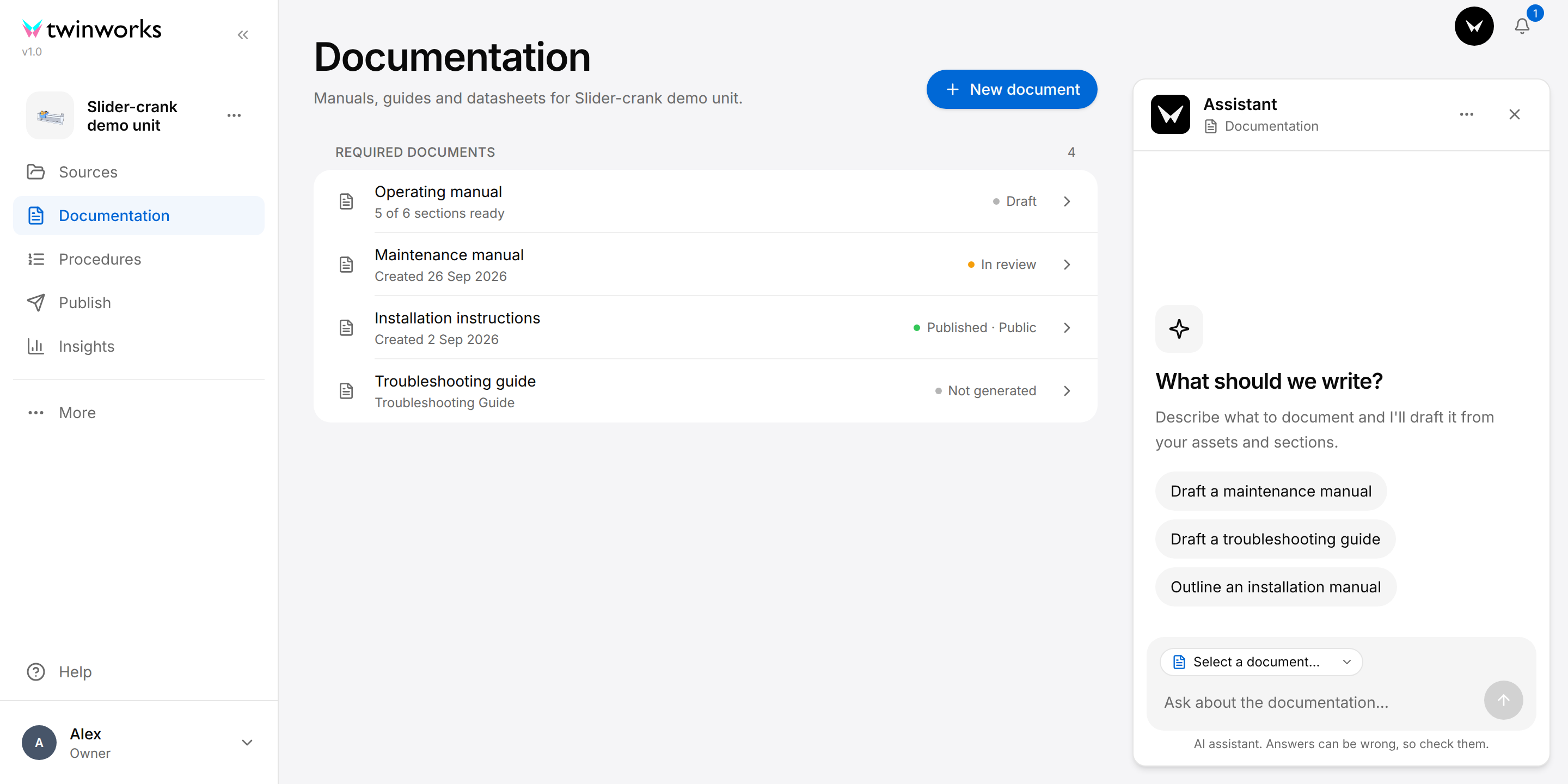
On the Documentation page, the Document box (3) above the message field says which document the conversation is about; a draft you ask for is written for that document. Until you choose a document, the box reads "Select a document…" and the message field reads "Ask about the documentation…": you can ask a question, but not for a draft. When the product has a single document, that document is already chosen. Each document has its own conversation: when you choose another document, the panel shows the conversation of that document. In a draft there is no such box: the conversation is about that draft.
On an empty conversation the panel offers suggestions (2). Selecting one sends it at once as your message: it does not fill the field first. On the Documentation page the suggestions ask for a draft, such as Draft a maintenance manual; in a draft they ask a question or ask for a change, such as What is missing from this draft?.
Close (the cross) or the Esc key closes the panel. The conversation is still there when you open the panel again, and closing the panel does not stop the Assistant.
What the Assistant works from
The Assistant reads the sources of the product. The Sources section of the product lists them: the product twin (the 3D model), the files (manuals and datasheets), the schematics and drawings, the code repositories and the linked products. It also knows the product's published procedures. To add sources, see Products.
- Linked products. The Assistant can also see the sources of the products linked in the Sources section, for example a previous model. The Documentation page then says so under its title: "The Assistant also sees 1 linked product."
- Code. A GitHub or GitLab repository connected under Code in the Sources section is read, never changed. When more than one repository has the state "Synced" there, the panel shows a Repository box above the message field: choose the repository the Assistant reads.
Ask a question
Ask the Assistant a question
Ask what the sources or the documents say before you write.
- Open the Documentation page of the product, or a draft, and select Assistant.
- On the Documentation page, to ask about one document, choose it in the Document box above the message field.
- Enter the question in the field at the bottom of the panel.
- Press Enter, or select Send message (the arrow). Shift+Enter starts a new line.
- Read the answer and check the sources named under it.
How far does the slider travel, and how often must the unit be checked?
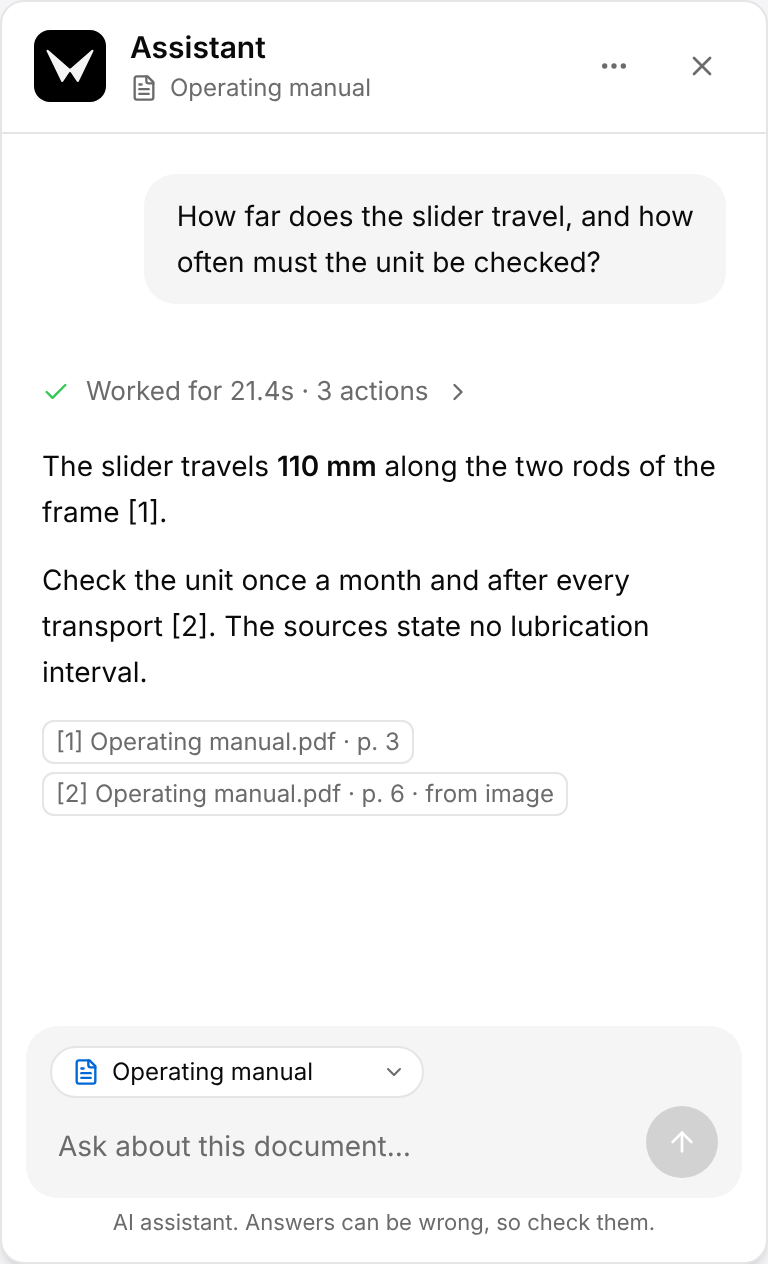
While the Assistant works, the panel shows "Thinking…", then what it is doing, step by step. The arrow turns into a square, Stop assistant, and you cannot enter text in the field until the answer is there.
When the answer is there:
- The line Worked for … · … actions (2) says how long the work took. Select it to list the steps.
- A number in brackets in the answer, such as [1], refers to the chip under the answer that starts with the same number.
- The chips (3) name the sources the answer rests on: the file and, when there is one, the page. A chip cannot be selected: to read the page, open the file from the Sources section of the product.
- A chip that ends with "from image" (4) names a page that has no text the app can read, a scan for example. The Assistant read the page as a picture, and what it quotes from it could not be checked word for word against the file: read that page yourself.
- With the pointer over a message, a Copy message button appears under it.
Have the sections of a document proposed
A document needs its sections before a draft can be written. You can add them yourself, see Documentation, or have the Assistant propose them. Nothing changes in the document until the proposal is applied. Only a Manager can use Suggest sections, and only a Manager can apply or discard a proposal.
Have the sections of a document suggested
For a document that has no sections yet, or whose sections you want reviewed as a whole.
- On the Documentation page, select the row of the document. The document opens.
- Select Suggest sections. On a document without sections it is under "No sections yet"; otherwise it is in the Document actions menu (three dots) at the top right.
- Wait: the panel opens, sends the request for you and shows the card Proposed sections.
- Select Review sections and read the proposal.
- To change it, say what to change in the field and send it.
- Select Apply sections, or Discard.
After Apply sections the panel says "Sections applied." and the sections are in the document. After Discard it says "Discarded the proposed sections."
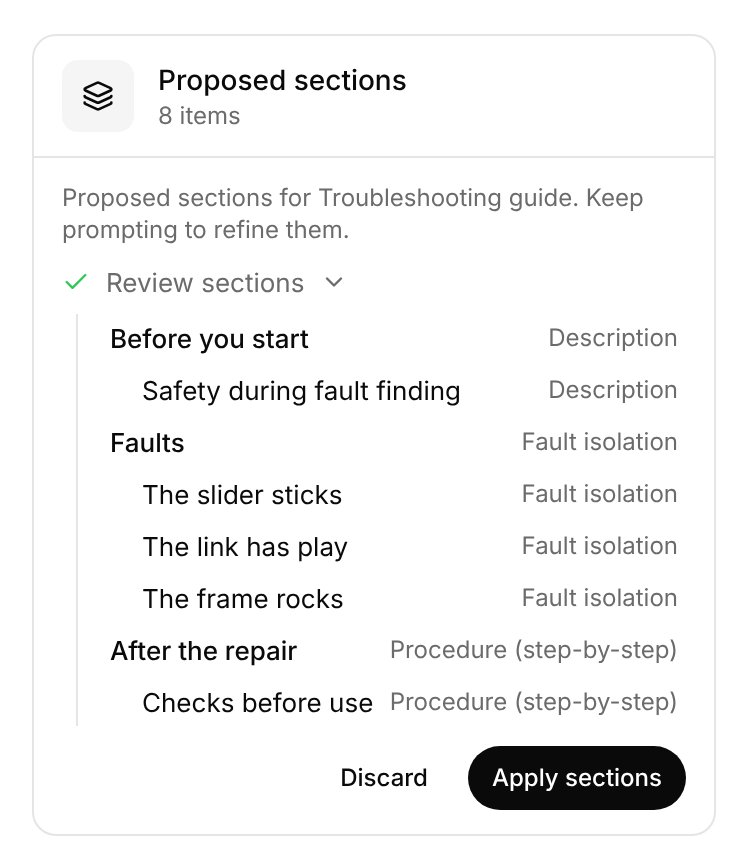
The card counts 8 items here: three chapters and the five sections under them. The word on the right is the content type of each one; the content types are described in Documentation.
The tree is the complete list of the sections the document will have. Apply sections replaces the sections of the document with those of the tree: a section that is not in the tree is removed. When a proposal removes every section, the card reads "Removing all sections" under its title.
If someone changes the sections of the document while a proposal waits, the card says "The document's sections changed after this proposal started. Discard it and draft again." and Apply sections is greyed out.
For an Author or a Reviewer, Suggest sections, or the Document actions button that holds it, is greyed out; with the pointer over it, the note reads "Only managers can change documents and their sections. Ask a manager in your organization."
In the panel of a draft, a Manager can also ask for a single section, for example with the suggestion Add a section on emergency shutdown: the proposal arrives on the same card. A proposal belongs to the conversation of the person who asked, and nobody else sees it. So it is for a Manager to ask. An Author or a Reviewer, for whom Suggest sections is greyed out, can still enter the same request in the panel, but gets a card that they cannot apply.
Have a first draft written
The Assistant writes a first draft of a document from its sections and from the sources. The document must have its sections first.
From the New draft dialog
Generate a draft
The Assistant writes every section of the document in a new draft.
- On the Documentation page, select the row of the document. The document opens.
- Select New draft, the first of the buttons at the top right.
- In Start from, keep Sections, or choose an earlier draft under Copy a draft.
- If you want, enter what the Assistant should keep in mind in Instructions for Generate.
- Select Generate.
Instructions for an operating manual that trainees will read: Write for trainees who use the unit for the first time.
Generate shows a turning circle and a short text such as "Starting…", and Cancel becomes Close. You can wait, or select Close: the Assistant goes on. As soon as the new draft exists, it opens.
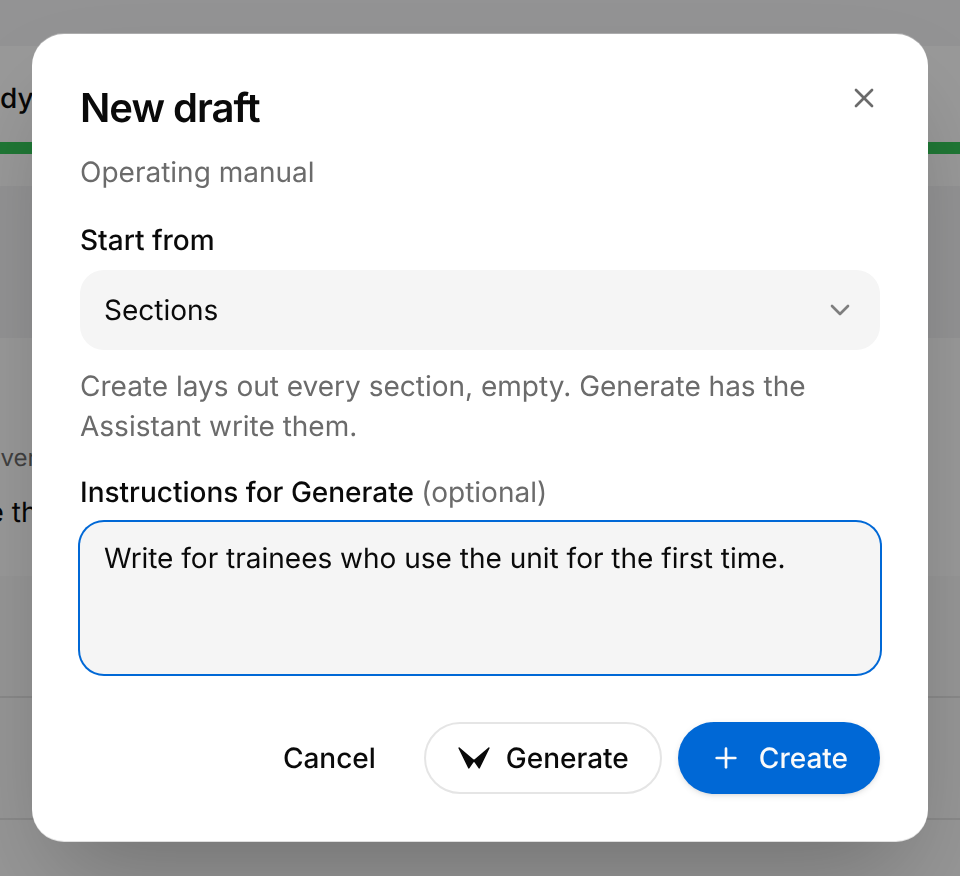
New draft is shown once the document has a section or a draft. It is not only for the first draft: a document can have several.
- Starting from Sections, Create lays out every section of the document, empty, and Generate has the Assistant write them all.
- Starting from an earlier draft, Create copies it unchanged. Generate copies it and has the Assistant work on the copy: with instructions, the Assistant is asked to do what they say and nothing more; without instructions, it is asked to fill the sections that are still empty or incomplete. The draft you copied is not changed.
When the draft cannot be started, the message "Could not generate draft" appears. Try again.
By asking in the panel
Ask for a draft in the panel
Describe the draft you want and answer the questions the Assistant asks first.
- On the Documentation page, select Assistant.
- Choose the document in the Document box.
- Ask for the draft in your own words, or select a suggestion such as Draft a maintenance manual.
- If the Assistant asks questions, select an answer for each one, then select Start. Without questions the draft starts at once.
Write a first draft of this manual for trained maintenance staff.
The Assistant starts and the panel shows what it is doing. As soon as the new draft exists, it opens.
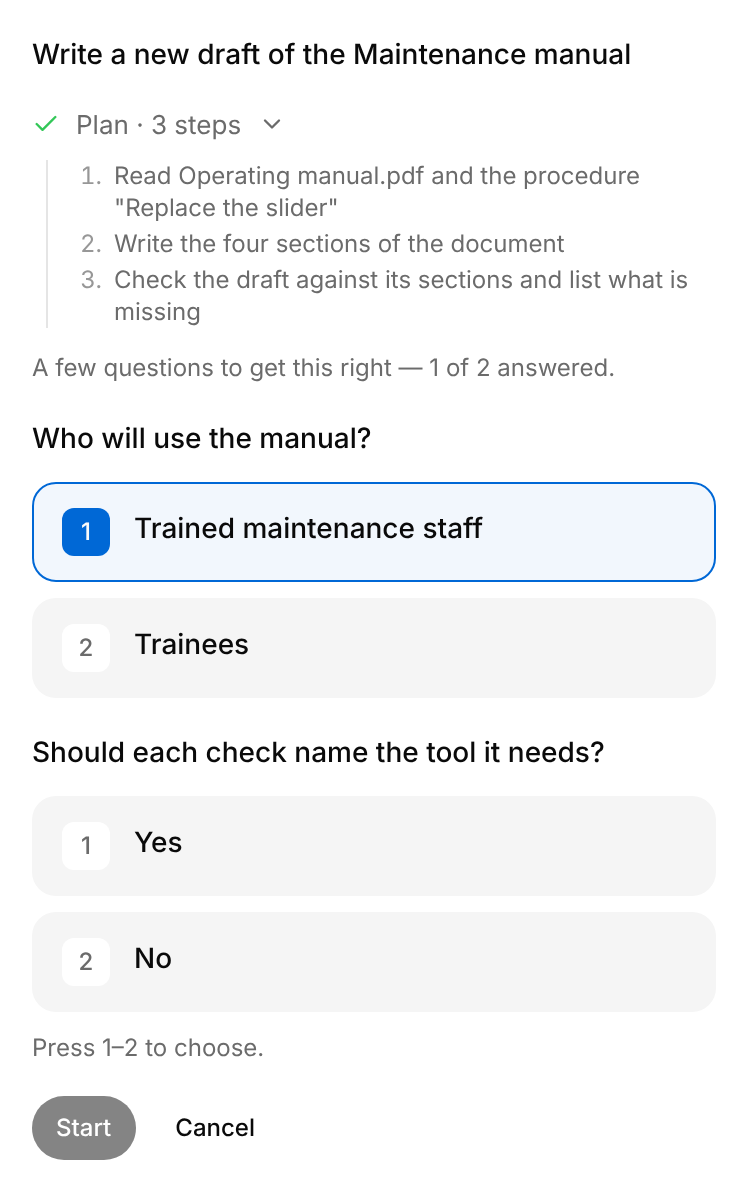
- A draft is always written for the document chosen in the Document box, whatever the suggestion or your message names: choose the document first. Without a choice, the Assistant answers "Choose which document this draft is for, using the document selector above the message box." When the product has no document yet, the line "Add a document to draft against its sections." appears under the field.
- Instead of selecting an answer, you can press its number on the keyboard. The key answers the first question that has no answer yet, the one with the line "Press 1–2 to choose." under it. It does nothing while the cursor is in a text field.
While the draft is written
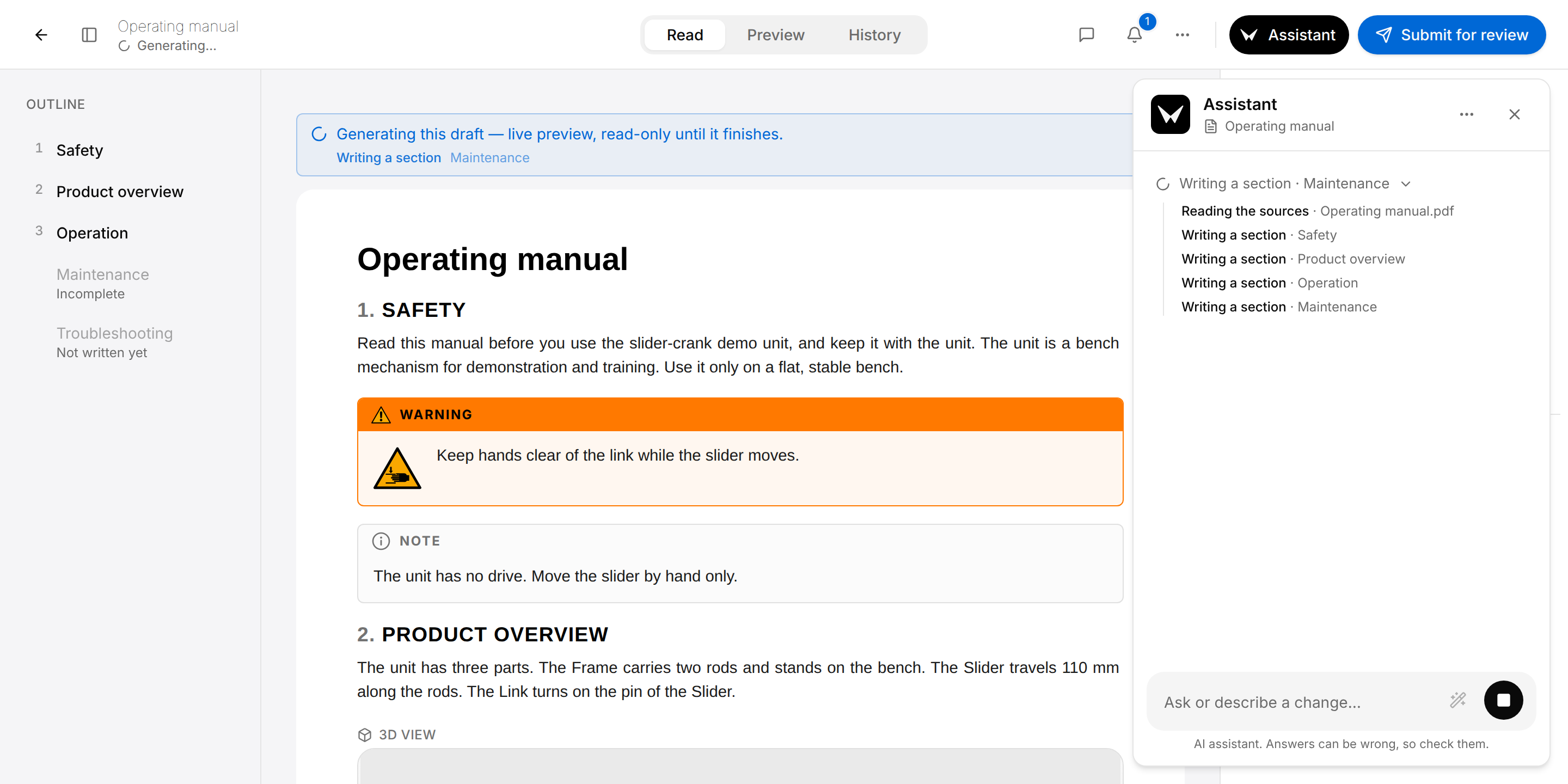
- Under the title, at the top left, the state of the draft reads "Generating…". The row of the document on the Documentation page reads the same.
- The first tab is Read (1): nobody can change the draft until the Assistant has finished.
- The blue banner "Generating this draft — live preview, read-only until it finishes." is shown above the document, with the step in progress under it. The sections appear one after the other.
- Everyone who opens the draft sees the state, the Read tab and the banner, not only the person who started the work.
- If you asked for the draft in the Assistant panel, the black Assistant button of the draft opens the panel with the steps so far (2) and Stop assistant (3).
You do not have to stay on the draft: the Assistant goes on, and the draft shows the banner again when you come back. Your notification preferences have a line for the end of the work, "Your draft finished generating": see Your tasks. Wait until the Assistant has finished before you select Submit for review.
When the Assistant has finished, the banner disappears and the draft can be edited. Then do your part: read every section, compare the facts with the sources and correct what is wrong. In the Outline of the draft, a note marks each section the Assistant found missing (Not written yet) or incomplete (Incomplete). See Drafts for the editor and Review and publish for the checks.
The Assistant writes descriptions as paragraphs, with a citation marker right after each fact it takes from a source, such as [1, p. 6]: select a marker to read the page, as described in Drafts. A task, such as a check or a replacement, is a procedure of the product placed in the document, not steps typed into the text. When no published procedure covers a task, the Assistant notes the section as missing, with the pages that describe the task.
If the work fails, the banner disappears as well, and the draft itself does not say why. The reason is given only in the Assistant panel of the person who started the work, and only if that panel was open when the work failed. A draft started with Generate in the New draft dialog has no such panel. Check what the draft contains before you ask again.
Ask for a change in a draft
A draft can be changed, by you or by the Assistant, only while its state is Draft or Changes requested: see Drafts.
Have the Assistant change a draft
Describe the change; the Assistant proposes it, and it reaches the draft when you approve it.
- Open the draft and select Assistant.
- Describe the change in the field, and name the section it concerns.
- Press Enter and wait for the answer.
- Read the card Proposed changes: for each section, the words that go are struck through in red, the new ones are in green.
- Select Approve to put a section into the draft, or Reject to leave the draft as it is.
In Maintenance, say that the unit is also checked before first use, and add a check for bent rods.
After Approve the section is in the draft, as a change of yours, and the panel says "Your approved changes are in the draft." with Undo.
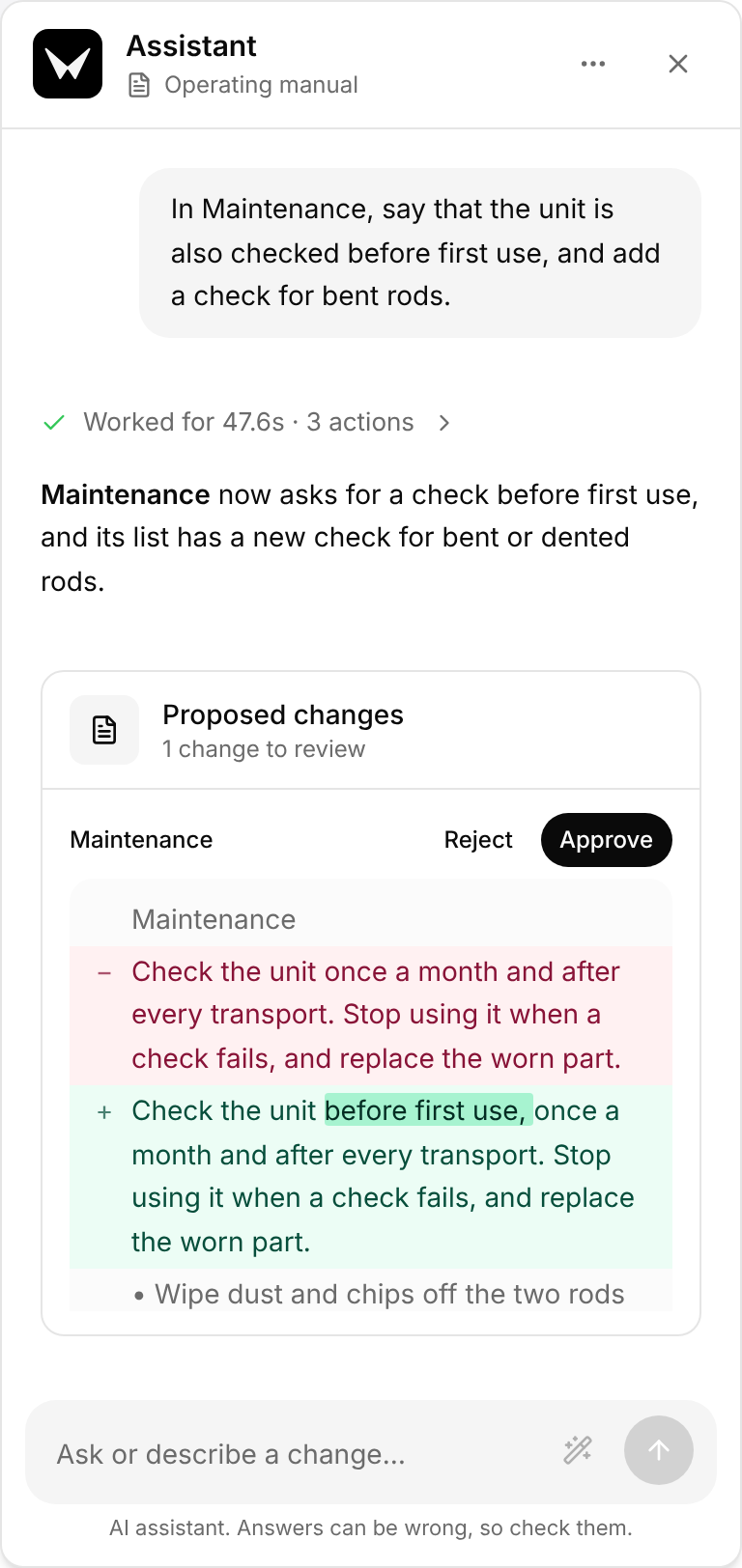
- The card Proposed changes (2) follows an answer that changes the draft. Under its title it counts the changes to review, one per section. Until you approve, nothing changes in the draft, and nobody else sees the proposal: it is in your panel only.
- Approve (4) puts the section into the draft as a change of yours: everyone who has the draft open sees it at once. With several sections, Approve all and Reject all decide them together.
- If a colleague changed the section after the Assistant read it, the card says "This section changed after the assistant read it." and offers Keep theirs, Use the assistant's and Ask again, which asks the Assistant to make its change again on the current text.
- Undo, beside "Your approved changes are in the draft.", takes back what you approved, in the sections nobody has changed since.
Ctrl+Z(Cmd+Zon a Mac) in the draft also takes it back, like any change of yours.
Approving a change of the Assistant keeps a version on the History tab of the draft: see Drafts.
Restructure a draft into lists
Restructure into lists has the Assistant turn text of the draft's sections into lists. You do not choose the sections: it goes through the whole draft. It is in the panel of a draft only: as the first suggestion of an empty conversation, and as the button with the wand beside Send message, (5) in the picture of Ask for a change in a draft.
It starts as soon as you select it, without a message and without asking. When it has finished, the panel says how many sections it would change, for example "Lists proposed for 2 sections. Review them below.", and the card Proposed changes follows: approve or reject each section as for any change. When there is nothing to change, the panel says "The draft already reads well — nothing to restructure."
Answer a question from the Assistant
This section is not about the questions the Assistant may ask before it starts a draft: you answer those on the card that has the Start button. Here the work has started, and the Assistant stops in the middle because the sources leave something open: it asks instead of guessing. The draft waits, read-only, until the question is answered.

The question is shown in two places:
- On the draft, as the banner "The Assistant paused this draft to ask a question. Answer it to continue." Everyone who opens the draft sees it; Managers, Authors and Reviewers also see the answers and Continue.
- In the Assistant panel of the person who started the work, as a card that starts with "The assistant needs your input to continue.", with numbered answers and the buttons Continue and Stop.
Answer the question
If you started the work, the Assistant waits for your answer, then carries on with the same work.
- Open the draft.
- Select an answer for each question. In the panel you can also press the number of the answer.
- Select Continue.
The Assistant carries on and the banner reads "Generating this draft — live preview, read-only until it finishes." again. An answer given in one place removes the question from the other.
- The answers are fixed: you cannot enter one of your own. If none fits, choose the nearest one, or the one that leaves the point out, and correct the text yourself when the Assistant has finished.
- The answer is for the person who started the work to give. If someone else selects Continue, the message "Could not send your answer" appears and the draft goes on waiting.
- Stop on the card in the panel ends the work instead of answering.
Stop the Assistant and continue
While the Assistant works on a request, the button at the right of the message field is Stop assistant (the square). It is in the panel that follows the work: the panel in which you sent the request or, for a draft you asked for in the panel, the panel of that draft. Only the person who started the work has it. A draft started with Generate in the New draft dialog has no panel that follows the work: neither the dialog nor the draft offers Stop assistant, so wait until the Assistant has finished.
To stop the work, select Stop assistant. The panel reads "Stopping…" until the step in progress has ended, then "Assistant stopped. Any completed changes were kept." and, under it, "You stopped this run." What the Assistant had already written stays in the draft, and the draft can be edited again. If it has not stopped a minute after Stop assistant, the panel reads "The assistant didn't answer Stop. You can send a new message." and the field takes a new request again.
To have the Assistant take the work up again, select Continue beside "You stopped this run."
Closing the panel does not stop the Assistant, and neither does Close in the New draft dialog.
Ask the Assistant in a comment
In a comment on a draft you can hand a passage to the Assistant: it answers in the thread, or prepares a change that you approve or reject. Its reply is part of the thread: unlike a conversation in the panel, everyone who sees the comments of the draft sees it. Comments in general are described in Review and publish.
Tag the Assistant in a comment
Ask for a change to one passage without opening the panel.
- In the draft, select the text and select Comment. For the whole document, select Add a review comment… in the Review panel.
- Enter
@and, in the list that opens, select Assistant, the entry with the words "AI that edits the tagged part for you". - Write what you want and select Comment.
- Wait until the line under your name in the Review panel reads Suggestion ready or Assistant replied. You can go on working meanwhile.
- Under the reply, on the card Proposed changes, select Approve or Reject.
On the words "before you put the unit away": @Assistant Add that the link is folded onto the frame as well.
After Approve the change is in the draft, as a change of yours, and the reply says "Applied to the draft." After Reject it says "Suggestion dismissed." and the draft stays as it was.
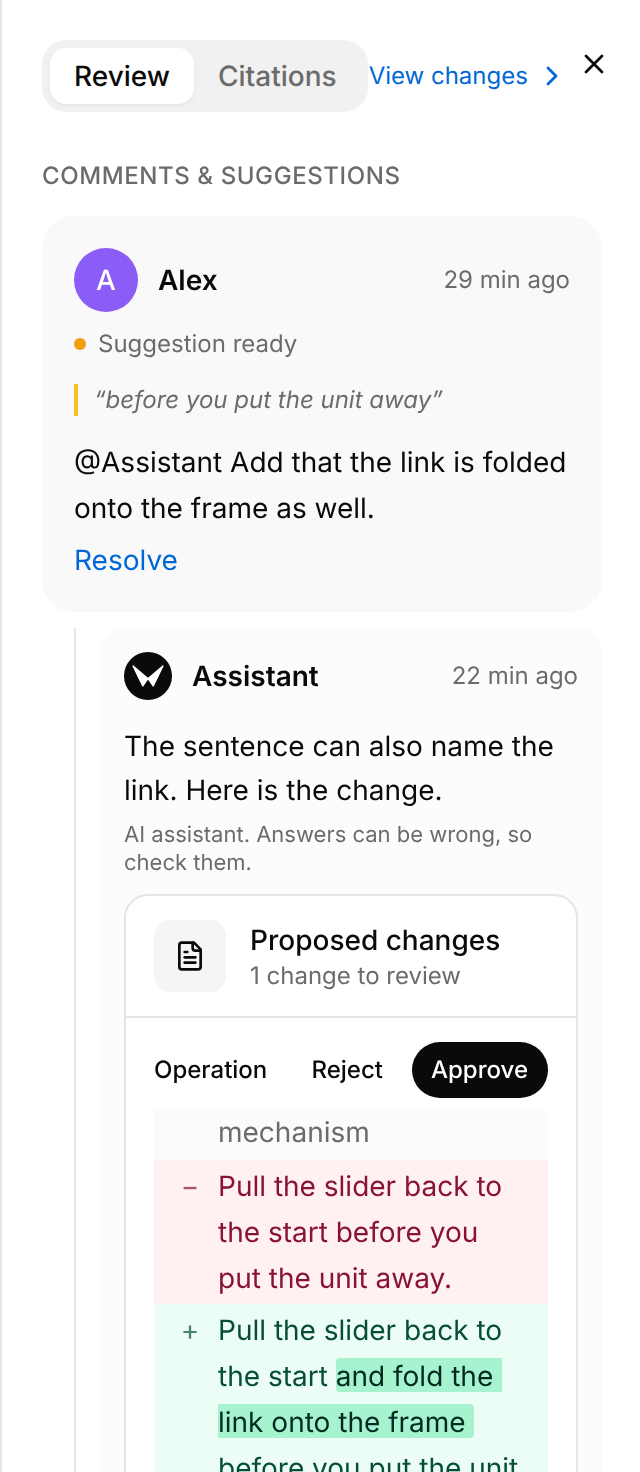
The line under the name of the commenter (1) gives the state of the request:
| On the comment | Meaning |
|---|---|
| Assistant queued | The request is waiting. |
| Assistant working… | The Assistant is working on the request. |
| Assistant replied | The reply is an answer. Nothing changes in the draft. |
| Suggestion ready | The reply proposes a change: Approve or Reject. |
| Suggestion applied | The change is in the draft. |
| Suggestion dismissed | The change was refused. |
| Assistant failed | The Assistant could not do it. Write the comment again, or make the change yourself. |
Only the person who tagged the Assistant can approve or reject its change. The others see the change in the thread. Approve needs a draft in the state Draft or Changes requested; in a draft that cannot be edited, the card says "Open the draft for editing to approve these changes." and only Reject works. If the section changed after the Assistant read it, the card offers Keep theirs and Use the assistant's, as in the panel.
Have a missing section written
The Outline of a draft shows a note under each section that the Assistant found missing from the draft (Not written yet), or started and not complete (Incomplete). The kinds of note are described in Review and publish.
Have one section written
The Assistant writes one section that the draft lacks, from the sources.
- Open the draft.
- If the Outline on the left is closed, open it with Toggle outline.
- Point at the entry of the section, or select its note, then select Write with the Assistant.
The request goes to the Assistant of the draft, which writes the section. Its text comes as a card Proposed changes in the Assistant panel: select Approve to put it into the draft.
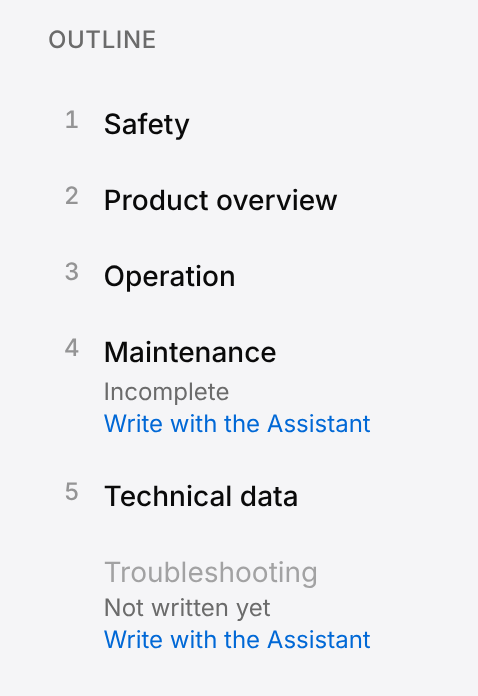
The Assistant is asked to write that section, and only that one, in the draft you have open. On an entry that reads Incomplete, the section already has text: compare the old and the new words on the card before you approve. Once approved, the note leaves the Outline.
Write with the Assistant is shown while the draft can be edited: in the state Draft or Changes requested.
Start a new conversation or copy it
The Assistant options button (three dots) at the top of the panel has two entries:
- New conversation clears the conversation and starts an empty one. It is greyed out while the Assistant works. The changes already made to the draft stay.
- Copy transcript copies the whole conversation as text, each message starting with "You:" or "Assistant:". The message "Transcript copied" confirms it.
Each draft has its own conversation, and so does each document chosen on the Documentation page. A conversation is yours: other people do not see it. It is kept until you select New conversation: you find it again when you open the panel, also after the page was reloaded.
A card Proposed changes that you have not decided is kept with the conversation: it is there again when you open the panel. The Worked for lines are not kept once the panel is closed.
Who can do what
| What | Who |
|---|---|
| Ask a question, ask for a draft or for a change, tag the Assistant in a comment, approve its changes, use Write with the Assistant | Managers, Authors and Reviewers |
| Use Suggest sections, apply or discard proposed sections | Managers |
| Answer a question of the Assistant, stop its work, continue it | The person who started the work |
Here a Manager is a person who manages the documentation of the product: the roles are described in Documentation. Viewers do not have the Assistant.