

Read a document
A published document is read in the reader: one scrolling page with the list of its sections, its pictures, tables and safety notices, and the procedures it embeds, played in place. This page is for the people a document is written for, and for the authors who want to see what those people get. It also covers the two other places where members of the organization read a document.
| Place | Who uses it | How it is opened |
|---|---|---|
| The reader | The people a published document is written for. | The reader link, the QR code or the embed code of the document, or the link of the product. |
| The document viewer page | Managers, Authors and Reviewers who check an approved document or want its PDF. | Open in the Publish document dialog, before the first publication of the document, or a Viewer link copied from that dialog. |
| The Documentation section of a product | Members with the Viewer role. | Documentation in the sidebar of the product. |
Through the reader link, the QR code, the embed code and the product link, people get the revision that was last published, never a draft that is still being written. Publishing itself is described in Review and publish.
How a document reaches its readers
| Way in | Where it comes from | What it opens |
|---|---|---|
| Reader link | The Publish document dialog of the approved draft, under Reader link. Copy link copies it. | The document in the reader. |
| QR code | The same dialog: QR code, then Download QR. | The same address as the reader link. |
| Embed code | The same dialog: Embed code. | The reader inside a page of your own website. |
| Product link or product QR code | Link and QR code, in the Publish section of the product. | The Contents card of the product: its published documents, then its procedures. |
| Open the published reader | The icon at the end of the Approved document row, under Outputs in Document details: see Documentation. | The document in the reader, in a new tab. |
| Documentation in the product | The sidebar of the product, for a member with the Viewer role. | The list of the product's published documents. |
A reader link looks like https://app.twinworks.example/docs/operating-manual-demo. It stays the same when a new revision is published. Once a document has been unpublished, its reader link, QR code and embed code stop working.
Review and publish explains the Publish document dialog. Publishing explains the Publish section of the product.
Who can open a document
A document is published to the Public audience, to the Team audience, or to both. The audience decides who can open the reader link, the QR code and the embedded reader.
- Public: anyone who has the link or the QR code, signed in or not. This also holds for a document that is published to both audiences.
- Team: signed-in members of the organization that owns the product, whatever their role.
A person who opens a Team document without being signed in gets the message "This document is for organization members", the line "Sign in with your organization account to read it." and a Sign in button. After signing in, the document opens.
You get the message "This document isn't available" when the link is wrong, when the document was unpublished, or when the document is published to Team and you are signed in with an account that is not a member of the organization. Ask the person who sent you the link.
Open a document from the product link
The product link and the product QR code open the Contents card of the product. The card lists what is published for the product: under Documentation the documents, under Procedures the procedures.
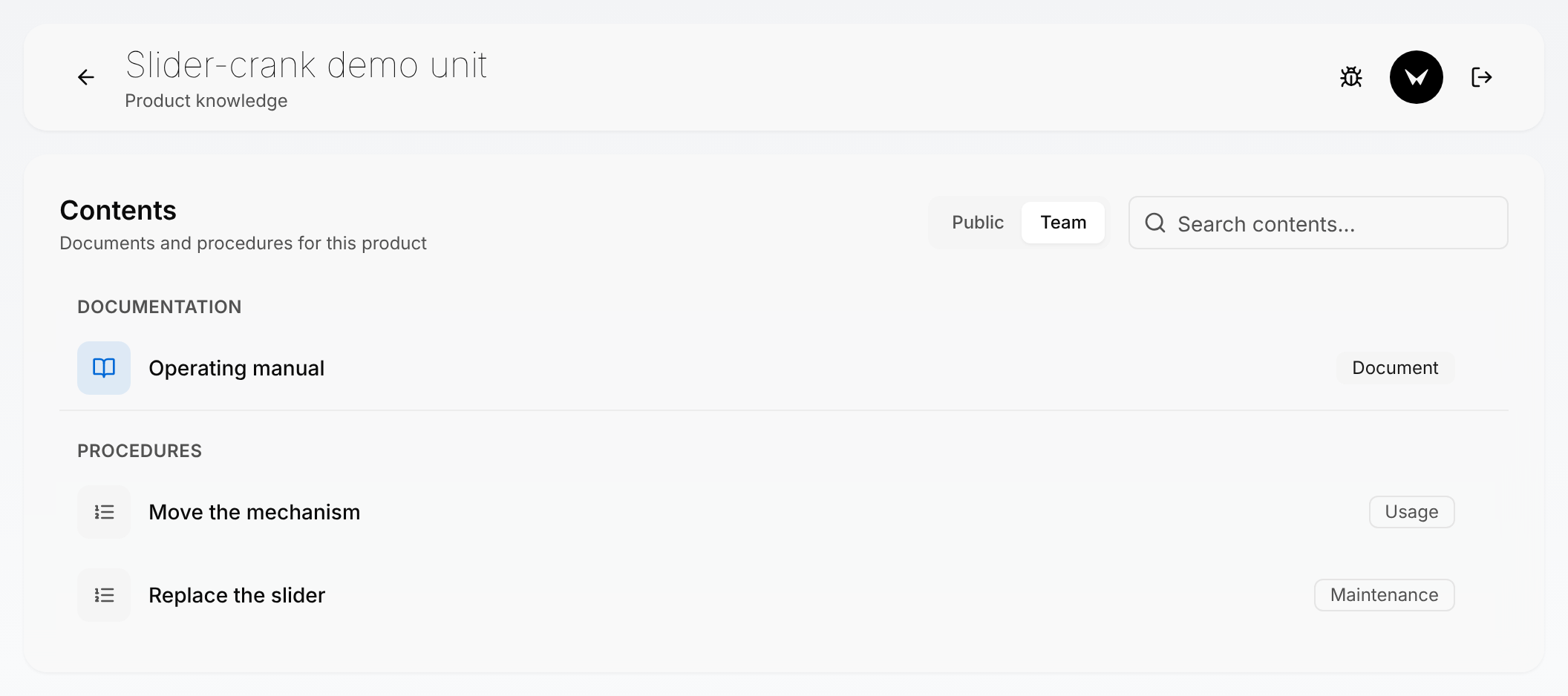
Open a document from the product link
The product link lists everything that is published for a product, documents first.
- Open the product link or scan the product QR code. The Contents card appears, on the Public list, or on the Team list when you are signed in and open the Team link.
- If the document is not on that list and you are signed in, select the other list, Public or Team.
- To shorten the list, enter part of a title in Search contents....
- Under Documentation, select the document.
The document opens in the reader. Back, the arrow at the left of the bar, returns to the Contents card.
- The card opens on Public, or on Team for a signed-in member who opens the Team link. A document that is published to Public is on the Public list only, even when it is also published to Team.
- A person who is not signed in sees the Public list only, without the Public and Team buttons, and a Sign in button at the top right.
- A document row is labelled Document. A procedure row is labelled with its type, for example Usage.
- When nothing is published in a list, the card says "No published content yet". When the search finds nothing, it says "No content matches your search".
- The buttons above the card, beside the name of the product, are described in Publishing, which covers the Contents card in full. The round one is Open assistant.
Find your way in the reader
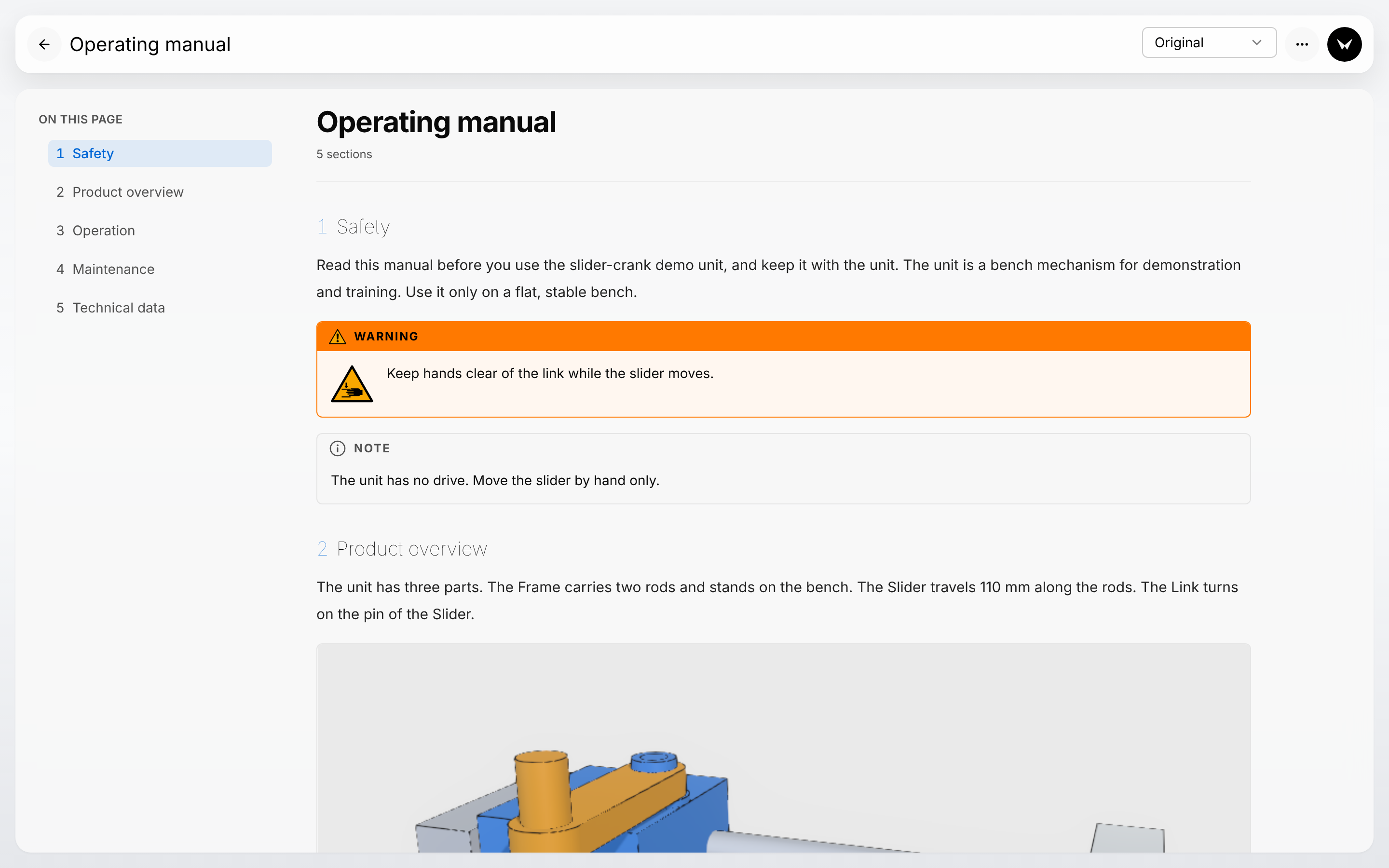
The bar at the top holds:
- Back, the arrow at the left: returns to the Contents card of the product.
- The title of the document.
- The language box: see Read in another language.
- Report a problem, the bug icon before the assistant button: see Contact.
- Open assistant, the round button at the right: see Ask the Assistant about a document.
Under the bar, the document:
- On this page lists the numbered sections. Select a section to go to it. The section you are reading is highlighted as you scroll.
- Under the title, a line gives the number of sections: "5 sections" in the picture above. For a longer document it also gives the reading time, for example "6 sections · about 4 min read".
- A thin bar along the top of the document fills as you scroll: it shows how far you are.
- Where the text names another section by its heading, the name is a link to that section.
On a phone, for example after scanning a QR code, the reader is laid out for a small screen:
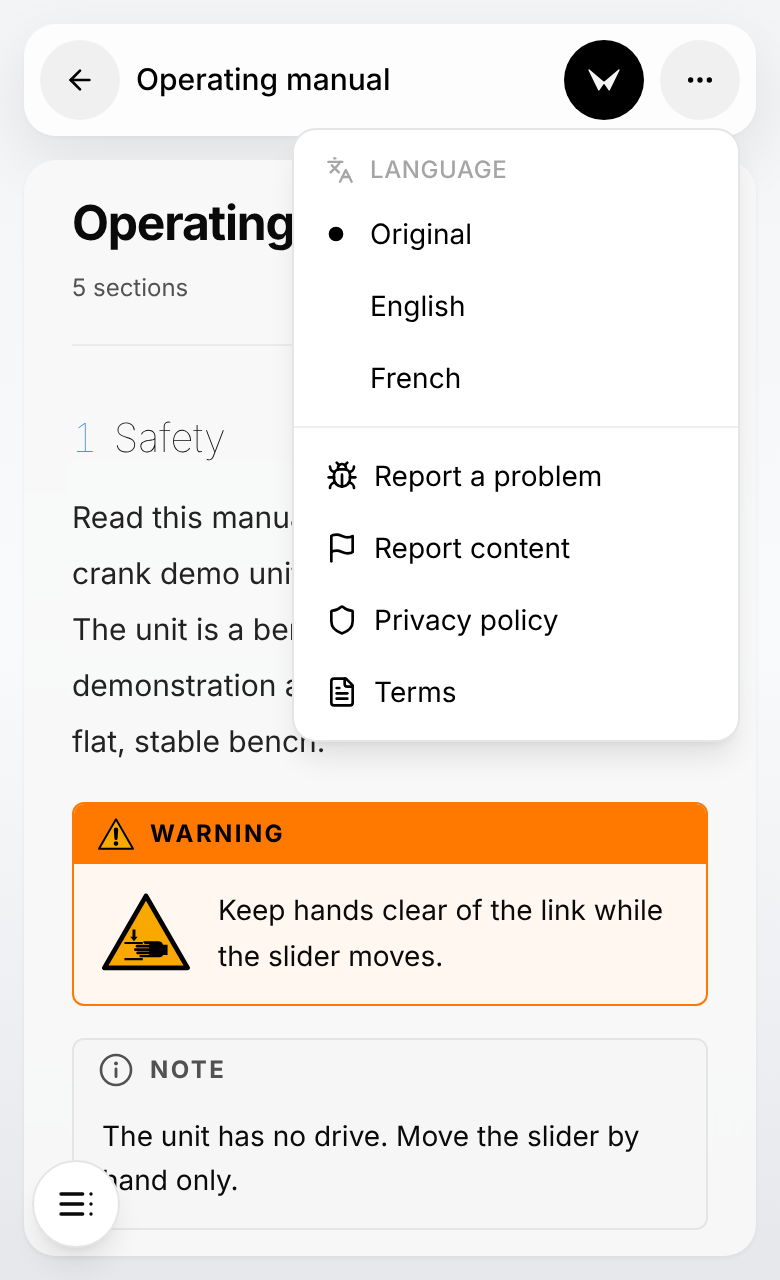
- In a narrow window and on a phone, the On this page list is not shown beside the text. Select Open contents, the round button at the bottom left: it opens the On this page list (not the Contents card of the product). Select a section to go to it.
- On a phone, the bar holds Back, the title, Open assistant and More options (three dots). The languages are in the More options menu, under Language, with Report a problem below them.
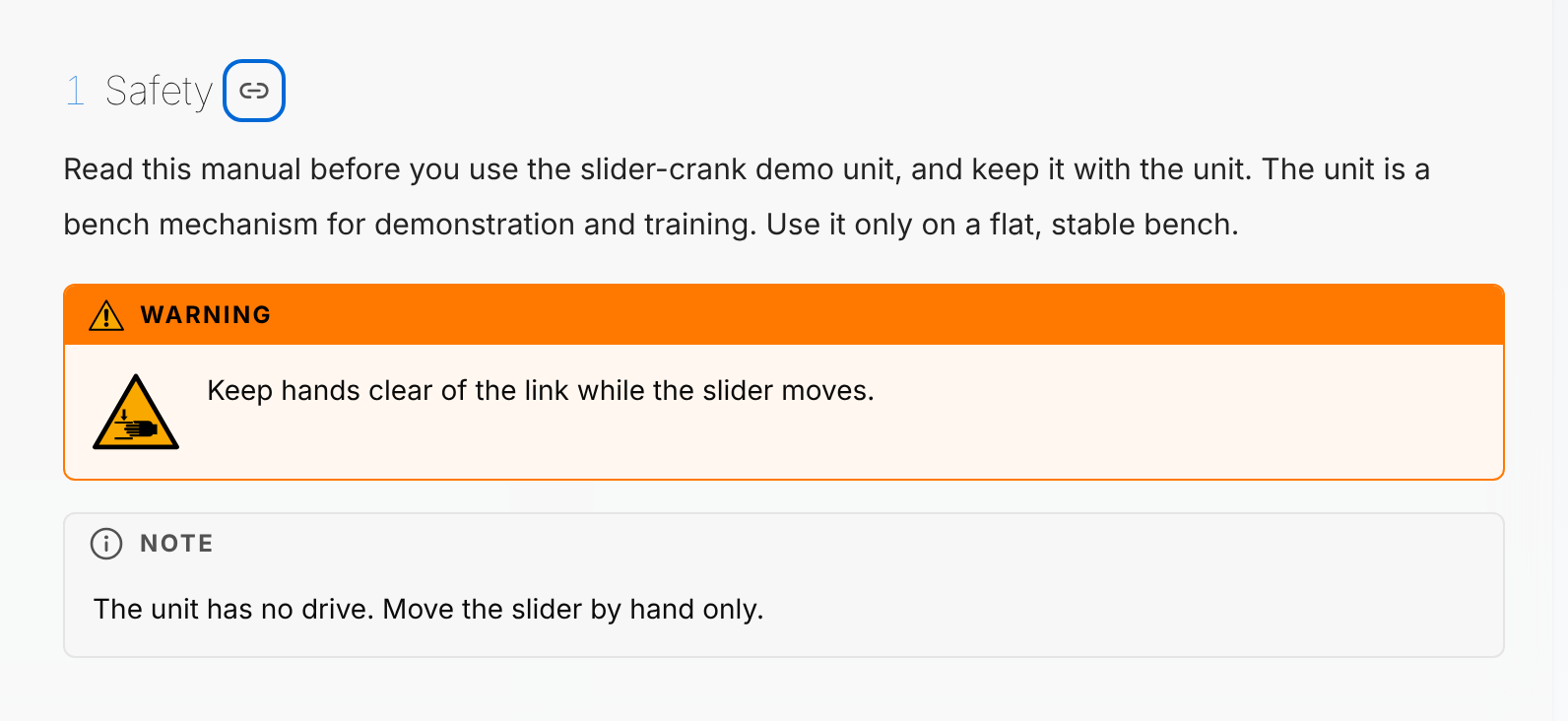
Copy a link to one section
Send someone straight to the section they need.
- Point at the heading of the section. A link icon appears after the heading.
- Select the icon, Copy link to this section.
- Paste the link in your message.
The icon turns into a check mark for a moment. The link opens the document at that section, in the language you are reading it in, for the same people who can open the document.
On a touch screen the link icon is always visible, in a light grey.
Pictures, tables and notices
- A safety notice is a framed panel headed by its signal word: DANGER, WARNING, CAUTION, NOTICE or NOTE.
- A document shows no citations: no markers and no list of sources. The citations stay in the draft, for the people who write and review it.
- A picture is shown with its caption under it. A 3D view of the product appears as a still picture: the view its author captured.
- A table is shown with its caption above it.
Play a procedure inside the document
A procedure that the author embedded appears as a closed row under the label Interactive procedure, with the title of the procedure and, except on a phone, the words "Interactive 3D procedure — click to open".
For authors: an embedded procedure plays for the audience it is published to. Published to Public, it plays for every reader. Published to Team only, it plays for the signed-in members of your organization, and other readers see "Sign in to open your team's procedures". A procedure that is not published shows "This procedure is no longer published". See Procedures and Publishing.
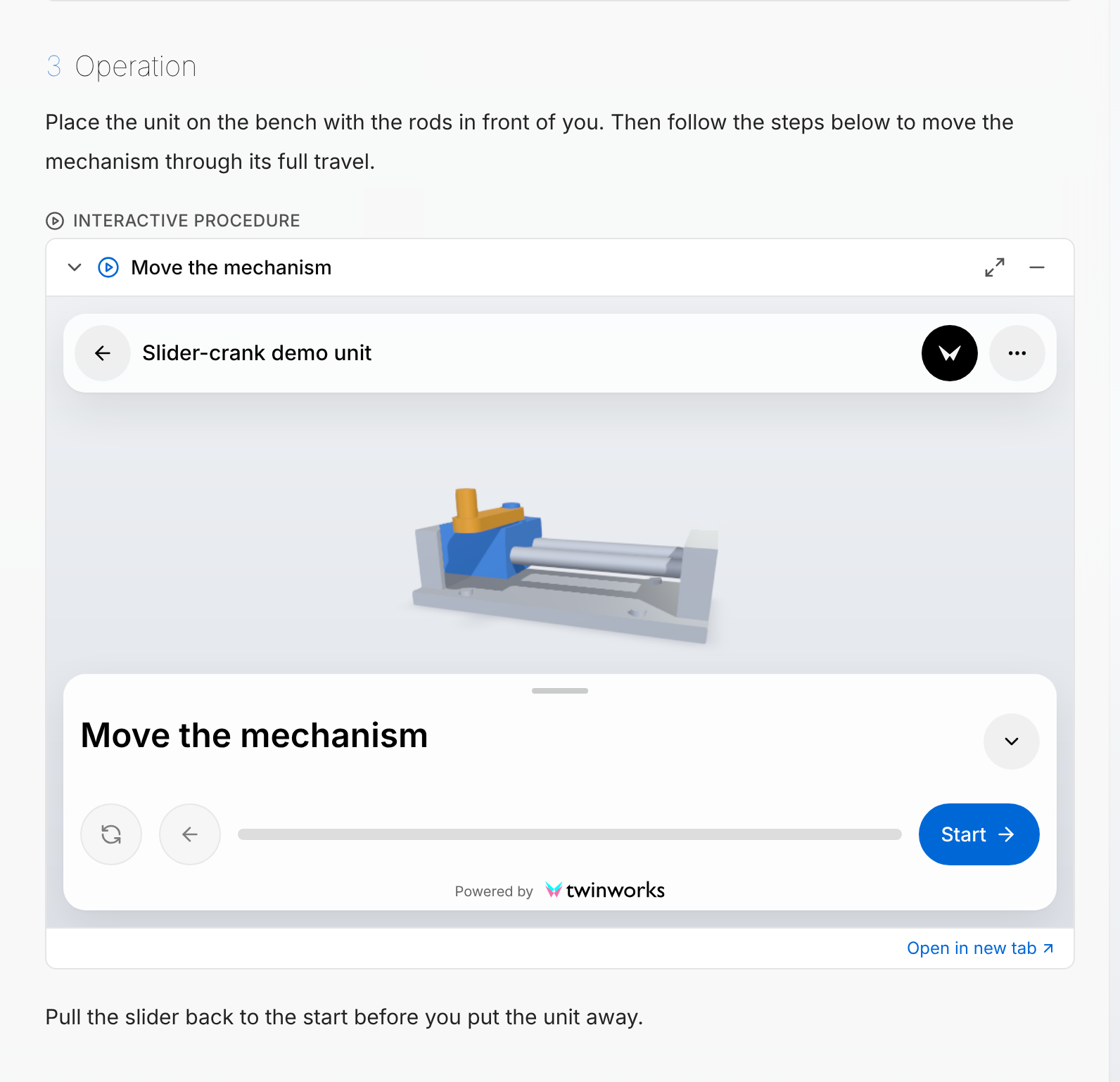
Play an embedded procedure
Follow the steps on the 3D model without leaving the document.
- Find the block labelled Interactive procedure in the document.
- Select the row with the title of the procedure. The procedure viewer opens under the row.
- For more room, select Maximize before you start. The procedure opens in a large window, and the block reads "Playing in the maximized window".
- Select Start and follow the steps.
- To return from the large window to the document, select Close, the cross at its top right. The procedure opens again in the block.
- When you have finished, select Minimize: the row closes.
Going to the large window, or back from it, starts the procedure again from its first screen: choose the size before you select Start.
- The frame holds the procedure viewer with its own bar and buttons: they act inside the frame, not on the document. The procedure viewer is described in Publishing.
- Open in new tab, under the frame, opens the procedure from its start in a tab of its own.
- One procedure is open at a time: opening another one closes the first.
Read in another language
The language box in the bar shows Original: the language the document was written in. It also lists the languages chosen in the Publish section of the product for the audience the document is published to (see Publishing), and the languages the document has a translation in.
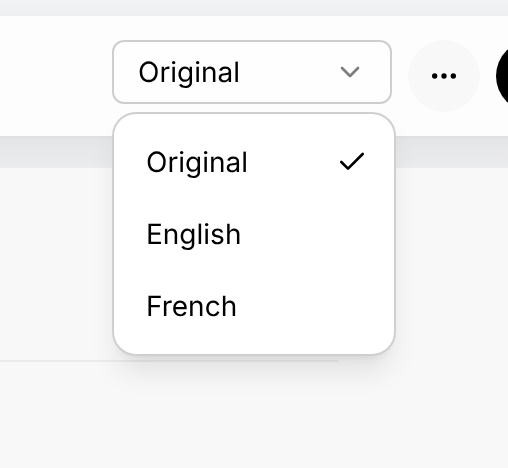
Change the language of a document
Read the document in one of the languages it offers.
- Select the language box in the bar. It shows Original.
- Select a language in the list. The document loads again. If the text does not change, the document has no translation in that language.
- To go back, select Original in the same list.
The document is shown in the language you chose. A document that has no translation in that language stays in its original language.
A document that offers no other language has no language box.
Ask the Assistant about a document
Open assistant is the round black button at the right of the reader's bar. The same button is above the Contents card, beside the product name. It opens the Assistant panel. The button is shown to everyone who opens the reader, signed in or not. The panel starts with "How can I help?": ask a question about the product, its procedures or its manuals. To close the panel, select the same round button, which is then named Close assistant.
When an answer cites a published document, it carries a small mark. Select the mark: the document opens in the reader at the cited passage, which is highlighted for a moment.
The panel is pictured and described in Publishing.
The document viewer page: web view and PDF
Before the first publication of a document, Managers, Authors and Reviewers can look at it on the document viewer page: the approved document on a clean page, without the editing tools, as a web page and as a PDF. The reader itself has no button for a PDF. How a draft gets approved is described in Review and publish.
- Publish, which opens the dialog that leads to this page, is shown on an approved draft to Reviewers and Managers. The person who first opened the Documentation section of the product has a Manager's rights in it, even when their role is Author or Reviewer.
- Managers, Authors and Reviewers can open a Viewer link they are sent. Members with the Viewer role cannot, unless the document is published to the Public audience: they read a published document in the reader or in the Documentation section of the product.
- From the first publication on, the dialog shows Reader link in place of Viewer link, and Open opens the reader. A Viewer link that was copied before still opens the document viewer page. To get the PDF of a published document without such a link, open its approved draft and export it: see Drafts.
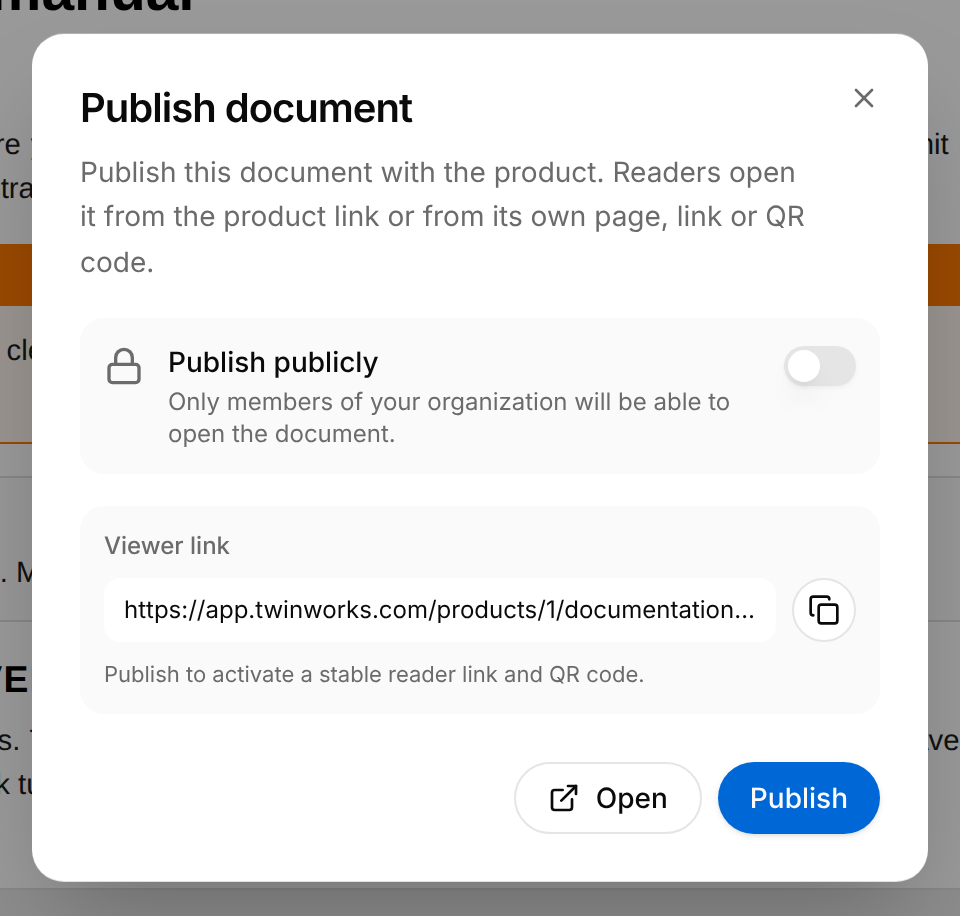
Open the document viewer page
Read an approved document on a clean page, and get its PDF, before you publish it.
- On the Documentation page of the product, open the document and select Open draft. When a newer draft exists, select the Choose a draft arrow beside Open draft, then the draft marked Approved.
- Select Publish at the top right of the draft. The Publish document dialog opens and shows Viewer link. Nothing is published until you select Publish inside the dialog.
- To send the page to a colleague, select Copy link, the button with two sheets beside the link, and paste the link in a message.
- Select Open. The document viewer page opens in a new tab.
- To leave the document unpublished, go back to the dialog and select Close, the cross at its top right.
The document viewer page shows the approved document, and the document is still not published.
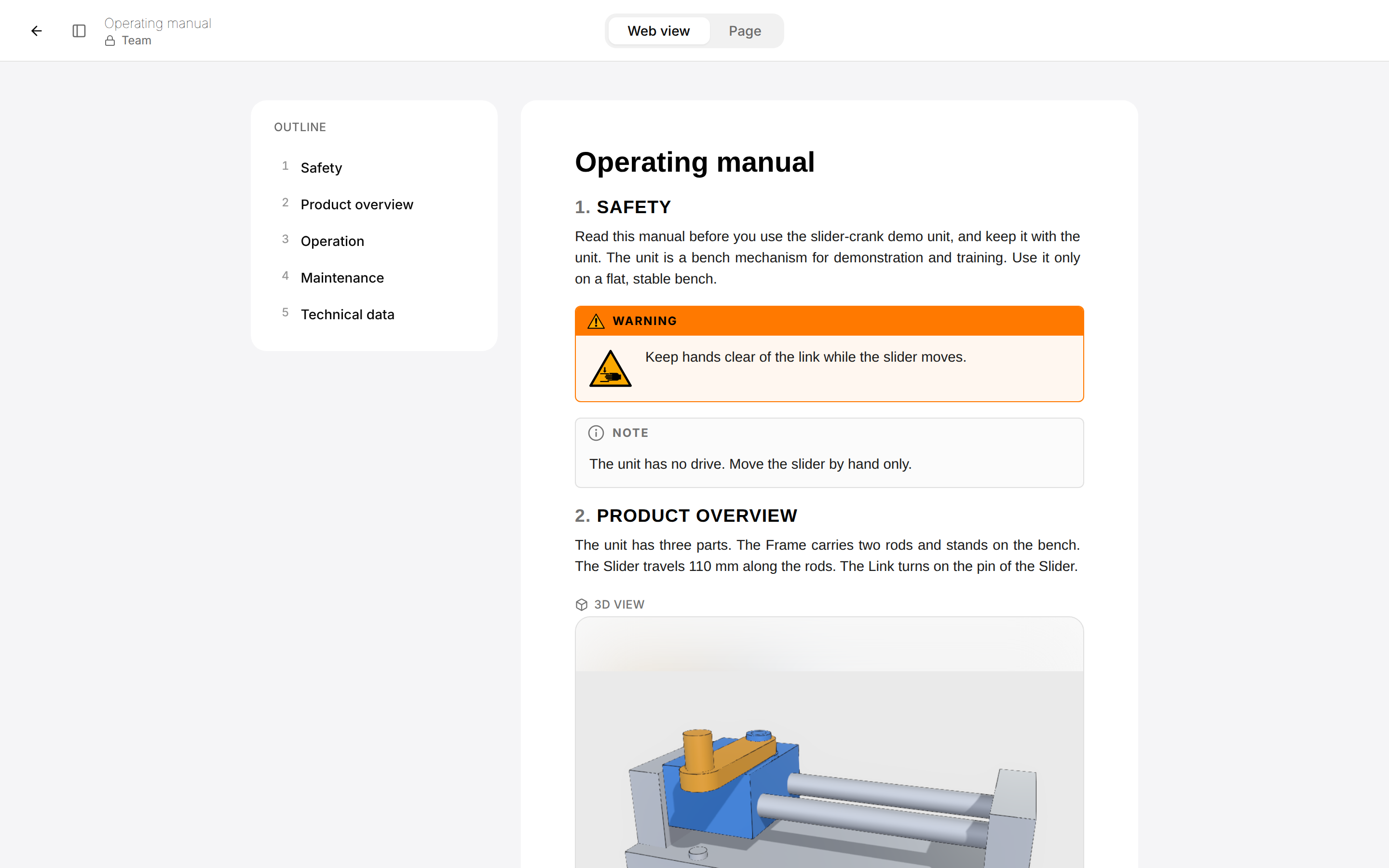
- Web view shows the document as one web page. An embedded procedure plays in place, as in the reader. Like the reader, it shows no citations.
- A picture headed 3D view was captured from the 3D model of the product. Point at it and select Open 3D view: the model is drawn in place of the picture, in the view the author set. It cannot be turned on this page.
- Page shows the document as the pages of a PDF.
- Outline lists the sections. Select a section to go to it, in either tab.
- Toggle outline, beside the arrow at the top left, hides the Outline card and shows it again. In a narrow window it opens the outline as a panel on the left.
- Team or Public, under the title, says who can open this page: Public once the document is published to the Public audience, Team in every other case, also before it is published. Here Team does not include members with the Viewer role.
- Back to documentation, the arrow at the top left, returns to the Documentation page of the product.
Download the PDF
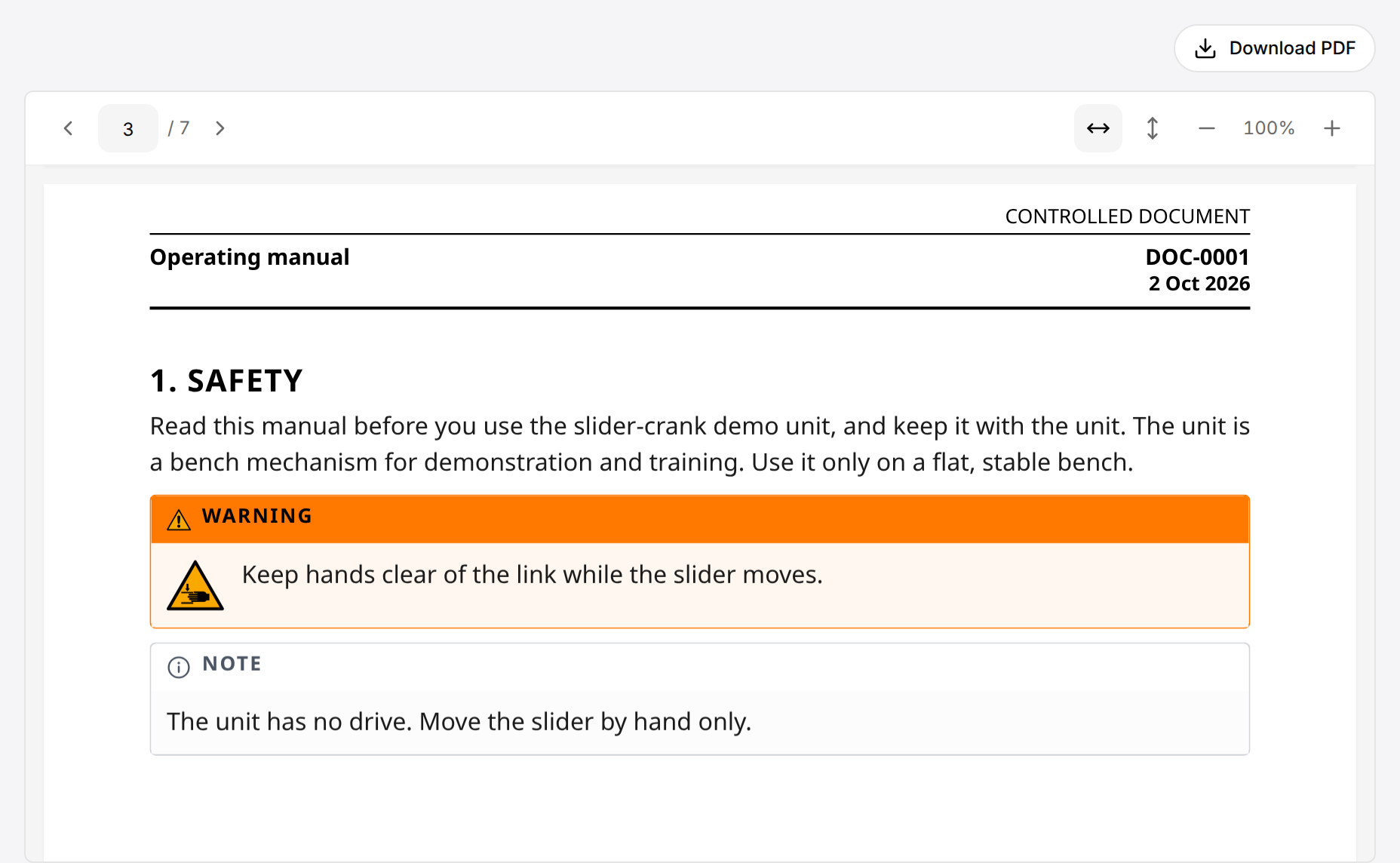
Download the PDF of a document
Get the document as a file to print or to send.
- On the document viewer page, select Page. The message "Preparing the page preview…" shows while the pages are prepared.
- Check the pages: select Next and Previous, or enter a number in the Page number box and press Enter.
- Select Download PDF.
The file is saved under the title of the document, for example Operating manual.pdf.
- The pages are laid out with the default document template of the organization, or with the built-in default when it has none, for every reader: see Export templates.
- An embedded procedure is printed as its numbered steps, with the pictures stored with the document when they were last drawn for the draft (on its Preview tab or by Export PDF). Its safety notes, tools and protective gear are left out. A procedure that was never drawn for the draft is printed as its title and the line "This procedure is not included in this PDF."
- Fit width and Fit height fit a page to the viewer. Zoom out and Zoom in change the size in steps, between 50 % and 200 %. Selecting the percentage does the same as Fit width.
- When the PDF has a table of contents (the page headed Contents), select one of its lines to go to that section.
Read published documents with the Viewer role
A member with the Viewer role does not write or review. In a product, such a member has the sections Sources, Documentation, Procedures and Publish. Documentation lists every document that is published for the product, to Public or to Team. For Publish, see Publishing.
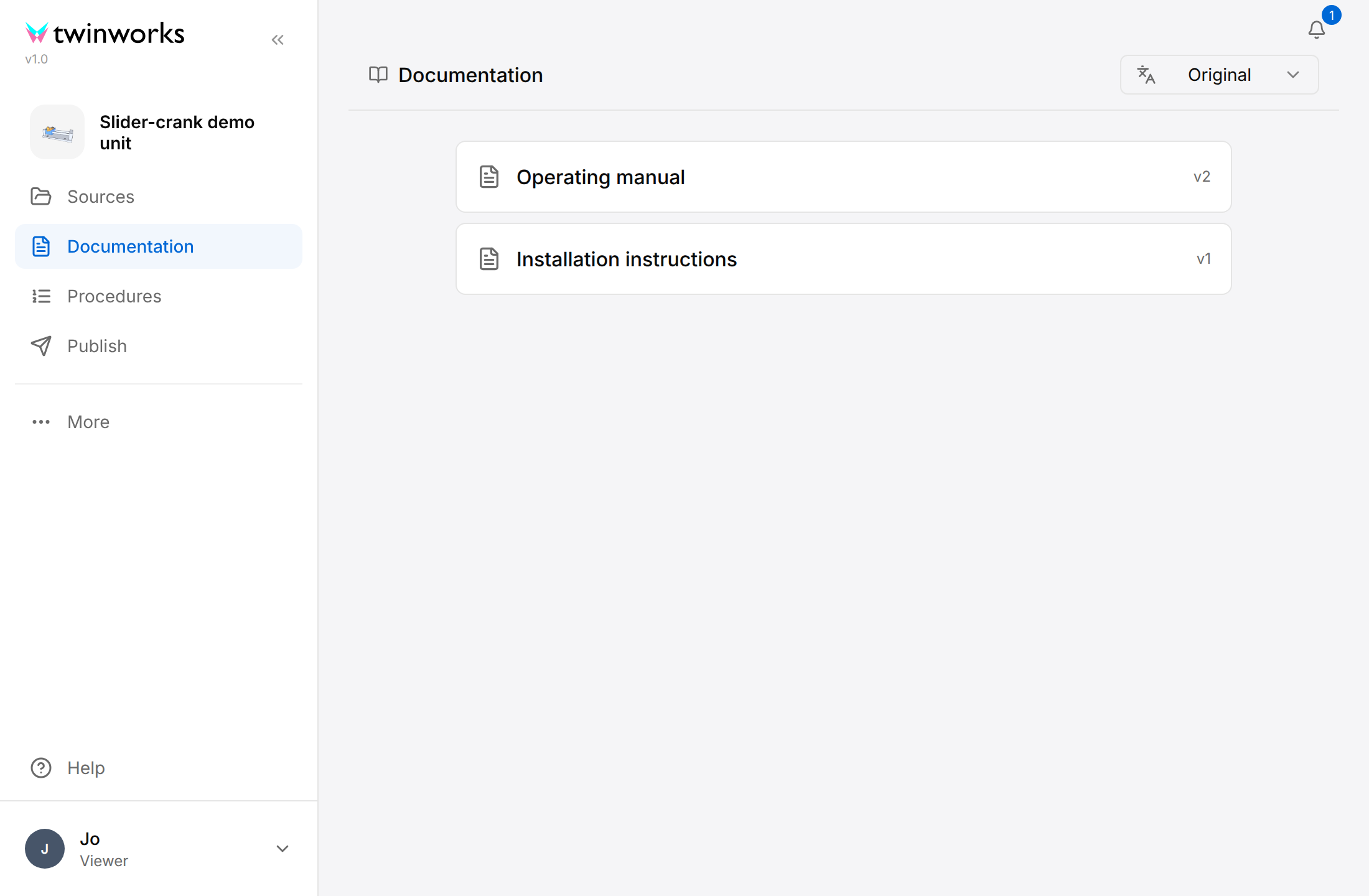
Read a published document with the Viewer role
Members with the Viewer role read the published documents inside the product.
- Open the product and select Documentation.
- Select a document. Each row gives the title and the revision, for example
v2. When the product has one published document only, it opens at once and there is no list. - Read the document. On this page lists its sections, as in the reader.
- Select All documents, at the top left, to return to the list.
The document opens inside the product, laid out as in the reader. With one published document only, there is no All documents button.
- To read in another language, select the language box at the top right, then a language. Unlike the box of the reader, it lists only the languages in which a document has a translation. Original returns to the language the documents were written in.
- Copy link to this section, after a section heading, copies the link of the document in the reader at that section, as the reader does. When a language is picked in the language box, the link opens the reader in that language. A section approved since the document was last published may not be in the reader yet: the link then opens the document at its top.
- When nothing is published, the section says "No documentation published yet" and "Documents for this product will appear here once they are published."
- Procedures shows the Contents card with the published procedures of the product, on the lists Public and Team. Select a procedure to open it in the procedure viewer.
Messages you may meet
| Message | Where | What it means |
|---|---|---|
| "This document is for organization members" | Reader link, QR code | The document is published to Team and you are not signed in. Select Sign in. |
| "This document isn't available" | Reader link, QR code, reader, document viewer page | The link is wrong, the document was unpublished, or the account you are signed in with cannot open it. Ask the person who sent you the link. |
| "No published content yet" | Contents card | Nothing is published in the list you are looking at. |
| "No documentation published yet" | Documentation of a member with the Viewer role | No document of the product is published. |
| "Couldn't load" | Documentation section of a product | The documents could not be loaded. Select Try again. |
| "Not available" and "It doesn't exist, or you don't have access to it." | Documentation section of a product | The documentation of the product cannot be found, or your account cannot open it. |
| "Sign in to open your team's procedures" | Frame of an embedded procedure | The procedure is published to the Team audience only. Sign in with an account of the organization, then open the document again. |
| "This procedure is no longer published" | Frame of an embedded procedure | The procedure is not published, or it is published to Team only and your account is not a member of the organization. Ask the author of the document. |
| "Preparing the page preview…" | Page tab | The PDF is being prepared. |
| "The PDF could not be rendered. Please try again." | Page tab | The PDF could not be prepared. Select Web view, then Page again. |