

Insights
Insights shows how your published procedures are used: how often they are opened, by how many people, from which countries, and how each run recorded by your team went (a run is one use of a procedure published to the Team audience, by a signed-in member of your team). It has three levels: the organization, one product and one procedure. On the page of a procedure you read every run step by step and export reports as PDF, Word or Excel files.
Where Insights is and who sees it
There are three ways in:
- Insights under Admin in the left sidebar opens the Insights of the organization.
- Insights in the sidebar of a product opens the Insights of that product.
- A procedure in one of the lists of these two pages opens the page of that procedure.
The sidebar changes when a product is open: it lists the sections of the product, and its Insights is the one of the product. The Admin group is in the sidebar you see outside a product. To get back to it from a product, select the TwinWorks logo at the top of the sidebar: the Products page opens with the sidebar of the organization.
Members with the role Viewer have no Insights entry. The other roles (Owner, Manager, Author, Reviewer) see all three levels. The roles are described in Organization.
Insights also depends on the plan of your organization. When the plan does not include it, both Insights entries are still there, but the Insights of the organization shows the message "Insights are not available" in place of its content. Only that page is closed: the Insights of a product and the page of a procedure do not show this message and keep their content. Ask the Owner of your organization, or select Contact TwinWorks, to have the plan and your access checked.
Insights of the organization
The page counts everything since the organization started: its description reads "How your published procedures are being used, all time."
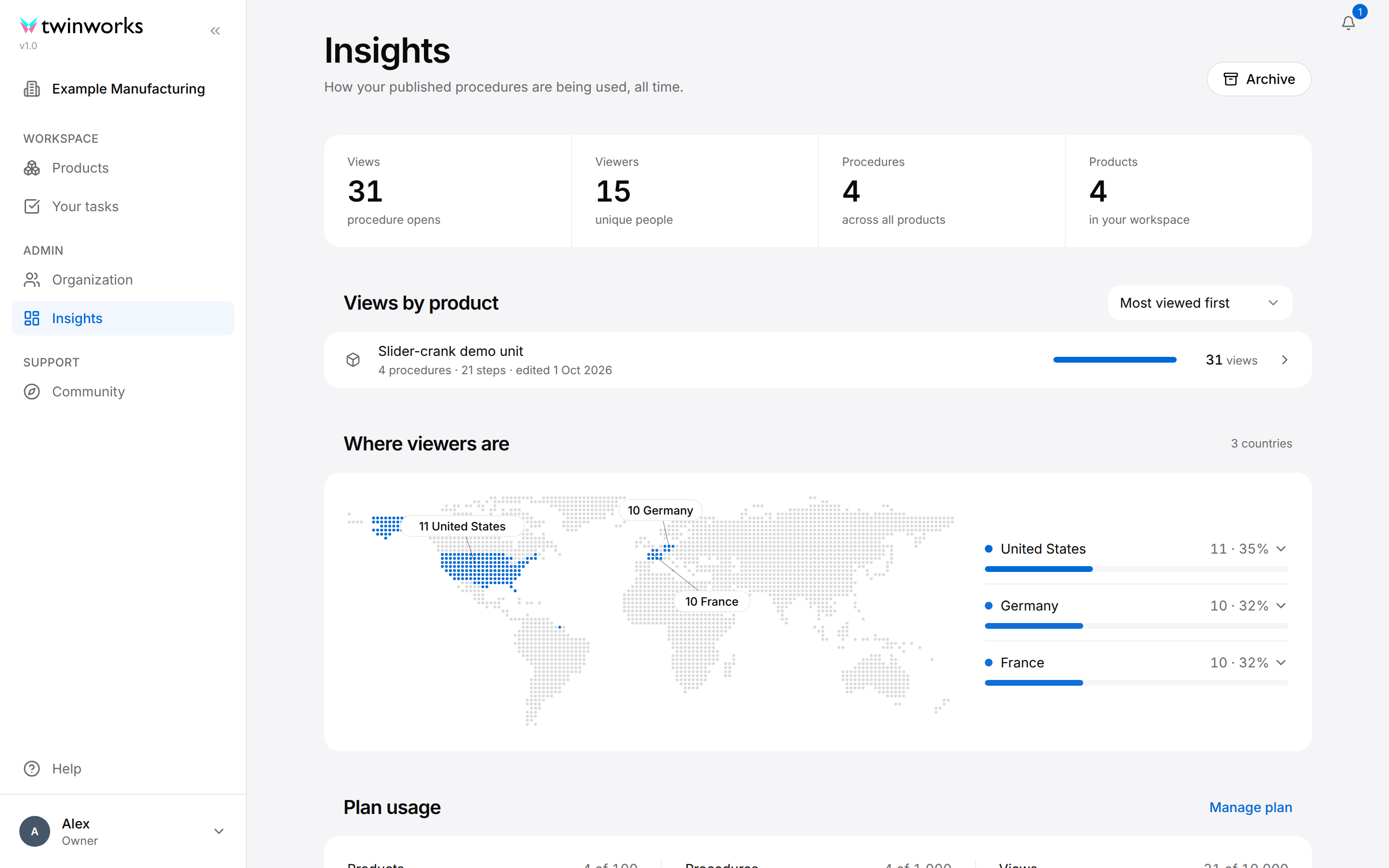
The four totals at the top:
| Total | What it counts |
|---|---|
| Views | How many times a procedure was opened. |
| Viewers | How many different people opened a procedure. |
| Procedures | How many procedures the organization has, in all its products, published or not. |
| Products | How many products the organization has, with or without procedures. It can be higher than the number of rows in Views by product. |
Views by product
Views by product lists every product that has at least one procedure, with the number of its procedures and steps, the date of the last edit, and its views.
Find the most used procedures
Start here to see which products and procedures people open most.
- In the left sidebar of the organization, under Admin, select Insights.
- To change the order of Views by product, select the order list at the top right of the section. It opens on Most viewed first.
- Select the Show procedures button (the arrow at the end of a product row) to list the procedures of that product with their views.
- Select a procedure to open its page, or select the product row to open the Insights of the product.
The procedures under a product follow the order chosen for the products: by views, by number of steps or by date of edit. Most procedures first is the one exception, because it cannot apply to a procedure: the procedures are then listed from the most viewed to the least viewed.
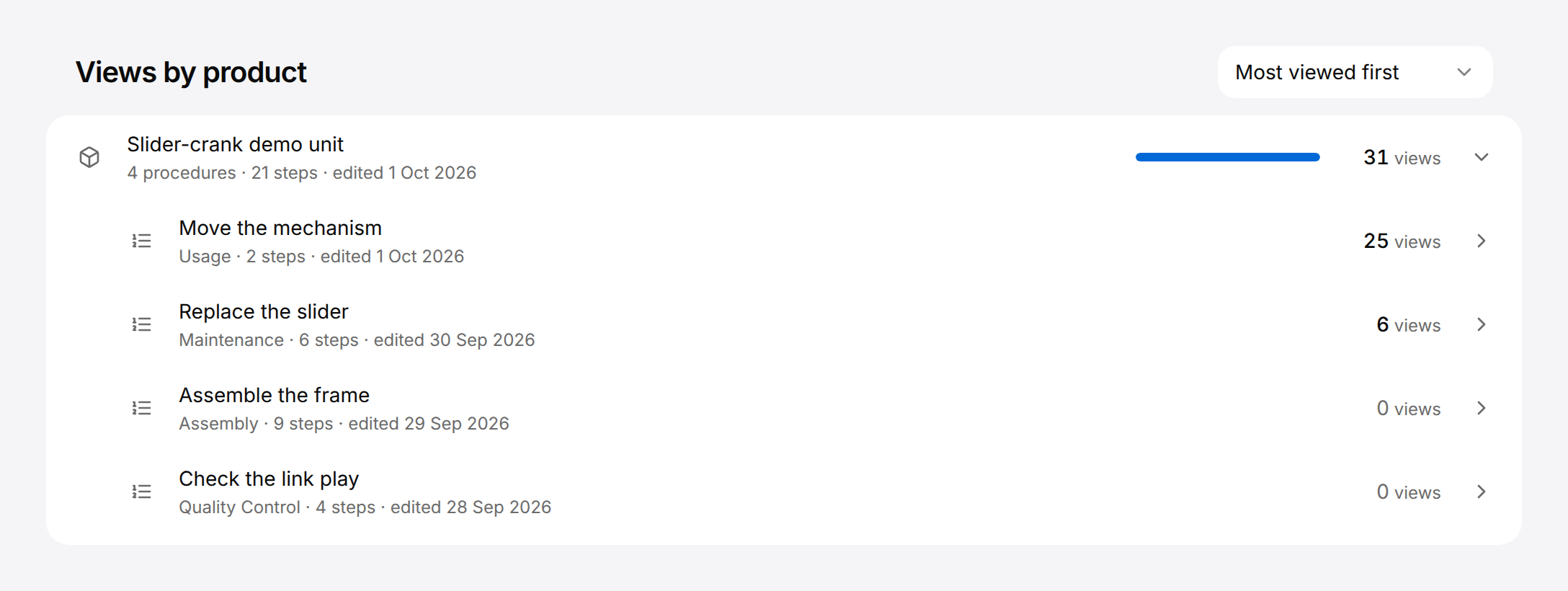
The orders are Most viewed first, Least viewed first, Most procedures first, Most steps first and Recently edited first. With more than eight products, the search box Search products or procedures appears above the list: it finds a product by its name or by the name of one of its procedures. The list shows ten products at a time; Show more products shows the next ten.
Where viewers are
Where viewers are shows a world map and, beside it, the countries the views came from, each with its number of views and its share. The three countries with the most views are labelled on the map. Select a country in the list (the arrow at its end) to see its cities. With more than five countries, a button under the list, for example Show all 8 countries, shows the rest.
Plan usage
Plan usage compares what the organization uses with the limits of its plan, for Products, Procedures and Views. A bar turns amber from 80% of a limit and red when the limit is reached.

To change a limit, select Manage plan: the dialog Manage your plan sums up the three limits. Select Contact TwinWorks there, and your mail program opens a message to TwinWorks. Do this before a bar turns red.
Insights of a product
See how one product is used
The Insights of a product cover a period you choose and list its procedures.
- Open the product and select Insights in its sidebar, or select the product row in Views by product on the Insights of the organization.
- Choose the period with the selector at the top right: Today, 7 days, 30 days or 12 months.
- Read the four figures, the chart and Where viewers are.
- In Procedures, select a procedure to open its page.
Every figure, the chart, the map and the views of each procedure follow the period you chose.
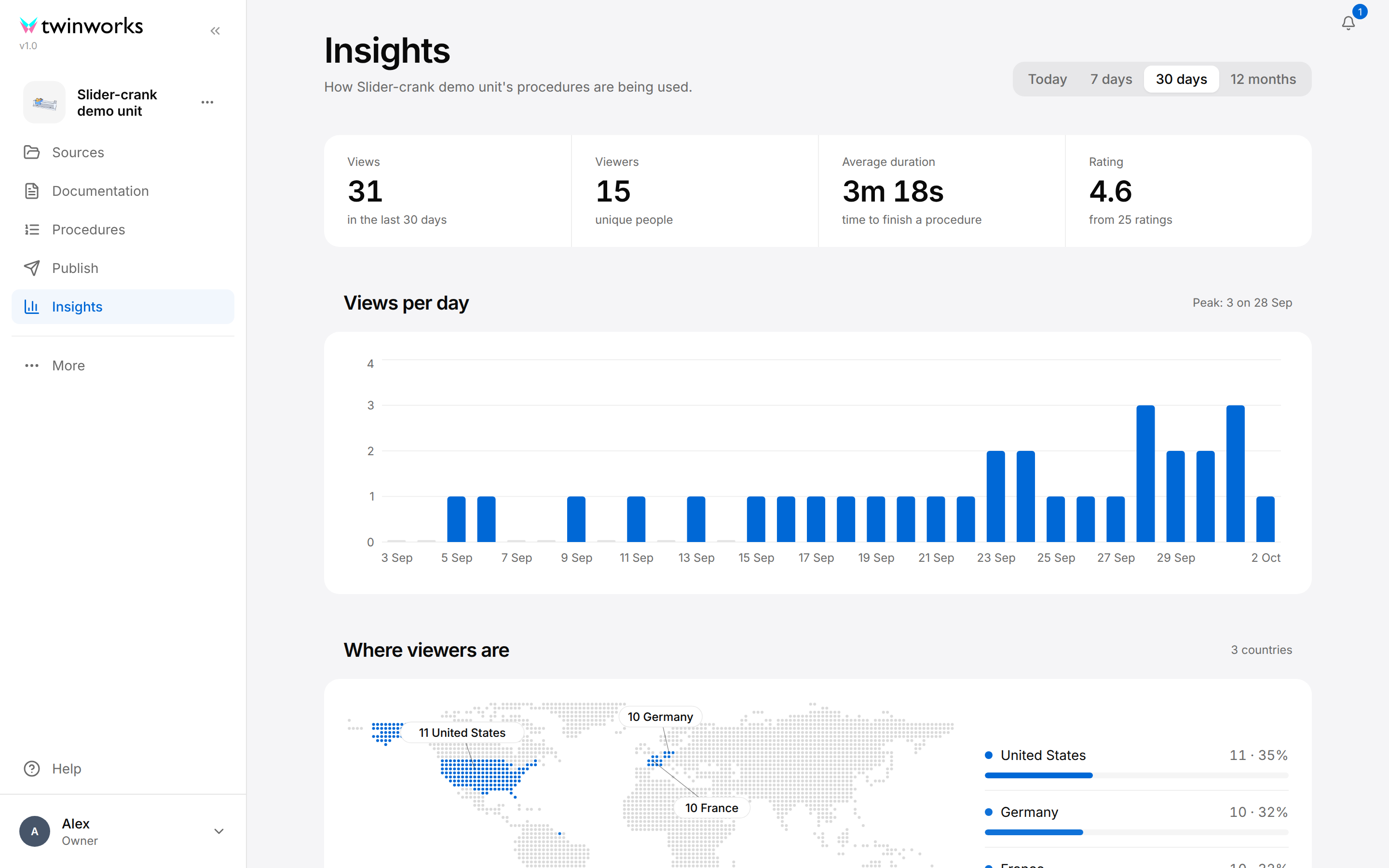
The page opens on 30 days. The four figures:
| Figure | What it shows |
|---|---|
| Views | How many times the procedures of the product were opened in the period. |
| Viewers | How many different people opened them. |
| Average duration | The average time to finish a procedure, for example "3m 18s". |
| Rating | The average of the ratings people gave, out of 5, and how many ratings it comes from. |
The chart is named after the period: Views per hour for Today, Views per day for 7 days and 30 days, Views per month for 12 months. The text on its right gives the busiest hour, day or month, for example "Peak: 3 on 28 Sep".
Where viewers are shows the countries of the period. On the Insights of a product, a country of the list has no arrow: its cities are not shown.
Procedures lists every procedure of the product with its type, its number of steps, the date of its last edit and its views in the period.
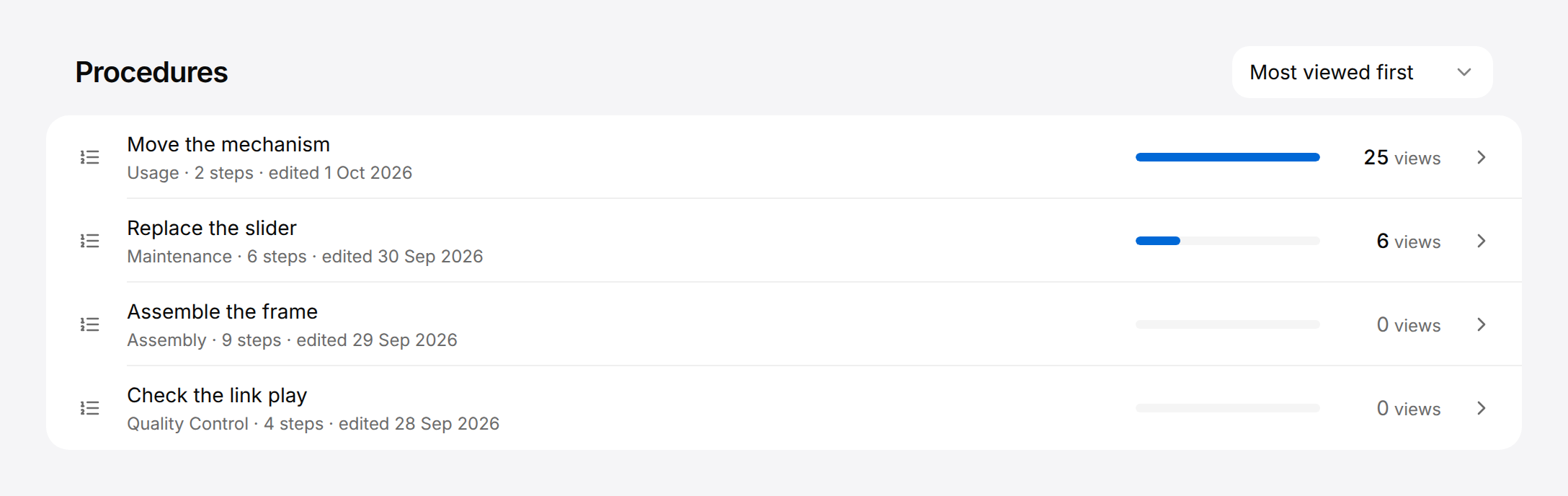
The orders are Most viewed first, Least viewed first, Most steps first and Recently edited first. When the page cannot tell which procedures the views of the period belong to, the text "All-time views" appears beside the order list: the views of the procedures are then counted for all time, not for the period.
Insights of a procedure
The page carries the title of the procedure. The link Insights above the title goes back to the Insights of the product.
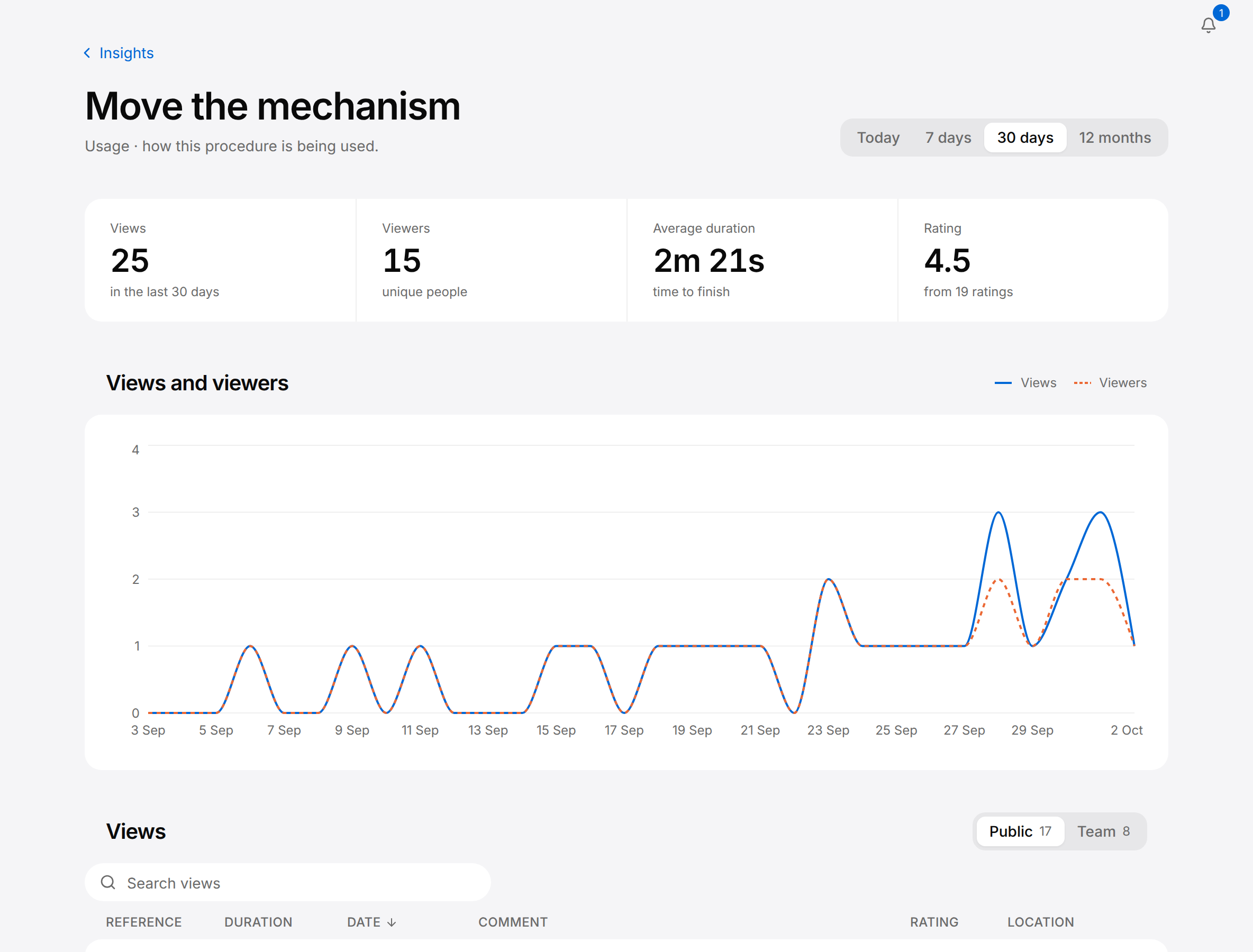
The period selector and the four figures work as on the Insights of a product. Views counts both kinds of use, the public views and the runs of your team: 17 + 8 = 25 in the picture. The chart Views and viewers draws two lines over the period: a solid line for the views and a dashed line for the viewers.
Under the chart, two tabs separate the two ways a procedure is used. A run is one use of a procedure published to the Team audience, by a signed-in member of your team. The screen has two words for a run, run and execution: the list of the runs is titled Executions. The number beside each tab counts its views or runs in the period.
| Tab | Title of the list | What it lists |
|---|---|---|
| Public | Views | Each time someone opened the procedure as published to the Public audience: from the Contents list of the viewer while it shows what is published to Public, or with its Public link or QR code. |
| Team | Executions | Each run a signed-in member of your team recorded on the procedure as published to the Team audience. |
What public viewers and your team get, and whether a result is recorded for each step of a run, is set in the Publish section of the product: see Publishing and Reporting.
A tab with nothing in the period says so, for example "No team executions in the last 30 days": choose a longer period.
Public views
The Public tab lists the views in six columns: Reference (the number of the view), Duration, Date, Comment, Rating and Location. The comment and the rating are the ones the person left; point to a comment that is cut short to read it in full. The newest view comes first. Select Duration, Date or Rating at the top of a column to sort by it. Search views finds a view by its reference number, its comment or its location.
The list shows five views at a time: use Rows per page, Previous and Next under it to see the others.
Team runs
Review a run step by step
Open a run of your team to see which steps were done, the comments and the photos.
- Open the page of the procedure and choose the period.
- Under the chart, select the Team tab.
- Find the run in the list. Search executions finds a run by the operator, the serial number, the comment or the location, and the column titles Duration, Date, Success rate and Rating sort the list.
- Select the row of the run, or the Show details button (the arrow at its start).
- If a step has a photo, select the photo to open it in a new browser tab.
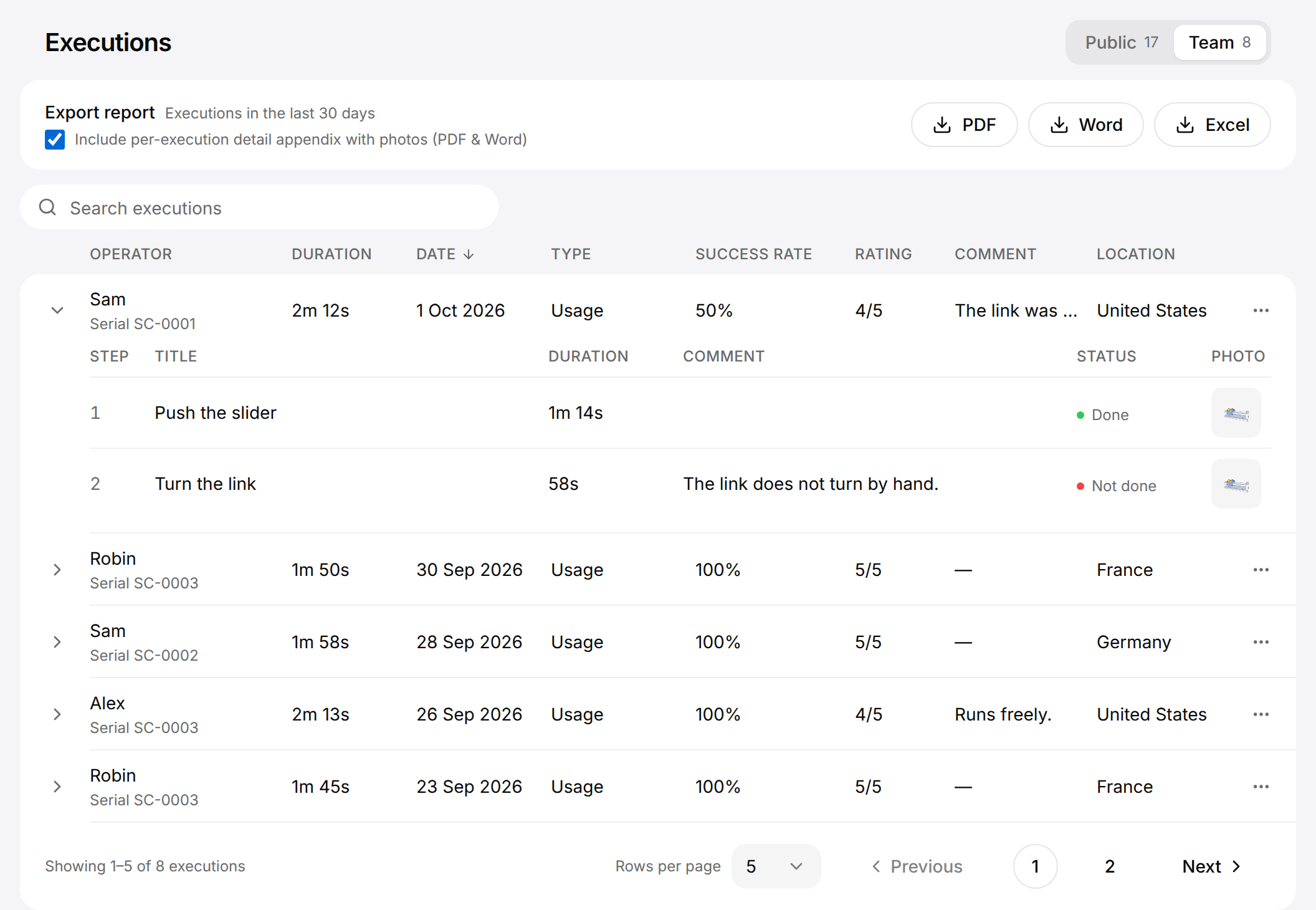
A run with a success rate of 50% on a procedure of two steps has one step that reads Not done. Open the run to see which one, and the comment the operator left on it.
The run opens under its row with one row per step. The list shows five runs at a time: Rows per page, Previous and Next under it show the others.
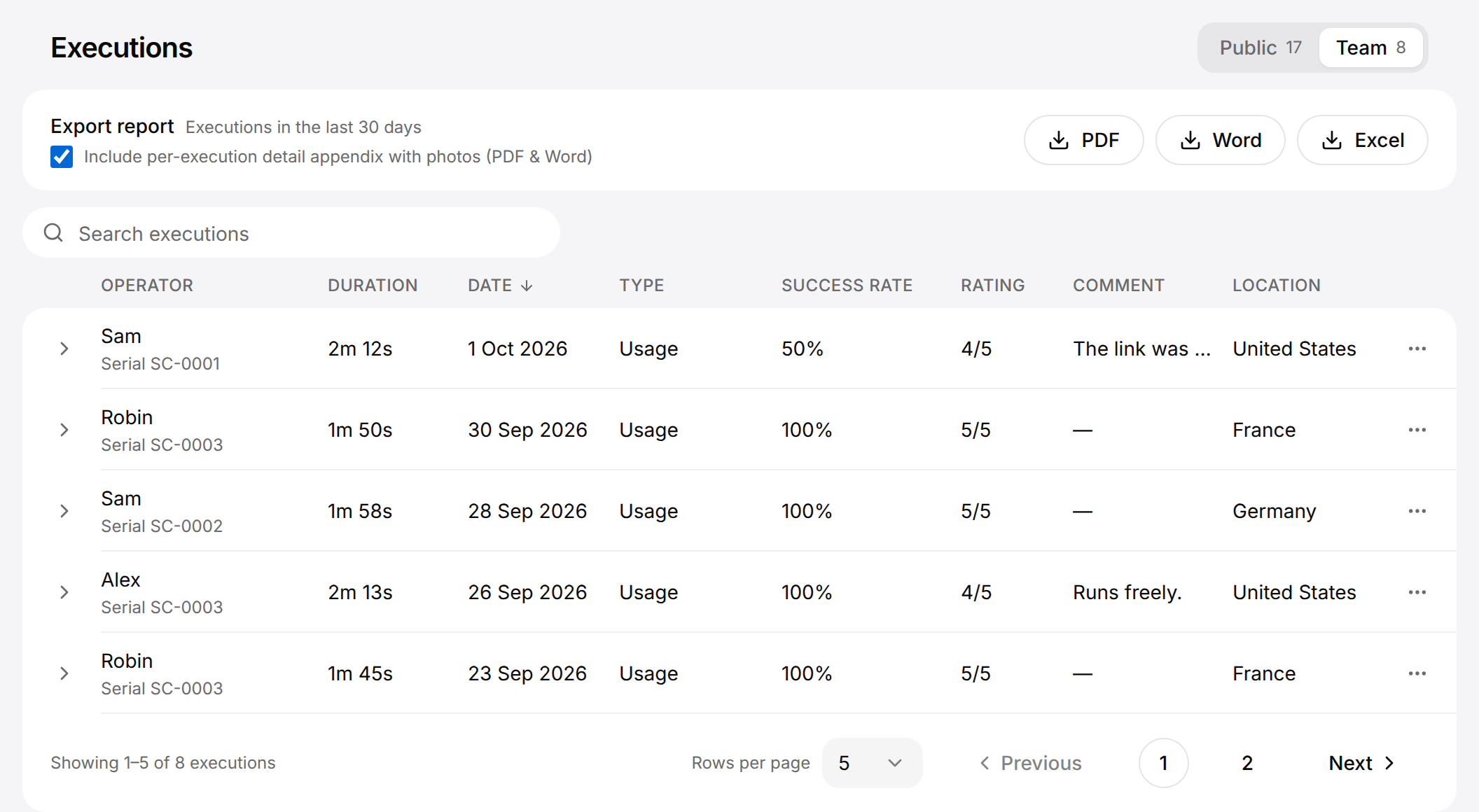
Each row of the list is one run:
| Column | What it shows |
|---|---|
| Operator | The person who ran the procedure, with the serial number of the unit under the name when the run was made for one. |
| Duration | The time from the start to the end of the run. |
| Date | The day of the run. |
| Type | The type of the procedure. |
| Success rate | The share of the steps that were done. |
| Rating | The rating the operator gave, out of 5. |
| Comment | The comment the operator left on the run. A long comment is cut short; point to it to read it in full. |
| Location | The country the run was made from. |
An opened run shows one row per step, with the Duration of the step and its Status: Done or Not done. The column Comment appears when a step of the run has a comment, and the column Photo when a step has a photo. A run that has no step results reads "No step results recorded."
Export a report
Reports are files your browser downloads. There are two kinds: the report of a procedure over a period, and the report of one run.
Export the report of a procedure
One file that sums up the period and lists every run of your team.
- Open the page of the procedure and choose the period the report must cover.
- Under the chart, select the Team tab.
- Leave Include per-execution detail appendix with photos (PDF & Word) ticked to add a detailed page for each run with its photos, or untick it for the summary alone.
- Select PDF, Word or Excel.
The button reads Generating… while the file is built, then the browser downloads it. Its name starts with PRR, followed by the number and the title of the procedure.
Export the report of one run
One file for a single run, for example to keep with the records of a unit.
- On the Team tab, find the run.
- Select the Actions button (three dots) at the end of its row.
- Select Export as PDF, Export as Word or Export as Excel.
The browser downloads the file. Its name starts with EXR, followed by the numbers of the procedure and of the run.
In a window narrower than 1280 pixels, the views and the runs are shown as a list, without column titles and without three dots. The Sort button beside the search box sorts the list, and a run you select opens with the buttons PDF, Word and Excel.
What the files hold:
| File | Report of a procedure | Report of one run |
|---|---|---|
| PDF, Word | The figures of the period, then a register of the runs of your team: operator, date, serial number, duration, success rate, result and comment. With the appendix, the report of each run follows. | The identification of the run, a checklist of its steps, each DONE or NOT DONE, with the photos, the comment of the operator and a block for signatures. |
| Excel | Three sheets: Report, Executions and Step Detail. Photos are links, not pictures, and the appendix does not apply. | The same three sheets for that run. |
In the register, the result of a run reads PASS when its success rate is 100%, and FAIL otherwise. If a file cannot be built, the message "Export failed" appears: try again.
The Archive
When a procedure or a product is deleted, the reports of its runs are not lost: they are kept in the Archive.
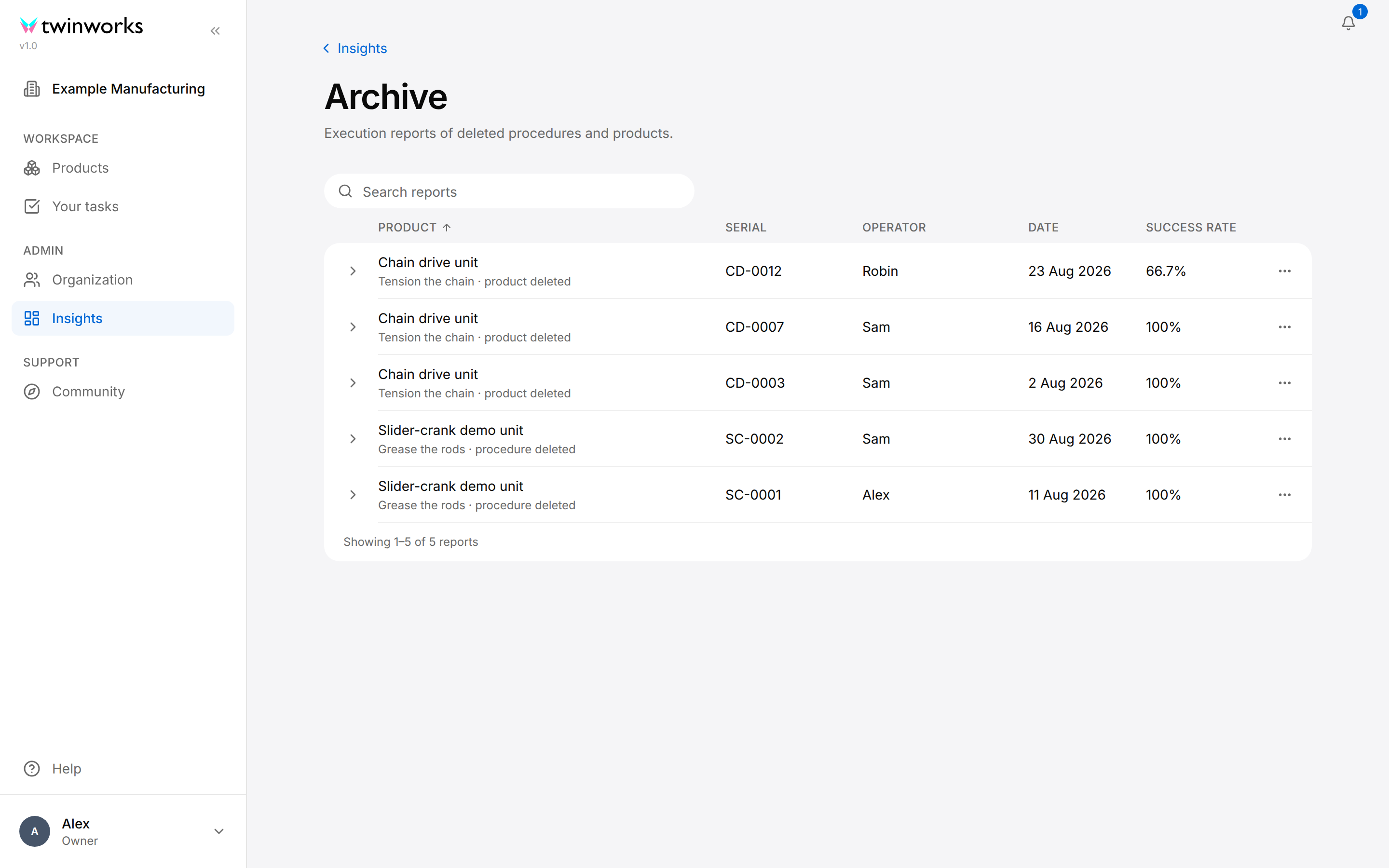
Get a report from the Archive
Use the Archive when the procedure or the product of a run no longer exists.
- In the left sidebar of the organization, under Admin, select Insights, then Archive at the top right.
- In Search reports, enter the name of the product, the name of the procedure or a serial number.
- Select a report to read its step results.
- Select the Actions button (three dots) at the end of its row, then Export as PDF, Export as Word or Export as Excel.
The browser downloads the report of that run. The step results come from what was stored with the run, so they stay readable after the procedure is gone.
Under the name of the product, each row gives the procedure and says what was deleted: "product deleted" or "procedure deleted". The columns Product, Date and Success rate sort the table. When the Archive holds more reports than are loaded, Load more fetches the next ones.
Above the steps of an opened report, the line "These steps were removed from the procedure after this execution." can appear: the step titles shown are the ones stored with the run.
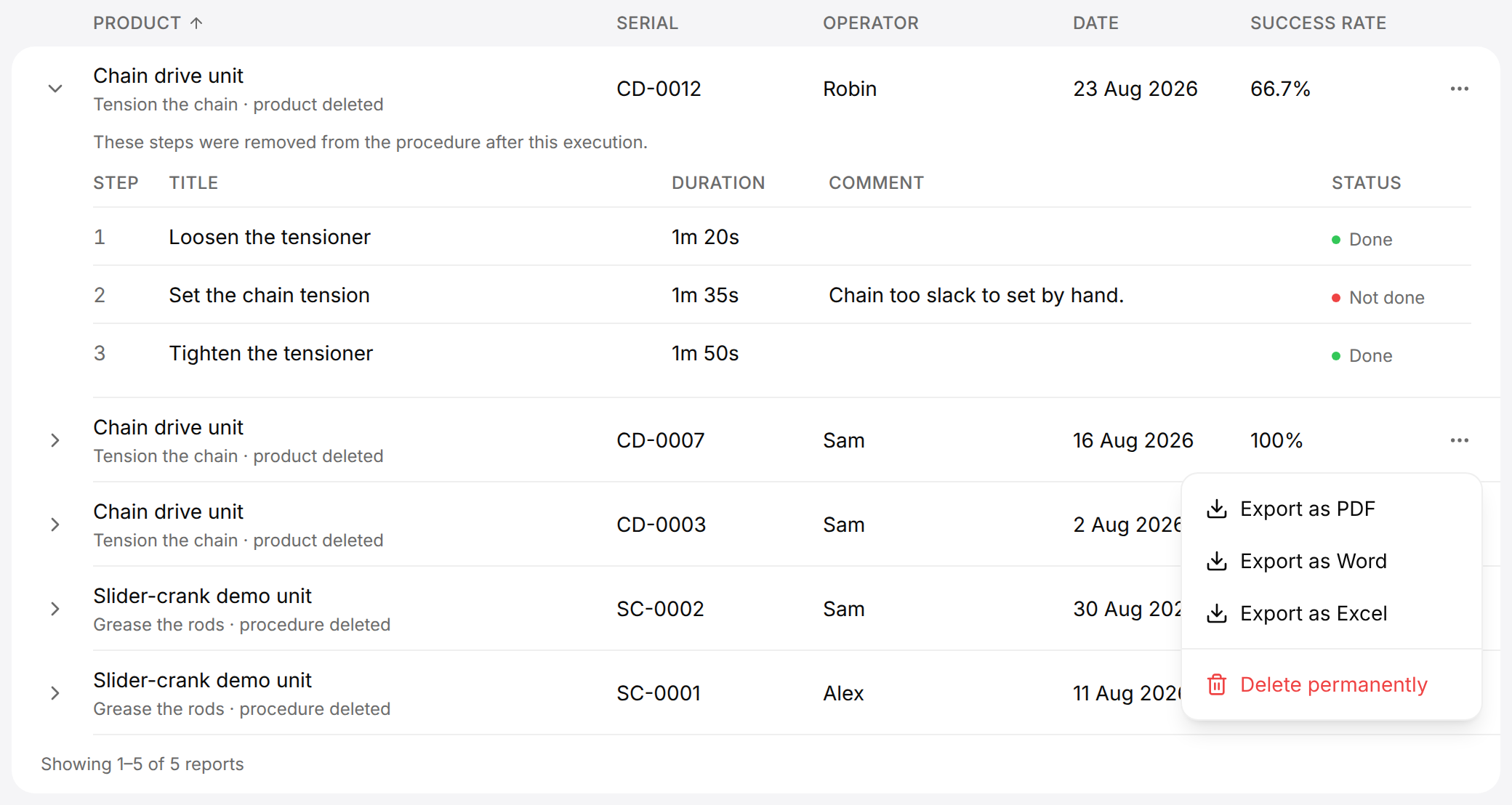
Delete permanently is in the menu for the Owner and the Managers of the organization. Select it, then select Delete permanently in the dialog Delete this report permanently?. The report and its photos are deleted. This cannot be undone.