

Drafts
A draft is the working copy of a document: the place where its text is written, checked and prepared for review. This page is for the people who write: the Managers, Authors and Reviewers of an organization (for its Owner, see Who can do what in a draft). Tables, pictures and safety notices are described in Tables, pictures and 3D views, reviewing in Review and publish.
Open a draft
A draft is opened from the documentation of a product: open the product, select Documentation, select a document, then Open draft. Documentation describes that page and how a draft is started.
The draft fills the window, without the sidebar of the app. To go back to the documentation of the product, select the arrow at the top left, Back to documentation. Your changes are saved as you type (see How your work is saved). Wait for "Saved" in the status line before you leave this way: the arrow does not warn you about a change that has not reached TwinWorks yet, and that change is lost. Closing the tab does warn you.
A Viewer cannot open a draft: a link to a draft takes them to the Documentation section of the product, where they read its published documents.
The draft page
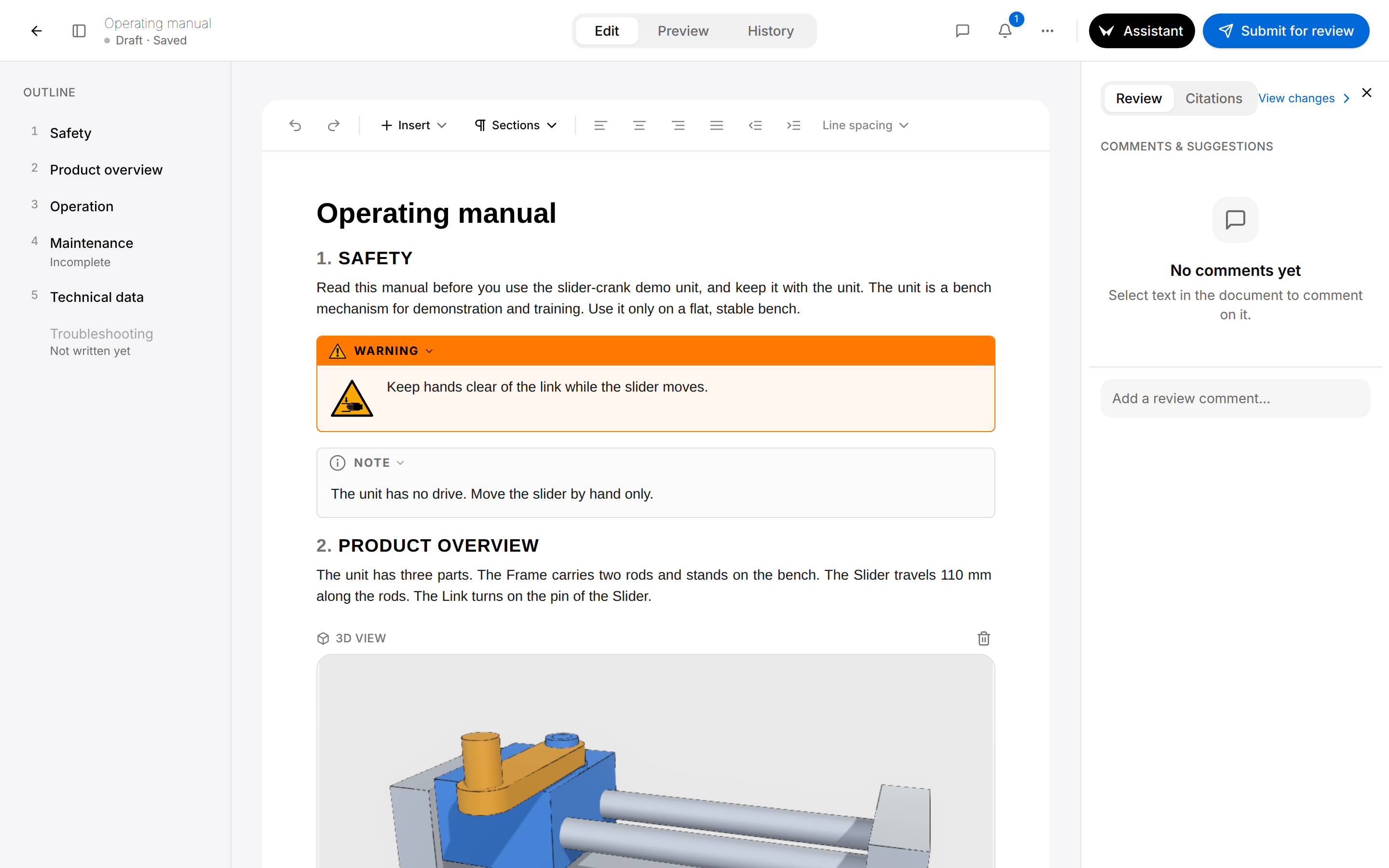
The header holds, from left to right:
- the Back to documentation arrow and the Toggle outline button, which shows or hides the Outline;
- the title of the draft and, under it, the status line (1), in two parts separated by a dot: the state of the draft, then whether your changes are saved, for example "Draft · Saved";
- the tabs (2): Edit to write (it reads Read when the draft cannot be changed), Preview to see the pages as they will print, History for the earlier versions;
- the Toggle review panel button (a speech bubble), the Notifications button (a bell), the Document actions button (three dots), the Assistant button and the buttons of the review, such as Submit for review.
Under the header, the Outline (3) lists the sections, the document stands in the middle with its toolbar (4), and the Review panel (5) has two tabs. The Citations tab lists the sources of the text: see The Citations tab. The Review tab holds the comments of the draft. What is still open in the draft is written in the Outline, as notes under the sections: see Clear the issues of a draft. The notes Not written yet and Incomplete are left by the Assistant on the draft. Do not confuse them with the states Ready, Partial and Missing of a section, which the Documentation page shows in the list of sections of the document. The small blue number on the bell is a counter of the app, not one of the numbers (1) to (5) of this picture: it counts your unread notifications. A number on the speech bubble counts the open comments. The review buttons, the comments and the issues are described in Review and publish, the Assistant in Assistant.
In a narrow window (under 1280 pixels wide, for example a window that fills half of the screen), the Outline and the Review panel are closed at first. Toggle outline and Toggle review panel open them over the document.
Move through the document
The Outline lists every section with its number. Select a section: the document scrolls to it. On the Preview tab the page of that section comes up; on the History tab the version shown scrolls to it.
A section that has subsections carries a small arrow in the Outline. Select it to fold or unfold the subsections in the list; the document itself does not change. The Outline follows the document as you write. A draft without a section shows "No sections yet". Under an entry, a note says what the section still needs, for example Not written yet or Incomplete: see Clear the issues of a draft.
How your work is saved
There is no Save button. Each change is saved a moment after you make it, and everyone who has the draft open sees it. The second part of the status line under the title tells you where you stand.
| After the dot | Meaning |
|---|---|
| Saving… | A change of yours is on its way. |
| Saved | Everything you changed is stored. |
| Reconnecting… | The connection was lost. You can keep writing: your changes are sent when it comes back. |
| Offline — keep this tab open | The connection has been lost for 30 seconds. Your changes are only in this tab until it comes back: do not close it. |
| Not saved yet — trying again | Your changes could not be stored yet. TwinWorks tries again. |
| Not saved into the document | Your changes are stored, but the draft cannot take them as they are: see below. |
When you open a draft, it is read-only for a moment and says "Live editing is starting…" until it is connected. "Live editing is not reachable — trying again." means that the connection takes longer; TwinWorks keeps trying. After an update of TwinWorks, the draft says "TwinWorks was updated. Reload to keep editing." Select Reload.

Undo and Redo take back and repeat your own last changes, never those of a colleague; Ctrl+Z (Cmd+Z on a Mac) also undoes. To go back further, use the History tab: see Go back to an earlier version.
"Not saved into the document" comes with the message "This draft can't be saved into the document right now." Your text is kept, but review and export use the last version that could be saved, until you fix one of two things:
- Text above the first section heading. Every paragraph, table or picture must stand under a section heading. For a draft that has no section yet, see Add, move and remove sections.
- A list inside a list item. Turn the inner list into items of the outer one.
When a deletion cuts links
A cross-reference points at another block of the draft, a table for example. When you delete a block that a link points at, the message "This removed 1 link." offers Undo, which puts the block back.
When a draft cannot be edited
A draft can be changed by the people who write (see Who can do what in a draft), and only while its state is Draft or Changes requested. In every other case the first tab reads Read, and the toolbar and the Add or move section button (a +) beside the headings are gone. You can still read the draft, comment on it, open Preview and History, and export a PDF.
| State, the first part of the status line | Why the draft is read-only |
|---|---|
| "In review" or "Endorsed · awaiting approval" | The draft is with its reviewers. See Review and publish. |
| "Approved" or "Rejected" | The review is over. An approved document is changed through a new revision, described in Review and publish. |
| "Generating…" | The Assistant is writing the draft. See Assistant. |
| "Importing…" | A PDF or Word file is being converted into this draft. See Documentation. |
Add, move and remove sections
A document is its title followed by sections. A section is a heading with everything under it, down to the next heading of the same or a higher level. Sections are numbered by the editor: 1, 1.1, 2 and so on.
Add a section
A new section is added from the heading of a section that is already there.
- Put the pointer over a section heading, or click in it. The Add or move section button (a +) appears to its left.
- Select the + button.
- Select Add section after, Add subsection or Add section before.
- Type the title over the words "New section", which are already selected.
- Press Enter and write the content under the heading.
The Outline and the section numbers follow at once.
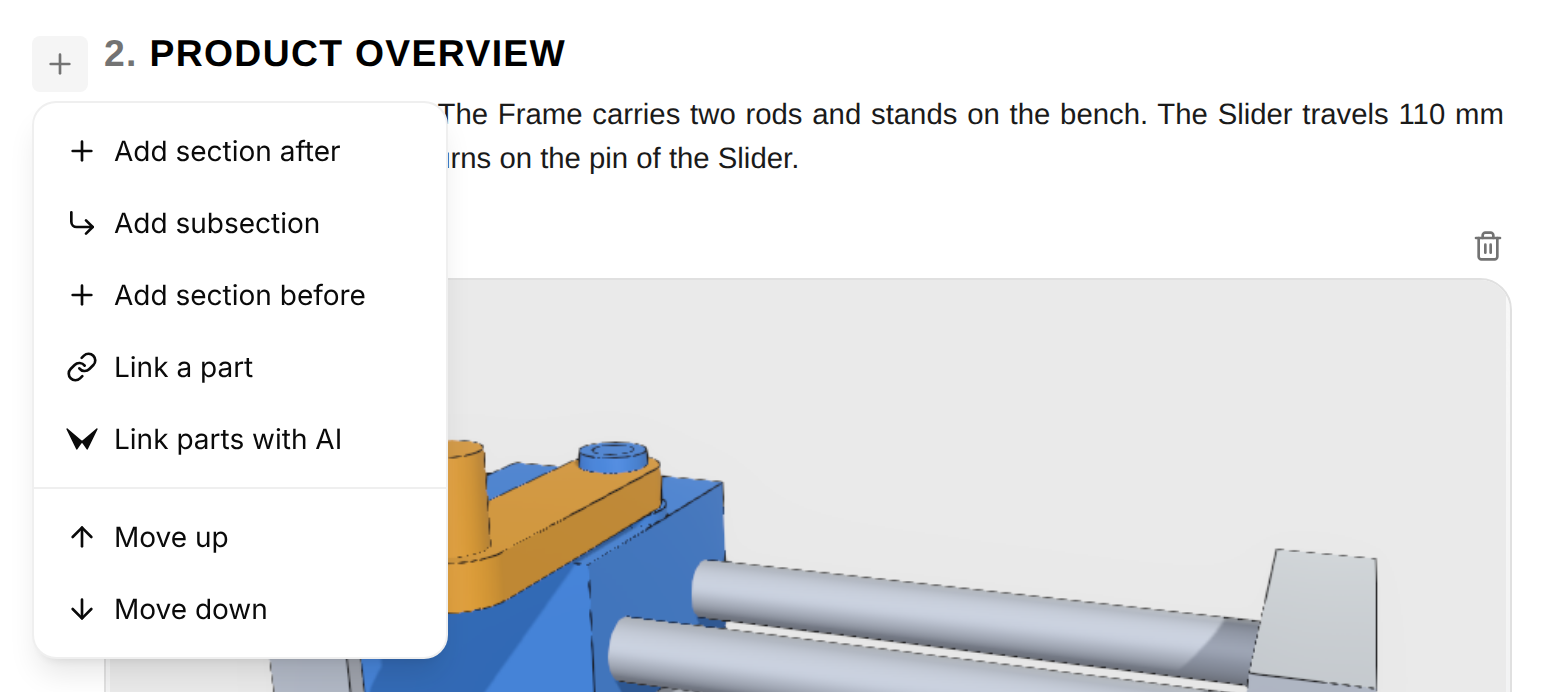
| Entry | What it does |
|---|---|
| Add section after | Adds a section of the same level after this section and its subsections. |
| Add subsection | Adds a section one level deeper, at the end of this section. Not available at the sixth level. |
| Add section before | Adds a section of the same level directly before this one. |
| Move up, Move down | Moves this section, with its content and its subsections, before the previous or after the next section of the same level. Move up is inactive for the first of these sections, Move down for the last. |
A draft that has no section yet shows "No sections yet" in the Outline and has no heading to start from. Click at the end of the title, press Enter and type the title of the first section. Then give that line the style Heading 1 from the Sections menu: see Change heading levels and text styles.
To rename a section, change the text of its heading. To remove a section, delete its heading and its content in the document: the menu has no entry for it. If you delete the heading only, its content joins the section before it.
Change heading levels and text styles
The Sections menu of the toolbar sets the style of the block that holds the cursor: Heading 1 to Heading 6, or Paragraph. A block is one paragraph, heading, list, table or picture. A paragraph turned into a heading starts a section. The menu has no entry to add an empty section or to move one: that is the + button, above.
Turn a paragraph into a heading, or change the level of a heading
The level of a heading decides whether it starts a section or a subsection.
- Click in the paragraph or the heading.
- Select Sections in the toolbar.
- Point to a style, for example Heading 2, and select Apply Heading 2 in the list that opens.
The block becomes a section heading of that level, and the Outline and the numbers follow. Heading 1 is a section of the first level, Heading 2 a subsection of it. Apply Paragraph turns a heading back into ordinary text.
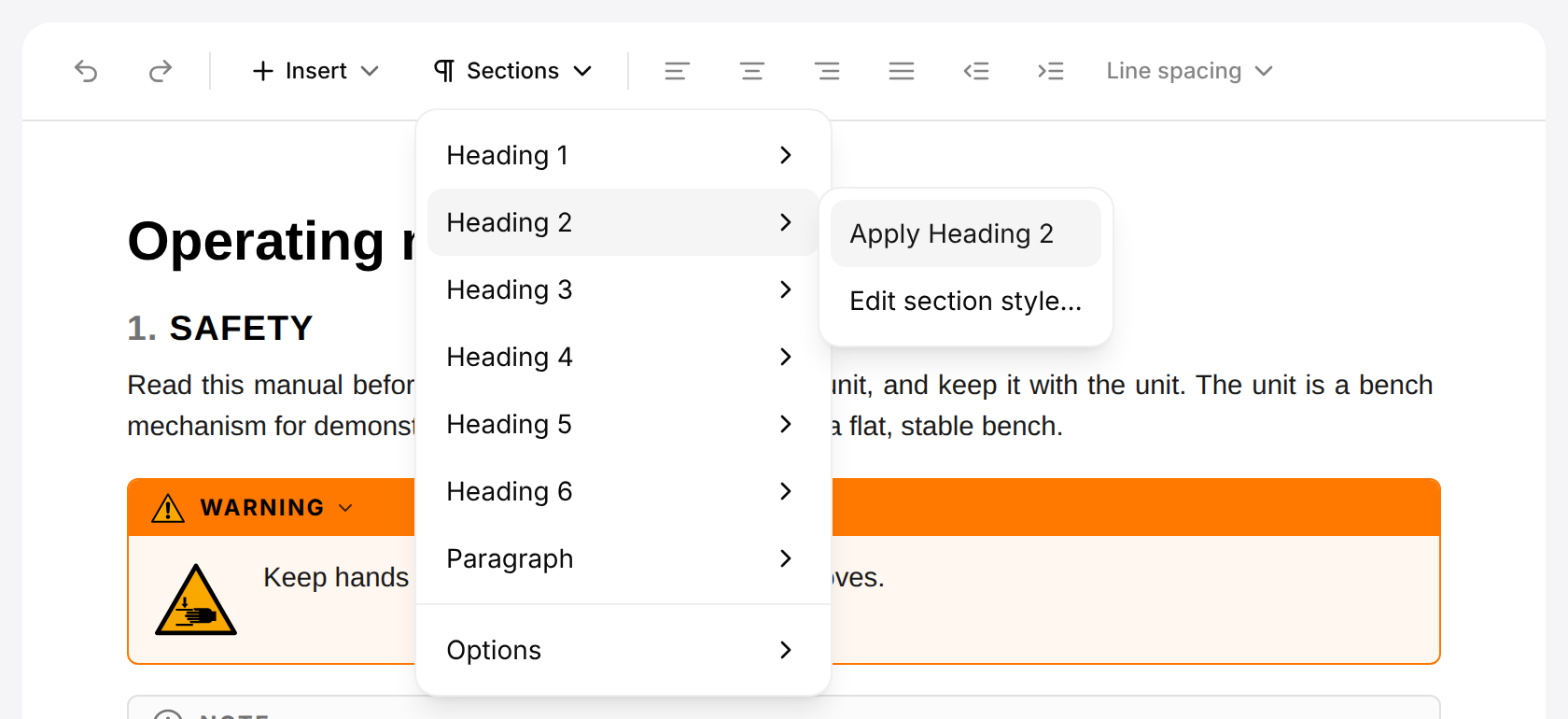
Edit section style… changes how a style looks: its font, size, colour, alignment and spacing. It opens the dialog Edit section styles, in the plural because it holds all the styles: there, Save section styles stores the look of Paragraph and of Heading 1 to 6. Sections, then Options, then Edit section styles… opens the same dialog.
The look is stored in a document template, not in the draft: the template chosen as Export template on the Preview tab, which is the default of the organization unless you chose another (see Preview the pages and export a PDF). Every document that uses this template follows, in the editor and in its PDF. With Built-in default chosen there, the dialog Choose a document template opens instead, with the button Create a template: creating a template is described in Export templates.
Format text
Select words in a paragraph: a bar appears above them.

| Button | Effect |
|---|---|
| Bold | Bold text. |
| Emphasis | Italic text. |
| Underline | Underlined text. Ctrl+U (Cmd+U on a Mac) does the same. |
| Code | Fixed-width text, for a value or a command. |
| Highlight | A coloured background. |
| Link | A link to a web address or to a place in the document, see below. |
| Cite | A citation marker after the selected words: see Cite a source. |
Select the same button again to remove the format. In the title and in a heading only Link has an effect: a heading takes no bold, italic, underline, code or highlight, and no citation. Comment, under the selection, belongs to the review: see Review and publish.
Format paragraphs
The paragraph tools of the toolbar set the alignment, the indent and the line spacing of a paragraph, as in a word processor. They act on every paragraph that the selection touches, or on the paragraph that holds the cursor. They work on ordinary paragraphs only: in a heading, a list, a safety notice or a table they are greyed out.
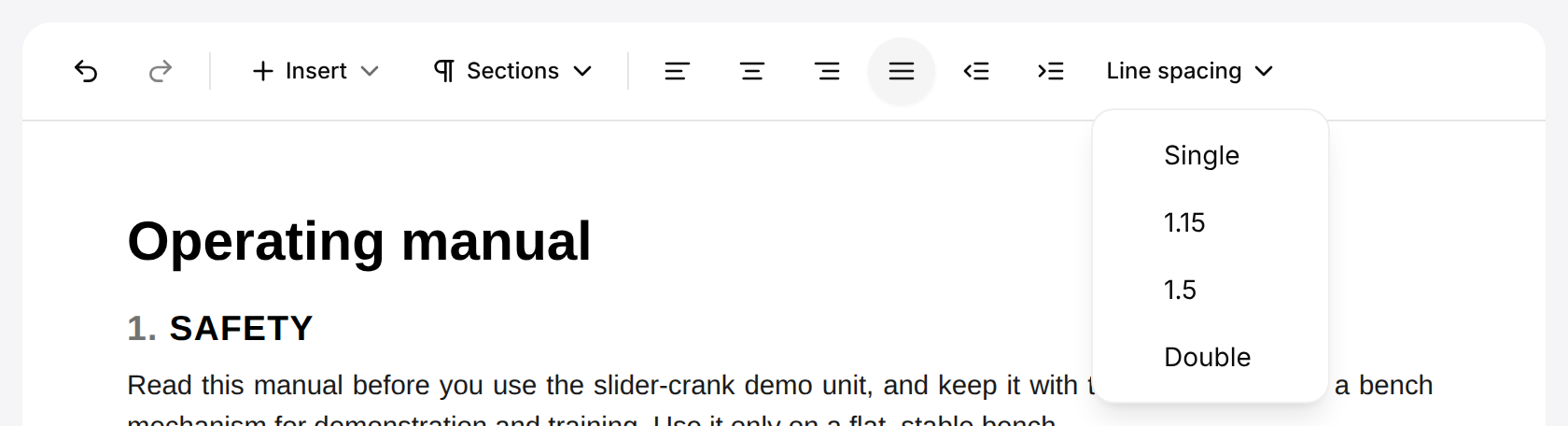
| Tool | Effect | Keys |
|---|---|---|
| Align left, Align center, Align right, Justify | The alignment of the lines. The button of the current alignment looks pressed. | Ctrl+Shift+L, Ctrl+Shift+E, Ctrl+Shift+R, Ctrl+Shift+J |
| Decrease indent, Increase indent | Moves the paragraph to the left or to the right by half an inch (1.27 cm), up to five steps. | Ctrl+[, Ctrl+] |
| Line spacing | Single, 1.15, 1.5 or Double. |
On a Mac, press Cmd in place of Ctrl. A paragraph you have not formatted has the look of the Paragraph style of the export template: see Change heading levels and text styles. Readers, the Preview tab and the PDF show the same look.
Make a list
Turn a paragraph into a list
Bulleted and numbered lists are made from the Insert menu.
- Click in the paragraph that becomes the first item.
- Select Insert in the toolbar.
- Select Bulleted list or Numbered list.
- Click at the end of the item and press Enter to add the next one.
- Press Enter in an empty item to end the list and go on with an ordinary paragraph.
The paragraph becomes the first item of the list.
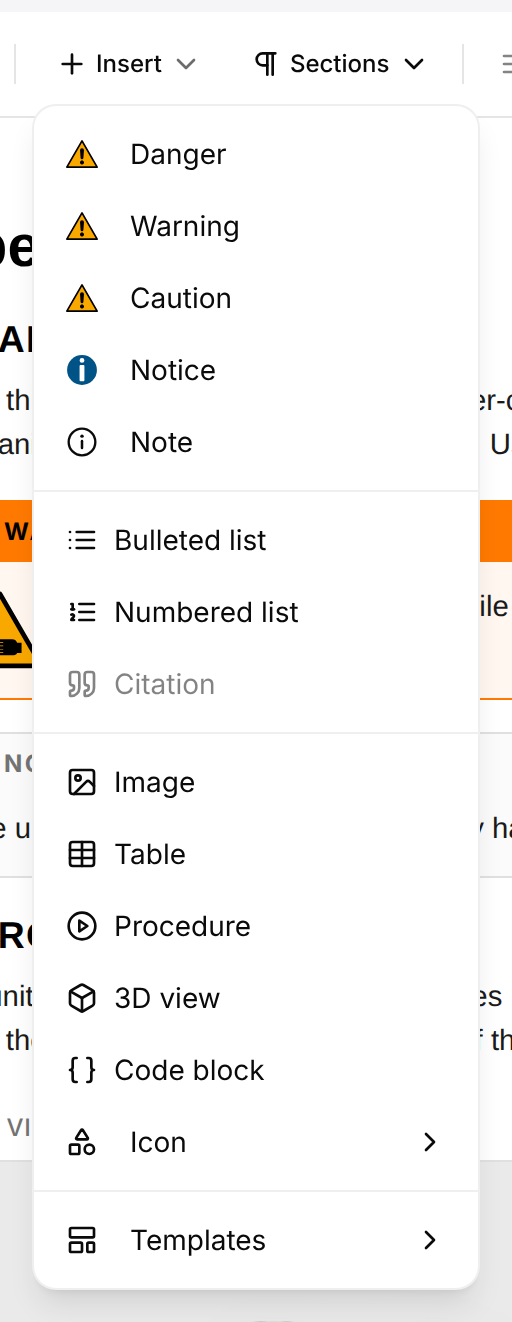
To turn an item back into a paragraph, click in it and select the same entry of the Insert menu again. Keep lists flat: a draft with a list inside a list item is not saved into the document.
Add tables, pictures and other content
Citation, in the same menu, places a citation marker at the cursor: see Cite a source. The other entries of the Insert menu are described in Tables, pictures and 3D views:
- Danger, Warning, Caution, Notice and Note turn the paragraph into a safety notice.
- Image adds a picture from your computer.
- Table adds a table, and Templates offers ready-made tables.
- Procedure places a published procedure of the product in the document, for the reader to play.
- 3D view adds a picture of the product taken from its 3D model.
- Code block turns the paragraph into a block of fixed-width text.
- Icon adds a safety or information sign.
Add a link or a cross-reference
A link leads to a web address. A cross-reference leads to another place of the same document: a section, a table, a picture, a procedure.
Link words to a place in the document
A cross-reference takes the reader to a section, a table or another block of this document.
- Select the words that become the link.
- Select Link in the bar above the selection.
- Stay on In this document and enter a word of the target in Search this document….
- Select the target in the list.
In the Operating manual, the words "three parts" of the Product overview are linked to the table Main parts: search for parts and select Main parts under Tables.
The words turn into a blue underlined link.
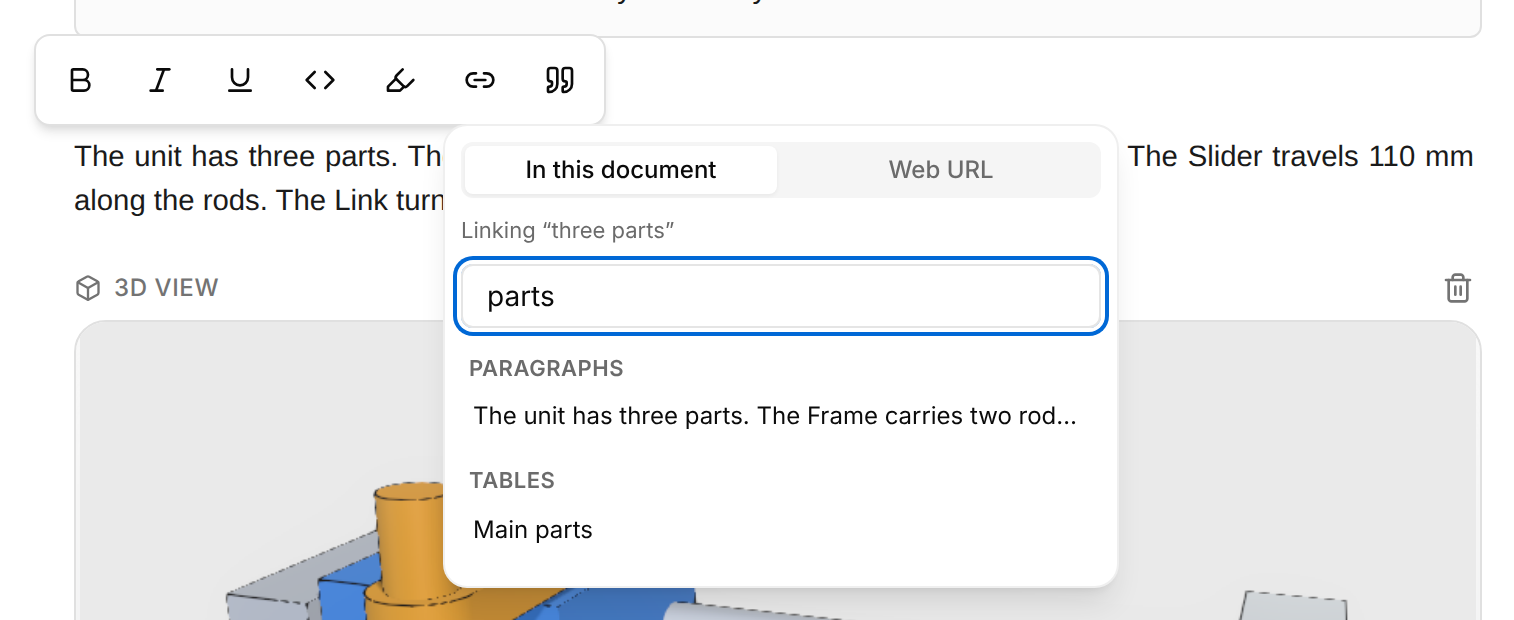
The list groups what the document holds: Sections, Paragraphs, Notes & warnings, Lists, List items, Code blocks, Figures, Tables, Table rows, Procedures and 3D views. "No matching blocks." means that nothing holds every word you entered.
For a web address, select Web URL in the same panel, enter the address and select the Link button beside the field, or press Enter.
To change or remove a link, click it. A bar shows where it leads, "In-document link" or the web address, with three buttons:

- Open follows the link: a web address opens in a new tab, a cross-reference scrolls to its target.
- Edit opens the link panel again, to choose another target.
- Unlink keeps the words and removes the link.
While you edit, Ctrl + click (Cmd + click on a Mac) also follows a link. On the Read tab a plain click does. When the target of a cross-reference was deleted, the message "Link target not found" appears when you follow the link.
Paste from Word
Copy the passage in Word, click in the document where it belongs, and paste. The text keeps its headings, lists, tables and links, and the bold, italic and underline of its paragraphs. Check two things in the pasted passage:
- A list inside a list item has to be turned into items of the outer list: a draft that holds one is not saved into the document (see How your work is saved).
- If a pasted heading shows no section number, click in it and give it its level from the Sections menu.
The pictures of the passage are uploaded and placed in the text as pictures of the document; a crop or a quarter turn made in Word is kept. While they upload, the message "Uploading image…" or, for several, "Uploading 3 images…" stays on screen, and the text appears when the upload is done.
A picture that cannot be read from the copy, such as a group of drawing shapes, is left out. The message "Could not import an image" then says "Copy it on its own and paste it." Do so, then check the pasted passage.
See where a passage comes from
A fact taken from a source carries a citation marker right after it, as in a scientific article. [1, p. 6] is page 6 of source 1, a manual of the product. [2, l. 3–6] is lines 3 to 6 of source 2, a file of a connected repository. The sources are numbered in the whole document: a source takes its number at its first marker, and every later marker of the same source has the same number. A sentence can carry several markers, one after each fact, and the caption of a table or a picture can carry them too. The markers come with the text when the Assistant writes it, and you add your own with Cite: see Cite a source.
![First paragraph of the Maintenance section with the markers [1, p. 6] and [1, p. 7]. The first marker is selected and its card is open, headed Source with Change, Remove and Close: Operating manual.pdf, p.6, a green line saying the quoted text was found in the source, the quoted sentence and the Open page button.](/renders/document-draft-citations/card.png)
Select a marker to open its card. The card gives the name of the source, the place in it, a line that says how well the source backs the passage, and the words quoted from it.
- Open page shows the page of the manual with the quoted words outlined. For the lines of a file the button reads Open file, and View on provider opens the file on the site of the repository, in a new tab.
- Change opens the Cite dialog on this citation, to cite another passage in its place. A marker in a caption has no Change: remove it.
- Remove takes the marker out of the text. With the cursor right after a marker, the Backspace key removes it too.
- Close, the Escape key or a click outside the card closes it.
A long quote is shortened to three lines: show all shows the rest and show less folds it back. "(truncated)" after a quote says that the quote itself was stored cut short. A marker that reads [?] has no source in this draft, for example a marker copied from another document: its card says "This marker has no source in this document."
The line under the name of the source says how well it backs the passage:
| Line on the card | Meaning |
|---|---|
| The quoted text was found in the source when it was written, 1 Oct 2026. | Green. When the passage was written, the quoted words were found in the source. The date is the day it was written. |
| Source still agrees, but the text citing it was edited | Grey. The source still says it, but the passage was edited after the check. Read the passage again. |
| Never machine-verified — written without a checked quote | Grey. Nobody checked the quoted words against the source. Compare them with the source yourself. |
| The quoted text is no longer there | Red. The source no longer holds the quoted words: the file changed after the passage was written. Correct the passage. |
| Source no longer exists | Red. The file that was cited has been removed. |
A source that changed or is gone also gives its marker a dotted amber underline, and its card offers Keep as is: see Review and publish.
Check a citation
Check a citation
Read the cited words in their source before you trust a passage, or correct it.
- Select the marker after the passage, for example [1, p. 6]. Its card opens.
- Read the name, the place, the line under the name and the quoted words.
- Select Open page. The viewer opens over the draft.
- Compare the quote under the name of the source with the words outlined on the page.
- Select Close, or press Escape, to go back to the draft.
In the Operating manual, the first sentence of Maintenance ends with the marker [1, p. 6]. Open page shows page 6 of Operating manual.pdf, with the sentence "Check the unit once a month and after every transport." outlined.
The draft is as you left it. If the passage no longer says what the source says, correct it.
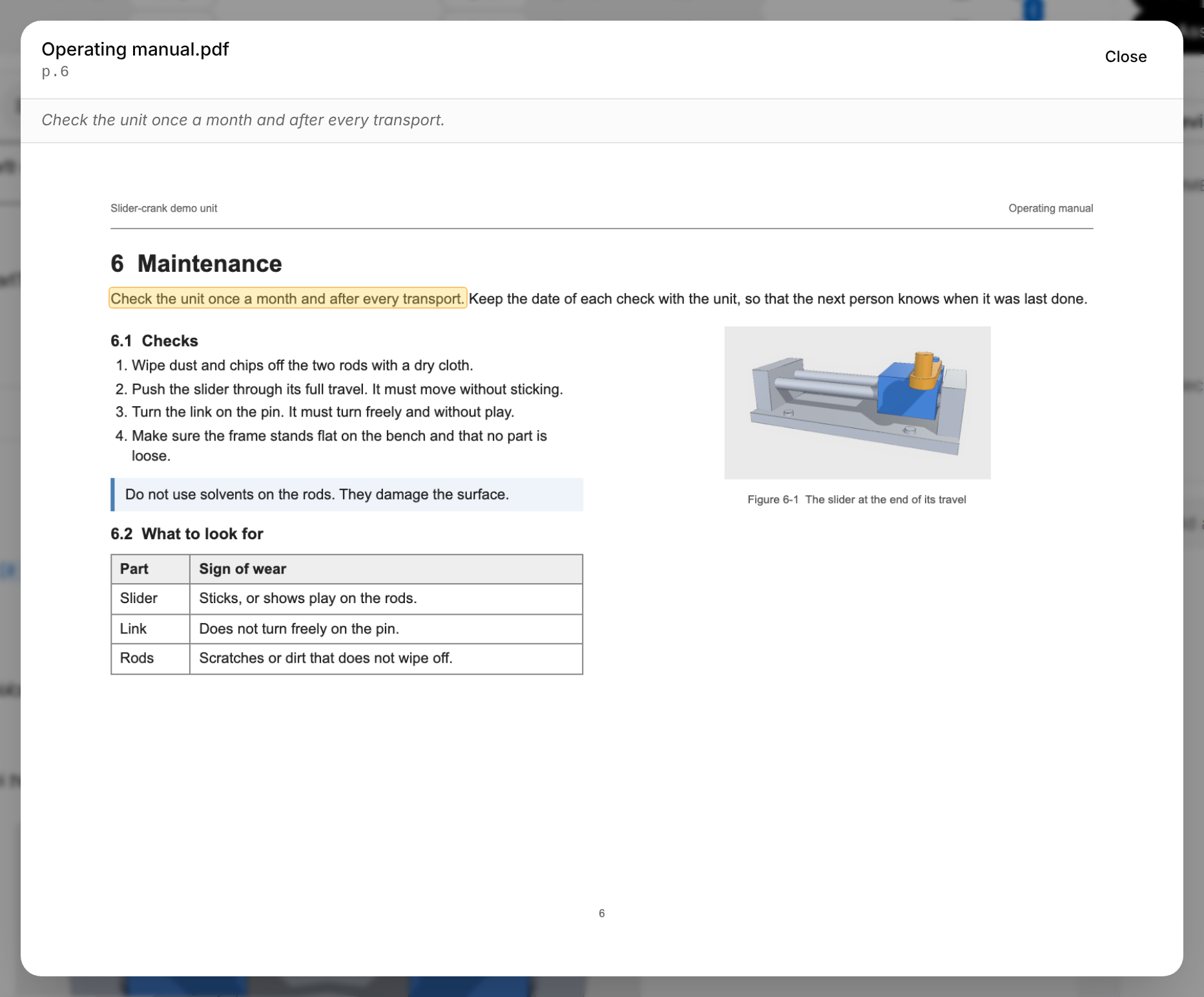
The viewer shows the whole page. When the page is longer than the window, it scrolls to the outlined words. TwinWorks stores the place of the words when it writes the citation: opening the page shows that place and does not search the page again.
When no place can be shown, the page still opens and the viewer says why under it:
| Under the page | Meaning |
|---|---|
| The exact words of this citation were not found on page 7. | Nothing is outlined. The words of the citation are not on the page as written, for example because the passage was worded differently. Read the page yourself and correct the passage if it does not say the same. |
| The words of this citation appear more than once on page 7, so no single place is highlighted. | Nothing is outlined, because TwinWorks does not guess which of the places is meant. Read the page: the words are on it. |
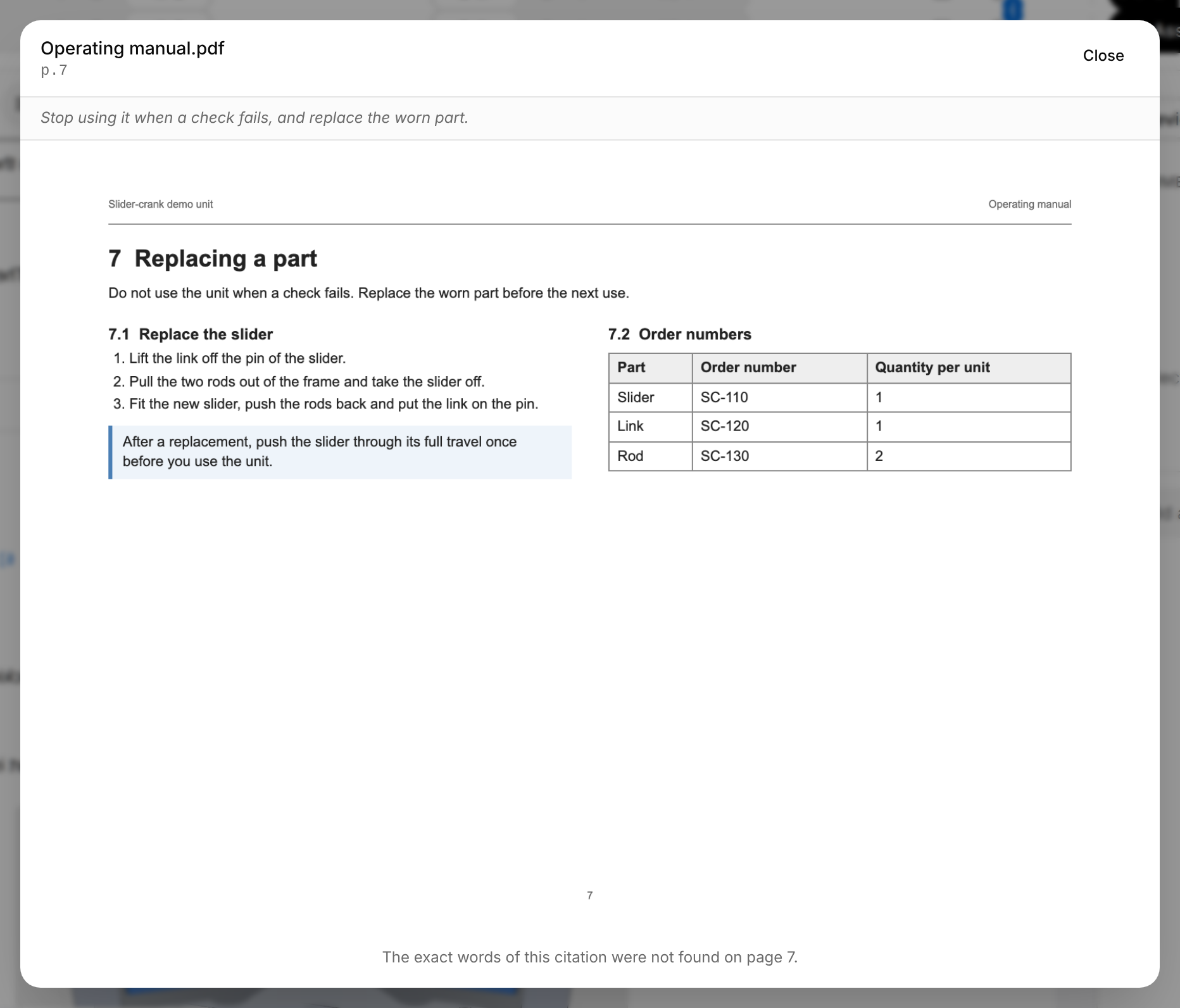
A source that cannot be opened gives a message of its own in the viewer: "That source is no longer available." when the file has been removed, or "Could not load the source." when it could not be loaded; select the marker and Open page again. A button that is greyed has the reason beside it, for example "The source manual is no longer linked to this project."
A cited code file opens as the cited lines, with their line numbers, shaded. A citation that names no lines shows the start of the file, without shading.
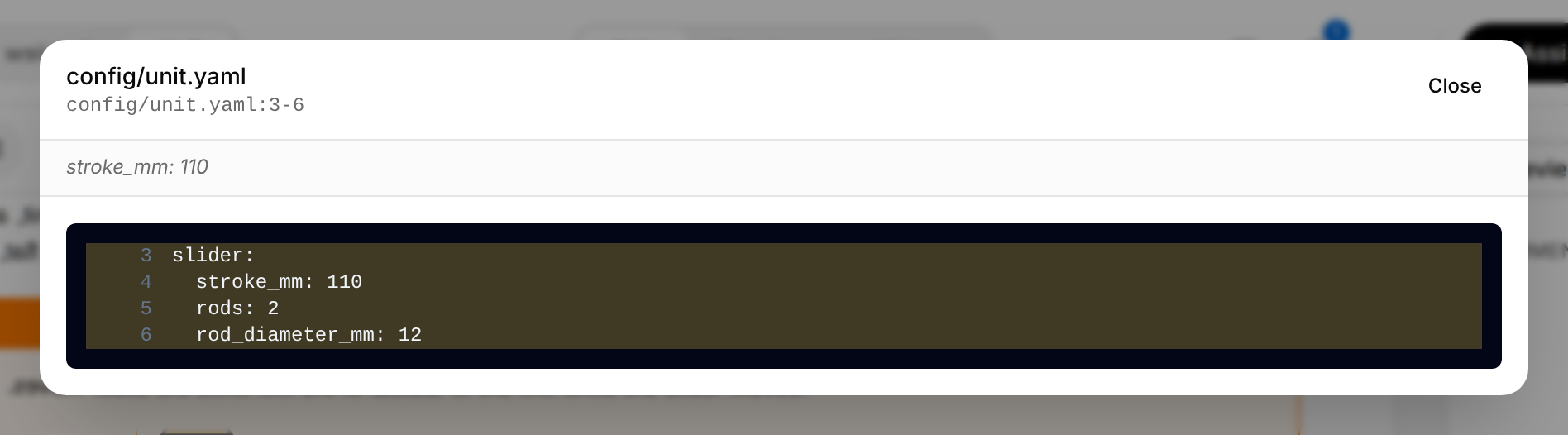
To see who wrote a block, put the pointer over it: a small badge appears at its top right. It reads "AI" for a block the Assistant wrote, followed by the name of the person who asked for it, or it gives the name of the author.
Cite a source
Cite the source of a fact yourself: a page of a manual of the product, or lines of a file of a connected repository. TwinWorks checks the citation when you make it: the marker goes in only once the quoted words were found on the page, or the lines were read from the file.
Two ways open the dialog Cite a source:
- Select the words that state the fact, then Cite in the bar above them.
- Put the cursor after the fact, then select Insert and Citation.
The marker goes after the fact, with a space before it, as in an article. When the words end with a full stop, a comma, a semicolon, a colon, a question mark or an exclamation mark, the marker goes before that sign: after every transport [1, p. 6]. Punctuation in bold or italics stays before the marker. In the middle of a word, the marker goes where the selection ends, without a space.
A marker cannot go in the title, in a heading or in a code block: there the Citation entry is greyed out.
The dialog has three tabs. It opens on Cited in this document when the document already cites something, otherwise on Manual.
| Tab | What you cite |
|---|---|
| Cited in this document | A passage that the document already cites, placed in the text or not. Each row gives the marker, the quoted words and the source; Search the passages cited here narrows the list. Select a row to insert its marker. |
| Manual | Words on a page of a manual of the product. |
| Code | Lines of a file of a repository that reads Synced in the Sources section of the product. |
Cite a page of a manual
Select the passage on the page: TwinWorks checks that it is there before the marker goes in.
- Select the words of your text that the page supports, then select Cite in the bar above them.
- Open the Manual tab.
- Choose the manual in the list and enter the number of the page beside Page. The words of the page appear on the left, the page itself on the right.
- In the words of the page, select the passage that states the fact. It fills the field under them; you can also type it there.
- Select Check. The passage is outlined on the page.
- Select Insert citation.
In the Maintenance section of the Operating manual, select "Check the unit once a month and after every transport". Choose Operating manual.pdf, page 6, and select the same sentence in the words of the page.
The marker, here [1, p. 6], stands after the words you selected, before the full stop, and the Citations tab lists the passage.
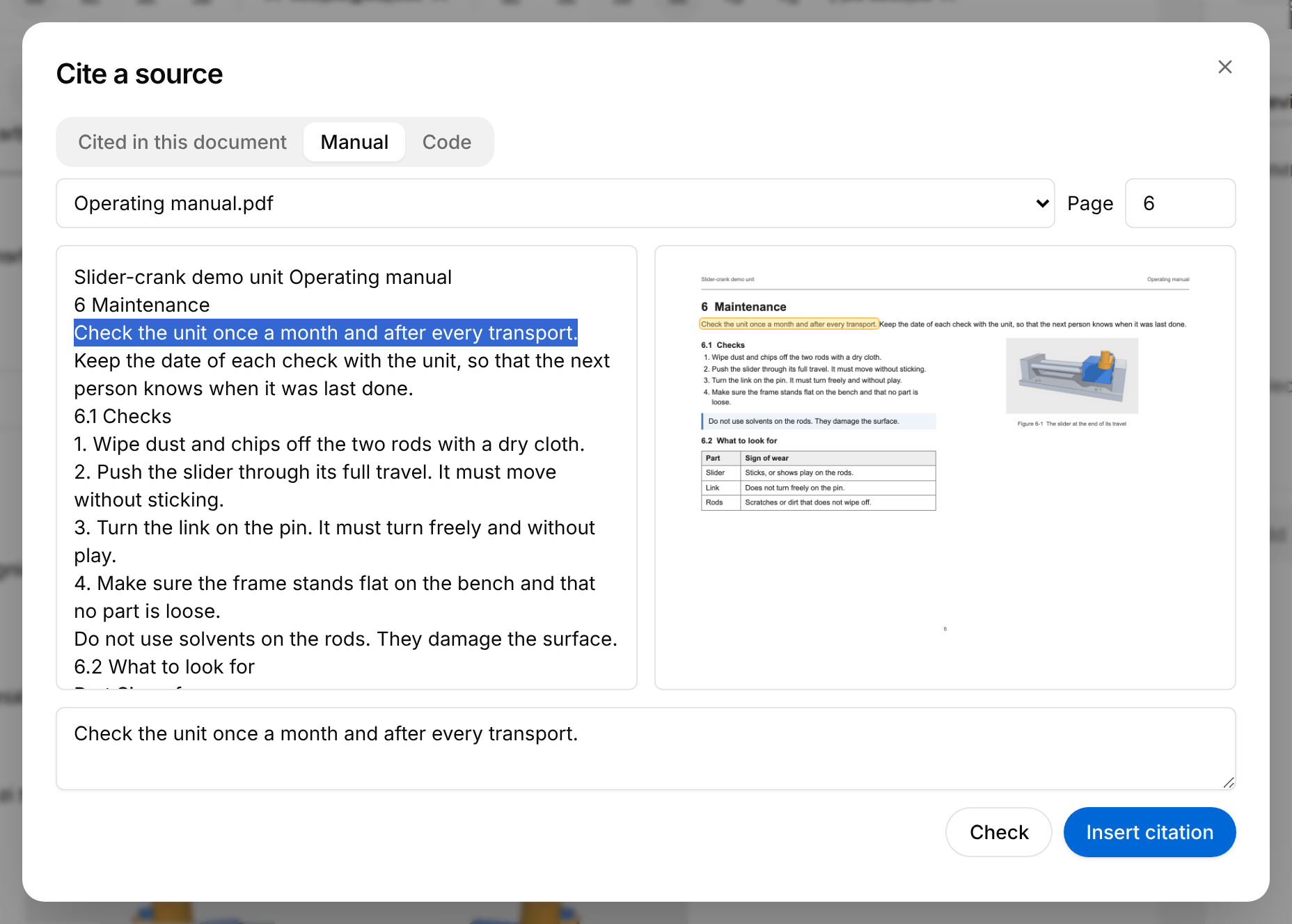
Insert citation stays greyed until a check has found the words. A change of the manual, the page or the passage asks for a new check. What the dialog can say:
| Message | Meaning |
|---|---|
| These words are not on page 7 or the pages around it. | Nothing can be inserted. Check the page number, then select the passage again in the words of the page. |
| Found on page 8. The citation points there. | The words are on a page close to the one you entered, up to three pages before or after it. The marker names the page where they are. |
| Select at least three words, so the place is exact. | The passage is too short to find one place on the page. Select more words. |
| This manual has 12 pages. | The page you entered is past the end of the manual. |
| This page cannot be checked right now. Try again in a minute. | The page could not be read. Try again later. |
To cite code, open the Code tab, choose the repository, and enter the File, for example src/control.c, and the Lines, for example 8-12. Show shows the lines. Then select Check and Insert citation. "There is no text at lines 8-12 of src/control.c." means that the file has no text at those lines, and "Source file is unavailable." that the repository has no such file.
A new marker is saved like any other change. If the text changed while the dialog was open, nothing is inserted: the message "The text changed while you were citing" asks you to place the citation again.
The Citations tab
The Citations tab of the Review panel lists the sources of the text and what is left to cite. It follows the text as you write. In a draft that cannot be edited it shows the same, without Remove.
![Citations tab of the Review panel: the line 2 sources, 5 cited passages; source [1] Operating manual.pdf with four passages, on pages 2, 6, 7 and 8, each with its quote and where it is used, page 7 with the line Never machine-verified; source [2] config/unit.yaml with one passage; under Not placed in the text, page 5 with a Remove button; at the bottom, Paragraphs without a citation: 1 and Show next.](/renders/document-draft-citations/tab.png)
From top to bottom:
- A line counts the sources and the cited passages, for example "2 sources · 5 cited passages".
- The sources (2), in the order of their numbers. Under each source, its cited passages (3): the page, or the file and its lines, the quoted words, and where the passage is used. "paragraph 4.1" is the first paragraph of section 4; a table or a picture is named by its caption. A passage carries the line of its card when that line is not green, for example "Never machine-verified — written without a checked quote".
- Not placed in the text: citations that a section or a table holds while no marker in its text places them. Drafts written before markers existed hold their citations this way. Remove (4) takes one off. To place one in the text, select the words it supports, select Cite, and choose it under Cited in this document.
- Markers with no source here: the markers that read
[?]. - Paragraphs without a citation counts the paragraphs that have words and no marker. A paragraph whose section still holds a citation that is not placed does not count. Show next (5) goes to the next of these paragraphs after the cursor.
Select a row to go to its place in the text. When the passage has a page or lines to show, the viewer opens over the draft as well.
What readers see
Readers get no citations. The published document, its PDF and the Preview tab show no markers and no list of sources. The markers and the Citations tab are for the people who write and review the draft.
Work on a draft with other authors
Several people can write in the same draft at the same time. Each one sees the changes of the others as they are typed.

- The caret of each colleague shows where they are writing, with their name in their colour.
- Their avatars stand in the header, before the buttons of the review. Point at an avatar to see who it is and in which section they are, for example "Sam Sample — 4 Maintenance". Someone who has the draft open in two tabs shows once, with "×2".
- Undo takes back only your own changes.
- What the Assistant writes for you is a proposal that only you see. Your colleagues get it once you approve it, as a change of yours: see Assistant.

Preview the pages and export a PDF
The Preview tab shows the draft as the pages of its PDF, with your latest changes. "Preparing the page preview…" shows while the pages are built. Like the published document, the pages show no citations: see What readers see.
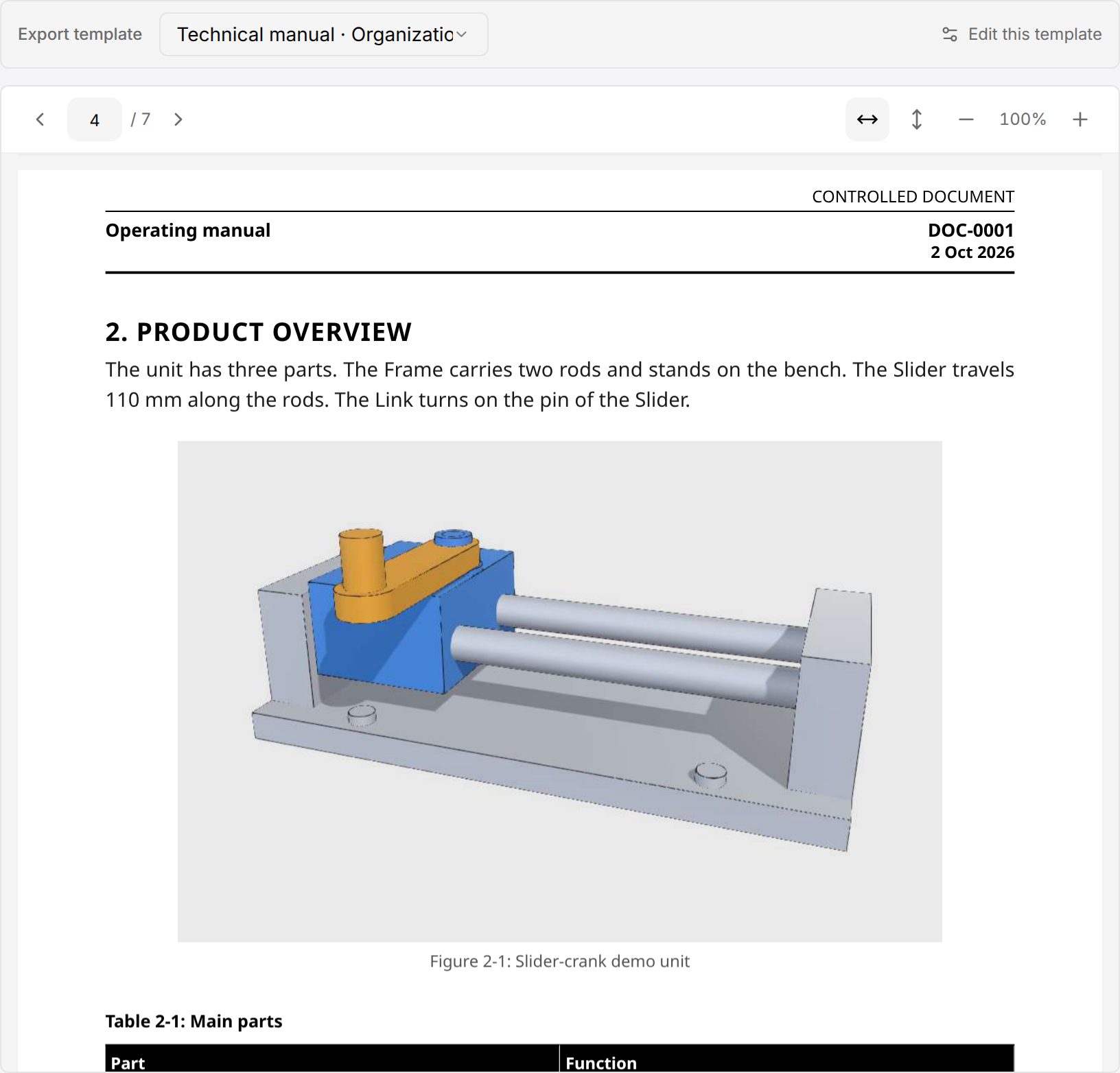
- Export template (1) chooses the layout of the pages: Built-in default or a document template of your organization. It starts on the default of the organization, marked "· Organization default". Another choice is yours alone, is kept in this browser, and is the one Export PDF uses. Edit this template (2) opens the template; with Built-in default chosen, the link reads Create a template. See Export templates.
- The arrows turn the pages. To go to a page, enter its number in the box and press Enter. A section selected in the Outline brings up its page.
- Fit width (3) and Fit height fit a page to the window, and Zoom out and Zoom in change the size in steps. The percentage between them compares the size with the fitted width, so 100% is the size Fit width gives: select the percentage to return to it.
A procedure placed in the document is printed as its steps with their pictures. When these pictures have to be drawn first, a bar "Rendering 3D step imagery" shows the progress.
Export a draft as a PDF
Everyone who can open a draft can download it as a PDF, whatever its state.
- Open the Preview tab and choose the Export template.
- Select the Document actions button (three dots) in the header.
- Select Export PDF. The menu closes while the file is built; opened again meanwhile, it shows "Exporting…" in place of the entry.
The browser downloads a file named after the draft, for example Operating manual.pdf.
The PDF holds the draft as it is on screen, with the latest changes. If the file cannot be built, the message "Could not export PDF" appears: select Export PDF again.
Go back to an earlier version
TwinWorks keeps a version of the draft every 10 minutes while people write in it, and when the last of them leaves it. Approving a change of the Assistant and restoring a version keep one too. The History tab lists them; View changes in the Review panel opens the same tab. The screen also calls a version a save or a save point.
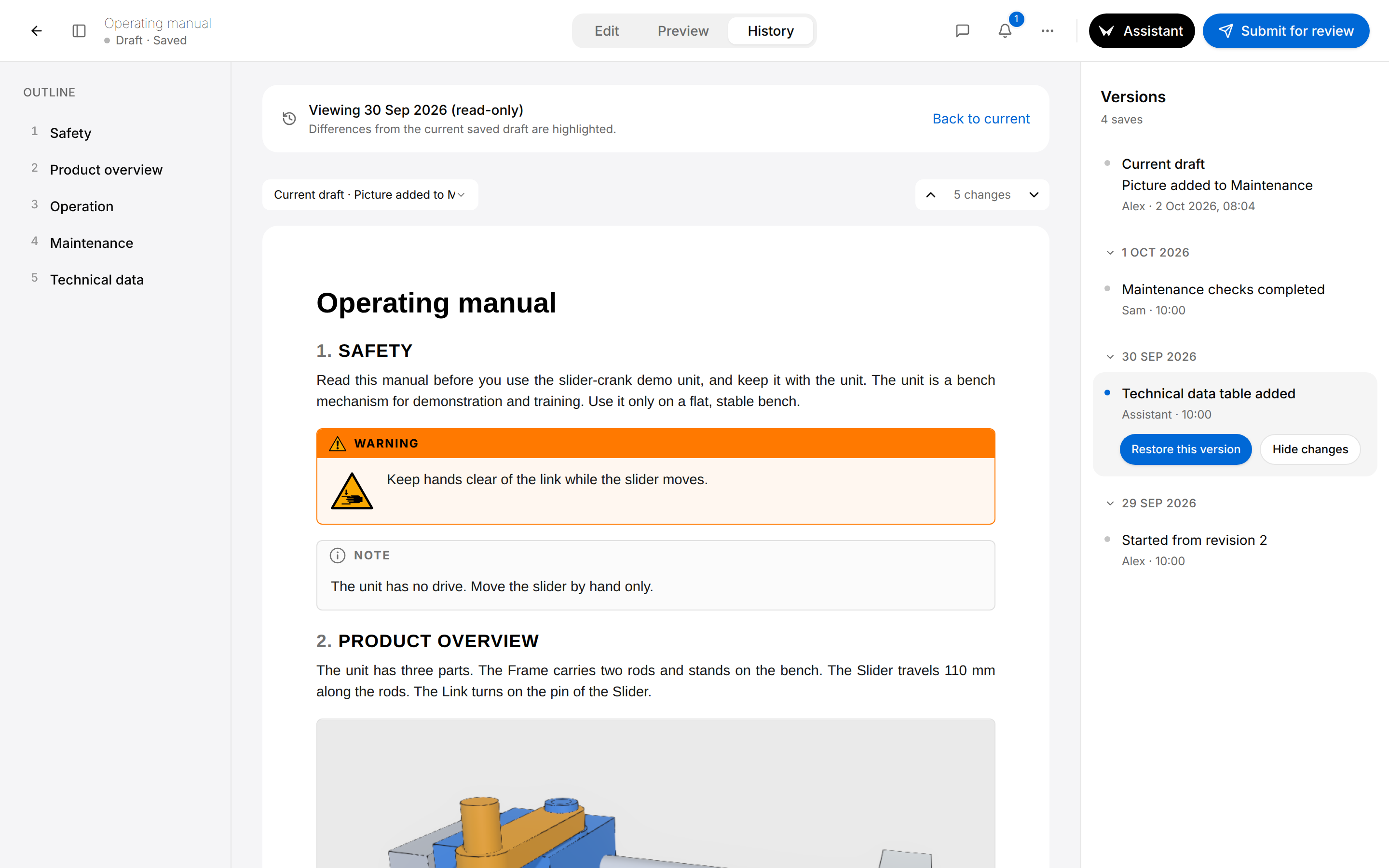
Versions (5) starts with Current draft, the newest save, with its short description, the person who saved it and its date and time. The older versions follow day by day, each with a short description, the person who saved it and the time. "Assistant" stands for a version the Assistant wrote.
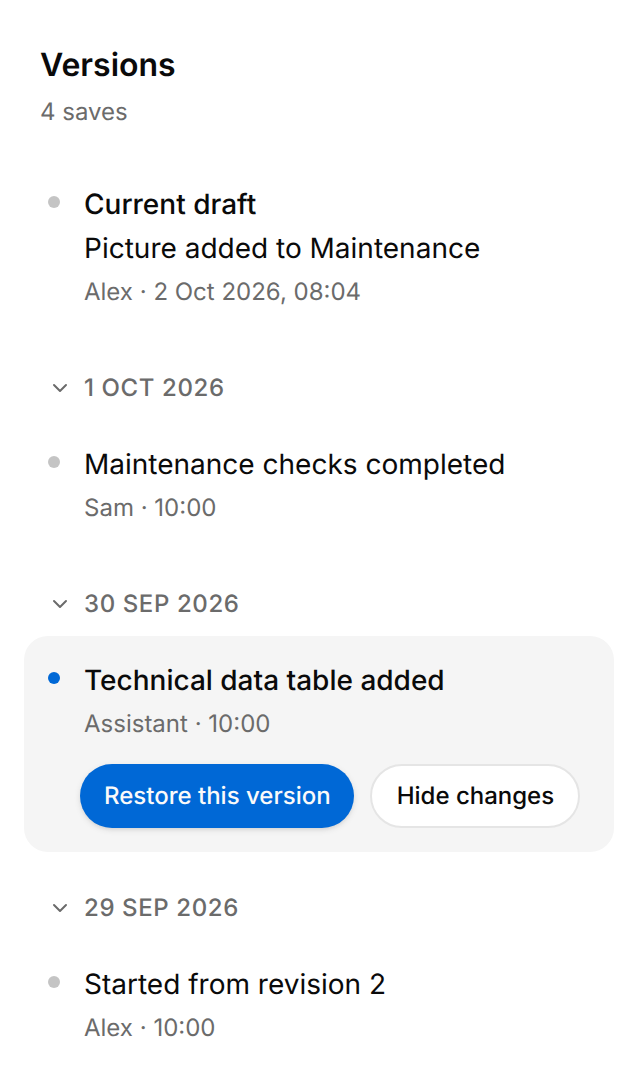
Select a version. It opens in the middle, read-only, under a bar that names it, for example "Viewing 30 Sep 2026 (read-only)", and the Outline lists its sections. Its differences with the current draft are marked in the text:
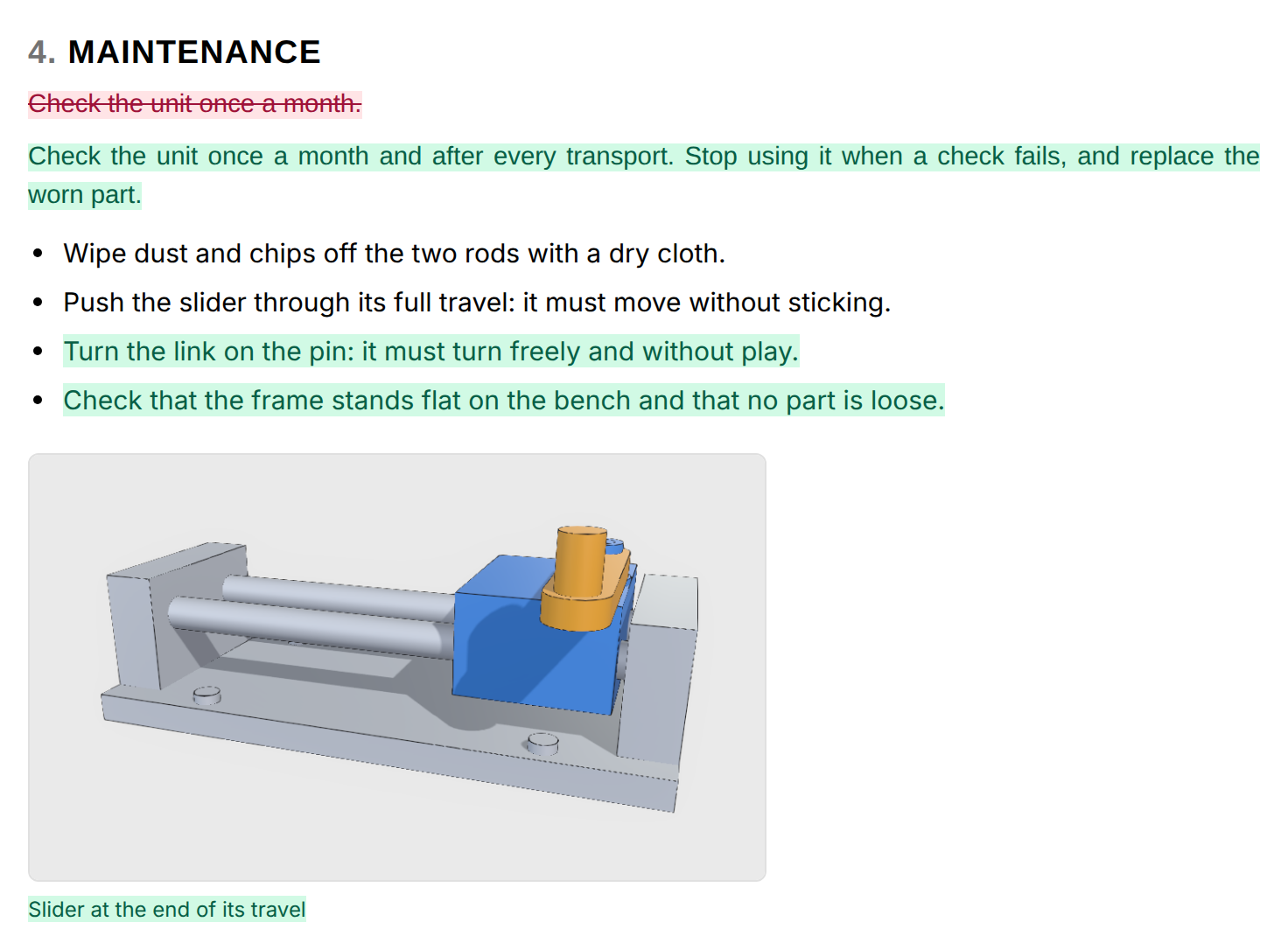
- Text struck through in red is in the older of the two versions and no longer in the newer one.
- Text marked in green is in the newer one and not in the older.
Compared with the current draft, as in the picture, red is what the selected version had and the draft has lost; green is what the draft gained since. Each paragraph shows with its alignment, indent and line spacing, and a change of these alone counts as a change.
The two arrows of the counter step from one change to the next; the counter reads, for example, "5 changes", then "1 of 5". The row with the list and the counter stays at the top while the document scrolls. The list Compare with version compares the selected version with another one instead of the current draft; in it, the newest save reads "Current draft" followed by its description, for example "Current draft · Picture added to Maintenance". Hide changes shows the version without marks, Show changes brings them back. Back to current, in the bar over the document, returns to the Edit tab.
Restore an earlier version
Restoring puts the content of an earlier version back into the draft, without losing anything in between.
- Open the History tab.
- Select the version in Versions.
- Select Restore this version.
- A dialog asks, for example, "Go back to save point #2?": save point is its word for a version, and the number counts the versions from the oldest. Select Restore draft.
The draft has the content of that version again, for everyone who has it open. The restore is itself kept as a new version, so the versions in between stay available.
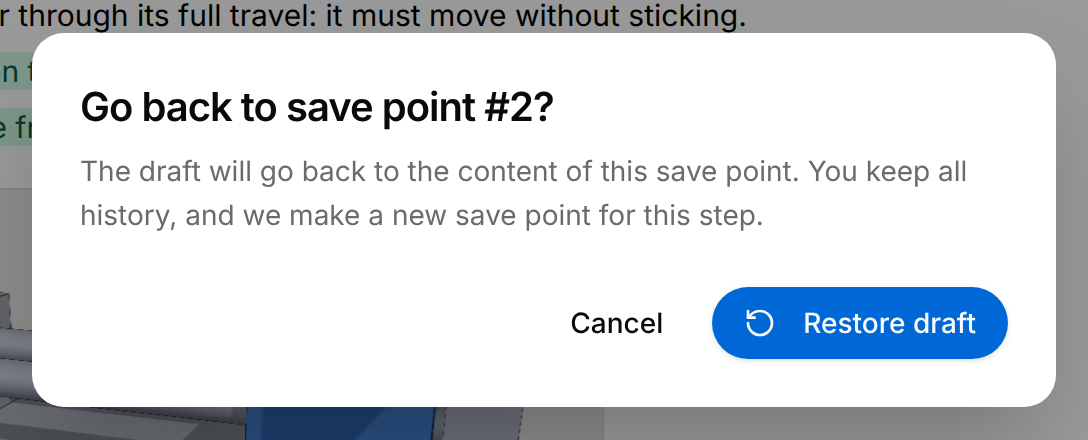
Restore this version is shown for an older version of a draft you can edit.
Delete a draft
A Manager can delete a draft that is not approved and is not being generated or imported. Select the Document actions button (three dots) in the header, then Delete draft. The dialog "Delete draft?" asks for confirmation: Delete removes the draft and its content for good. The message "Draft deleted" appears and you return to the Documentation page of the product.
Who can do what in a draft
What you can do in a draft depends on your role in the organization:
| Role | In a draft |
|---|---|
| Manager | Write, restore a version, export a PDF, delete the draft. |
| Author, Reviewer | Write, restore a version, export a PDF. |
| Viewer | Cannot open a draft. |
The person who first opens the Documentation section of a product manages the documentation of that product, even when their role is Author or Reviewer: in its drafts they have the rights of a Manager, Delete draft included. This is how the Owner of the organization gets their rights there. A Viewer never becomes that person, even when they open the section before everyone else.
Writing and restoring need a draft in the state Draft or Changes requested. Review and publish explains how a draft moves from one state to the next, and what Managers and Reviewers do in a review.