

Export templates
An export template sets what an exported file looks like: the page, the fonts and colors, the header and footer, the cover. An organization keeps two kinds of template, one for documents and one for procedures, on the Organization page. The Owner, Managers, Authors and Reviewers of the organization create, change and delete them, and set the defaults.
The two kinds of template
| Document templates | Procedure templates | |
|---|---|---|
| Apply to | The documents of a product's Documentation: the page preview of a draft, its PDF, and the Page tab of the document viewer page | A procedure exported as PDF or Word, the printed manual of a product, and the procedures placed in a document |
| Where the default is kept | In the organization, for everyone | In the organization, for everyone |
| With no default template | The Built-in default is used | The standard layout is used |
A document is never laid out with a procedure template, and a procedure export never with a document template. One exception: a procedure placed in a document is printed there in the style of the default procedure template (its step tables, safety panels and colors); the page size, the header and the footer stay those of the document template. To export a procedure, see Procedures; Printed manual is in the Publish section of a product, see Publishing.
Find the templates
In the sidebar, select Organization. The two lists, Document templates and Procedure templates, are the last sections of the page. They are shown to the Owner and to members with the role Manager, Author or Reviewer. A Viewer does not see them. The rest of the page is described in Organization.
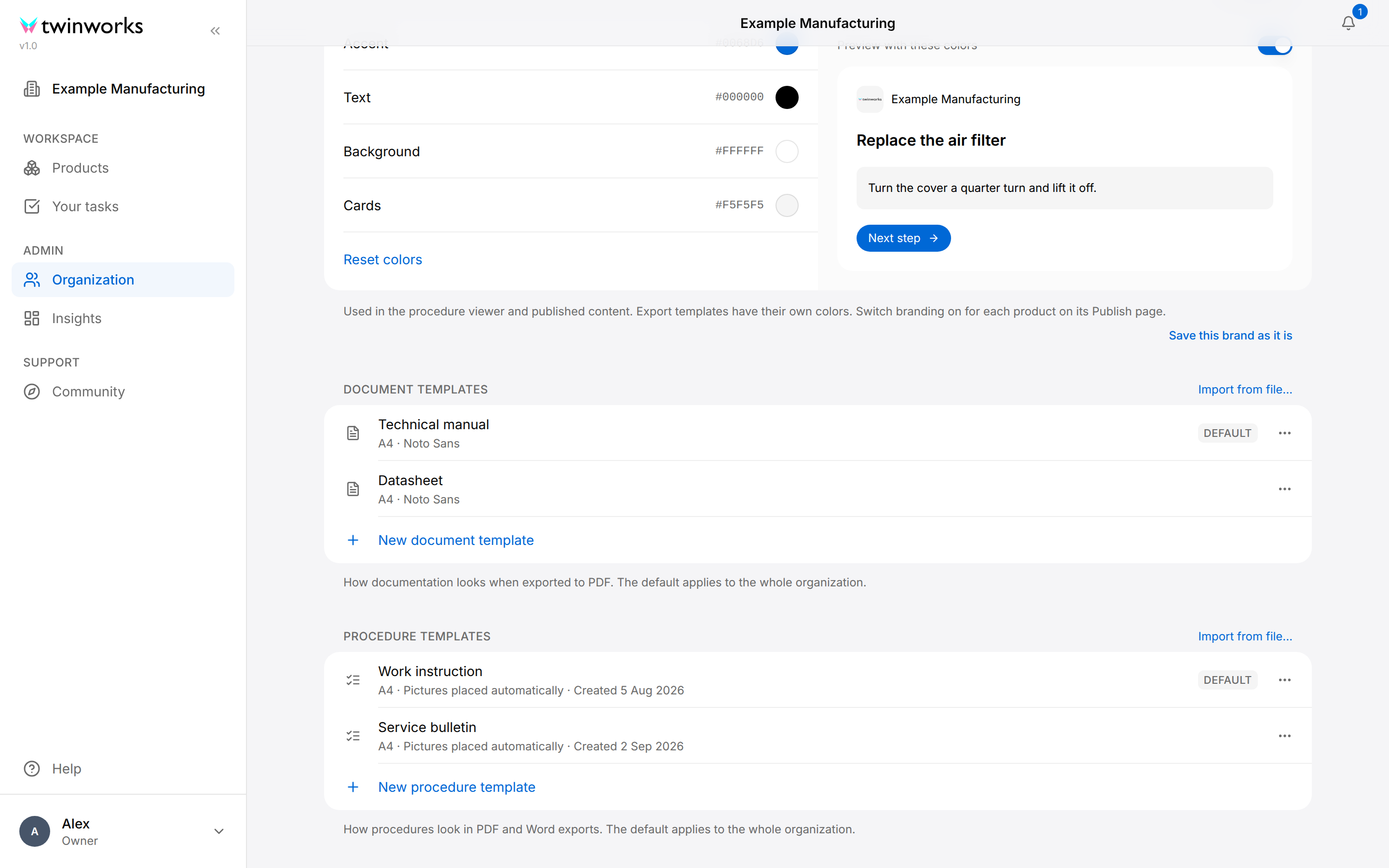
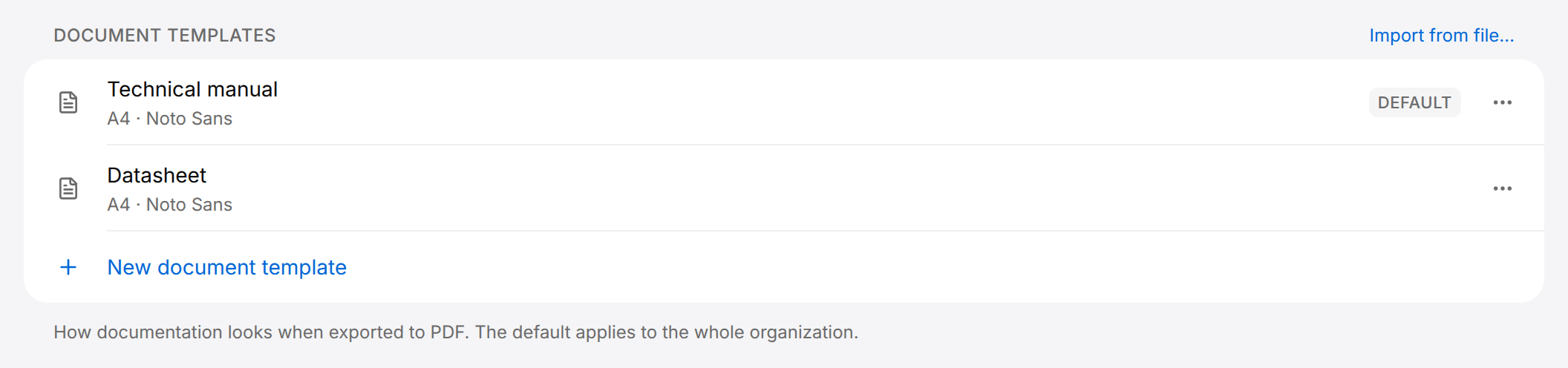
Each row is one template. A document template shows its page size and font, a procedure template its page size, where its pictures are placed and the day it was created. Select a row to open the template. The three dots at the end of a row open the actions of that template; the button is named after the template, for example Actions for Datasheet.
Create a document template
Create a document template
Make one template for each look your documents need, for example one for manuals and one for datasheets.
- In the sidebar, select Organization.
- Under Document templates, select New document template.
- Select the title of the page, where "New document template" is shown in grey, and enter a name.
- To begin from a ready-made layout, select one in the Start from row: Technical manual, Datasheet, Maintenance manual, Operator manual or Handbook.
- Go through the tabs on the left and set what you need; the table under "What a document template sets" lists them. The Preview on the right follows each change.
- Select Create in the Unsaved changes bar at the bottom of the window.
For short product sheets, name the template Product sheet, select Datasheet in the Start from row and change only what differs, such as the page size.
The message "Template created" appears, Saved shows beside the name and the bar disappears. The template is now in the Document templates list. Documents use it once you make it the default or select it in the Export template list of a draft: see "Set the default template" and "Use a template when you export", on this page.
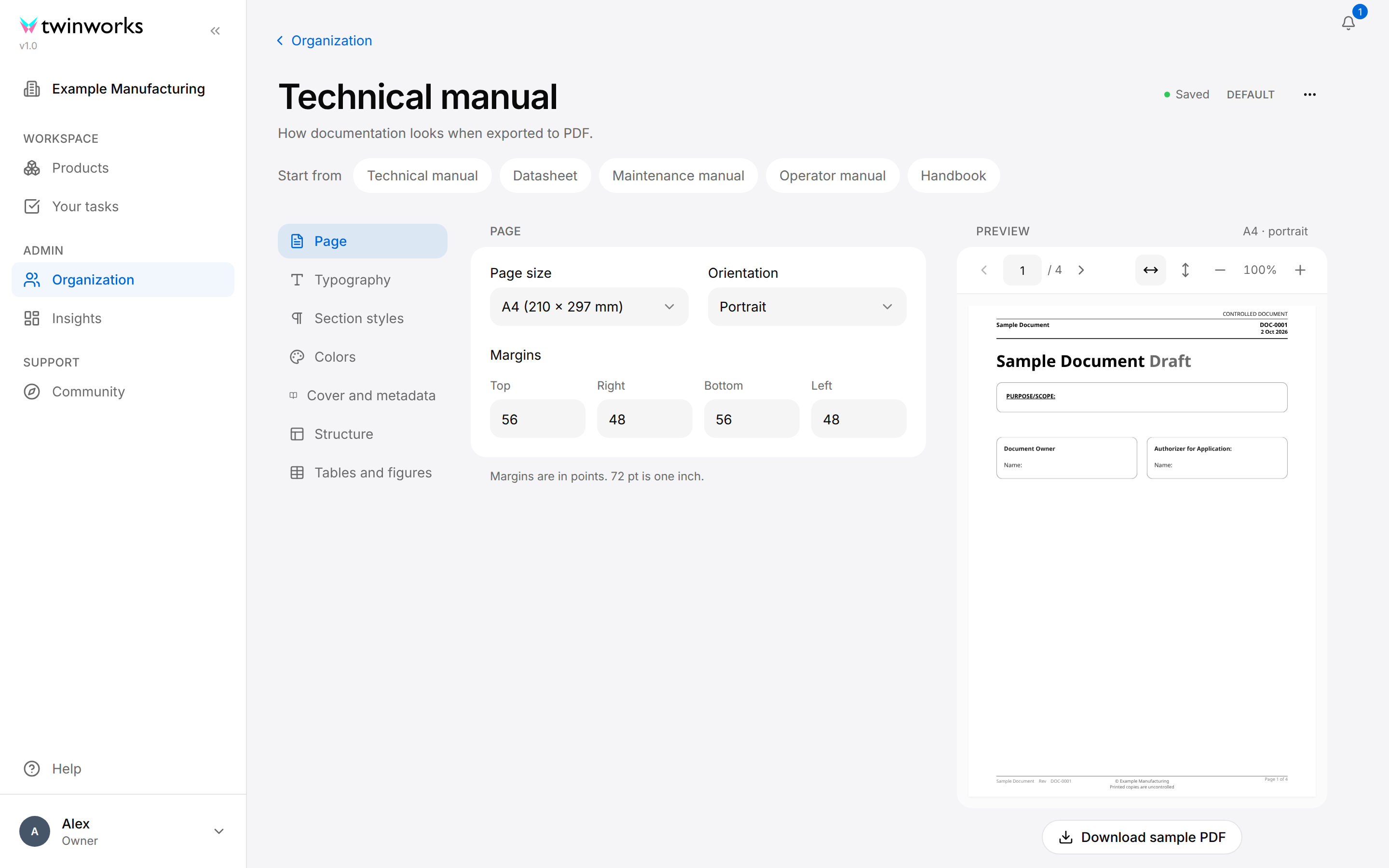
A new template starts with the settings of the Technical manual layout. A layout of the Start from row replaces every setting of the template and keeps the name you entered: select it before you change anything else. These layouts are built in. They are not the templates of your list, even when one has the same name. Every layout sets the Copyright line of the footer to "© TwinWorks": enter your own on the Structure tab.
The Start from row is also shown on a template you saved earlier, and there too a layout replaces every setting on screen. If you select a layout by mistake, do not select Save: select Organization above the name (Back when you opened the template from a draft), then Discard changes in the dialog that opens, and open the template again. Reset to defaults does not bring the saved settings back once a layout was selected.
What a document template sets
| Tab | What you set there |
|---|---|
| Page | Page size (A4 or Letter), Orientation and the four Margins, in points (72 pt is one inch, 25.4 mm). |
| Typography | Font family, Base font size (pt), Line height and Justify body text. |
| Section styles | The look of paragraphs and of headings 1 to 6. See below. |
| Colors | The colors of Headings, Body text and the Accent, each with what it paints; Tint headings with the accent color; Uppercase chapter headings; under Branding, Apply copies the colors of a brand into the template. |
| Cover and metadata | The cover page: Show cover page, Subtitle, Cover logo URL, the alignment and size of the title, the Status suffix printed after the title, the Purpose and scope box, the Signature boxes and their labels, the Document number and the Revision. |
| Structure | Table of contents, Number sections, Start chapters on a new page; the header (Header text, Divider lines, date, document number, logo, Control text); the footer (Footer text, Page numbers, document number, revision, Copyright line, Notice line). |
| Tables and figures | Table style (Grid (full borders), Booktabs (rules only) or Shaded header), the fill of the header row, Striped rows; Number figures and tables, Figure number style, Max figure height (pt) and Image quality. |
Settings whose name does not say what they do:
- On Cover and metadata, Cover logo URL takes the web address of a picture, which is printed on the cover above the title.
- On Cover and metadata, Status suffix is a word printed after the title on the cover, such as Draft. With Show on drafts only on, the suffix is left out once the draft you export is approved.
- On Cover and metadata, Purpose and scope box prints a framed box under the title. Purpose per document, shown while the box is on, decides where its text comes from. On: each document prints its own Purpose and scope, entered in the Document details of the document (see Documentation). Off: every document prints the Text entered in the template.
- On Cover and metadata, Signature boxes prints two boxes under the purpose and scope box, with the labels you enter in Left box label and Right box label. In the PDF of a draft, the first box carries the name of the person who created the draft and the second the name of the person who reviewed or approved it.
- On Cover and metadata, Automatic revision number adds the revision number of the approved draft you export to the Revision: Rev becomes Rev 1, Rev 2 and so on.
- On Structure, Control text is a short text at the top right of the page header, such as CONTROLLED DOCUMENT.
- On Structure, Show logo prints the logo of the organization's Public brand at the top left of the page header, and shows that logo beside the switch. If it is the TwinWorks logo, the organization has no logo of its own yet: upload one on the Organization page, or turn Show logo off.
- On Tables and figures, the table style Booktabs (rules only) draws a table with horizontal lines only.
The cover prints a logo only when Cover logo URL is filled. The colors of a document are those of the Colors tab of its template: the colors of a brand reach a document only when you copy them into the template with Apply (see Apply the organization's brand to a document template).
Section styles
The Section styles tab holds one style for body text, Paragraph, and one for each heading level, Heading 1 to Heading 6. The line under the Style list shows the name of the style drawn in the style itself.
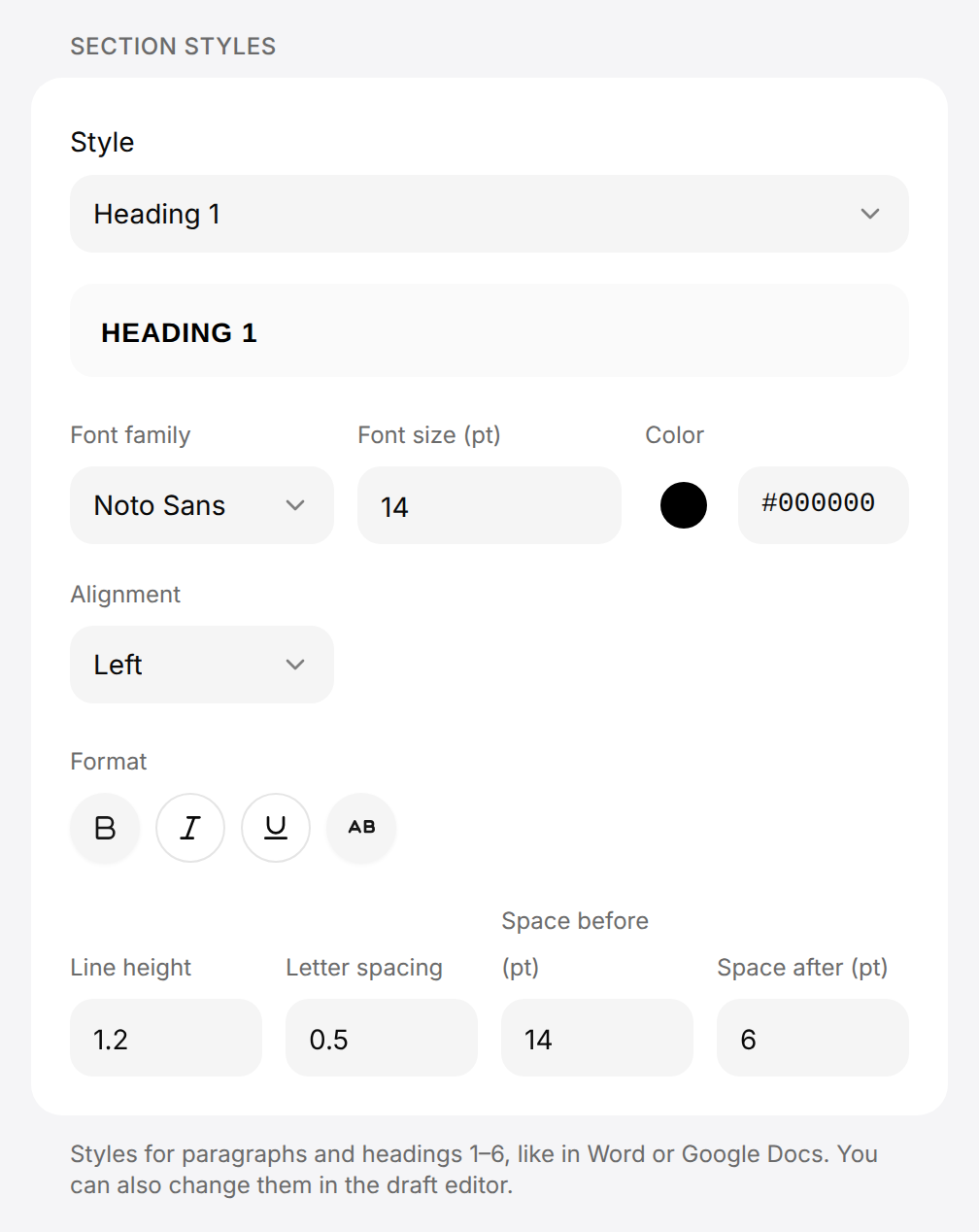
Change a heading or paragraph style
Set the font, size, color and spacing of paragraphs and of each heading level.
- Open the document template and select the Section styles tab.
- In Style, select Paragraph or a heading level.
- Set Font family, Font size (pt), Color and Alignment.
- Under Format, select Bold, Italic, Underline or Uppercase to turn it on; select it again to turn it off.
- Set Line height, Letter spacing, Space before (pt) and Space after (pt).
- Select Save in the Unsaved changes bar.
The message "Template saved" appears. The sample line under the Style list and the Preview show the style as you set it.
Line height is a multiple of the font size; Letter spacing is in points. A style you changed reads, for example, Heading 1 · changed in the Style list, and a Reset button appears beside the list. Reset puts that style back to its default, which follows the Typography and Colors tabs.
The same styles can be changed from the draft editor, with Edit section styles. A change made there is saved in the document template the draft is laid out with, the one of the Export template list on the Preview tab, so it applies to every document laid out with that template. See Drafts.
Create a procedure template
Create a procedure template
Procedure exports use one template at a time, the default. Create a template to change how they are laid out, in PDF and in Word.
- In the sidebar, select Organization.
- Under Procedure templates, select New procedure template.
- Select the title of the page, where "New template" is shown in grey, and enter a name.
- Go through the tabs Page, Content, Images and Colors and logo; the table under "What a procedure template sets" lists them. The Preview on the right follows each change.
- Select Create in the Unsaved changes bar at the bottom of the window.
- To use the template for the exports of the organization, select Set as default beside the name.
The message "Template created" appears and Saved shows beside the name. After Set as default, the message "Default template set" appears and the Default badge takes the place of the button. Exports change only once the template is the default.
A procedure template that is not the default is used by no export: it is kept ready to become the default. When the organization has a Public brand, a new procedure template starts with the colors of that brand and with its logo, if it has one.
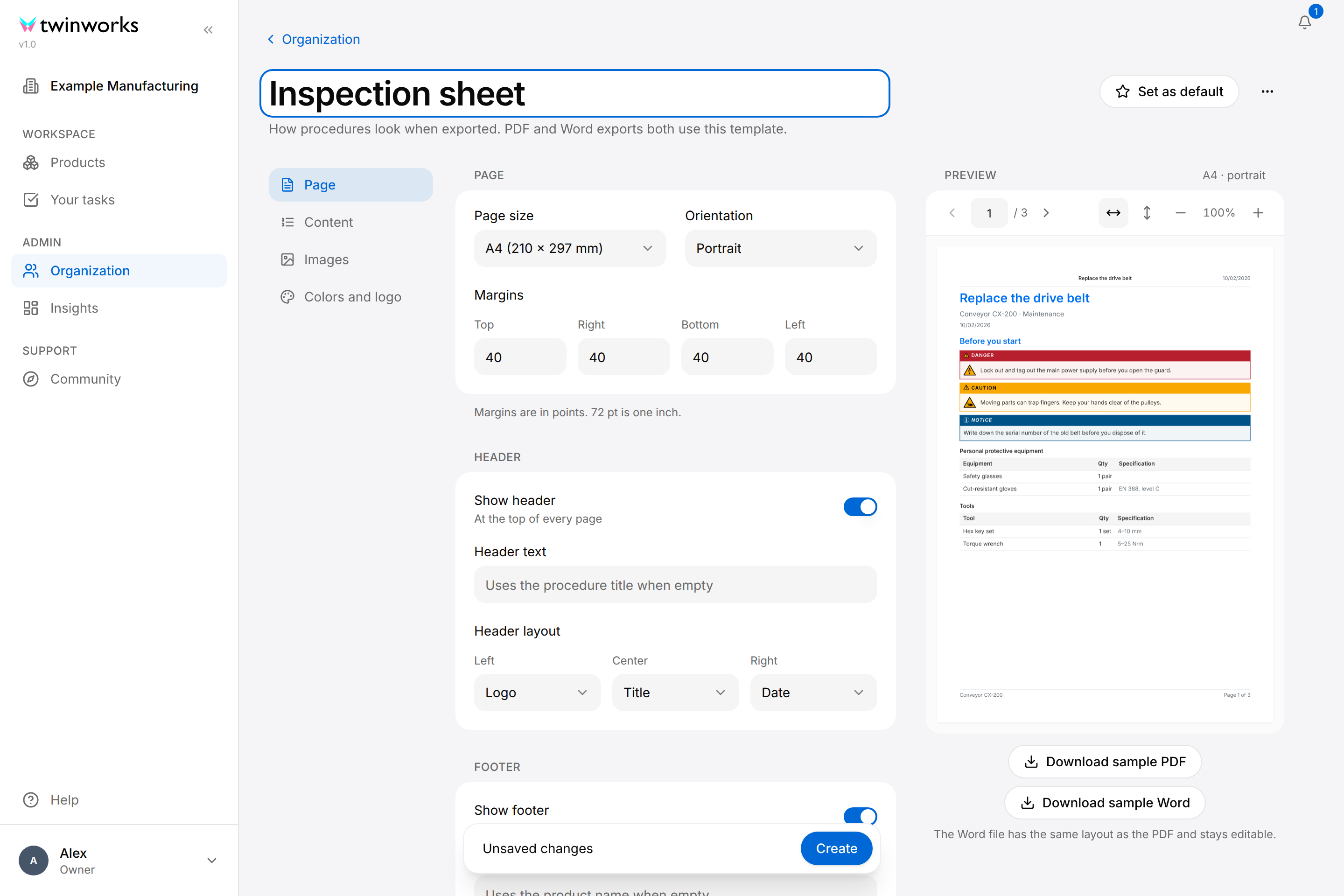
What a procedure template sets
| Tab | What you set there |
|---|---|
| Page | Page size (A4, Letter or Legal), Orientation and Margins, in points; the header (Show header, Header text, and under Header layout which of Logo, Title and Date is on the left, in the center and on the right); the footer (Show footer, Footer text, Show page numbers); the date (Show date, Date format). |
| Content | Include a table of contents, Start each step on a new page; what a step prints (Show step numbers, Show step titles, Show step descriptions) and how titles and descriptions are aligned; Show warnings, Show PPE, Show tools, Show a “Before you start” section and Show PPE and tools in each step. |
| Images | The 3D views: Style (Realistic, Outlined or Technical Drawing), Position (Auto, Beside the text or Below the text), Show view captions; the reference photos: Photos per row, Show photo numbers, Show the “Reference photos” heading; Show step videos; Image quality. |
| Colors and logo | Six colors, and under Branding the colors and logo of the organization. See below. |
- An empty Header text prints the title of the procedure, an empty Footer text the name of the product.
- PPE is personal protective equipment. The “Before you start” section lists all the warnings, PPE and tools of the procedure before its first step.
- The style Technical Drawing gives black line drawings without perspective, with the parts of the step in color, made from the CAD file of the product. The first export of a large model can take several minutes. A product without a CAD file gets Outlined views.
- A step video is printed as one frame with its length, a link and a QR code.
The six colors of the Colors and logo tab:
| Color | Where it is used |
|---|---|
| Primary | Step title bars, headings, links and the motion arrows in 3D views |
| Secondary | Subtitles, captions, dates and the footer |
| Accent | Behind table headings |
| Header text | The page header title and table headings |
| Body text | Instructions and table text |
| Border | Table lines and rules |
Check a template in the preview
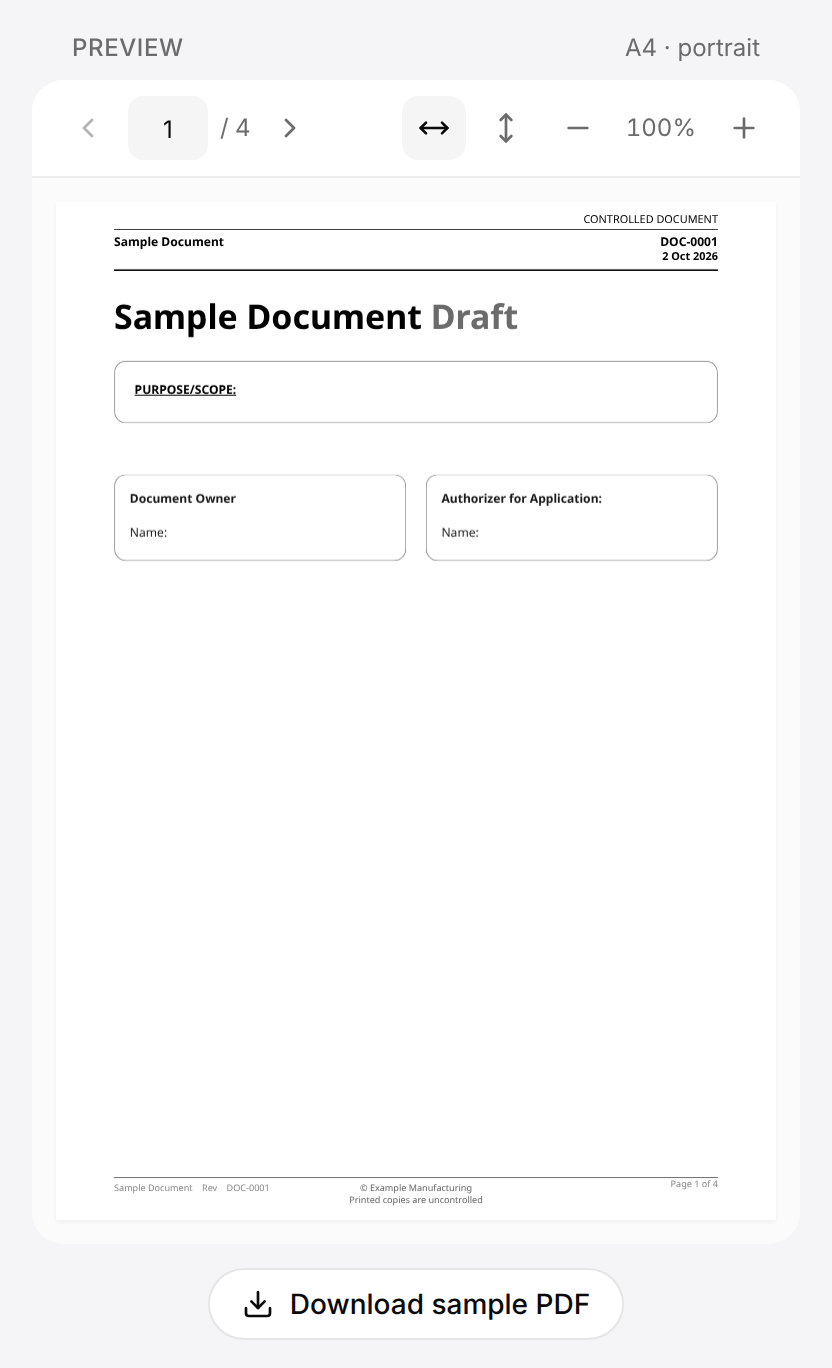
The Preview panel draws a sample with the settings as they are on screen, saved or not: a sample document for a document template, a sample procedure with warnings, tools and steps for a procedure template. In a narrow window the panel is below the settings.
- Previous and Next (the < and > beside the page number) turn the pages. To go to a page, enter its number in Page number and press Enter.
- Fit width (the horizontal double arrow) and Fit height (the vertical double arrow) fit the page to the panel. Zoom out (−) and Zoom in (+) change the size in steps of 10 %, between 50 % and 200 %. Select the percentage between them to go back to the full width.
- Download sample PDF saves the sample as a PDF file. A procedure template also has Download sample Word; the Word file has the same layout as the PDF and can be edited. The message "Sample PDF generated" or "Sample Word file generated" appears when the download starts.
Choose a color
In a procedure template the colors are on the Colors and logo tab, in a document template on the Colors tab. Each color is a row with its code and a round swatch.
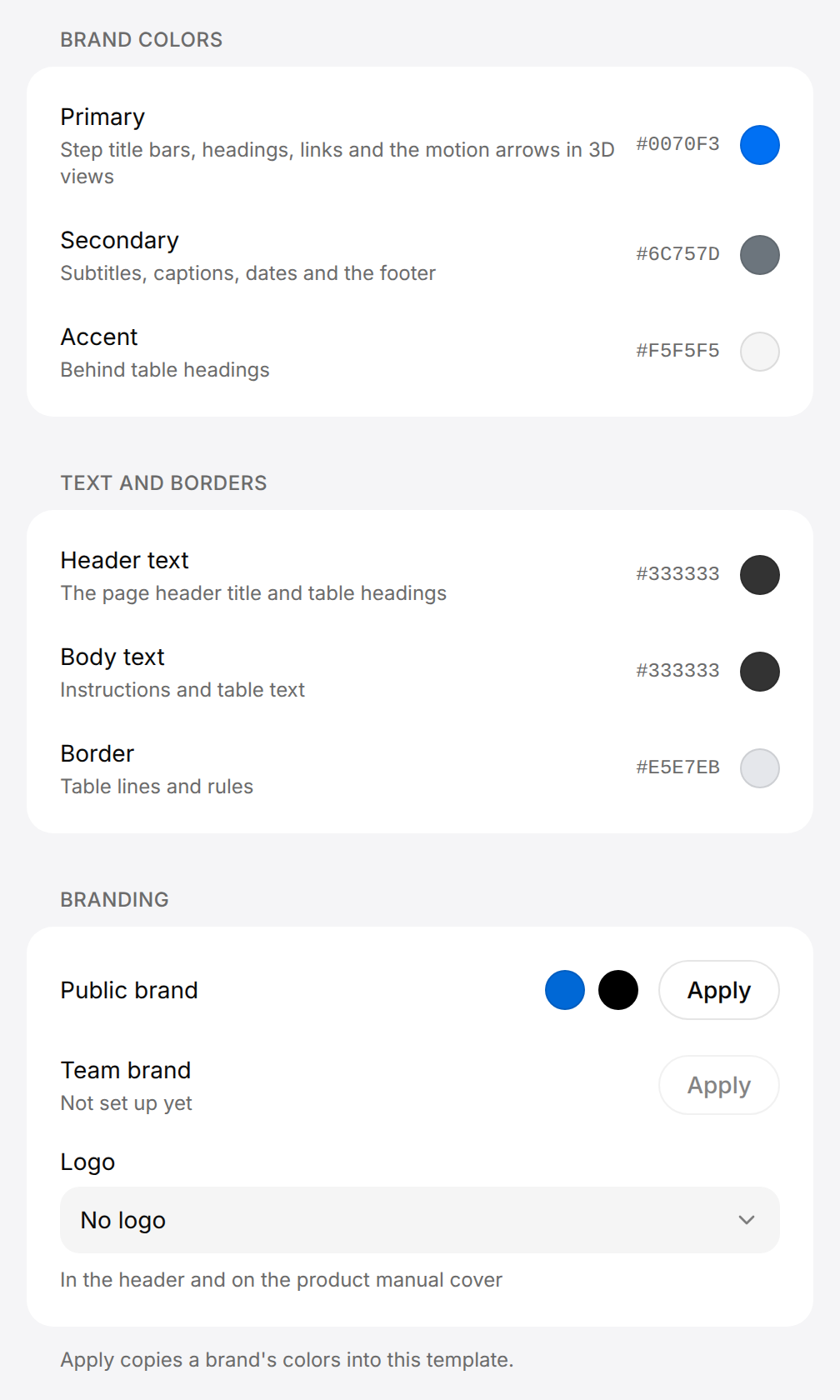
Change a color
Every color of a template is chosen in the same dialog.
- Open the template and select the Colors and logo tab (procedure template) or the Colors tab (document template).
- Select the row of the color, for example Primary.
- In Choose a color, drag in the color area and on the bar under it, select one of the twelve suggested colors, or enter a code such as
#0068D6in the Hex color field. - Select Apply in the dialog.
- Select Save in the Unsaved changes bar.
The row shows the new code, and the Preview is drawn again with the new color.
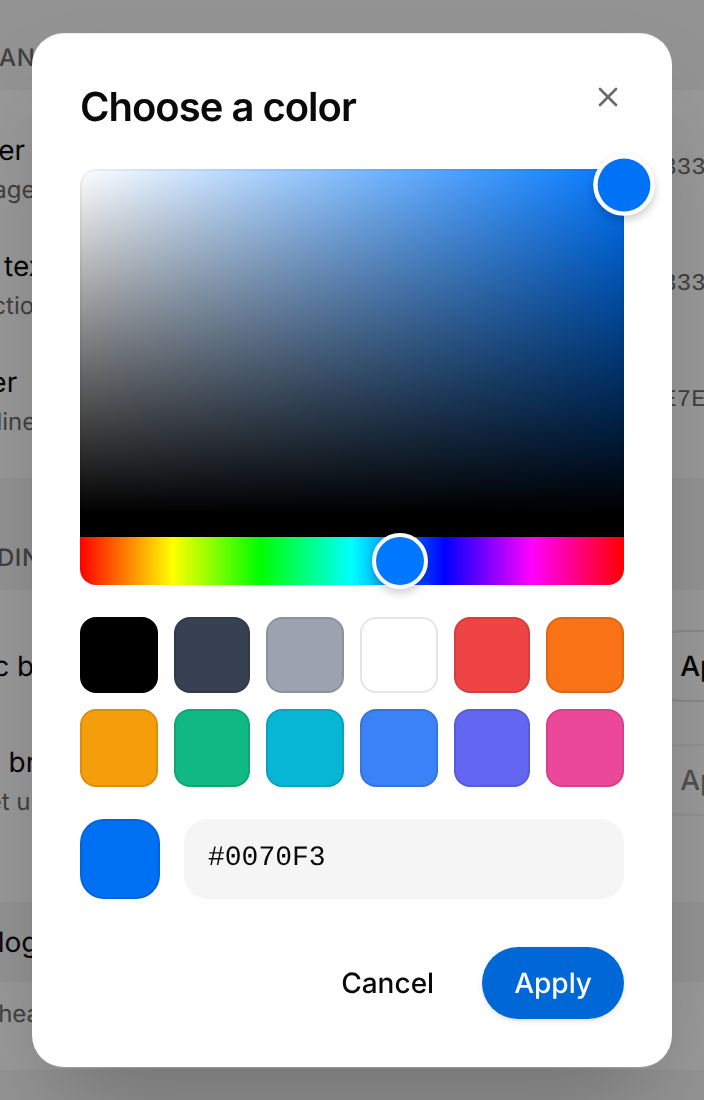
Apply stays greyed while the field does not hold a valid color code. On the Section styles, Cover and metadata and Structure tabs of a document template, a color is a round swatch that opens the color picker of your browser, with a field for the code beside it.
Apply the organization's brand to a procedure template
The Branding group of the Colors and logo tab lists the two brands of the organization, Public brand and Team brand. The brands themselves are set on the Organization page; see Organization.
Use the brand colors and logo in a procedure template
Copy the colors of a brand into the template and print the brand logo.
- Open the procedure template and select the Colors and logo tab.
- Under Branding, select Apply beside Public brand or Team brand.
- In Logo, select Public brand logo or Team brand logo.
- Check the result in the Preview.
- Select Save in the Unsaved changes bar.
The color rows take the colors of the brand, and the Preview is drawn with them and with the logo.
Apply copies three of the four colors of the brand:
| Color of the brand | Becomes in the template |
|---|---|
| Accent | Primary |
| Text | Secondary, Header text and Body text |
| Cards | Accent |
Border is not changed, and the Background color of the brand is not used. The logo is printed in the page header and on the cover of the printed manual.
A brand that does not exist reads "Not set up yet" and its Apply button is greyed. A brand without a logo is listed as Public brand logo (not uploaded) or Team brand logo (not uploaded) and cannot be selected. Apply copies the colors once: a later change of the brand does not change the template.
Apply the organization's brand to a document template
The Colors tab of a document template ends with a Branding group: Public brand and Team brand, each with its accent and text colors and an Apply button.
Use the brand colors in a document template
Copy the colors of a brand into the template.
- Open the document template and select the Colors tab.
- Under Branding, select Apply beside Public brand or Team brand.
- Check the result in the Preview.
- Select Save in the Unsaved changes bar.
Accent takes the accent color of the brand, Headings and Body text take its text color, and the Preview is drawn with them.
The Background and Cards colors of the brand are not used. As in a procedure template, a brand that does not exist reads "Not set up yet", and Apply copies the colors once. The logo is not copied: the page header prints the organization's logo while Show logo is on (Structure tab).
Save, reset and rename a template
A template is not saved by itself. As soon as you change something, the Unsaved changes bar appears at the bottom of the window, with Create for a new template and Save for an existing one. After saving, the message "Template saved" appears and Saved shows beside the name.
To go back to the lists, select Organization above the name. When you opened the template from the Preview tab of a draft, Back takes its place and returns to the draft.
While the Unsaved changes bar is showing, leaving asks first, in the dialog Save changes before leaving?: Save saves and then leaves, Discard changes leaves without saving, Cancel stays. The dialog opens for the link above the name, for the links of the sidebar and for the Back and Forward buttons of the browser; reloading or closing the tab brings up the browser's own question. When the save fails, the dialog reads "Couldn't save. Check your connection and try again." and you stay in the template. Discard changes is also the way to drop changes you do not want: the template opens again with its saved settings.
A template that no longer exists, for example one a colleague deleted, opens on "Template not found", with Organization (or Back) above it. When a template could not be loaded, "Couldn't load" and Try again take the place of the settings. In both cases nothing can be changed or saved.
The More actions button (three dots) beside the name holds:
- Export template: see Copy a template or move it to another organization, below.
- Reset to defaults: a procedure template goes back to the standard settings, whatever was saved. For a document template it depends on the Start from row. If you selected a layout there and have not saved since, the template goes back to the layout you selected last. Otherwise it goes back to its last saved state; a new template that was never saved goes back to the settings it started with. Nothing is saved until you select Save.
- Remove as default, only on the default template.
To rename a template of either kind, open it, change the name in the title and select Save. A procedure template can also be renamed in the list (the menu of a document template has no Rename):
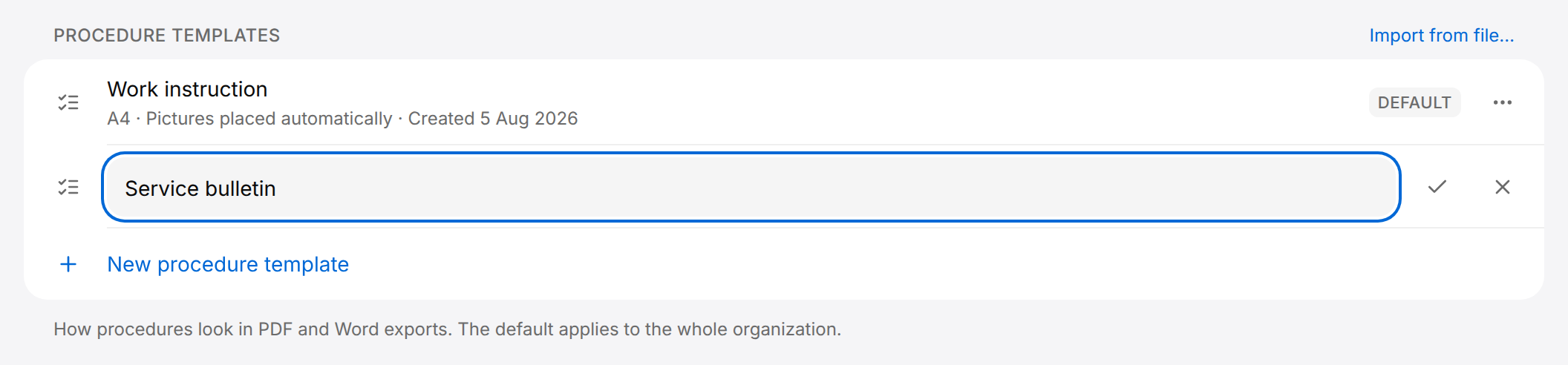
Rename a procedure template in the list
Change the name without opening the template.
- Under Procedure templates, select the three dots at the end of the template's row.
- Select Rename. The row becomes a text field.
- Enter the new name.
- Press Enter or select the Save template name button (check mark). Press Escape or select Cancel rename (cross) to keep the old name.
The message "Template renamed" appears. An empty name is refused with "Template name cannot be empty".
Set the default template
Each list has at most one default, marked with the Default badge. Both defaults are kept in the organization: they apply to everyone.
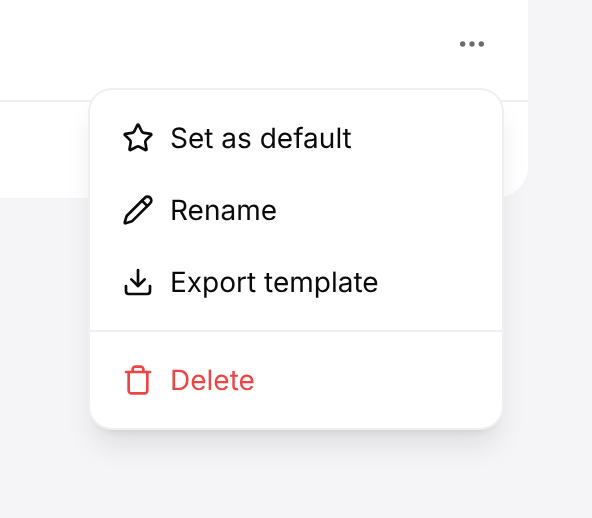
Make a template the default
The default is the template exports use when nothing else is selected.
- In the sidebar, select Organization.
- Under Document templates or Procedure templates, select the three dots at the end of the template's row.
- Select Set as default.
The Default badge moves to that row. The message reads "Default template set. Documents in this organization now use it." or, for a procedure template, "Default template set. Procedure exports in this organization now use it."
On the default template the first item of the menu reads Remove as default. In the template editor, Set as default is beside the name; it needs a saved template, otherwise the message "Template not saved yet" appears. In a document template with unsaved changes it asks you to save first: "Save the template before changing the default." Selected in the editor, Set as default shows a message titled "Default template set". When the change is refused, the message "Could not change the default template" gives the reason and the default stays where it was.
The default document template lays out every document of the organization, for everyone: the page preview of a draft, its PDF and the document viewer page. The caption under the Document templates list reads "How documentation looks when exported to PDF. The default applies to the whole organization." A person can still preview and export drafts with another template, from the Export template list on the Preview tab of a draft; that choice is theirs alone and does not change the default (see Use a template when you export).
Before the default document template was kept in the organization, each browser remembered its own. Such a browser shows its old default until someone sets a default in the organization.
Copy a template or move it to another organization
There is no duplicate command. A template is copied by exporting it to a file and importing that file.
Copy a template
Export a template to a file, then import the file as a new template.
- Under Document templates or Procedure templates, select the three dots at the end of the template's row, then Export template. Your browser downloads a file named after the template, for example
datasheet.document.template.json. - At the top right of the same list, select Import from file….
- Choose the file.
- Rename one of the two templates. For a procedure template, select the three dots, then Rename; for a document template, open it, change the name in the title and select Save.
The message "Template imported." appears. The list now holds two templates with the same name and the same settings, so it does not matter which one you rename. An imported template is never the default.
- To take a template to another organization, switch to that organization (see Organization) and import the file there.
- A file exported from the other list is refused, for example with "This file is a procedure template. Import it under Procedure templates." The file name says which list it belongs to: it ends in
.document.template.jsonor.procedure.template.json. - Export template in More actions of the template editor writes the template as it is on screen, with changes you have not saved yet.
- A file that is not JSON is refused with "The selected file is not valid JSON.", and a JSON file that holds no settings with "The file does not contain a template." Apart from the kind, nothing else is checked: import only files you exported from TwinWorks.
Delete a template
Delete a template
A deleted template cannot be brought back, except from a file you exported before.
- Under Document templates or Procedure templates, select the three dots at the end of the template's row.
- Select Delete.
- In the Delete template? dialog, select Delete.
The message "Template deleted" appears and the row is gone. A template of either kind is deleted for everyone in the organization.
What exports use after the default is deleted:
- Procedure templates: the dialog warns "This is the default template. Once it is deleted, procedure exports use the standard layout.", and the message after the deletion reads "Template deleted. Procedure exports use the standard layout." No other template becomes the default by itself.
- Document templates: the message reads "Template deleted. Documents use the built-in default." No other template becomes the default by itself. Someone who had selected the deleted template in the Export template list of a draft gets the default of the organization again.
Use a template when you export
A document
Open a draft and select the Preview tab. The Export template list holds Built-in default and every document template of the organization, and starts on the default of the organization, marked "· Organization default" (Built-in default when there is none). The pages are drawn again with the template you select, and the PDF of the draft uses the same one. To download the PDF, see Drafts.
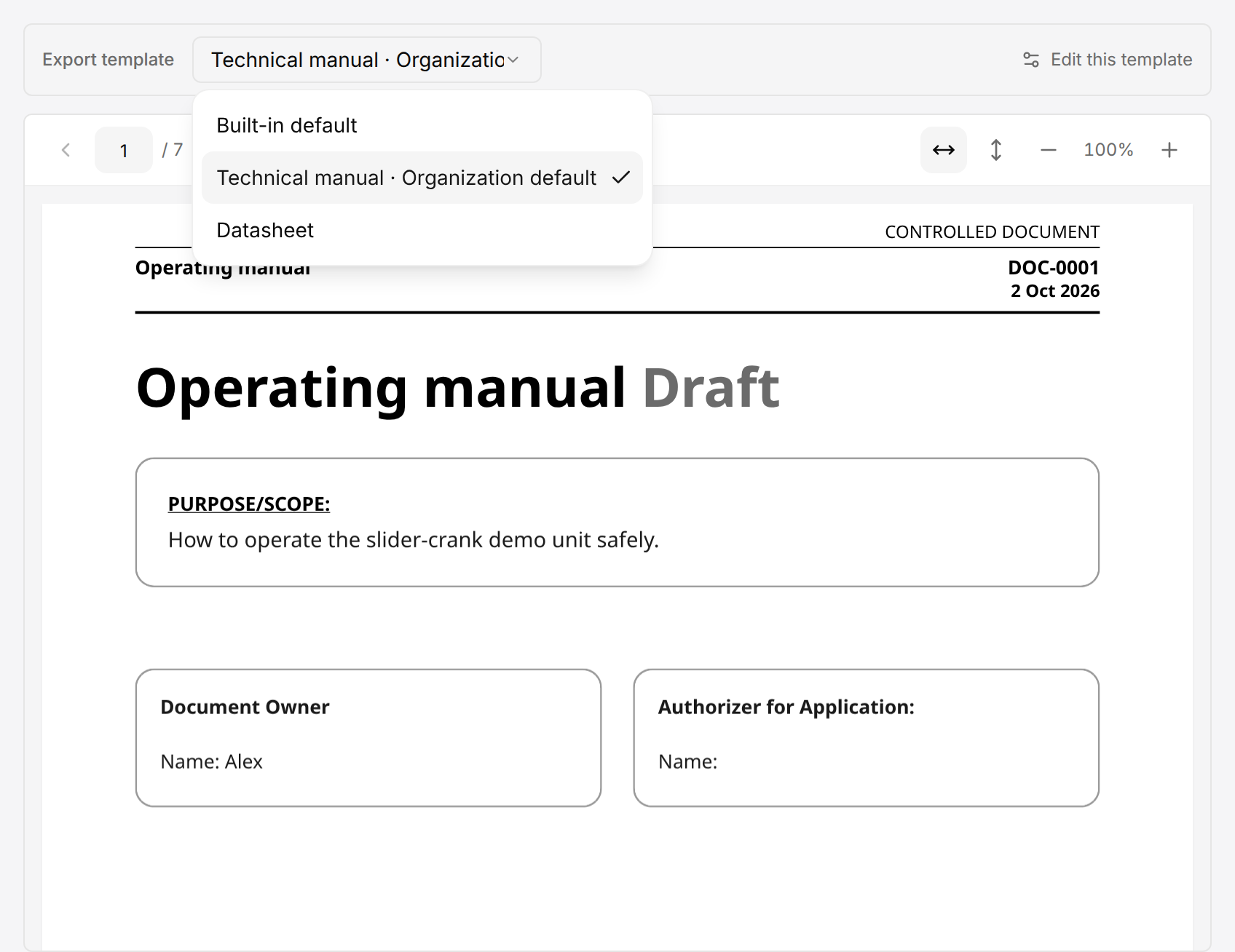
Another template selected here is your own choice: it is kept in the browser you use, and changes neither the default of the organization nor what your colleagues see. Select the default of the organization again to follow it from then on, also when it changes. The section styles of the draft editor follow the same template. The Page tab of the document viewer page has no list and is always laid out with the default of the organization (see Read a document).
Edit this template opens the selected template in the editor, where Back above the name returns to the draft. With Built-in default selected, the link reads Create a template and opens a new document template in the editor.
A procedure placed in the document is printed in the style of the default procedure template of the organization, whatever document template is selected.
A procedure
A procedure has no template list. Every procedure export, and the printed manual of a product, uses the default procedure template of the organization, or the standard layout when there is none. The standard layout has the settings Reset to defaults gives a procedure template, and prints the logo of the organization's Public brand, if it has one. The template is read again at each export, so a change saved by a colleague applies to your next export.
In the Export procedure dialog one setting can be changed: 3D view style. It starts on the style of the template, shown for example as Template default (Outlined). Select Realistic, Outlined or Technical Drawing to use another style: the template is not changed, and the choice lasts until you leave the procedure editor. See Procedures.