
Review and publish
A draft reaches its readers in four steps: the writer sends it for review; the reviewers comment on it, sign off their sections and endorse it; a reviewer or manager approves it; and the approved document is published. This page follows a draft from Submit for review to the reader link. Writing the draft itself is described on the Drafts page.
Where a draft is reviewed
A draft is reviewed on its own page, up to approval. Open a draft from the product's Documentation page, or from the Your tasks page, where a draft that waits for you is listed under Waiting for your review and your sections under Sections you review. Submit for review is also at the top of the document on the Documentation page.
In a window narrower than 1280 pixels the buttons of the next step are grouped under one button: Review opens Request changes and Endorse, or Reject and Approve, and Submit for review reads Submit. The Review button is not the Review panel, which holds the comments.
The states of a draft
The state is shown under the title of the draft, and beside the document on the Documentation page.
| State | What it means | Who moves the draft on | With |
|---|---|---|---|
| Draft | The draft is being written. It can be edited. | Author, Reviewer or Manager | Submit for review |
| In review | The draft is with the reviewers. Nobody can edit it. | Reviewer or Manager | Endorse or Request changes |
| Changes requested | A reviewer sent the draft back. It can be edited again. | Author, Reviewer or Manager | Submit for review |
| Endorsed · awaiting approval | A reviewer endorsed the draft. Nobody can edit it. | Reviewer or Manager | Approve or Reject |
| Approved | The content of the draft is now a revision of the approved document: a numbered version that is never changed. The draft itself stays as it is. | Reviewer or Manager | Publish |
| Rejected | The draft was refused at approval. It is closed: it cannot be edited or submitted again. |
A draft is never "published": publishing applies to the approved document, which then shows Published · Team or Published · Public.
When your organization has no member with the role Reviewer, a Manager also sees Approve beside Submit for review and can approve a draft without a review round. In a narrow window, Submit opens both.
Send a draft for review

Submit a draft for review
When the draft is written, hand it to the reviewers.
- Open the draft.
- Look at the notes in the Outline and clear what you can.
- Select Submit for review.
The message "Submitted for review" appears and the state becomes In review. The first tab changes from Edit to Read: the text cannot be changed until a reviewer requests changes.
The kinds of note and the way to clear each are described under Clear the issues of a draft, below. A note does not stop you from submitting.
Every Reviewer and Manager then finds the draft under Waiting for your review on the Your tasks page. Which sections each of them signs off is set on the Documentation page, where a Manager gives each section a reviewer.
Review the sections assigned to you
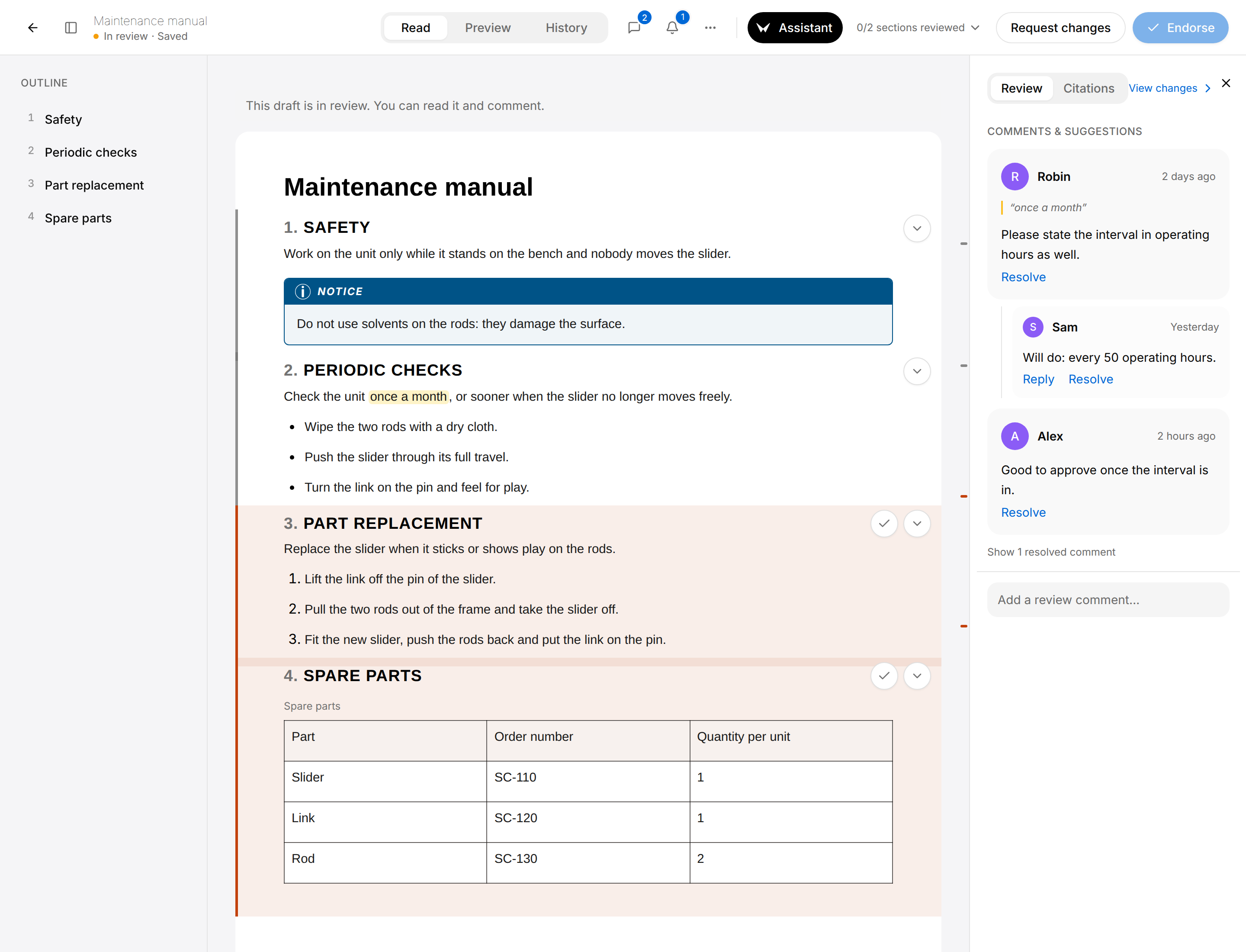
While a draft is in review, a Reviewer or Manager sees a bar down the left edge of the sections, on the Read tab:
- an orange bar and a light orange background: a section assigned to you that you have not reviewed yet;
- a grey bar: a section that is not assigned to you;
- no bar: a section you have reviewed.
Two kinds of round button sit at the right of the section titles. The arrow, Collapse section, folds a section to its title and Expand section opens it again; folding changes nothing in the draft, and nobody else sees it. The check mark, Mark as reviewed, is only on your own sections.
Sign off your sections
Endorse stays greyed until you have reviewed every section assigned to you.
- Open the draft, for example from Sections you review on the Your tasks page.
- Read a section that has an orange bar.
- Select the round Mark as reviewed button (check mark) at the right of its title.
- Do the same for your other sections.
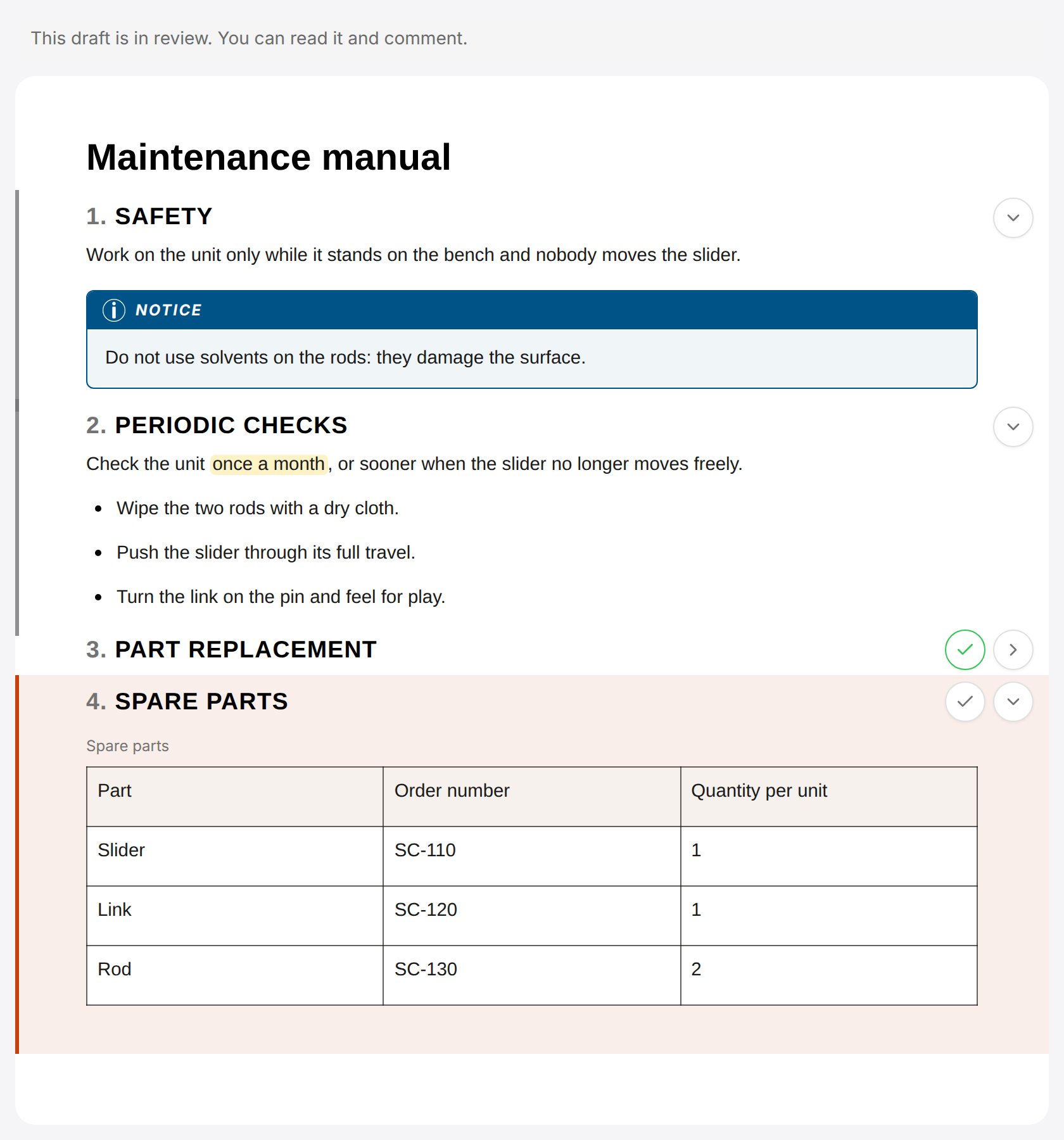
The section folds to its title and loses its bar, its check turns green, and the counter at the top right goes up, for example from 0/2 sections reviewed to 1/2 sections reviewed. To take a sign-off back, select the green check, now named Mark as not reviewed.
The counter at the top right opens the list of your sections. Select a title to jump to that section in the document, or choose your verdict on a section at the right of its title: Awaiting your review, Reviewed or Changes requested. Only Reviewed counts as a sign-off. Chosen there, Changes requested records your verdict on that one section, which you find again on the Your tasks page; it does not send the draft back. To send the draft back, use the Request changes button at the top right, described below.
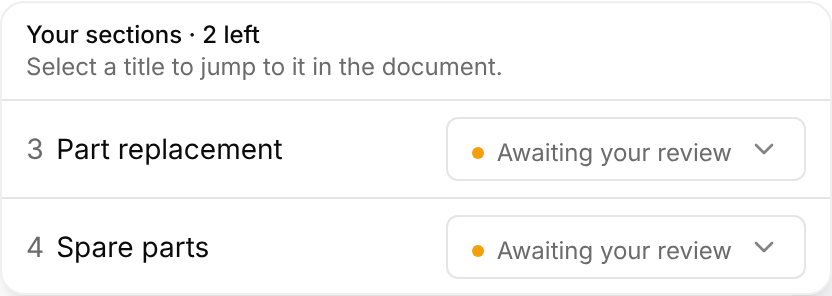
The orange bars and the counter concern your own sections only. The page does not show what other reviewers have signed off. A sign-off stays until you take it back: it is kept when the draft is sent back for changes and submitted again.
See what changed since your last review
As a Reviewer or Manager, when you come back to a draft that somebody else has changed in the meantime, a blue bar above the document counts the updates.

- See changes opens the dialog Changes since your last review: the lines that were added, in green with a plus sign, and the lines that were removed, in red with a minus sign.
- Mark as caught up, or the cross, hides the bar until somebody else changes the draft again.
The first time you open a draft there is nothing to compare with, and no bar. To compare any two versions of a draft, use its History tab, described on the Drafts page; View changes in the Review panel opens it.
Comment on a draft
You can comment on a draft in every state, also when it can no longer be edited. A comment belongs to a passage of the text, to a section, or to the whole document.
Comment on a passage
A comment on a passage keeps the words it is about, so the writer sees at once what you mean.
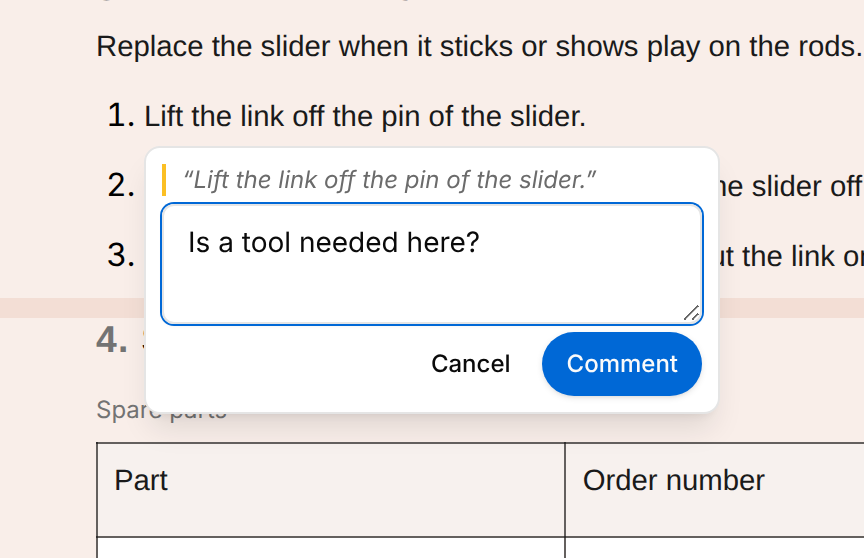
- On the Edit or Read tab, select the words you want to comment on.
- Select Comment, the button that appears under your selection.
- Enter your comment in the box that opens. It quotes the words you selected.
- Select Comment.
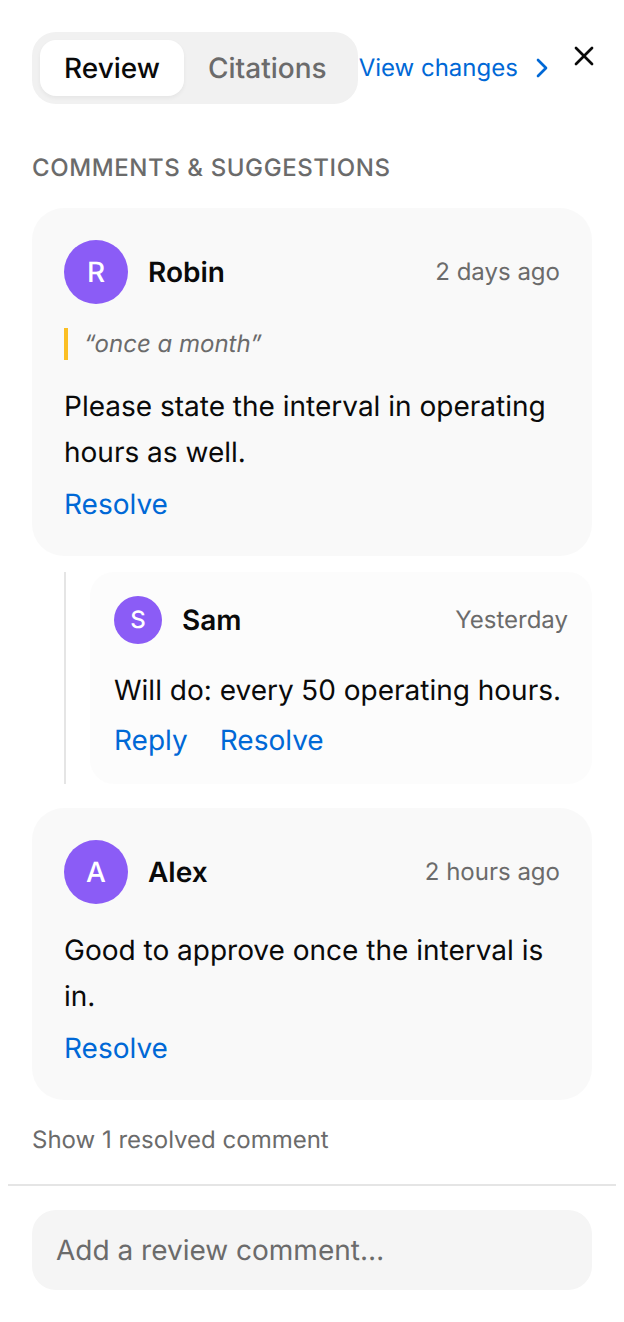
The words are highlighted in the document, and the comment appears with the quoted words under Comments & suggestions in the Review panel.
Mention a person
Enter @ in any comment or reply, then a few letters of a name or an e-mail address, and select the person in the list. The mention reads @Robin in the box, as in the posted comment, and Backspace or Delete removes it whole. In the list, ↑ and ↓ move through the entries, Enter picks one and Escape closes the list. The person receives a notification (see Your tasks).
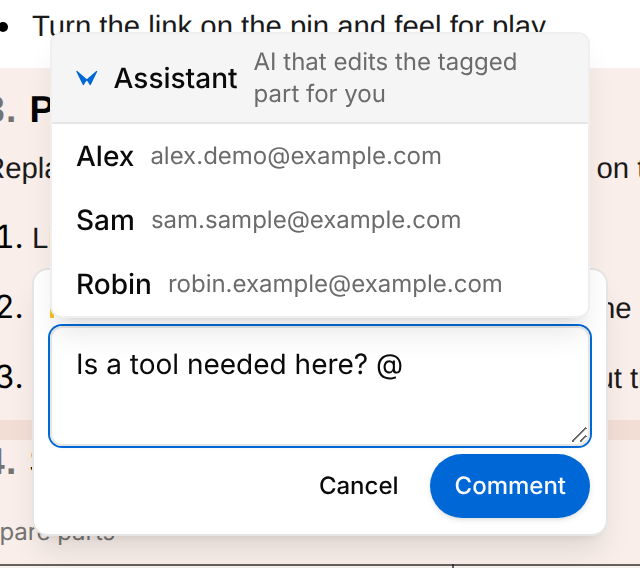
The first entry of the list, Assistant, asks the Assistant to change the passage you commented on: see Assistant.
Comment on the whole document or on a section
Add a review comment
Use the Review panel for a remark that is not about one passage.
- Open the Review panel with the Toggle review panel button (speech bubble) if it is closed.
- Select Add a review comment…. The box opens with a list above it, set to Whole document.
- Leave Whole document, or select a section in the list.
- Enter your comment and select Comment.
The comment appears in the panel. A comment on a section carries the title of the section after the sign §.
Reply, resolve and reopen
A comment on a passage starts a thread. You can answer it in two places:
- in the Review panel, select Reply under the last comment of the thread, enter your answer and select Send reply;
- in the document, select the highlighted words. The thread opens under them, with a box for your reply and the Reply button.
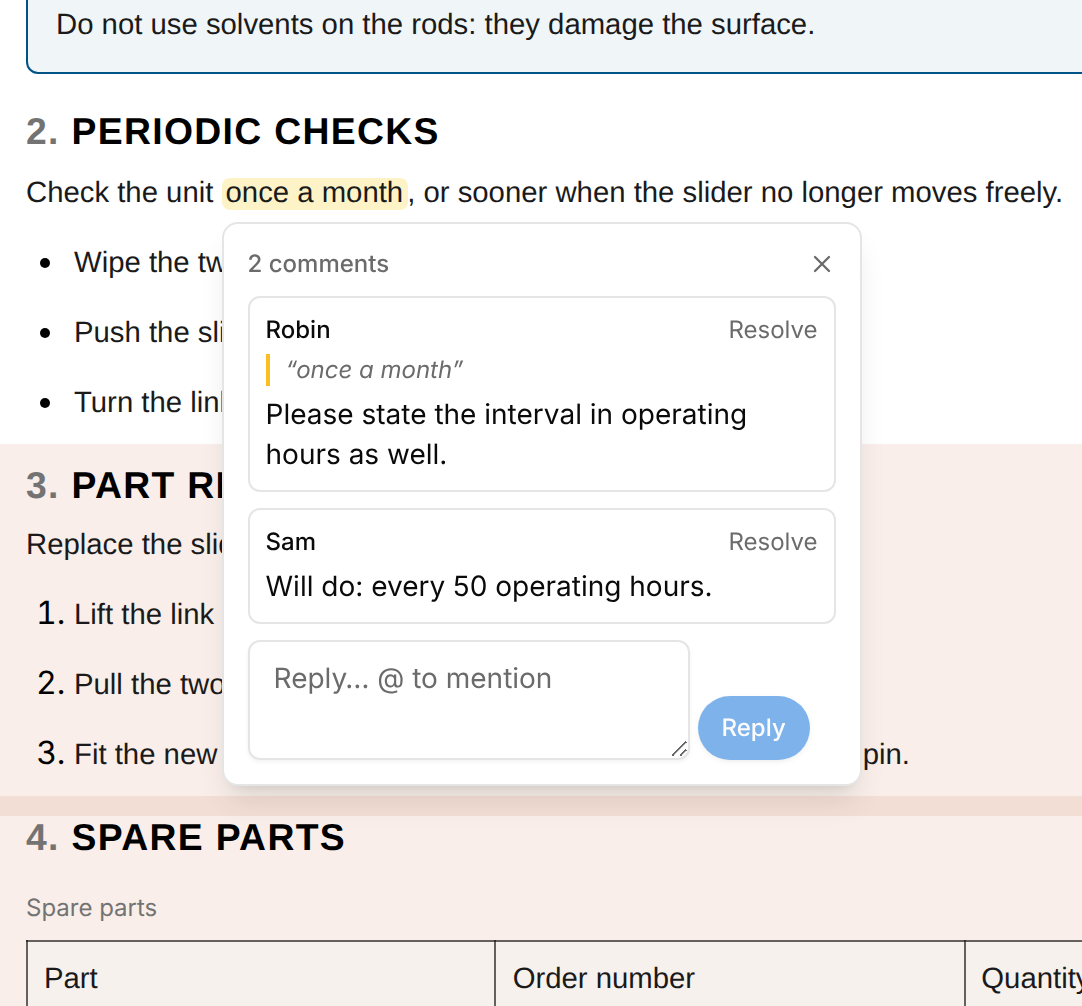
To resolve a comment, select Resolve on its card in the Review panel, or on the comment in the thread. Anyone who can open the draft can resolve a comment, whoever wrote it.
A thread leaves the list of the Review panel once all its comments are resolved. A link under the list, such as Show 1 resolved comment, brings the resolved comments back, marked Resolved, and Hide 1 resolved hides them again.
A resolved comment carries Reopen in place of Resolve, on its card in the Review panel, where Show 1 resolved comment lists it, and in the thread. When the first comment of a thread is reopened, its words are highlighted in the document again.
A comment on the whole document or on a section has no Reply, but it can be resolved and reopened in the Review panel. While it is open, it counts as an open comment for Request changes.
Clear the issues of a draft
What a draft still needs is written in the draft itself. The Review tab of the panel holds the comments only. The rest is in the Outline and on the citation markers.
Under an entry of the Outline, a note says what that section still needs. The notes show on the first tab, Edit or Read.
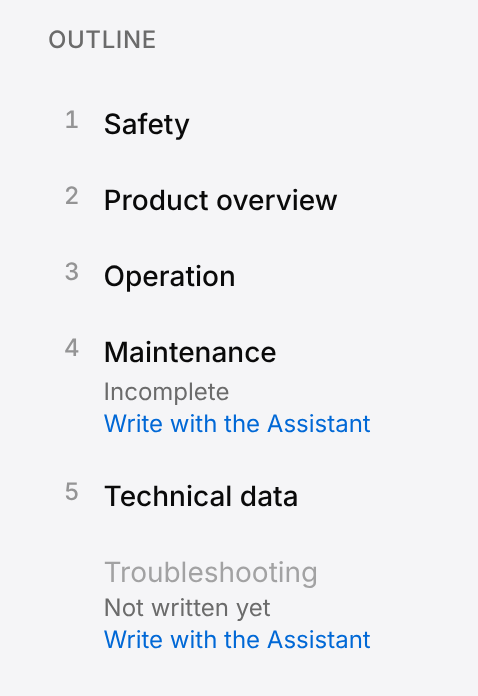
| Note | Where it is | What it means | How to clear it |
|---|---|---|---|
| Not written yet | A faded entry, without a number, at the place the section is planned | A section the document must have, with nothing written yet. | Write the section, or select Write with the Assistant. |
| Incomplete | Under the entry of the section | A section that is written but not complete. | Complete the section, or select Write with the Assistant. |
| Not in the plan | Under the entry of the section | A section of the draft that is not among the sections the document must have. Only Managers see this note. | A Manager selects Add to plan: the section joins the sections the document must have, which are set on the Documentation page. |
- The action of a note shows when you point at its entry. Select the note to show it without pointing.
- Write with the Assistant is there only while the draft can be edited. It is greyed while the Assistant starts another request on the draft. See Have a missing section written.
- Select an entry to go to its section.
A note does not stop you: Submit for review, Endorse and Approve work while notes are shown. The notes tell the writers and the reviewers what is missing.
A citation whose source no longer holds is marked in the text. Its marker has a dotted amber underline. Point at the marker to read why: "The source is gone", "The quoted text is no longer there" or "The source still agrees, but this text was edited". Select the marker to open its card. Correct the passage if needed, or select Keep as is on the card. A message tells you the result: "The source still matches" when the citation agrees with the source again, "Kept as it is" when the source still disagrees and the difference is only recorded. Keep as is is there only while the draft can be edited. A source that only moved, or that could not be checked, shows no mark.
The Citations tab of the same panel shows what the text cites: the sources, the passages cited from each, and the paragraphs without a citation. Select a cited passage to read its page. See The Citations tab.
The notes Not written yet and Incomplete belong to this one draft: the Assistant leaves them when it works on the draft. The list of sections of the document has a state that is also named Missing, beside Ready and Partial; it is not the same thing. Those states, like the hints on the Your tasks page, are worked out from the content of the document, as Documentation describes. In the picture, Maintenance reads Incomplete because the Assistant found a fact missing in it; in the list of sections of the document the same section is Ready, because it has content.
Request changes or endorse
As a Reviewer or Manager, you have two ways to move a draft in review on: send it back for changes, or endorse it.

Request changes
Send the draft back to its writers with at least one comment that says what to change.
- Open the draft in review, for example from Waiting for your review on the Your tasks page.
- Write a comment on each thing that has to change.
- Select Request changes.
The message "Changes requested" appears, the state becomes Changes requested and the draft can be edited again. The writers answer your comments, change the text and select Submit for review once more.
Request changes needs at least one comment that is not resolved. Without one the button is greyed but still reacts: selecting it shows the message "Comment required".
Endorse a draft
Endorse the draft when it is fit for approval.
- Open the draft in review.
- Mark every section assigned to you as reviewed.
- Select Endorse.
The message "Draft endorsed" appears and the state becomes Endorsed · awaiting approval. The buttons Reject and Approve take the place of Request changes and Endorse.
Endorse is greyed while one of your sections is not reviewed, but it still reacts: selecting it then shows the message "Sign off your sections first". When no section is assigned to you, there is nothing to sign off: a Manager can endorse at once, and so can a Reviewer when none of the sections of the document has a reviewer. One endorsement moves the draft on, whether or not the other reviewers have signed off their sections.
A Reviewer can request changes, endorse and approve only when a section of the document is assigned to them as reviewer, or when none of its sections has a reviewer. A Manager always can. A Reviewer who cannot still finds the draft under Waiting for your review, and can read it and comment on it.
Approve or reject an endorsed draft
An endorsed draft waits for a Reviewer or Manager to approve it. The person who endorsed it can approve it too.
Approve or reject an endorsed draft
Approval turns the draft into a revision of the document that can never be changed again.
- On the Your tasks page, look under Waiting for your review for a draft marked Awaiting your approval.
- Select the draft to open it. Its state reads Endorsed · awaiting approval.
- Select Approve to accept it, or Reject to abandon it.
After Approve the message "Draft approved" appears, the state becomes Approved, the draft becomes the next revision of the approved document, and the buttons at the top right become New revision and Publish. When the document is already published, the message reads "Approved — not published yet" and the button reads Published: readers keep the revision they have until you publish the new one. After Reject the message "Draft rejected" appears and the state becomes Rejected.
Reject acts at once, without a confirmation, and the page offers no way back: a rejected draft can no longer be edited or submitted. An endorsed draft cannot be sent back for changes either, so use Request changes while the draft is still in review, and Reject only to abandon a draft. To carry on after a rejection, start a new draft as a copy of the rejected one: on the Documentation page, select New draft and choose the rejected draft under Copy a draft (see Documentation).
The approved document
After approval there are two pages. The approved draft has the buttons New revision and Publish at its top right. The approved document shows the revisions and what changed between them; it has no Publish button.
Every approved draft adds a revision to the approved document. To open its page, open the document on the Documentation page and select Document details, the link under the list of sections. In the dialog that opens, select the row Approved document under Outputs. The dialog is pictured on the Documentation page.
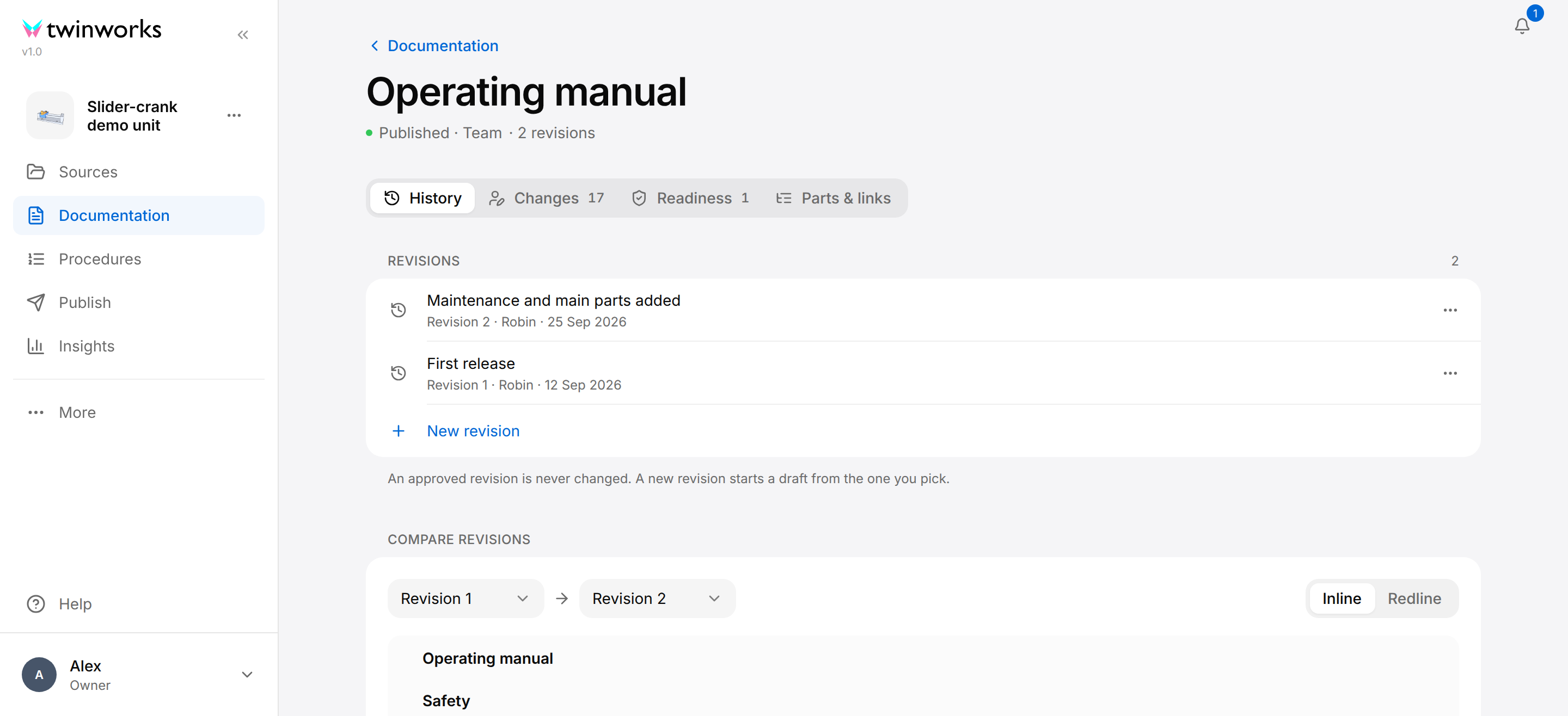
The line under the title reads Approved, Published · Team or Published · Public, followed by the number of revisions.
History: revisions and their differences
Revisions lists the revisions, the newest first, each with its number, its author and its date. An approved revision is never changed.
Under Compare revisions, choose the older revision in the first list (Compare from) and the newer one in the second (Compare to). They start on the last two revisions.
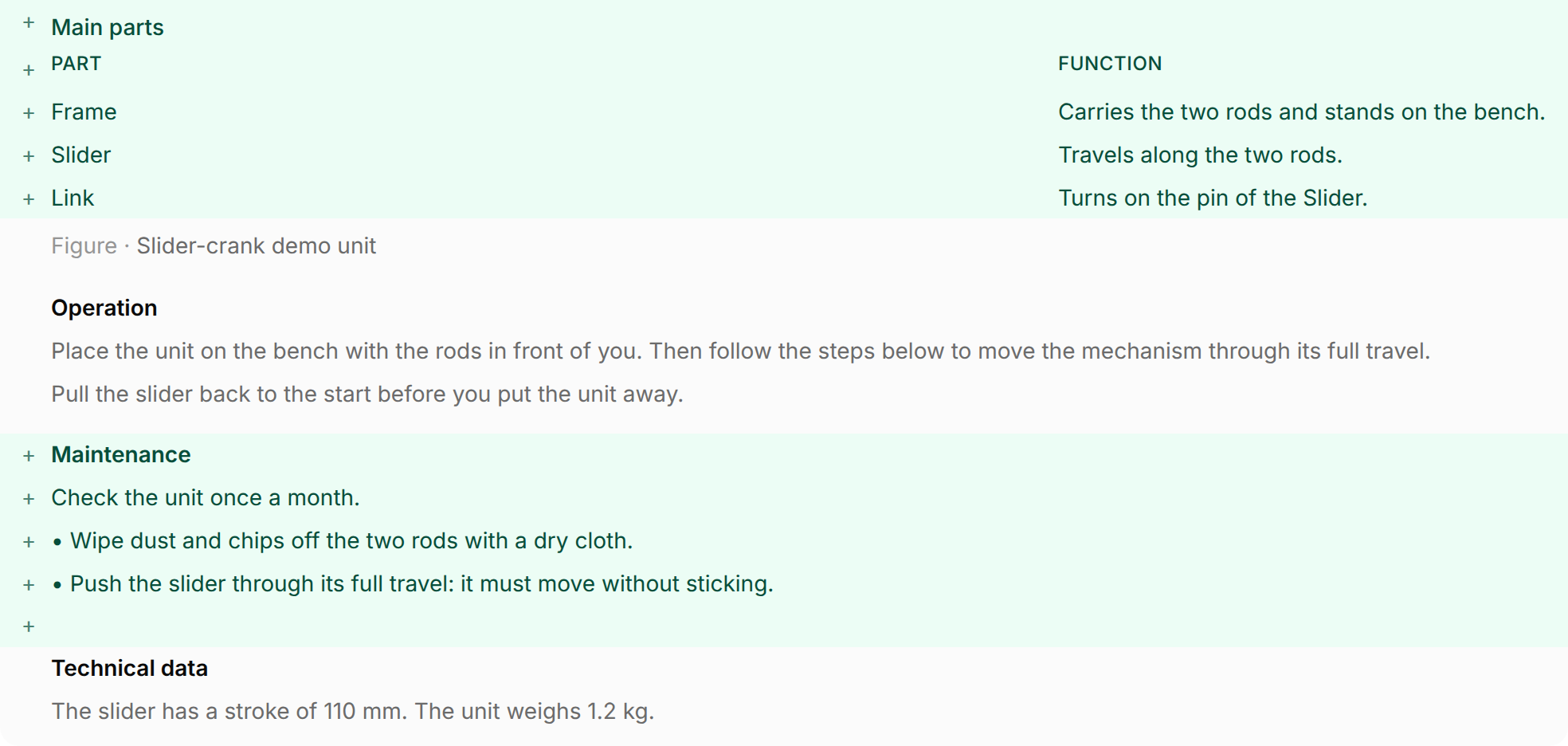
- Inline shows the document as lines: added lines in green with a plus sign, removed lines in red with a minus sign, unchanged text in grey. In a line that was reworded, the changed words are tinted darker.
- Redline shows the same comparison as the pages of a PDF: removed text is struck through and added text is highlighted.
In both, a safety notice starts with its signal word, such as WARNING, and its sign, which Redline names in brackets.
Changes: who changed what
The Changes tab lists every block of the latest revision (for example a section title, a paragraph or a table) with its kind, the revision that last changed it and the author of that revision. The number on the tab counts the blocks. Select a row to see the history of that block: one line for each revision it appeared in, marked Changed or Unchanged.
Readiness
The Readiness tab gives suggestions on the latest revision, for example "Say where this comes from" for a part of the document that names no source. A revision cannot be changed: to act on a suggestion, start a new revision. When there is nothing to suggest, the tab reads "This looks ready".
Parts & links
Reviewers and Managers have one more tab: Parts & links lists the blocks of a revision with the parts and the safety notices they refer to.
Start a new revision
An approved document changes through a new draft, which goes through review and approval like the first one. Authors, Reviewers and Managers can start it.
Start a new revision
Start from the latest revision, or from an earlier one to go back to it.
- On the Documentation page, open the document and select Document details.
- Under Outputs, select Approved document.
- Select New revision under the list of revisions. To start from an earlier revision instead, select the three dots at the end of its row (the button Actions for revision 1, for example), then New revision from this one.
The message "Proposed update started" appears and a new draft opens in the state Draft. Once it is approved, it becomes the next revision.
The approved draft has the same button: New revision, at its top right (in a window narrower than 1280 pixels, in the Document actions menu), starts a draft from the latest revision. There the message reads "New revision started".
Publish an approved document
Approval does not put a document in front of readers: a Reviewer or Manager publishes it, to the Team audience or to the Public audience. Publishing always releases the latest approved revision, never the text of a draft that is still being written.

Publish a document
Choose who can read the document, then publish it.
- Right after approving a draft, you are on the approved draft: go on with the third step. At any other time, open the document on the Documentation page.
- Select Open draft. When a newer draft exists, select the Choose a draft arrow beside it instead, then the draft marked Approved.
- Select Publish at the top right of the draft. The Publish document dialog opens.
- Leave Publish publicly off to publish to the Team audience, the signed-in members of your organization, or turn it on to publish to the Public audience, anyone who has the link.
- Select Publish.
The message "Published to your organization" or "Published — anyone with the link can view" appears. The button at the top right now reads Published, and the document shows Published · Team or Published · Public.
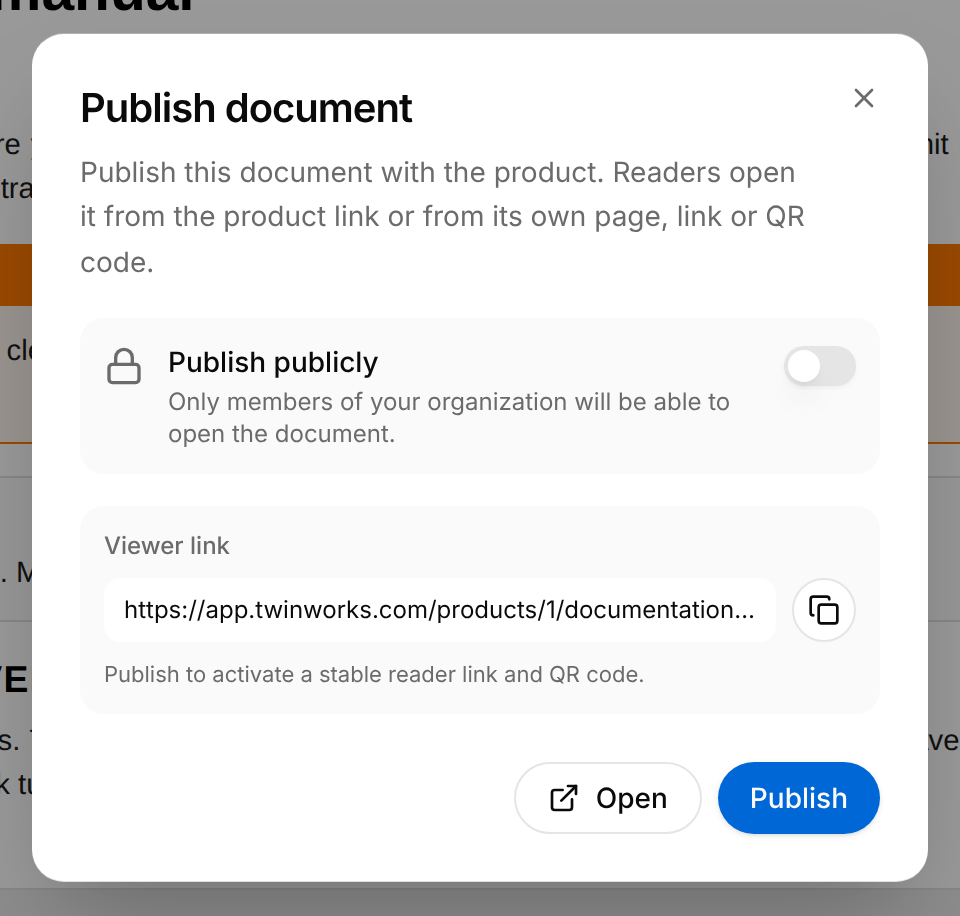
The page behind the Viewer link is described in Read a document.
Share the published document
Select Published at the top right of the approved draft to open the dialog again.
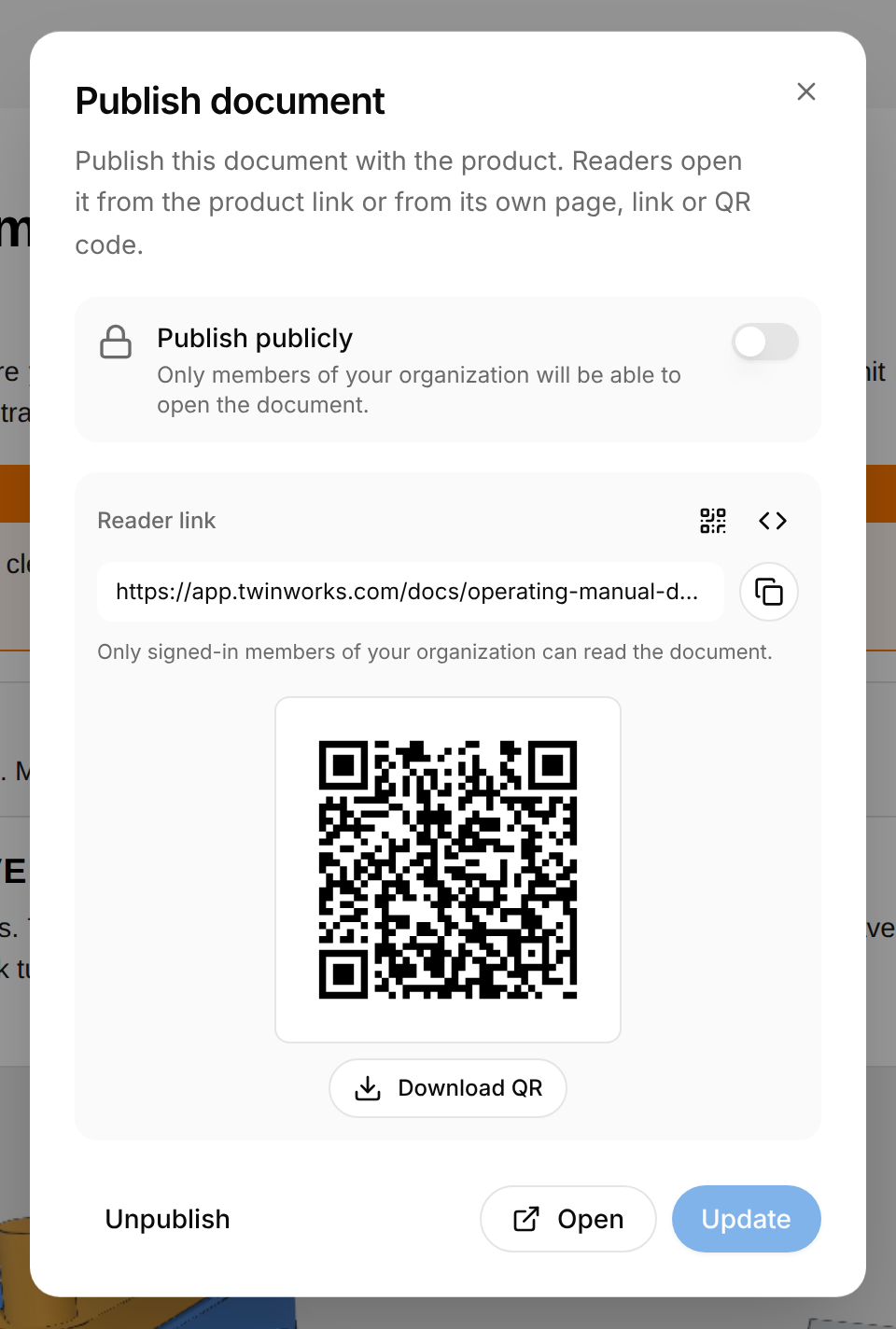
- Reader link is the address of the document for its readers. Copy link copies it and Open opens it in a new tab. What readers get is described in Read a document. The Reader link and its QR code stay the same when you publish an update or change the audience, and when you unpublish the document and publish it again.
- QR code shows a QR code of the link; Download QR saves it as a picture.
- Embed code opens a dialog with the code that shows the document, read-only, inside a page of your own website; the button beside the code copies it. This needs a plan that includes embedding: without it the message "Plan upgrade required" appears.
Change who can read the document
In the Publish document dialog, turn Publish publicly on or off and select Update. The button is greyed until you move the switch.
Unpublish a document
In the same dialog, select Unpublish. The message "Unpublished — the reader links no longer work" appears and the document goes back to Approved.
Release a newly approved revision
When a new revision is approved after the document was published, readers keep the revision they have. Open the newly approved draft (right after approving, you are on it) and select Published at its top right. The dialog says that a newer revision is approved, and its button reads Publish update.
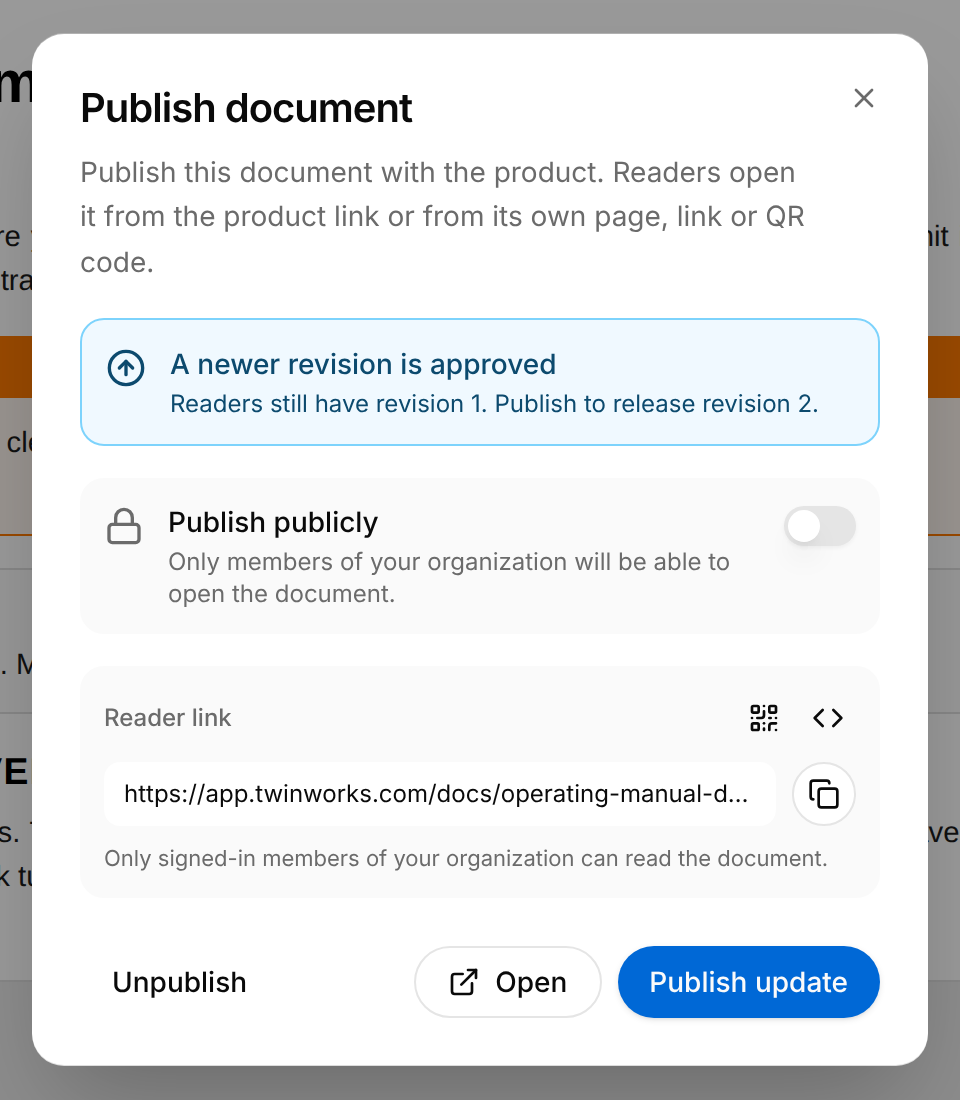
Select Publish update. A message such as "Published revision 2" names the revision readers have from now on.
When a draft holds newer work
An amber notice appears in the dialog when a draft of the document has changes that are newer than the last approved revision.
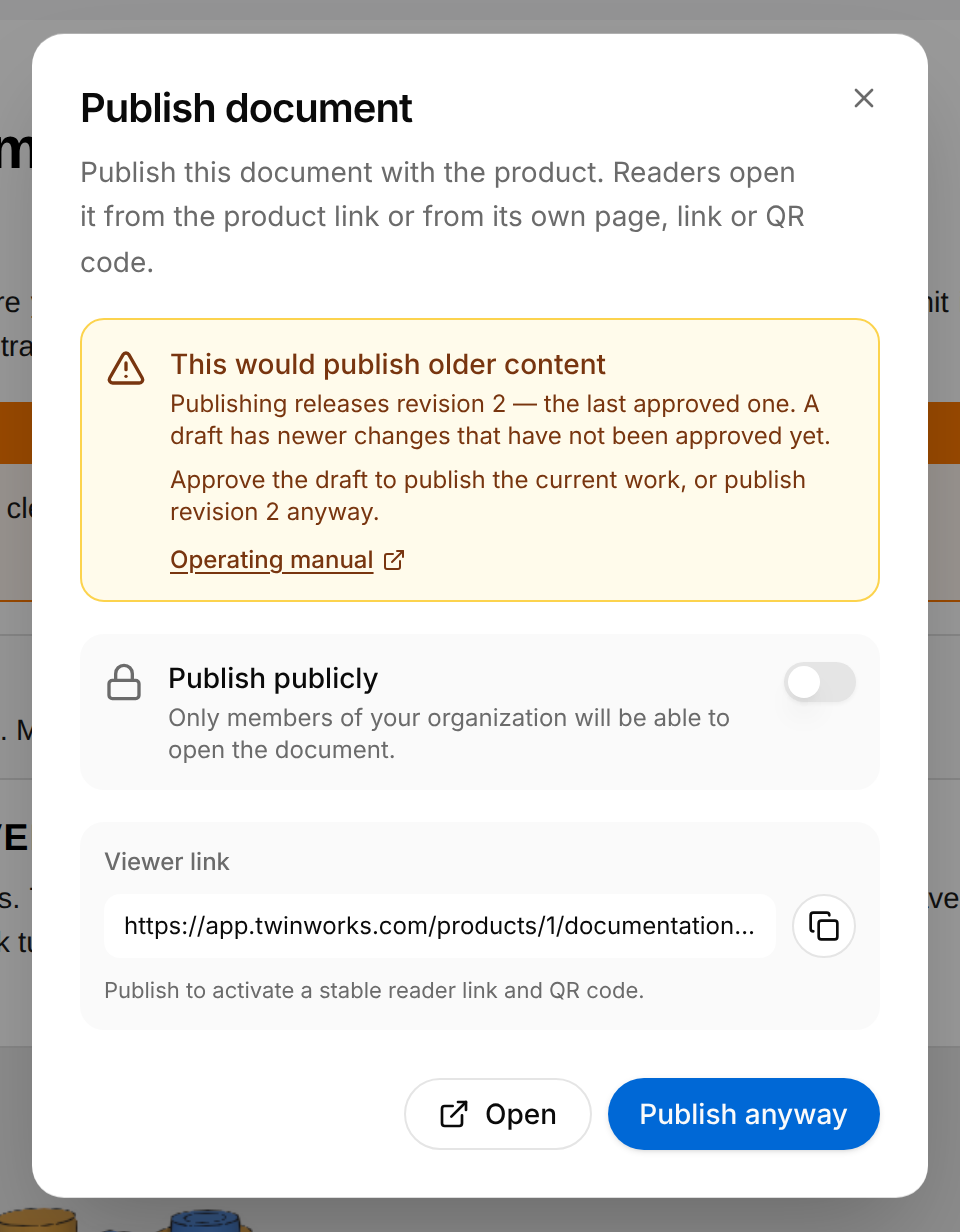
- Before the first publication the notice reads "This would publish older content". Select Publish anyway to publish the last approved revision, or open the draft named in the notice and have it approved first.
- On a published document the notice reads "Readers are getting older content". When readers already have the last approved revision, the button that otherwise reads Update reads Publish anyway. Like Update, it is greyed until you move the Publish publicly switch, because there is nothing newer to release; once the switch is moved, it changes the audience. To give readers the newer work, have the draft approved, then select Publish update. When an approved revision has not been released yet, Publish anyway takes the place of Publish update: it is active, and it releases that revision, not the newer work of the draft.
Publish from the Publish section of the product
In the Publish section of the product, the Content list has a row for every approved document. Select the Public or the Team card at the top of the section, turn on the switch of the document, then select Save. See Publishing.
Who can do what
What you can do depends on your role in the organization.
| Author | Reviewer | Manager | |
|---|---|---|---|
| Write and comment, submit for review, start a new revision | Yes | Yes | Yes |
| Sign off sections, request changes, endorse, approve, reject | No | Yes | Yes |
| Publish, update and unpublish a document | No | Yes | Yes |
| Add a section to the plan from a Not in the plan note | No | No | Yes |
| Approve without a review round | No | No | Only when the organization has no Reviewer |
- A Viewer takes no part in review: a Viewer reads published documents only.
- The person who first opens the Documentation section of a product manages its documentation, even when their role is Author or Reviewer. This is how the Owner of the organization gets their rights there.
- A draft can be edited only in the states Draft and Changes requested, whoever you are.