

Products
A product is one machine or device and everything TwinWorks holds about it: its 3D model, its manuals and schematics, its documentation and its procedures. Everyone except a Viewer can create a product and prepare it: the Owner of the organization, Managers, Authors and Reviewers. A Viewer can open a product but not change it. This page covers the Products page, creating a product, its Sources, and the Product twin editor, where you turn the 3D model into the product twin: the model with clear part names and the positions its parts can take.
If you came here from the Help button of the Product twin editor, go to Prepare the product twin.
The Products page
Products is the first entry of the sidebar. The page shows one card per product of your organization.
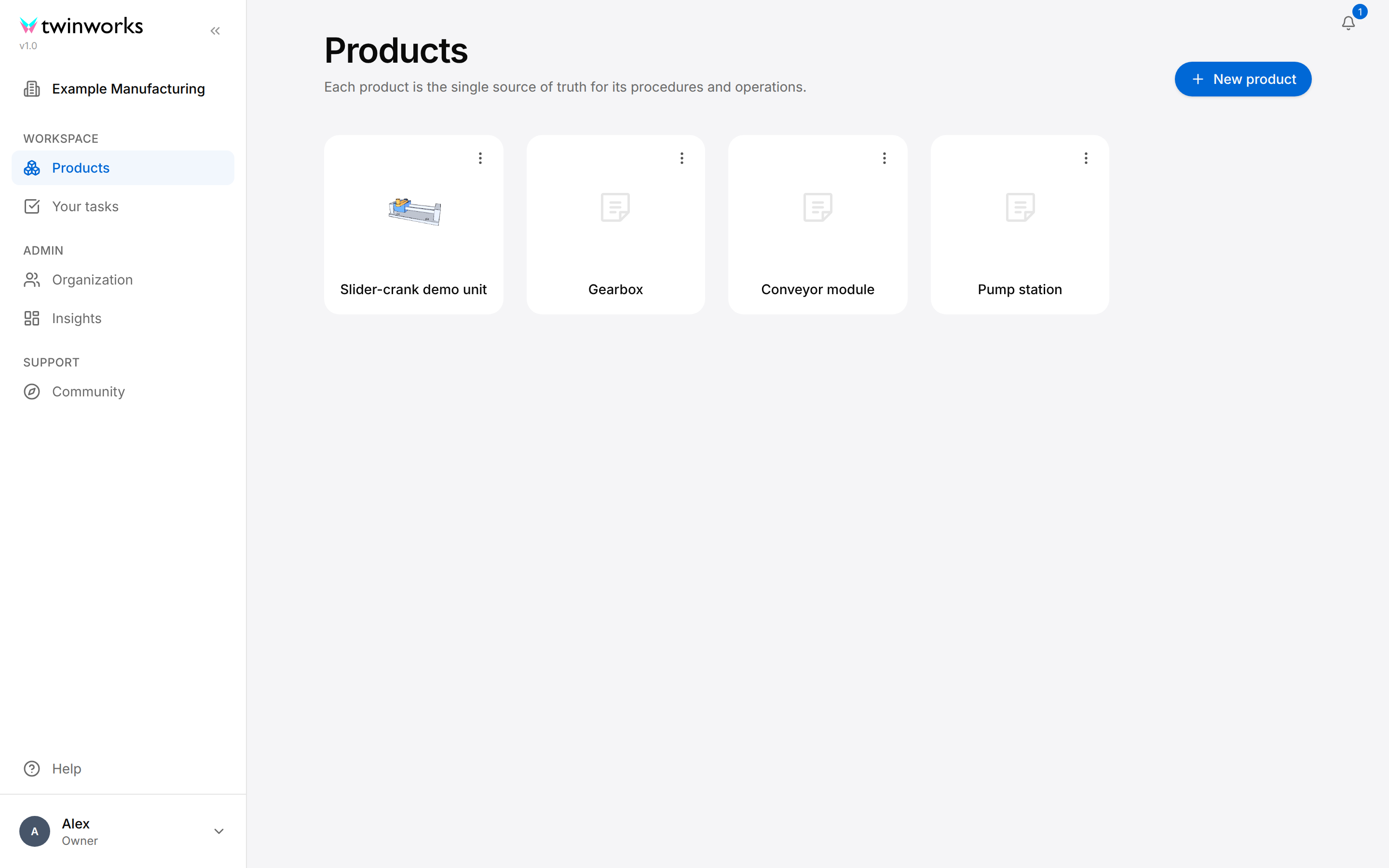
- A card shows the picture of the product and its name. The picture is drawn from the starting view of the 3D model, the view it opens with; a product without a picture shows a grey document icon.
- Select a card to open the product. It opens on Sources.
- A card that reads "Preparing…" is still being processed: it is greyed and cannot be opened yet.
- The Product actions button (three dots) of a card opens a menu with Add configuration, Rename product and Delete product. See Product actions.
- The page has no search field. When the products do not fit in the window, page numbers appear under the cards, with the Previous page and Next page arrows.
A Viewer sees the cards without New product and without the Product actions button. An organization without any product shows "No products yet" and the New product button.
Create a product
Everyone except a Viewer can create a product. You need its name; a 3D file and the manuals are optional.
Create a product
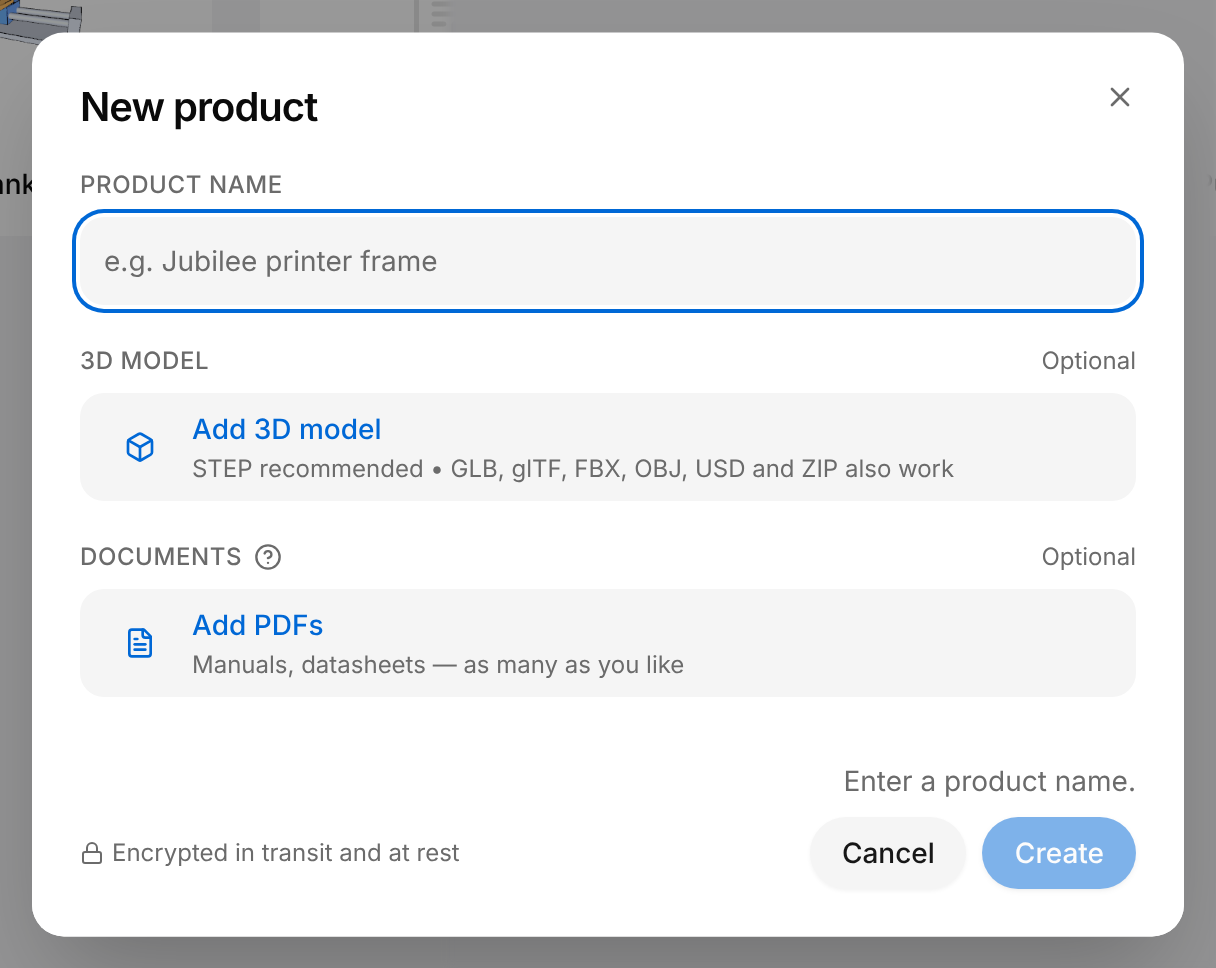
Give the product a name, its 3D file and its manuals in one dialog.
- Open Products and select New product.
- Enter the Product name.
- Under 3D model, select Add 3D model and choose the 3D file, or drop the file on that row.
- Wait until the file has been read, then check the size and the orientation of the product on the preview.
- Under Documents, select Add PDFs and choose the manuals, or drop them on that row.
- Select Create and keep the window open while Creating product is shown.
For a bench unit, enter Slider-crank demo unit, drop slider-crank.glb and add the operating manual as a PDF file.
The message "Product created" appears and the new card is added to Products. It reads "Preparing…" until the product can be opened.
What the dialog accepts
- For the 3D model, the row reads: "STEP recommended • GLB, glTF, FBX, OBJ, USD and ZIP also work".
- Under Documents, it takes PDF files, one or several. Each file is listed with its size; the cross at its end takes it off the list, and Clear all takes all of them off. Word files can be added later, on Sources.
- Both are optional: leave a section empty when you have no such file. The help icon beside Documents says why manuals matter: "Procedures can only be generated automatically from uploaded files, such as a manual."
Create stays greyed while something is missing, and the line above the buttons says what:
| Line above the buttons | What to do |
|---|---|
| "Enter a product name." | Enter the Product name. |
| "Wait for the 3D file to finish processing." | Wait: the file is still being read. |
| "Drawing the 3D preview…" | Wait: the preview of the product is being drawn. |
| "Choose another 3D file, or remove it." | No preview could be drawn from the file. A line under the 3D model says why, for example "Failed to load 3D preview." Choose another file, or remove it. |
Check the size and the orientation
A progress bar starts with "Reading your file…"; for a large file a notice says that this may take several minutes. Then the dialog shows a preview of the product on a grid, with what to check under it.
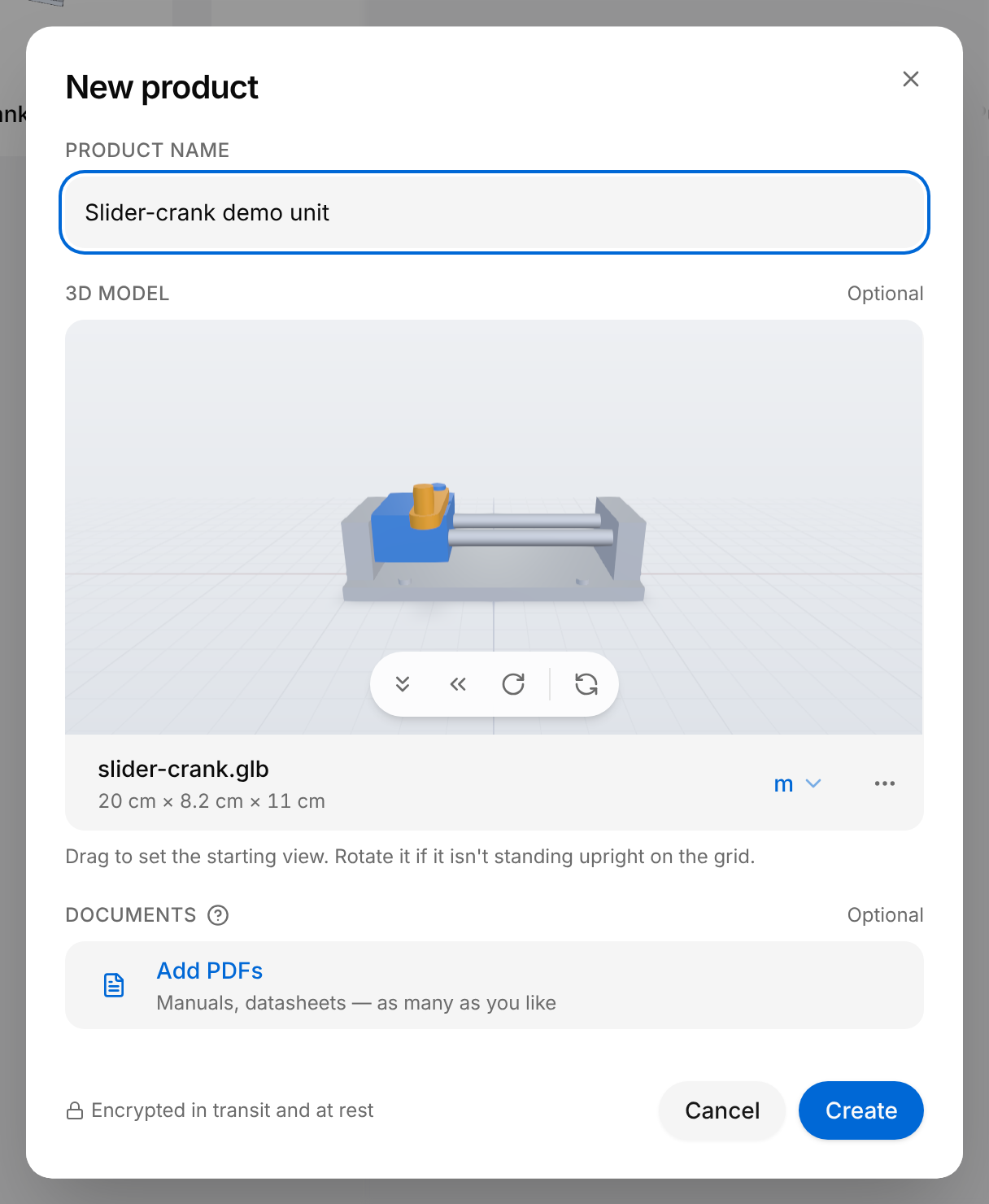
- In the preview, drag the model to choose the view the product starts with.
- The size (3) is the width, height and depth read from the file. If they are wrong, choose the unit the file is drawn in, in the units list (4): mm, cm, dm, m, ft or in. The warning "Check the units" appears when the product comes out longer than 30 m or shorter than 5 mm.
- The orientation buttons (2): the grid is the floor. Tip forward, Tip sideways and Turn around each turn the product by a quarter turn; Reset orientation, the last button, puts it back the way the file had it.
- The three dots (5) open Reset view, which puts the view back, Change file, to choose another file, and Remove.
If the file cannot be read, the dialog says "We couldn't read" followed by the file name, with the buttons Choose another file, Get help and Remove. If you close the dialog after adding a 3D file, Discard this 3D file? asks for confirmation: Keep returns to the dialog, Discard closes it without the file.
While the product is prepared
After Create, the Creating product dialog lists the steps ("Creating the product and uploading the 3D file", then "Saving the parts list") and asks you to keep the window open. If the upload fails, you are back in the New product dialog, which shows "Couldn't upload." above the buttons, with Try again when trying again can help. Everything you set up is kept.
The new card then reads "Preparing…", and the page updates it by itself. When the product is ready and the Products page is still open, a message with the product name and "is ready to use" appears, with an Open button. The card shows no remaining time and no other state. If "Product created" comes with the line "Automatic setup failed. Open the product twin to set it up by hand.", the parts of the product were not set up: do as the message says once the card can be opened.
The sections of a product
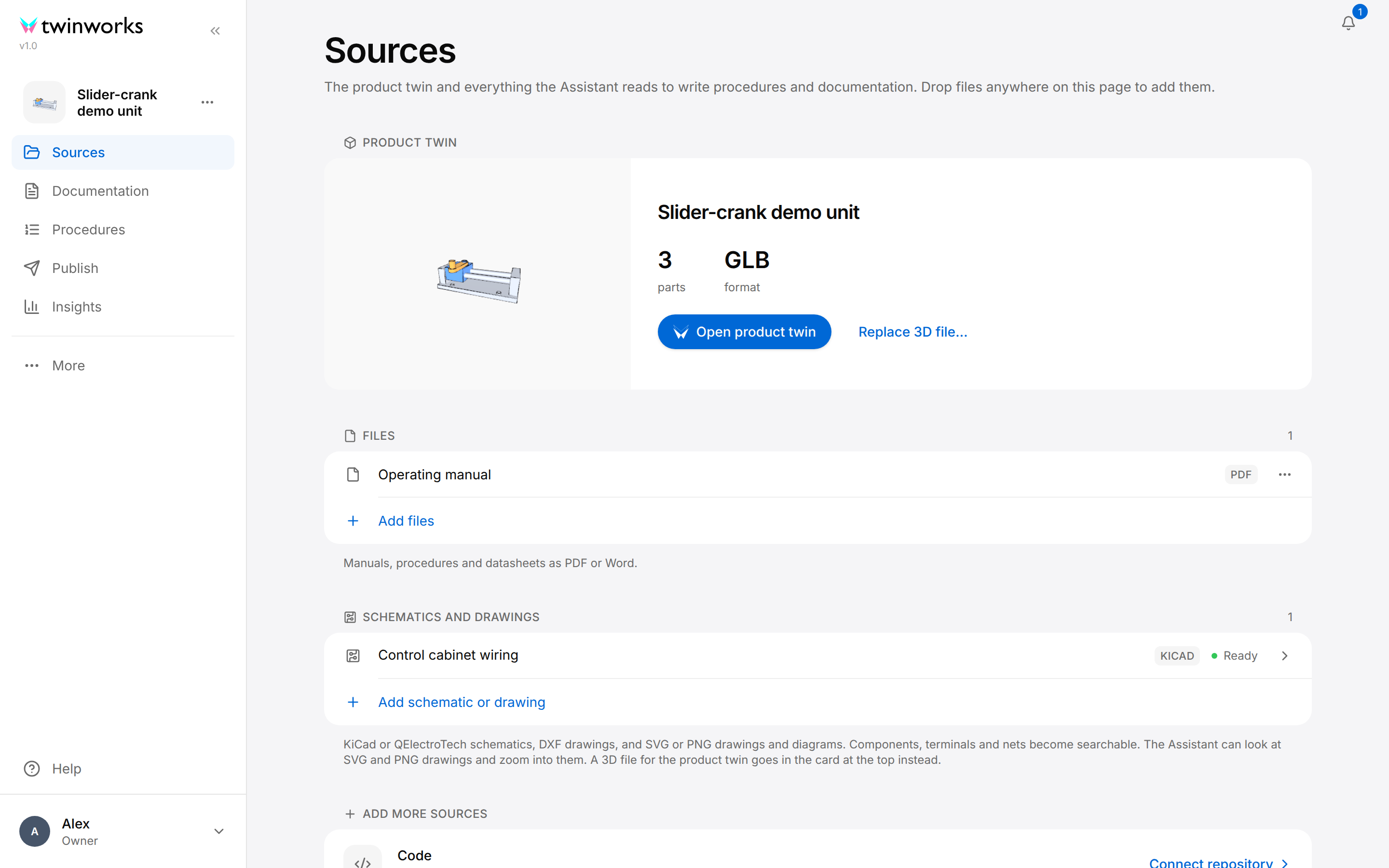
An open product has a sidebar on the left with its picture, its name and its five sections. Collapse sidebar, the double arrow at the top, narrows it to icons, and Expand sidebar widens it again. More, under the sections, opens the other pages of the workspace: Your tasks, Organization and Community. The TwinWorks logo at the top leads back to Products.
| Section | What it holds | Described in |
|---|---|---|
| Sources | The product twin, and the files, schematics, code and linked products the Assistant reads | this page |
| Documentation | The documents of the product, their drafts and their reviews | Documentation |
| Procedures | The step-by-step procedures shown on the product twin | Procedures |
| Publish | Who gets the product's content, with its link, QR code and serial numbers | Publishing |
| Insights | How the published procedures of the product are used | Insights |
A Viewer sees neither Insights nor the Product actions button.
Sources
Sources holds the product twin and everything the Assistant reads to write procedures and documentation. The Assistant is the built-in assistant that drafts procedures and documents: see Procedures and Assistant.
You can drop files anywhere on the page: a PDF or Word file opens the Add files dialog, a 3D file opens the dialog that adds or replaces the 3D file, and a schematic or drawing is uploaded straight away, without a dialog. Kinds of sources the product does not have yet are listed at the bottom of the page under Add more sources. A Viewer can read the page but not add or remove anything.
Product twin
The Product twin card shows the picture of the product, its name, the number of parts and the format of the 3D file.
- Open product twin opens the editor: see Prepare the product twin.
- Replace 3D file… puts a new version of the 3D file in place of the model in use: see Replace the 3D file.
- A product without a 3D file shows "No 3D file yet" and the Upload 3D file button.
- While a new 3D file is prepared, after Upload 3D file or Replace 3D file…, the card reads "Preparing the product twin" and "Preparing…", and a 3D file dropped on the page is not taken. When the card still shows the product meanwhile, Open product twin and Replace 3D file… are greyed. The card shows the product twin by itself once it is ready, and the message "Product twin is ready" appears. After about five minutes the page stops checking and the card reads "Still preparing · Check again": Check again looks once more, and the 3D file can be uploaded again.
- When the product twin was made from a STEP file and the original file is stored, the More about the 3D file button (three dots) of the card offers Browse structure and Find similar (as for a schematic, below), Revision history, and Remove original 3D file…, which removes the stored STEP file and its revisions; the product twin and its procedures stay.
Replace the 3D file
When the design changes, replace the 3D file of the product instead of creating a new product. The dialog compares the new file with the model in use and reads "Matching parts keep their setup · others start fresh". The setup of a part is what you gave it in the product twin: its name, its positions, its groups and its material.
Replace the 3D file
When the design changed and the product needs the new version of its 3D file.
- Open Sources and select Replace 3D file… on the Product twin card.
- Select Add 3D model and choose the new file, or drop it on that row. Wait until it has been read and compared.
- Check the size and the orientation on the preview, as when you create a product.
- Read the comparison. Where it lists Changes carried over or Needs your decision, tick the parts that keep their setup and untick the others.
- Where it lists Removed parts, choose under Continues as… the new part that takes over the setup of a part that is gone.
- Select Replace 3D file… at the bottom of the dialog.
- In Replace the 3D file?, read Kept, Reset and the procedures to check afterwards, then select Replace.
The Replacing the 3D file dialog shows the progress, and Keep working lets you go on while the product twin is prepared; the Product twin card reads "Preparing…" until it is ready. The message "3D file replaced" confirms. Replacing cannot be undone.
- The last button reads Replace anyway when the setup of some parts will be lost: Reset names them. Go back and tick or pair those parts to keep their setup.
- While the comparison runs, Continue without comparing skips it. If you skip it, or when the two files cannot be compared, the dialog reads "Resets positions, groups and materials" and the last button reads Replace and reset: every part starts fresh.
- After replacing, open the procedures that Replace the 3D file? listed: steps that move, show or point at a part may no longer match the new parts.
Files
Files lists the manuals, written procedures and datasheets of the product, as PDF or Word (.docx) files. Select a name to open the file in a new tab.
To add files, select Add files under Files and choose one or several PDF or Word files, then select Upload in the Add files dialog. The message "Document uploaded" confirms, and the files are listed.
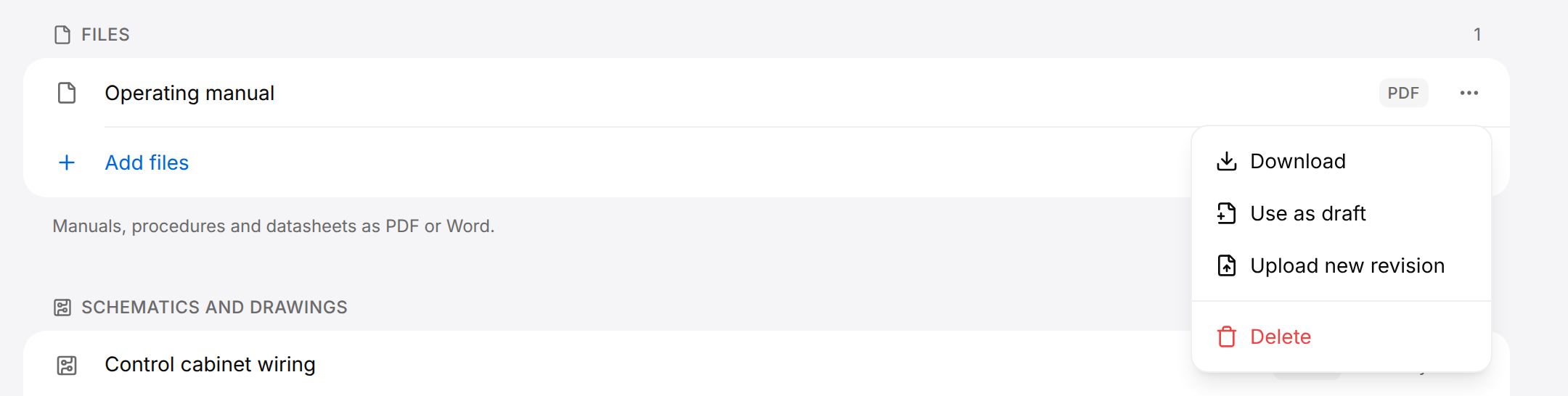
The button at the end of a file's row (three dots, named Actions for and the file name) opens the file menu:
| Menu entry | What it does |
|---|---|
| Download | Saves the file on your computer. |
| Use as draft | Opens Documentation to turn the PDF or Word file into the draft of a document. A person who manages the documentation of the product gets the Import document dialog there; for everyone else the page opens without it, because only a person who manages the documentation adds documents. Documentation says who that is. |
| Upload new revision | Adds a newer version of the manual: see Revisions of a manual. Only the newest file of a manual has this entry. |
| Delete | Checks where the file is used, then asks for confirmation. |
Delete a file
Check what uses the file before you remove it.
- Under Files, select the three dots at the end of the file's row.
- Select Delete.
- Read Where this is used. Use a link such as Open draft to look at a place that uses the file.
- Select Delete file.
The message "File deleted" appears. Documents and procedures keep their text, but a passage that quotes the file loses its source.
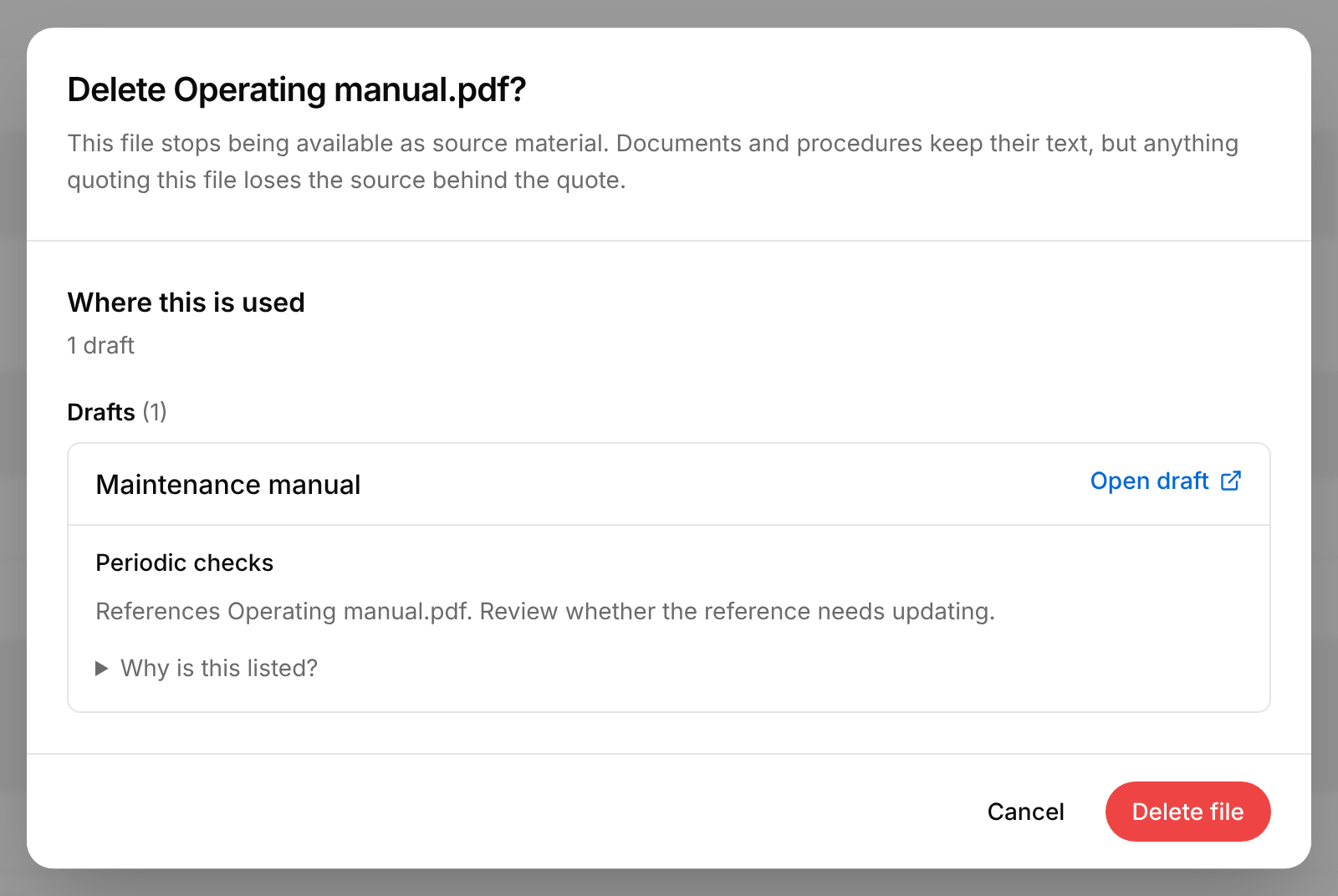
When nothing uses the file, the dialog says "No procedure, document or draft uses this."
Revisions of a manual
When a manual is issued again, upload the new file as a revision of the old one instead of deleting the old file and adding another. The new file becomes the latest revision, the earlier one stays available, and the list shows them together.
Upload a new revision of a manual
For a manual that was issued again, so that the product keeps both versions.
- Under Files, select the three dots at the end of the row of the newest file of the manual.
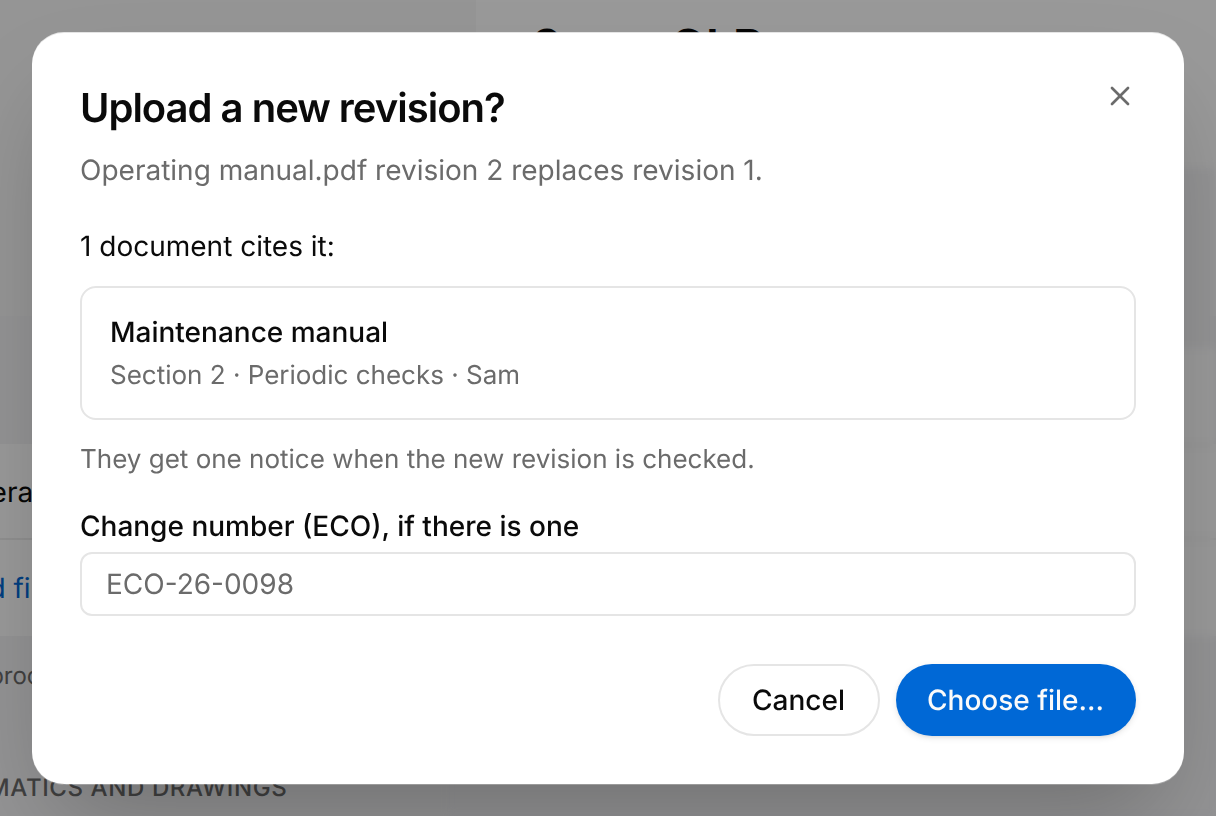
- Select Upload new revision. The dialog "Upload a new revision?" opens.
- Read the line that says the new revision replaces the earlier one, then the list of the documents and procedures that cite the manual.
- Select Choose file… and choose one PDF or Word file. It is uploaded at once.
The Operating manual is issued again as "Operating manual rev B.pdf". In the dialog opened from the row of Operating manual.pdf, the line reads "Operating manual.pdf revision 2 replaces revision 1." and the list names the Maintenance manual, section Periodic checks. Choose file… then takes the new file.
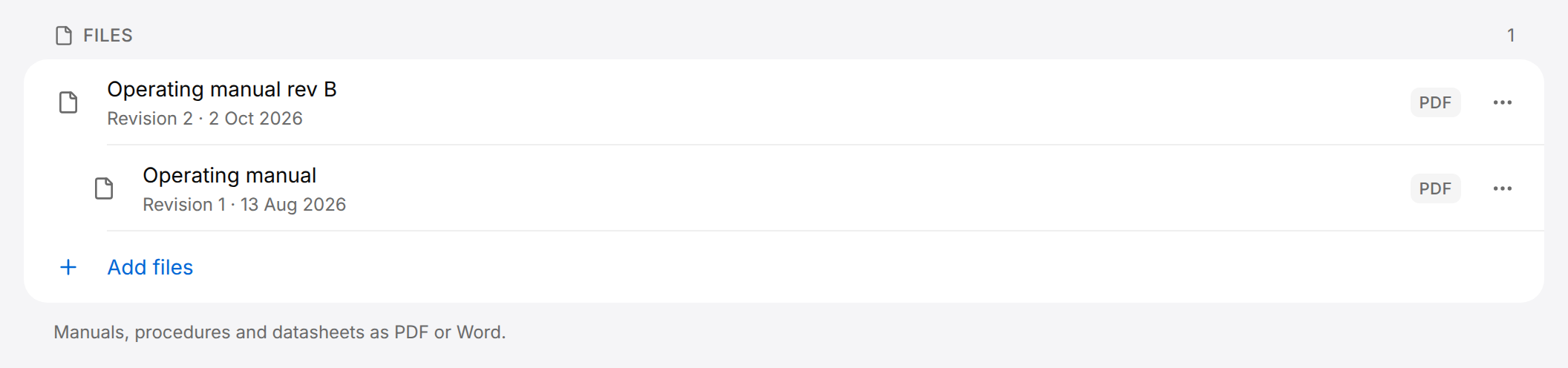
The message "Revision uploaded" appears. The newest file is listed first, with a line such as "Revision 2 · 2 Oct 2026" under its name. The earlier file stands under it, indented, with "Revision 1" and the date it was added.
- The file is one PDF or Word file. Any other file gives the message "Unsupported file" and "Add a PDF or Word document.", and nothing is uploaded.
- Only the newest file of a manual offers Upload new revision. The earlier files keep Download, Use as draft and Delete.
- Revisions are numbered in the order they were added, from 1, and each carries the date it was added.
- A revision does not change any document or procedure. A passage that quotes the earlier revision keeps quoting it, and the dialog lists these places before you choose the file.
- A file that is already in the product, byte for byte, is not added again: the message "Already in this product" appears in place of "Revision uploaded".
- While the dialog checks which documents and procedures cite the manual, it says "Checking which documents and procedures cite it…". If nothing cites it, it says "No document or procedure cites it." If the check fails, it says "We couldn’t check which documents and procedures cite it. Check them after uploading." and the upload can still go on.
- When the upload fails, the dialog stays open and says "Upload failed" and the reason, in red.
- Delete removes only the file you chose. The other revisions stay.
Schematics and drawings
The Schematics and drawings list takes KiCad or QElectroTech schematics, DXF drawings, and SVG or PNG drawings (.kicad_sch, .sch, .qet, .xml, .dxf, .svg, .png). An SVG or PNG drawing can be a CAD or measurement view, or a wiring, hydraulic, pneumatic or HVAC diagram. Once a schematic has been read, its components, terminals and nets can be searched in Browse structure. The Assistant can look at SVG and PNG drawings and zoom into them. It can also search the text of an SVG drawing. 3DXML files can no longer be added. 3DXML files added before stay in the list. A 3D file does not go here but in the Product twin card.
Add schematic or drawing uploads the file straight away, without a dialog. Each row shows a state:
| State | Meaning |
|---|---|
| Reading… | The file was uploaded and is being read. |
| Ready | The file was read. |
| Needs attention | The file could not be read. Open the row for the reason, then add a corrected file with New revision. |
| Stored · not parsed | The file is kept, but TwinWorks cannot read the contents of this file type yet. |
| Superseded | In the list of revisions only: an older revision, replaced by a newer one. |
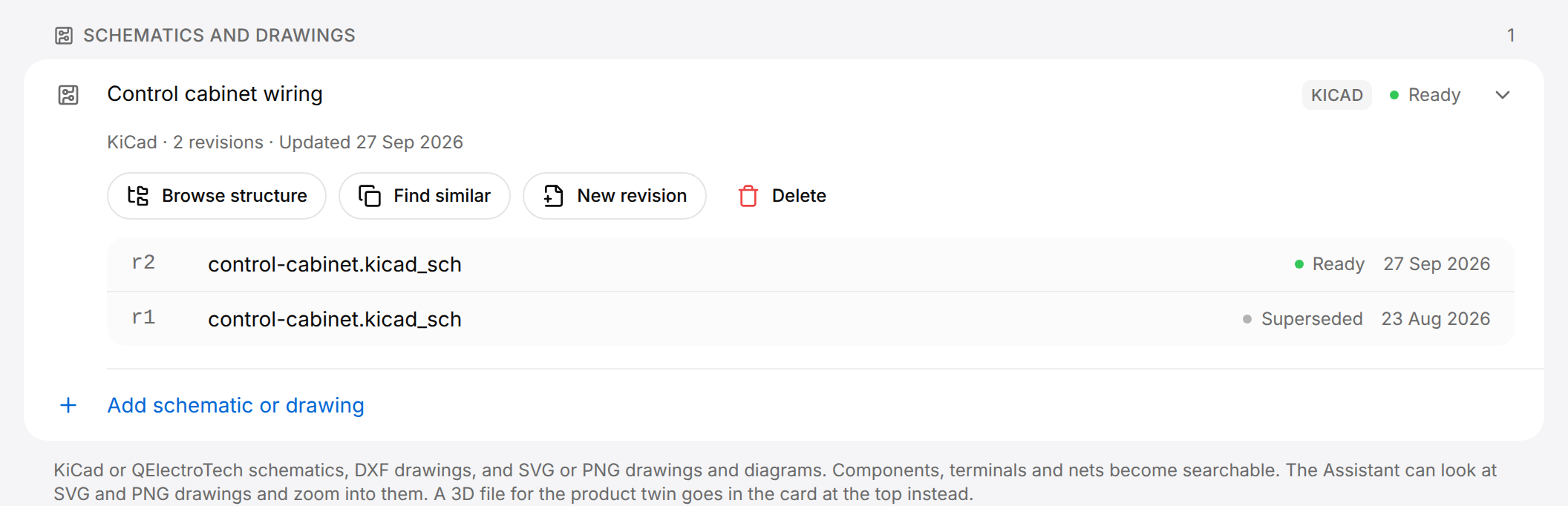
Select a row to open it. New revision and Delete are always there; Browse structure and Find similar are added when the state is Ready. An SVG or PNG drawing shows a preview of the drawing instead.
- Browse structure shows the outline of the design, with a search field and the BOM (bill of materials) and Wire list tables.
- Find similar lists the other products of your organization that share parts with this one.
- New revision uploads a newer file, which becomes the latest revision. The revisions are numbered r1, r2, and so on.
- Delete removes the file and its revisions after a check of where it is used.
Code
Connect a GitHub or GitLab repository so that firmware and configuration files inform the documentation. TwinWorks only reads the repository. A Viewer does not see this part of the page.
Connect a repository
For a product whose documentation depends on its firmware or configuration.
- At the bottom of Sources, under Add more sources, select Connect repository.
- Enter the Repository URL, on github.com or gitlab.com.
- Select Private or Public. For a private repository, enter a Read-only access token.
- Select Continue: TwinWorks checks that it can read the repository.
- Check Branch or ref, then select Connect.
The message "Repository connected" appears and the repository is listed under Code. Its state reads "Indexing…", then "Synced".
- A Read-only access token lets TwinWorks read a private repository. Someone who has access to the repository creates it in GitHub or GitLab: once the address is recognized, How to create one, beside the field, lists the steps. If you do not manage the repository, ask the developer who does.
- Branch or ref is the version of the code to read. The dialog proposes the default branch: keep it unless your developer names another branch, a tag or a commit.
- When the address or the token is refused, the dialog says why in red, for example "Enter a valid repository URL from github.com or gitlab.com." or "The token is missing the permissions needed to read this repository.", and stays open so that you can correct it.
Select a connected repository to open it: Re-index reads it again. Disconnect asks "Disconnect repository?"; select Disconnect to remove the repository and its index from the product.
Linked products
Link another product, such as a previous model, so that the Assistant can also read its sources.
Link a product
Reuse the manuals, procedures and design files of another product of your organization.
- At the bottom of Sources, under Add more sources, select Link a product.
- Enter a name in Search products if the list is long.
- Select Link beside the product.
The message "Product linked" appears and the product is listed under Linked products. Its name opens the Sources of that product.
To remove a link, select the three dots at the end of the linked product's row, then Unlink.
Prepare the product twin
The product twin is the 3D model of the product together with what you add to it: clear part names, the positions a part can take, how it turns, its look, groups of parts and store links. Procedures and documents are built on it:
- A procedure step moves a part from one position to another, so the positions you prepare here are the moves a procedure can show.
- A document can show a 3D view of the product.
- People who follow a published procedure can open the store link of a part.
What you change in the product twin shows in every procedure of the product.
Open the editor
Open the product, select Sources, then Open product twin.
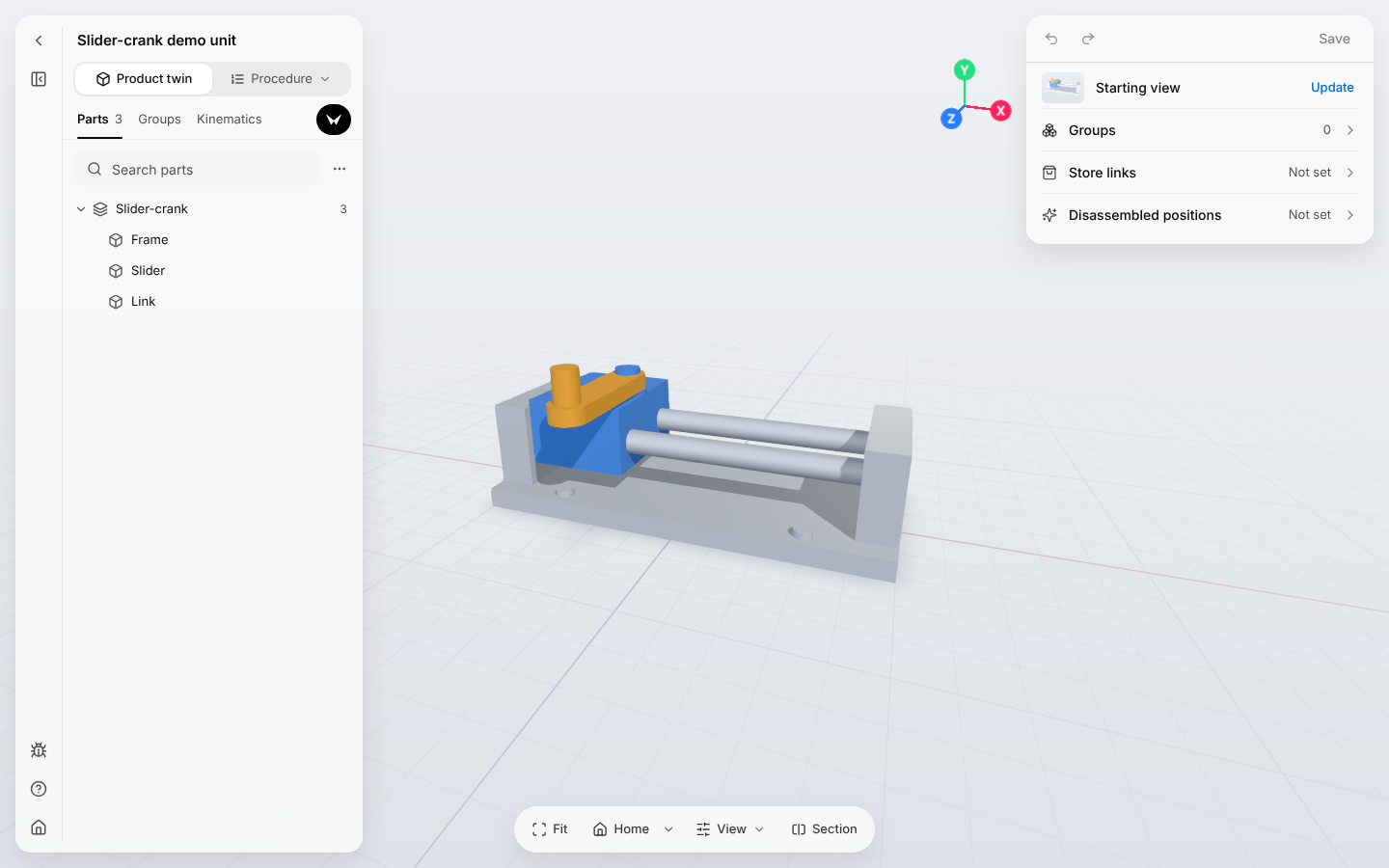
Nothing you change in the editor is kept until you select Save (Ctrl+S, or Cmd+S on a Mac): see Save and leave.
| Area | What you find there |
|---|---|
| Narrow bar on the far left | From the top: Back to product (arrow), Parts tree (list) and Assistant (black button). At the bottom: Report a problem (bug), Help (question mark) and All products (house). Help opens a menu with Open the guide, Shortcuts and Report a problem |
| Parts panel | The product name, the parts under Structure, in assemblies as in the 3D file, your groups under Groups, and Search parts |
| 3D view | The model. Select a part by clicking it; right-click for its menu |
| Toolbar at the bottom of the 3D view | Fit, Home, View and Section |
| Right panel | Undo, redo and Save; under them, the whole product when nothing is selected, or the selected part |
The buttons of the toolbar at the bottom of the 3D view:
| Button | What it does |
|---|---|
| Fit | Frames the selected parts, or the whole model when nothing is selected. |
| Home | Goes back to the starting view. The arrow beside it has Set as starting view. |
| View | Look: Realistic, Outlined or Technical drawing. Camera: Perspective or Flat. Floor grid and Ground shadow, each on or off. Background: Studio or White. |
| Section | Cuts the model open to look inside. Choose Front, Side or Top, Flip to keep the other half, then Done. Only you see the cut; select Section again to remove it. |
Select and rename a part
Select a part in the Parts panel or in the 3D view. It is highlighted in both, the line Path: above the 3D view shows the assembly it belongs to, and the right panel shows what you can set for it.
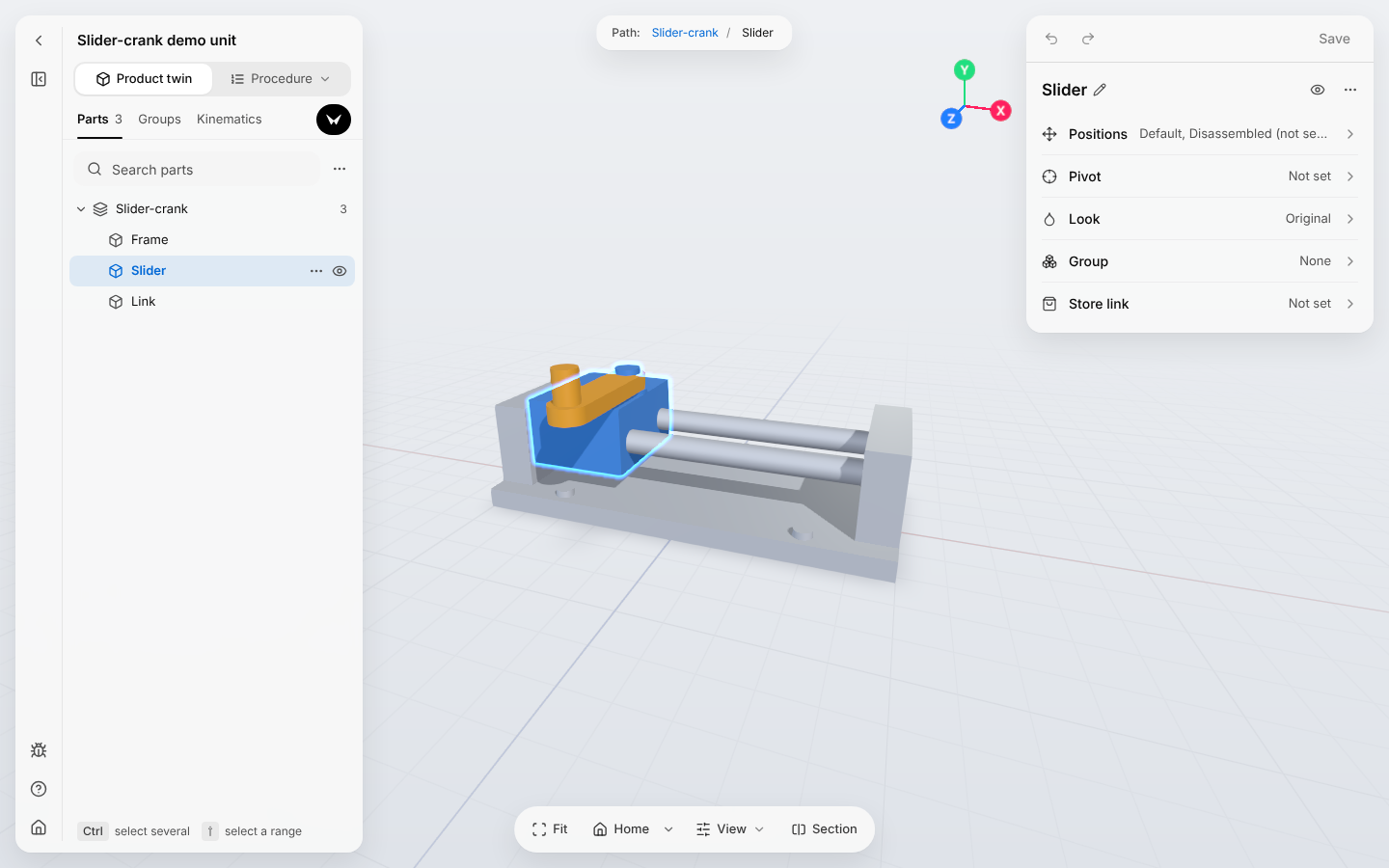
- To clear the selection, click an empty area of the 3D view or press Esc. The right panel then shows the whole product again: Starting view, Groups, Store links and Disassembled positions.
- To select several parts in the Parts panel, hold Ctrl (Cmd on a Mac) and select them one by one, or hold Shift to select a range. In the 3D view, hold Shift and click the parts.
- The eye button of a part hides it, so that you can reach the parts behind it. While parts are hidden, Show all above the 3D view brings them back.
- The More actions button (three dots) of a part, or a right-click, opens its menu: Show only this, Hide, Zoom to part, Rename, Add to group and Select parent.
Rename a part
Give a part the name people use for it, when the name from the 3D file is unclear.
- Select the part in the Parts panel or in the 3D view.
- Select its name at the top of the right panel.
- Enter the new name and press Enter.
- Select Save.
Rename Part_08 to Access panel, so that procedures and documents name the part the way the workshop does.
The Parts panel shows the new name. A name that is already taken is refused with "A part or group already uses this name".
Positions
A position is a named place and orientation that a part can take. Every part has two built-in positions:
- Default is the position in the 3D file. It cannot be changed.
- Disassembled is where the part is once it has been taken off the product. It reads "Not set" until you set it.
You add the others.
Add a position
Add one position for each place the part must reach in a procedure.
- Select the part and open Positions in the right panel.
- Select Add position and enter a name under New position.
- Select Add and place.
- Drag the arrows on the part in the 3D view, or open Exact position and enter the values.
- Select Done, then Save.
For the slider of the demo unit, add the position Extended and drag the slider to the far end of the rods.
The position is listed under Positions, and a procedure step can move the part to it.
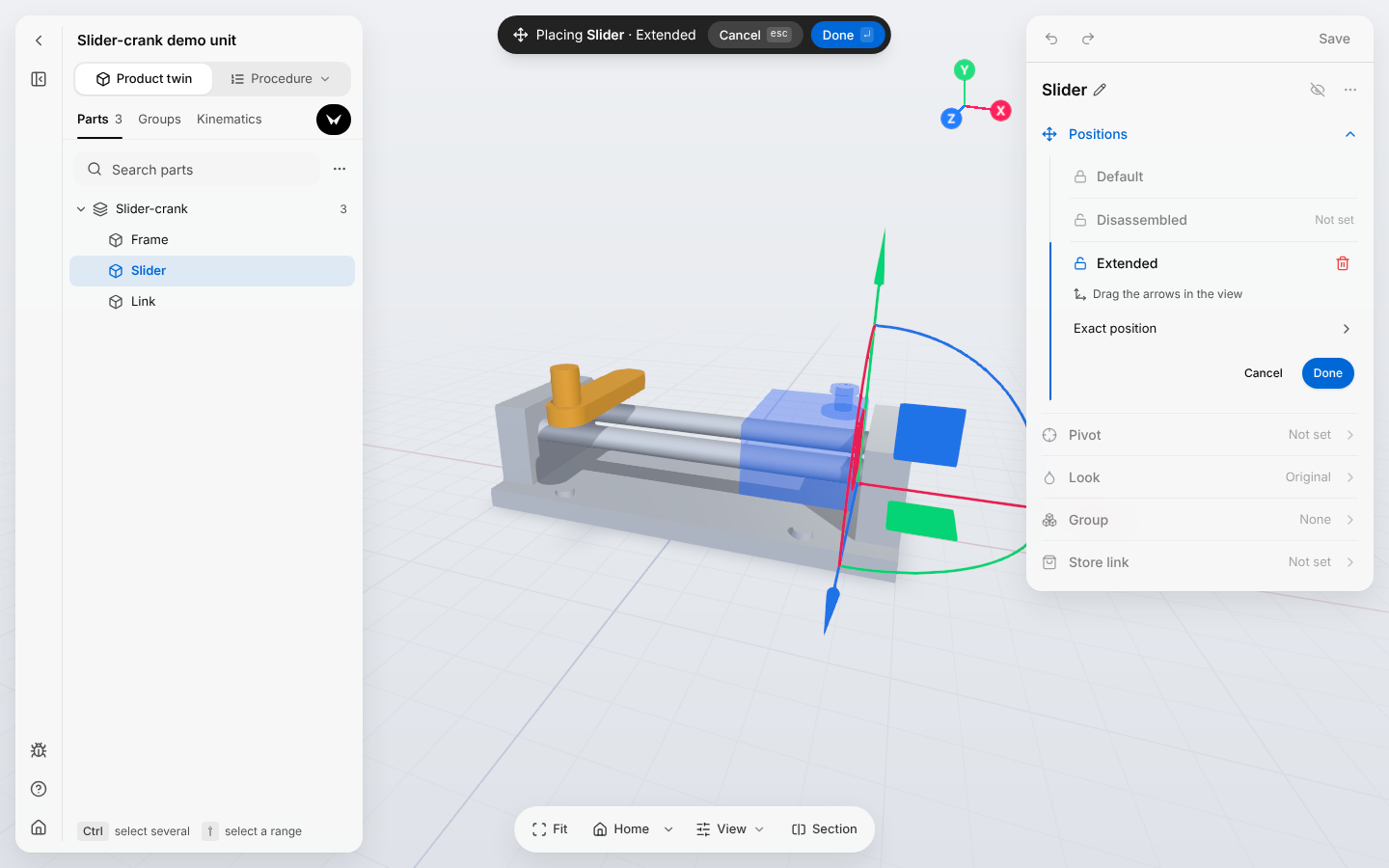
The arrows move the part along one direction, the squares along two, and the arcs turn it. The bar at the top of the 3D view has the same Cancel (Esc) and Done (Enter) as the right panel.
- Select a position in the list to see the part in it. The 3D view then shows "Showing" and the position name, with Put back to put the part back.
- To change a position, select it in the list, then select Move part. The bin button (Delete position) deletes it. When a procedure step uses the position, a warning lists the steps first.
- To set Disassembled, select it in the list, then select Work out how it comes off to let TwinWorks find the way out, or Place it by hand. While TwinWorks works, the panel shows the progress and Stop. Then it says the result, such as "It comes off": Play shows the move, Keep keeps it and Undo puts back what was there before. When it finds nothing, it says "Couldn't find a way out for this part.": place the part by hand.
- For the whole product, clear the selection and open Disassembled positions in the right panel: Work out how everything comes apart does the same for all the parts.
Pivot and joints
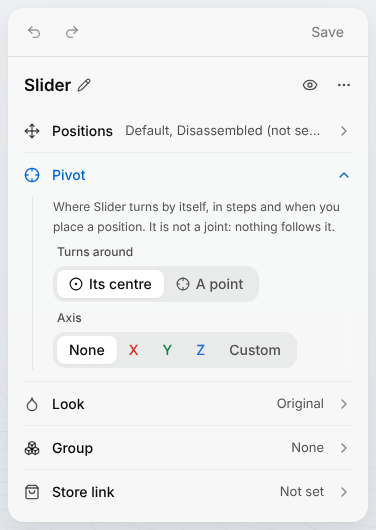
Set Pivot when a procedure step has to turn the part by an angle. The pivot is where the part turns by itself, in steps and when you place a position. It is not a joint: no other part follows it.
Set how a part turns
For a part that a procedure step has to turn, such as a lever or a hinged cover.
- Select the part and open Pivot in the right panel.
- Under Turns around, keep Its centre, or select A point, drag the arrows in the 3D view to the turning point and select Done.
- Under Axis, select X, Y or Z. For another direction, select Custom, turn the line in the 3D view onto the axis and select Done.
- Select Save.
The closed Pivot row shows what you chose, for example "A point · Model Y", and a procedure step can turn the part by an angle.
A joint says how a part is held by another one, for example by a hinge or a slide, and how far it can move. Joints are set in the Kinematics tab, beside Parts and Groups at the top of the Parts panel. In that tab the right panel shows Joints (for a part inside an assembly) and Group for the selected part, and Mechanisms when nothing is selected.
Look
Look in the right panel changes the colour or the material of the selected parts. Choose one of the colours, or More… for any colour. Change opens the materials of your organization, where New makes one. Reset to original brings back the look from the 3D file. The Look of the View button is something else: it changes how the whole model is drawn.
Groups
A group is a named set of parts that you select, hide and move together.
Group parts
For parts that are handled together, such as the screws of a cover.
- In the Parts panel, select the first part, then hold Ctrl (Cmd on a Mac) and select the others.
- In the dark bar at the bottom of the panel, select Group.
- Enter the Group name and select the button under it, which reads Group 2 parts when two parts are selected.
- Select Save.
The group is listed under Groups in the Parts panel. Selecting it selects all its parts.
- To move the parts of a group together, select the group under Groups and add a position as for a part: see Positions.
- To add a part to an existing group, select the part and open Group in the right panel, or use Add to group in the part's menu. The part takes the positions of the group.
- For a single part, Group in the right panel also has New group. Under Groups, the Group actions button (three dots) of a group has Rename, Hide and Ungroup.
Store links
A store link is the web address where a part can be bought. People who follow a published procedure find these addresses under Store links.
- One part: select the part, open Store link in the right panel, paste the address and press Enter.
- Several parts sold on the same page: clear the selection, open Store links in the right panel and select Add a link. Paste the address and press Enter, click the parts in the 3D view, then select Done.
Then select Save.
Starting view
The starting view is the view the product opens with, and the picture of the product on the Products page is drawn from it. Turn the model the way you want it, then select Set as starting view under the arrow beside Home. When nothing is selected, Update beside Starting view in the right panel does the same. The message "Starting view updated" reminds you to save.
Save and leave
Nothing is kept until you select Save (Ctrl+S, or Cmd+S on a Mac). The button turns blue when there are changes to save, and the message "Product twin saved" confirms. If saving fails, the button reads Retry save.
Back to product returns to Sources, and All products to the Products page. Beside the product name, two small buttons stand for the two editors: Product twin (cube), where you are, and Procedure (list), which opens the menu Open a procedure with the procedures of the product and All procedures. If you leave with unsaved changes, Save changes before leaving? offers Cancel, Discard changes and Save.
The Assistant
The Assistant button opens a conversation in place of the Parts panel; Parts tree brings the Parts panel back. Ask it to clean up part names, group parts, add positions, change looks or add store links, or to plan how the product comes apart; with a part selected, your question is about that part. Each change it makes can be undone, and nothing is kept until you select Save.
Product actions
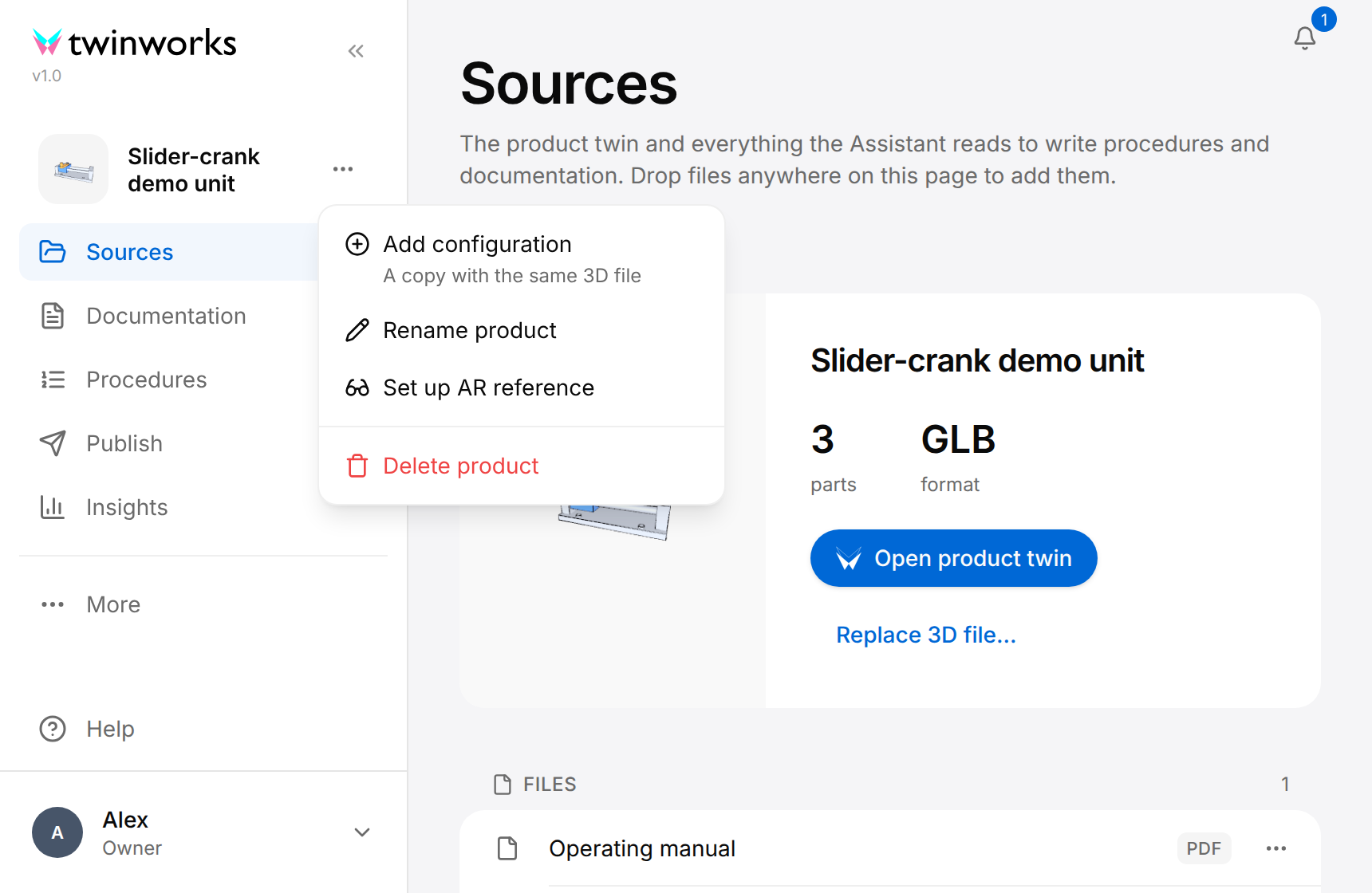
The Product actions button (three dots) is beside the product name in the sidebar, and on each card of the Products page. While the sidebar is collapsed, the product picture at the top of the sidebar opens the same menu.
| Entry | What it does |
|---|---|
| Add configuration | Opens New configuration, which says under its title what it creates, with a proposed Configuration name, for example Slider-crank demo unit-v2. Create makes a new product: a copy of this one with the same 3D file, twin setup, procedures and manuals. Open the copy from Products, and give it its own 3D file with Replace 3D file… on its Sources. |
| Rename product | Opens a dialog with the name; Save applies the new name across the workspace. In the Product twin editor you can also double-click the product name. |
| Set up AR reference (in the sidebar only) | Opens Set up spatial reference, where you choose what the product is aligned with in augmented reality. Under Reference type, select Reference object to upload a reference object file, or Twin Marker to generate a marker from its Physical width in metres and download it with PDF. |
| Delete product | Removes the product from the workspace, after a confirmation. No action restores a deleted product. Only the organization's Owner and Managers see this entry. |
Delete a product
Only the Owner and Managers of the organization can delete a product, and no action restores it.
- Open the product, or find its card on Products.
- Select Product actions (three dots), then Delete product.
- In Delete product?, select Delete.
The message "Product deleted" appears and the product is no longer on Products. The execution reports of its procedures are kept: to find them, select Insights under Admin in the sidebar of the organization, then Archive.
Archive is described in Insights.
Link, QR code and serial numbers
The link of a product, its QR code and its serial numbers are in the Publish section of the product: see Publishing.