

Procedures
A procedure is a set of step-by-step instructions for one task on a product: assembling it, operating it, maintaining it or checking it. Each step has a text and can move the parts of the product's 3D model, so that the person who follows it sees what to do. You create procedures in the Procedures section of a product, edit them in the procedure editor, and publish them. People follow a published procedure in the procedure viewer, which opens from the link of the procedure. This page calls these people the readers of the procedure.
Where procedures are
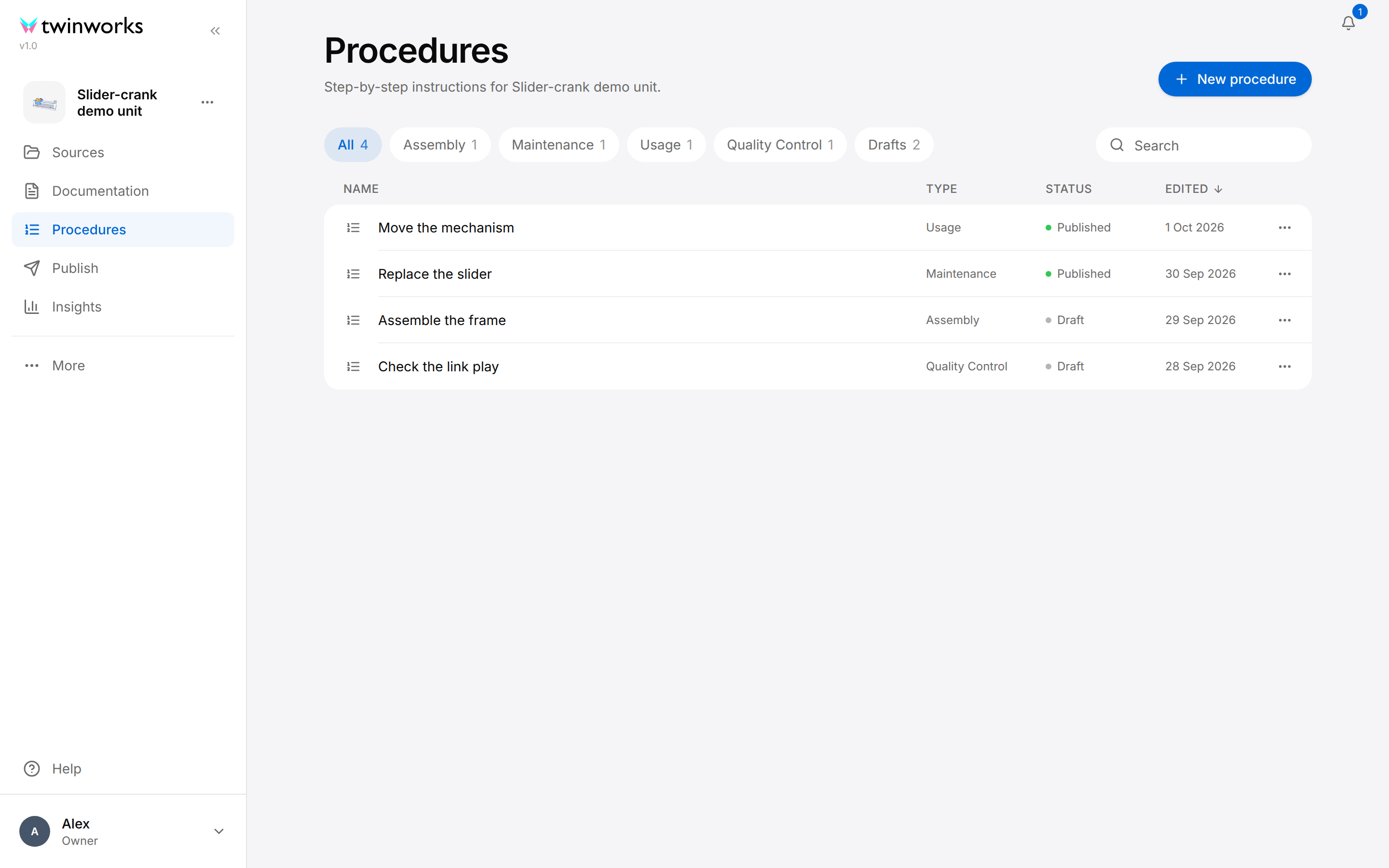
Open a product from the Products page (see Products) and select Procedures in the sidebar of the product. The page lists every procedure of the product with its type, its status and the date of its last edit.
A member with the Viewer role does not get this list: they see only the published procedures, under Contents, and selecting one opens it for reading.
Procedure types
Every procedure has one of five types: Assembly, Disassembly, Maintenance, Usage or Quality Control. You choose the type when you create the procedure and can change it in the editor.
The type is a filter in the list. In the editor it also sets how a part is first shown when you add it to a step: see In the row of the step, under the table.
Find and open a procedure
- Filter. Select a type above the table to keep only the procedures of that type, or Drafts to keep the ones with the status Draft. All shows everything again. A type, and Drafts, appear as filters once the product has a procedure of that kind.
- Search. Enter a part of a name or of a type in Search.
- Sort. Select a column name, Name, Type, Status or Edited, to sort by it; select it again to reverse the order. The list starts with the most recently edited procedure. In a narrow window a button such as Sort: Edited replaces the column names.
- Open. Select a row. The procedure opens in the procedure editor.
When nothing matches, the table shows "No results" with Clear search or Clear filter.
Create a procedure
A new procedure starts empty, or with steps that TwinWorks writes from the files of the product or from a video.
Create one procedure
Start with an empty procedure, or have the steps written from the product's files.
- Open the product and select Procedures.
- Select New procedure.
- Enter a Name.
- Choose a Type and the Language the procedure is written in.
- Select Create to start with an empty procedure, or Generate to have the steps written from the product's files.
For a new maintenance task on a product that already has its operating manual among its files, enter Replace the link, choose Maintenance and English, and select Generate.
After Create, the editor opens on the empty procedure. After Generate, the editor opens on the new procedure and the Assistant starts at once: it reads the product's files, writes the steps, selects each step's parts in the 3D model and sets their states. Each change waits for you to approve it. Keep the editor open until the Assistant has finished.
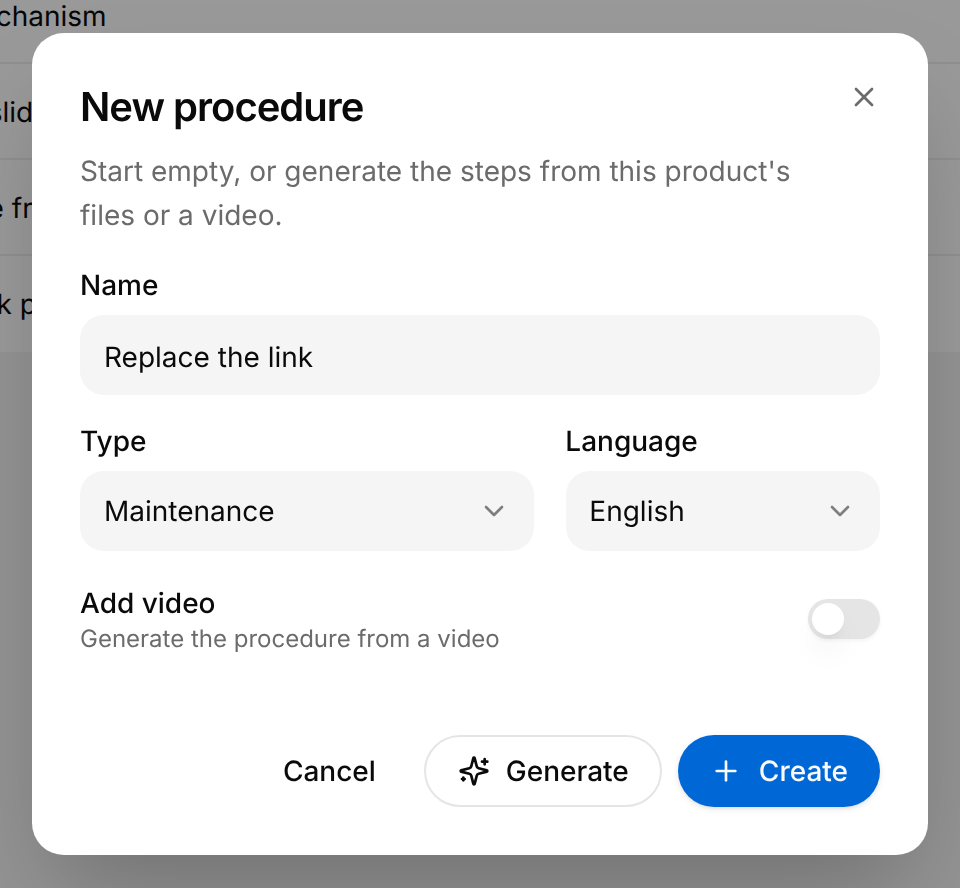
- Generate is shown when the product has at least one file, or when Add video is on. Files are added in the Sources section of the product: see Products.
- The languages are English, French, Spanish and German.
- A lock on Generate means that your plan does not include generated procedures.
- On a device that cannot show the 3D model, Generate writes the steps without it: the dialog closes and the procedure is in the list with the status Generating… while its steps are written. They have no parts.
Create a procedure from a video
Have the steps written from a video of the task that you already have.
- Open the product, select Procedures, then New procedure.
- Enter a Name and choose a Type and a Language.
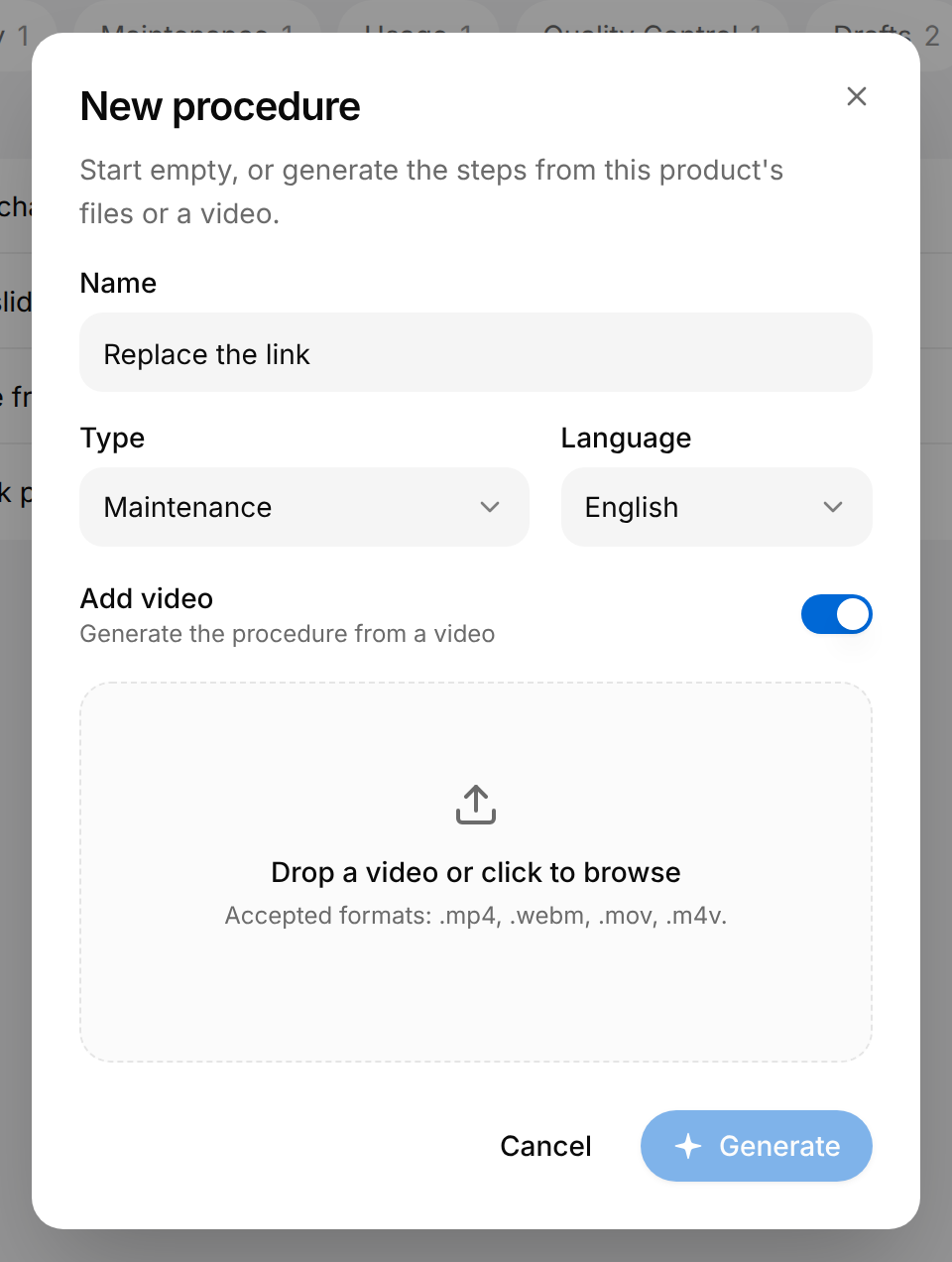
- Turn on Add video. A zone for the video opens and Create disappears.
- Drop one video on the zone, or select the zone to choose the file: .mp4, .webm, .mov or .m4v. The Generate button reads Preparing… while the video is prepared.
- Select Generate.
The dialog closes and the procedure is in the list with the status Generating… while its steps are written.
A generated procedure is a first draft. Open it, read every step and preview it before you publish it.
Procedure statuses
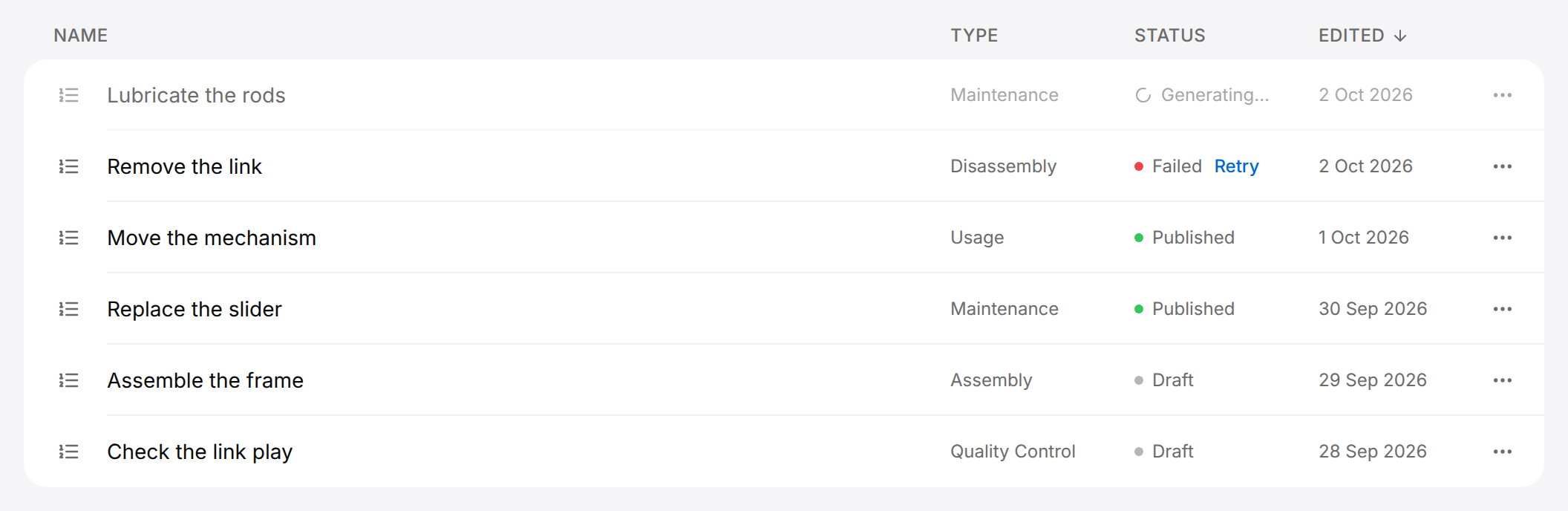
The Status column of the list says where each procedure stands.
| Status | What it means | What you can do |
|---|---|---|
| Generating… | The steps are being written from the product's files or from a video. The row is dimmed. | Wait. If you select the row, the message "Procedure still generating" appears and the editor does not open. When the steps are written the message "Procedure ready" appears and the row becomes a draft. |
| Failed | The steps could not be written. If the list is open at that moment, the message "Generation failed" appears. | Select Retry beside the status to generate again. |
| Published | The procedure is published to the Public audience, to the Team audience, or to both. | Open it, share it, or get its link from the menu of the row. |
| Draft | The procedure is not published. | Open it, edit it and publish it. |
Rename, duplicate or delete a procedure
Each row ends with a button with three dots, named Actions for followed by the name of the procedure. It opens the menu of the row.
| Menu entry | What it does |
|---|---|
| Get link | Copies the link that opens the published procedure in the procedure viewer: the Public link when the procedure is published to the Public audience, otherwise the Team link. The message "Link copied" appears. For a procedure that is not published, the message "Not published yet" appears, with a Publish button when your plan includes publishing; the button opens the Publish procedure dialog. |
| Duplicate | Adds a copy of the procedure to the list; the message "Procedure duplicated" appears. |
| Rename | Turns the name in the row into a field. Enter the new name and press Enter, or select the tick (Save name). Escape, or the cross (Cancel rename), keeps the old name. |
| Delete | Opens a confirmation that first says which documents embed the procedure. |
Deleting a procedure cannot be undone. Before you confirm, the dialog says which documents embed the procedure: one sentence for each, with the place of the section and its owner, for example "Operating manual embeds it (Section 3 · Sam)." When nothing embeds it, the dialog reads "Nothing else uses this procedure." A document that embeds the procedure keeps its text, but the procedure is gone: decide what to do with that section before you delete. The execution reports of a deleted procedure are kept in the Archive of Insights, which the dialog names "Insights → Archive": see Insights.
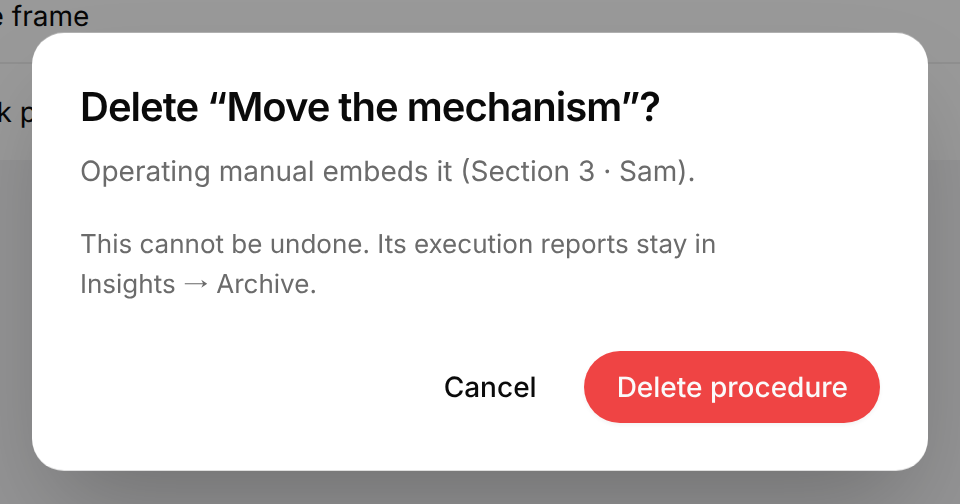
If the check of where the procedure is used fails, the dialog says so and offers Try again; the delete button then reads Delete without checking.
Edit a procedure
Select a procedure in the list to open it in the procedure editor. The editor shows the product in 3D and, around it, everything that makes up the procedure.
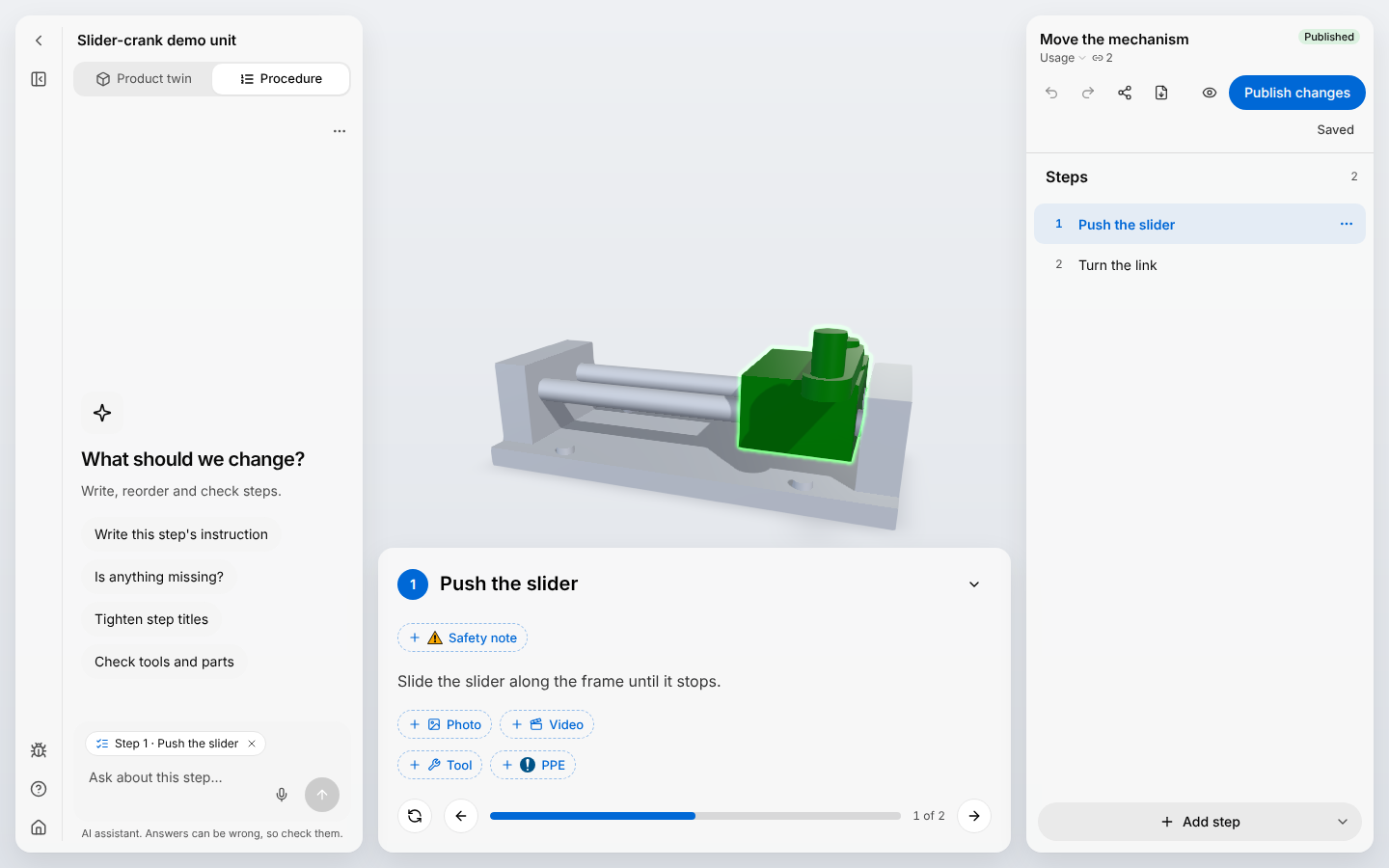
- The 3D view shows the product as it is in the current step and plays the movement of the parts of that step.
- The step card holds the title, the instruction, the safety notes, the photos, the video, the tools and the protective gear of the current step. Its arrows go to the previous and the next step, and Play step again replays the movement. Before the first step, the card shows the Start screen with the name of the procedure.
- The Steps list holds the steps in their order. Selecting a step shows it in the 3D view and opens its settings.
- The header, above the Steps list, holds the name, the type and the actions of the procedure.
- The panel on the left holds the name of the product, the switch between Product twin (the cube), the editor of the 3D model and its parts, and Procedure (the list), which is where you are, and below them the Assistant.
- The narrow bar on the left holds, from top to bottom: Back to product (the arrow), Collapse panel, which folds the panel away, Report a problem (the bug), Help (the question mark) and All products (the house). Help > Shortcuts lists the keyboard shortcuts of the editor. When the panel is folded, Expand panel brings it back, and Product twin and Procedure are two icons in the bar. In a narrow window the panel is folded until you expand it. Your choice applies to both editors until you close the browser tab.
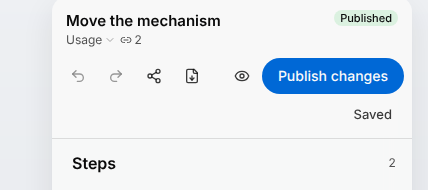
| Control | What it does |
|---|---|
| Procedure name | Select the name and enter a new one. |
| Draft or Published | Shows whether the procedure is published. |
| Procedure type | Select the type under the name to choose another one. |
| Used by | The link icon with a number. It appears when something uses the procedure: see See where a procedure is used. |
| Undo, Redo | Take back or restore your own last changes. |
| Share | Gives the link, the QR code and the embed code of a published procedure. On a draft the button is named Publish to share and starts publishing. |
| Export | Downloads the procedure as a PDF or a Word file. |
| Saved | The save status: see How your changes are saved. |
| Preview | Shows the procedure as its readers see it. |
| Publish, Publish changes | Publish publishes a procedure that is not published yet. On a published procedure the button reads Publish changes and gives your changes to the operators. See Publish or unpublish a procedure. |
How your changes are saved
There is no Save button. Each change is saved a moment after you make it, and everyone who has the procedure open sees it at once. The save status, beside Preview, says where you stand:
| Status | Meaning |
|---|---|
| Saving… | A change of yours is on its way. |
| Saved | Everything you changed is stored. |
| Reconnecting… | The connection was lost. You can keep working: your changes are sent when it comes back. |
| Offline — keep this tab open | The connection has been lost for some time. Your changes are only in this tab until it comes back: do not close it. |
| Not saved yet — trying again | A change could not be stored yet. TwinWorks tries again. |
| Video not saved | A step video could not be stored. Add it to its step again. |
Operators do not get your changes yet: they keep the version that was last published until someone selects Publish changes. See Publish or unpublish a procedure.
Saving does not build AR tracking. AR tracking is what View in AR in the procedure viewer needs to follow the real product with the camera of the reader's device. It is built one step at a time: open AR anchor on a step and select Build AR tracking.
Work on a procedure with other people
Several people can edit the same procedure at the same time.
- Who is where. The avatars of the others stand in the header. In the step card and the step settings, the field a colleague is in has an outline in their colour, with their avatar on it; their first name shows for two seconds when they arrive. A step in the Steps list shows the avatars of the people on it. The avatar of someone who has not done anything for a while fades. Select an avatar in the header to go to the step that person is on.
- One person types in a text at a time. While a colleague types the title or the instruction of a step, you can read it but not change it: it says, for example, "Sam is typing…" until three seconds after their last key.
- Changes made at the same time. If a colleague changed a text while your change of it was on its way, for example while you were offline, the message "Sam changed this too." shows their text and offers Keep mine and Use theirs.
- Undo takes back only your own changes. When a colleague has changed the same thing since, the message "Sam changed this since — it can't be undone." appears instead.
Leave the editor
Back to product returns to the procedures of the product. Your changes are already saved. Only a step video that is still being saved makes the editor ask first: wait for it, or leave without it.
Work with steps
The Steps list is where you add, order and remove steps. The button with three dots on a step, Step actions, appears when you point at the step or select it; a right-click on the step opens the same menu.
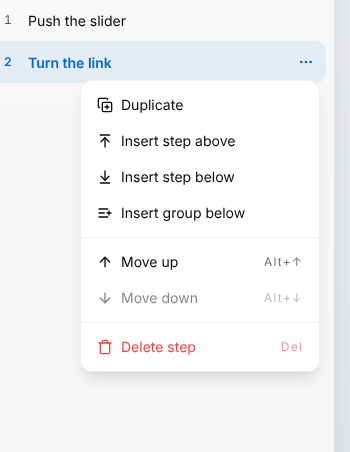
- Add a step. Select Add step under the list. A step named "New step" is added at the end and opens.
- Insert a step. Point between two steps and select Insert step here, or use Step actions > Insert step above or Insert step below.
- Reorder. Drag a step to its new place, or use Step actions > Move up or Move down.
- Duplicate. Step actions > Duplicate adds a copy under the step, with "(Copy)" after its title.
- Delete. Step actions > Delete step removes the step at once. A message with an Undo button appears for a few seconds; Undo in the header also brings the step back.
Only one step is open at a time. Collapse all above the list closes it.
A step can carry small marks on its row in the Steps list; point at a mark to read what it means. A safety sign means that the step has at least one safety note. A broken chain link means that the step uses a part the 3D model no longer has: the mark names the part. Open Parts in the step, where the part reads "Missing", and remove it. An eye in a frame means that the AR tracking of the step is out of date: build it again under AR anchor.
What a step holds
A step is edited in two places. The step card under the 3D view holds what the reader reads. The row of the step in the Steps list, once open, holds what the 3D view does.
On the step card
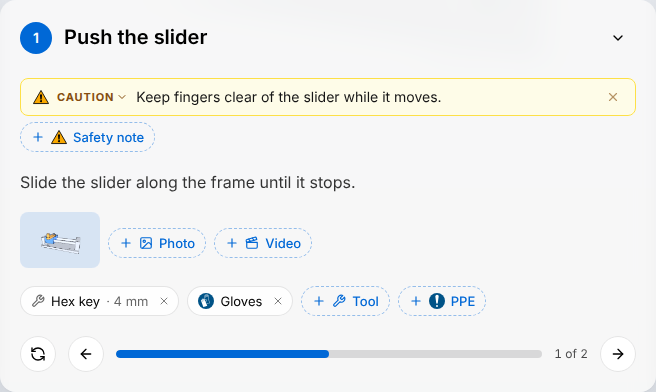
| A step holds | How you set it |
|---|---|
| Title | Select the title, enter the new one and press Enter. |
| Safety notes | Select Safety note (2), choose Danger, Warning, Caution or Notice, enter the note and press Enter. |
| Instruction | Select the text, or "Add an instruction" when there is none, and write. The formatting buttons make the text bold, italic or underlined, or turn it into a list. Select anywhere else to keep the text; Escape restores it. |
| Photos | Select Photo (3) and choose one or more JPEG, PNG or WebP files. |
| Video | Select Video (4) and choose one .mp4, .webm, .mov or .m4v file. A step has one video. Trim shortens it and Snapshot turns moments of it into photos. |
| Tools | Select Tool, to the left of PPE, enter a Name and, if you wish, a detail, a quantity and a unit, then select Add. |
| Protective gear | Select PPE (5), select the gear to wear or enter another one, then select Add. |
The cross on a safety note, a photo, the video, a tool or a protective gear removes it.
In the row of the step
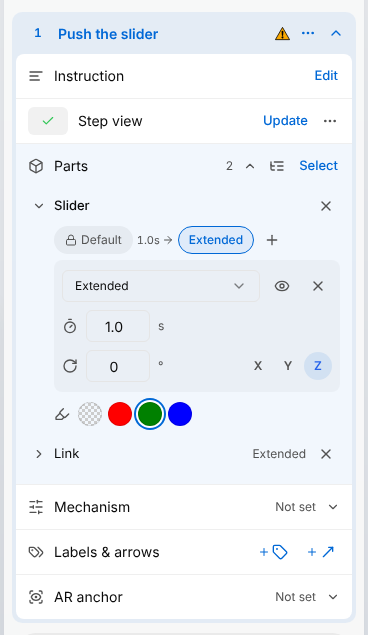
| A step holds | How you set it |
|---|---|
| Step view (2) | The view of the 3D model the reader gets on this step. Turn and zoom the model until it shows what the reader should see, then select Set, or Update when the step already has a view. Step view options (the three dots beside Update) > Remove view removes it. |
| Parts (3) | The parts the step moves or highlights. While the row of the step is open, select a part in the 3D view to add it; select it again to remove it. Select (5) does the same with a bar above the 3D view, where Done confirms and Cancel restores the parts the step had. Choose from list (4) opens the list of the parts and of the groups of parts of the product. The cross at the end of a part removes it from the step. |
| Positions of a part (6 to 9) | Select Parts, then a part. The part starts from the first position shown (6) and ends in the last one (7). Select the last position to open its settings: the position, the duration of the move in seconds and a turn in degrees. The eye (9) hides the part in that position. Add position (8) makes the part pass through more positions. The first position has a lock: the part starts where the earlier steps left it. To choose another start, select the first position, then Unlock the starting position. |
| Highlight colour (10) | Choose No highlight, Red: remove, Green: insert or Blue: inspect. |
| Labels & arrows (11, 12) | Add label: choose Part or Scene, select Place label, then select the place on the model and enter the text. Add arrow: select the place on the model, then choose the direction, the colour and the size. A label on a part follows the part when it moves. |
| AR anchor (13) | The parts that View in AR tracks at this step. Open the row and select Build AR tracking. |
The type of the procedure sets how a part is first shown when you add it. In an Assembly procedure, a part appears in the first step that uses it and is highlighted in green. In a Disassembly procedure, a part is hidden at the end of the step and is highlighted in red. In the other types the part stays visible and is highlighted in green. You can change the positions and the colour on each part.
The positions of a part, such as Default and Extended in the picture, are defined in the product twin: see Products.
Step groups
A group is a named run of steps that follow each other in the Steps list. A group can show only the parts its steps work on, or cut the product open, for as long as the reader is on one of its steps. Use a group for the steps that work on one sub-assembly.
Create a group and put steps into it
Group the steps that belong together, for example the steps on one sub-assembly.
- Under the Steps list, select the arrow beside Add step, named More ways to add steps.
- Select Add group. A group named
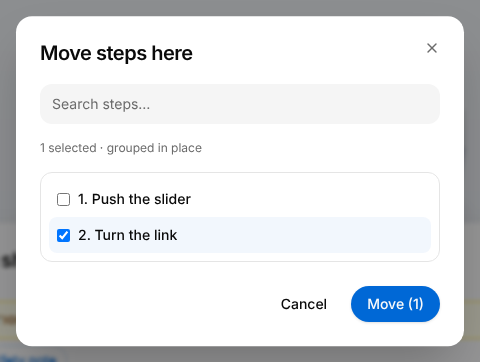
New groupappears at the end of the list and reads "No steps yet". - In the group, select Move steps here…. The Move steps here dialog lists the steps of the procedure.
- Select the box of each step to move, then select Move. The button shows how many steps are selected, for example Move (2).
- To name the group, select Group actions (three dots) on its line, then Group settings, and enter a Group name.
The steps are listed under the group, indented. Selecting the line of the group folds or unfolds them.
Other ways to fill and to empty a group:
- Drag. Drag a step onto the group, or out of it.
- From the menu of a step. Step actions > Move into a group, then choose the group. Step actions > Move out of the group takes the step out.
- A new step in the group. Select Add step in the empty group, or Group actions > Add step.
- A new group under a step. Step actions > Insert group below.
Show only the parts a group works on
Hide the rest of the product while the reader is on the steps of the group. The product needs a 3D model.
- On the line of the group, select Group actions (three dots), then Group settings.
- Turn on Show only these parts.
- To keep a part visible that no step of the group uses, select Add part (the plus) beside Parts to show and choose the part. You can also select parts in the 3D view while the settings are open.
- Select Close group settings (the arrow at the end of the line).
- Select a step of the group to see the result.
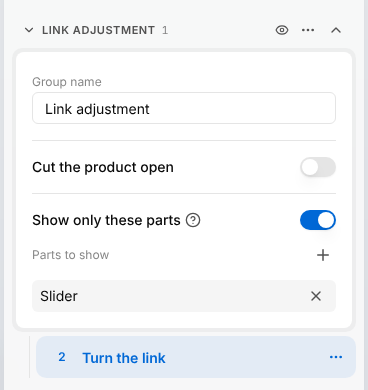
The group Link adjustment holds the step Turn the link, which moves the Link. With the Slider added under Parts to show, the 3D view shows the Link and the Slider on that step, and hides the Frame.
An eye on the line of the group marks it. On each step of the group the 3D view shows the parts the steps of the group use and the parts under Parts to show. On the first step after the group, every part is back.
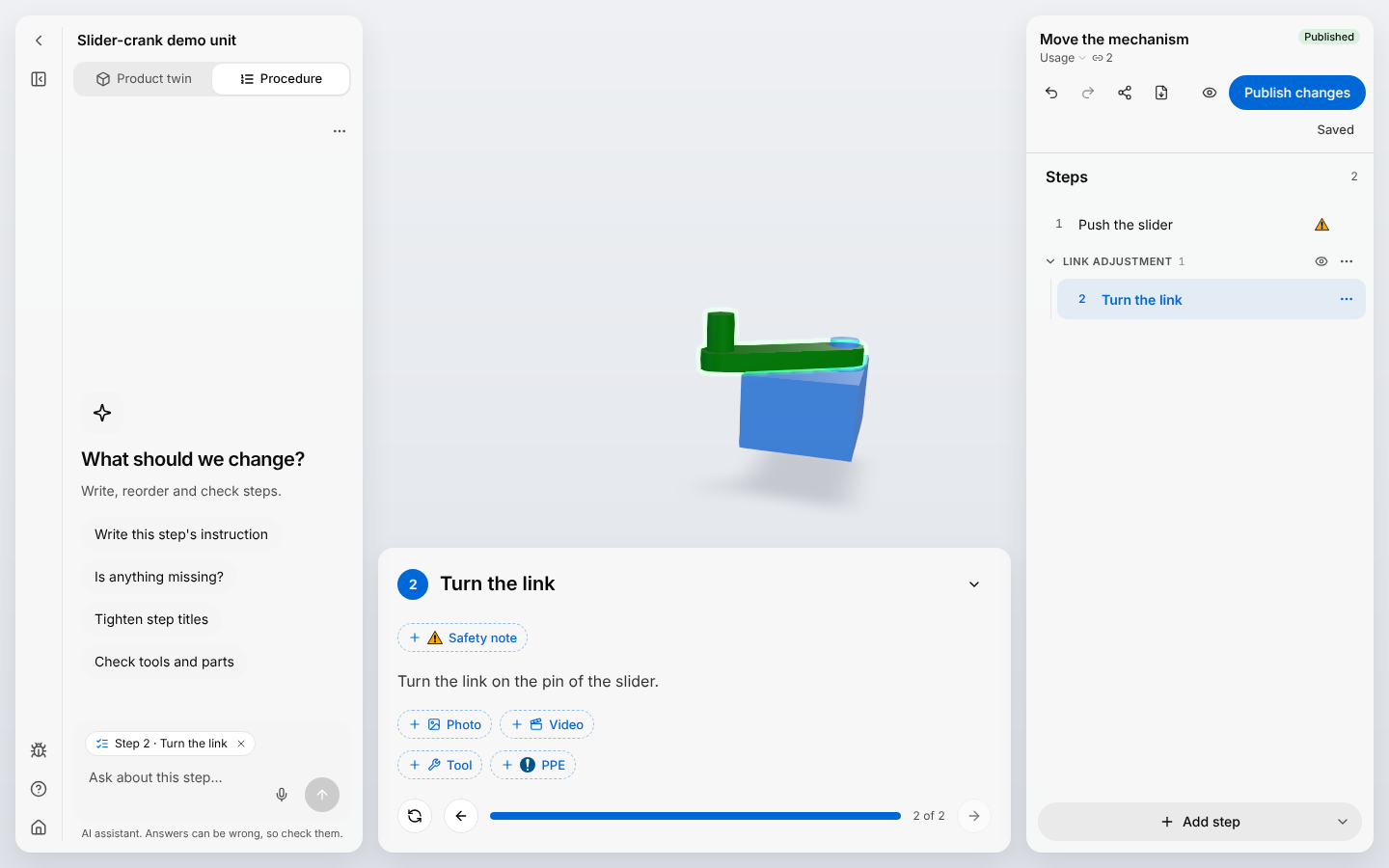
- Cut the product open. In Group settings, turn on Cut the product open: on the steps of the group, the 3D model is cut along a plane, to show what is inside. While the settings are open, the plane and a handle are shown in the 3D view: drag the handle to move and turn the cut. A pair of scissors on the line of the group marks it.
- While the settings of a group are open, the 3D view shows every part, so that you can select parts. The group takes effect again when you close them.
- What the reader sees. The reader does not see the groups or their names in the procedure viewer, only their effect on the 3D view. Preview shows the same. In a PDF or Word export, the name of a group is printed as a heading above its first step.
- Delete a group. Select Group actions > Delete group. In "Delete step group?", Ungroup steps removes the group and keeps its steps; Delete group and steps removes both.
Record a procedure
Instead of writing the steps, you can record the task and have the steps written from the recording. The two recorders are in the menu of the arrow beside Add step; in a procedure with no steps they are the buttons 3D and voice and Video under Record a procedure.
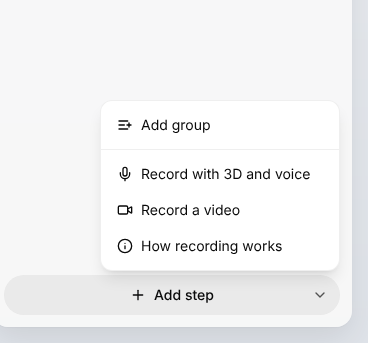
| Recorder | What it records | What you get |
|---|---|---|
| Record with 3D and voice | Your voice, and the parts you select on the 3D model while you speak | Steps written from what you said, with the parts you selected |
| Record a video | The camera and the microphone, in one take | Steps written from the video, each with its part of the video |
How recording works opens a help dialog for one recorder: 3D and voice at first, video once you have started a video recording.
Record with 3D and voice
Describe the task aloud while you select the parts you talk about on the 3D model.
- Under the Steps list, select the arrow beside Add step, then Record with 3D and voice.
- Allow the microphone if the browser asks.
- Describe the task. While you speak, select the parts you talk about, in the 3D view or in the list of parts that replaces the Steps list.
- Say when a new step starts, in your own words, for example "in the next step": it helps to separate the steps.
- Under the list of parts, select Stop recording (the round button with a square), or Cancel to discard the recording.
Say "Push the slider to the end of the rods" while you select the Slider, then "In the next step, turn the link on its pin" while you select the Link.
The message "Processing recording…" stays on screen while the steps are written. When the message "Recording processed" appears, the new steps are in the Steps list. If the steps could not be written, the message "Steps not created" appears instead: record again.
Record a video
Film the task in one take with the camera of your device.
- Under the Steps list, select the arrow beside Add step, then Record a video.
- Allow the camera and the microphone if the browser asks.
- Film the task in one take. The picture of the camera is shown at the end of the Steps list.
- Under the Steps list, where Add step was, select Stop recording, or Cancel to discard the recording.
The message "Processing recording…" stays on screen while the steps are written. When the message "Recording processed" appears, the new steps are in the Steps list, each with its part of the video. If the steps could not be written, the message "Steps not created" appears instead: record again.
- While a recording runs you cannot open Preview. From the start of a recording until its steps are written, you cannot edit steps or groups, add photos or a video, or trim a video, and the Assistant cannot change the procedure: its panel reads "Editing paused while recording". Cancel gives the editor back at once.
- If the recording does not start, check that the browser may use the microphone, and for a video the camera: see Technical requirements.
- If the browser cannot record video, Record a video shows "This browser cannot record video" and records nothing: use another browser, or Record with 3D and voice. If the browser stops recording the video during a take, the message "Recording stopped" appears and nothing is sent.
- If "Processing recording…" is still on screen after 15 minutes, the message "Recording still processing" appears: reload the page to check for the new steps.
- When the steps of a recording are written while the procedure is also open in another editor, that editor refreshes its steps and shows "Steps refreshed". If it has changes that are not saved, it shows "Steps changed by a recording" instead: select Reload to see the new steps, which discards those changes.
- To use a video you already have, create the procedure with Add video: see Create a procedure.
Recorded steps are a first draft, written in the language of the procedure: read them and correct them like generated ones.
Use the Assistant
The Assistant is a conversation panel on the left of the editor, open when the editor opens. It reads the procedure and the product's files, answers questions about them, and proposes changes to the steps that you approve one by one.
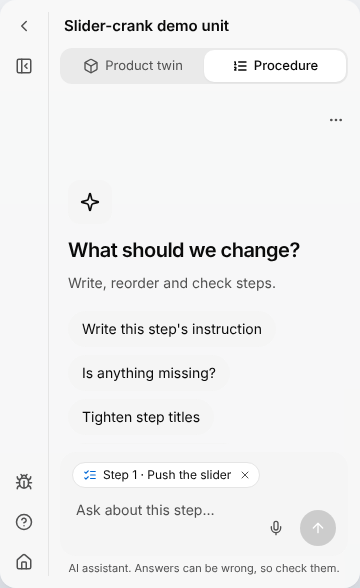
Ask the Assistant to change the procedure
Let the Assistant write, reorder or check steps, and decide which of its changes to keep.
- If the panel on the left is folded, select Expand panel in the narrow bar on the left. The Assistant is in that panel, under Product twin and Procedure.
- Select a suggestion, or enter what you want in the field and press Enter.
- If the Assistant asks a question, select one of its options or enter your own answer.
- When the Assistant proposes changes, a card in the conversation lists them, each with a selected box. Clear the box of each change you do not want.
- Select Approve all to apply all the changes, Run selected to apply the ones still selected, or Reject to apply none.
- Check the steps.
With the step Push the slider open, ask: Add a caution about fingers near the slider, and make the instruction shorter.
The applied changes are saved in the procedure. Each one has its own card in the conversation with Undo and Keep.
- What to ask. Writing or rewriting titles and instructions; adding, deleting, moving, duplicating or reordering steps; the parts of a step and how they move; tools, protective gear and safety notes; the step view; labels and arrows; and questions about the procedure or the product's files. Answers taken from a file carry references to its pages, which open the file.
- What the message is about. The chips above the field name the open step and the parts selected in the 3D view. Open a step before you ask about it.
- The card of proposed changes is titled "Review" with the number of changes. Nothing is changed in the procedure until you select one of its three buttons.
- Undo and Keep. Undo on the card of an applied change takes the change back. Undo from here also takes back the changes applied after it. Keep confirms the change: the card then reads "Kept" and has no buttons. A change you neither undo nor keep stays in the procedure. Selecting the card opens the step it changed.
- Skipping the review. The box Don't ask again in this session on the card of proposed changes makes every later change apply without asking. Turn off under the field, or a new conversation, brings the review back.
- Stopping. While the Assistant works, the send button becomes Stop assistant.
- The conversation of this Assistant is not kept: it is gone when you reload the page or select Assistant options > New conversation. The Assistant of the Documentation section is another one, and keeps its conversation: see Assistant.
Preview a procedure
Preview (the eye in the header) shows the procedure as its readers see it in the procedure viewer, with your latest changes. Nothing can be edited in the preview, and nothing is saved or published by it.
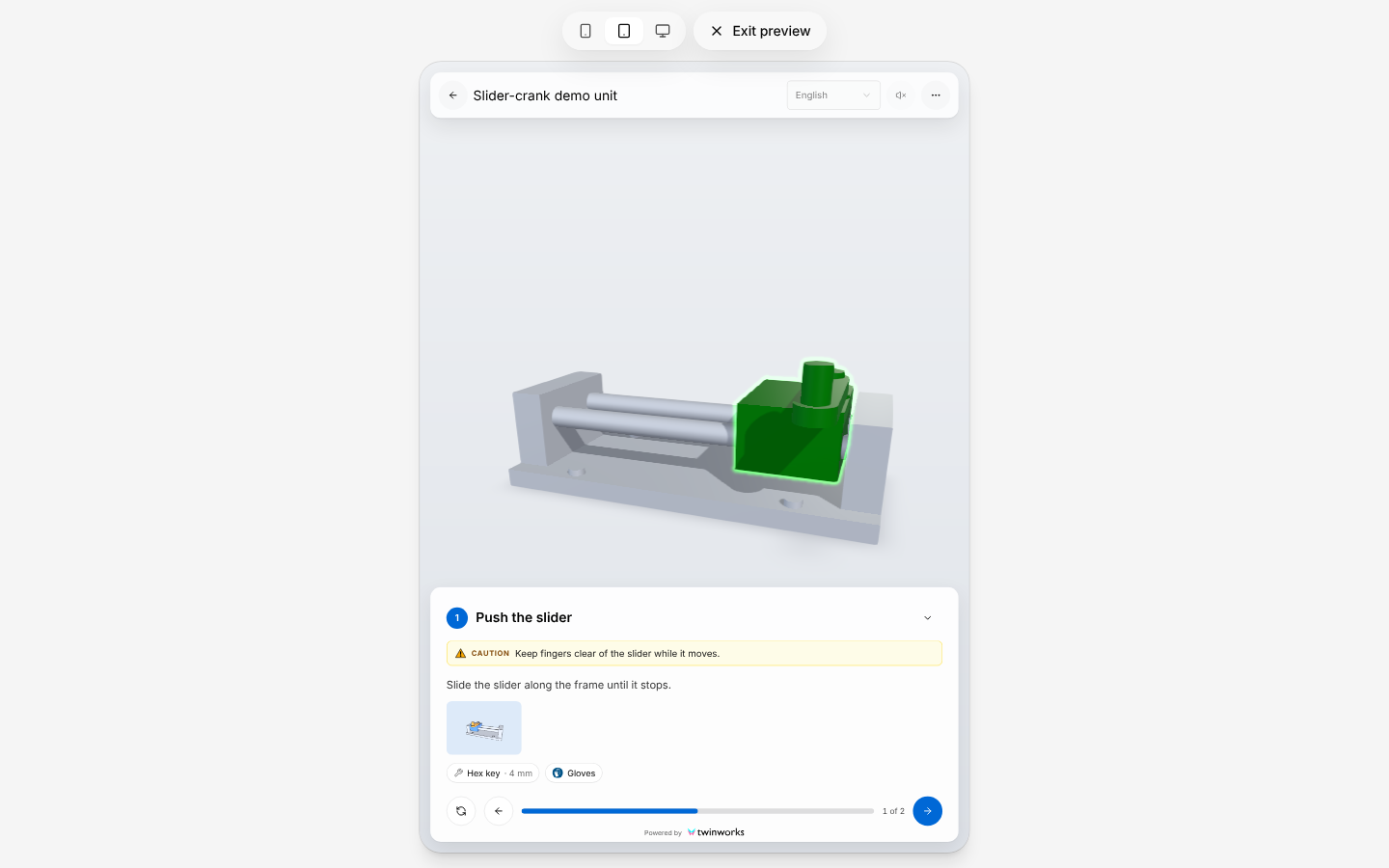
- Select Preview.
- Select Start, then the arrow to go from step to step.
- Under Screen size, select Phone, Tablet or Desktop to see the procedure on that screen.
- Select Exit preview, press Escape, or select Finish on the last step.
Publish or unpublish a procedure
Publishing makes a procedure available to its readers. A procedure can be published to either of two audiences, or to both: Public, for anyone with the link, and Team, for signed-in members of your organization only.
Publish a procedure from the editor
Choose who can open the procedure.
- In the header of the editor, select Publish.
- In Publish procedure, turn on Public, Team, or both.
- Select Publish.
For a procedure that only your own technicians should follow, turn on Team and leave Public off.
The status beside the name changes from Draft to Published, and the Share procedure dialog opens with the link.
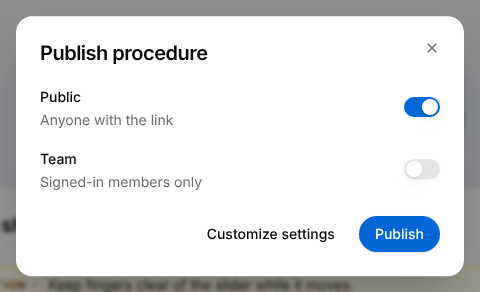
- Publish changes. Once a procedure is published, operators keep the version that was published until someone selects Publish changes in the header. The button is active while they have an older version; its tooltip then says "Changes not yet on the shop floor". The message "Published" confirms that operators now see the changes.
- Change the audiences or unpublish. Use the switches of the procedure under Content in the Publish section of the product: see Publishing. A procedure that is published to no audience is a Draft again. A reader who then opens its link or scans its QR code gets the message "This procedure is no longer published" in place of the procedure.
- Customize settings opens the Publish section of the product, where what each audience sees, the languages, the features and the branding are set for the whole product: see Publishing.
- A lock on Publish means that your plan does not include publishing.
Share a published procedure
Get the link, the QR code or the embed code
Give a published procedure to its readers.
- In the header of the editor, select Share.
- Under the title, select Public or Team to choose which link is shown. An audience the procedure is not published to cannot be selected.
- Select Copy (the two sheets) to copy the link, Download QR code to save its QR code as an image, or Embed code (the angle brackets) to get the code that shows the procedure inside a web page.
Print the QR code of the Team link and put it on the machine, so that a technician opens the procedure with a phone.
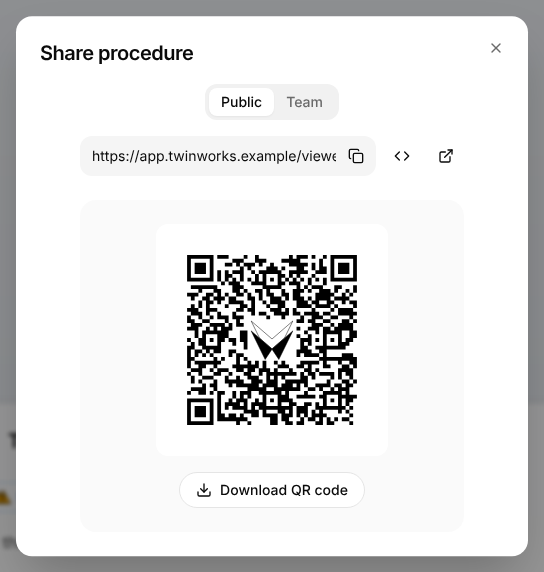
- Embed code opens a dialog of the same name with the code in a field and a Copy button. If your plan does not include embedding, the message "Plan upgrade required" appears and the dialog does not open.
- The Share procedure dialog also opens by itself after you publish.
- Get link in the menu of a row of the list copies the Public link when the procedure is published to the Public audience, otherwise the Team link.
Export a procedure
A procedure can be downloaded as a PDF or as an editable Word file, for printing or for use without a connection. The procedure does not need to be published. The file holds what is in the editor at that moment.
Export a procedure as PDF or Word
Download the procedure as a file that follows the export template of your organization.
- In the header of the editor, select Export.
- If you wish, choose a 3D view style for this file.
- Select Export as PDF or Export as Word.
- Wait for the download, or close the dialog and go on working: the download starts when the file is ready.
The message "PDF ready" or "Word file ready" appears and the browser downloads a file named after the procedure.
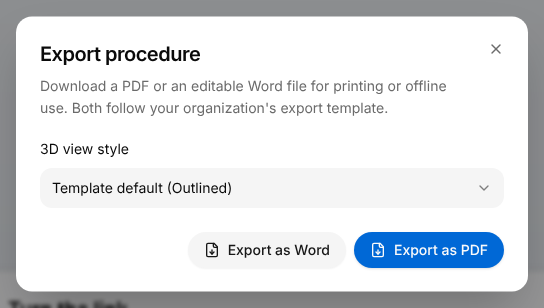
| 3D view style | How the 3D views are drawn |
|---|---|
| Template default | In the style set in the template; the name of that style is shown in parentheses |
| Realistic | Shaded views |
| Outlined | Shaded views with the edges of the parts drawn |
| Technical Drawing | Black line drawings without perspective, with the parts of the step in colour, made from the CAD file of the product. Without a CAD file the views are Outlined. The first export of a large model can take several minutes. |
The layout, the colours and the logo of the file come from the default procedure template of your organization: see Export templates. While technical drawings are being made, Finish now finishes the file sooner, with the remaining views drawn from the 3D model.
If your plan does not include exports, the dialog still opens, and the two buttons answer with the message "PDF export not available" or "Word export not available".
See where a procedure is used
A procedure can be embedded or cited in the documents of the product, and referred to by other procedures. When something uses the procedure, a link icon with a number appears beside the type in the header of the editor. Select it to open the list Used by.
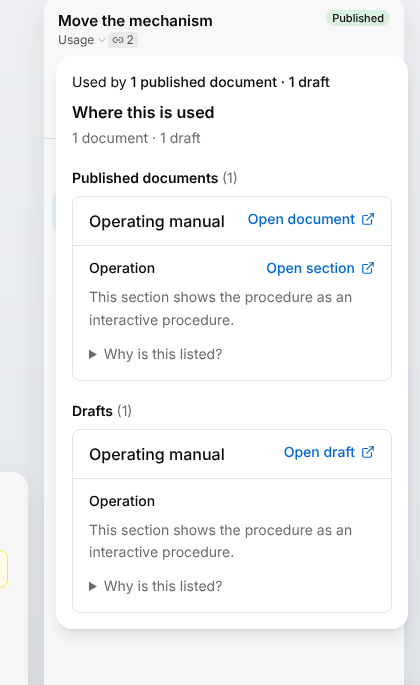
The list has the headings Procedures, Published documents and Drafts. Check this list before you change a procedure that a published document shows to its readers.
The icon is not shown when nothing uses the procedure.